3OM-1343-008_w.pdf - 第314页
6-83 AKFEDT -ID Silhouette Shape "Circle" or "Rect" can be selected as a silhouette shape of the object nozzle that will be captured when the back lighting recognition is performed. Silhouette Outer S…
6-82
AKFEDT-ID
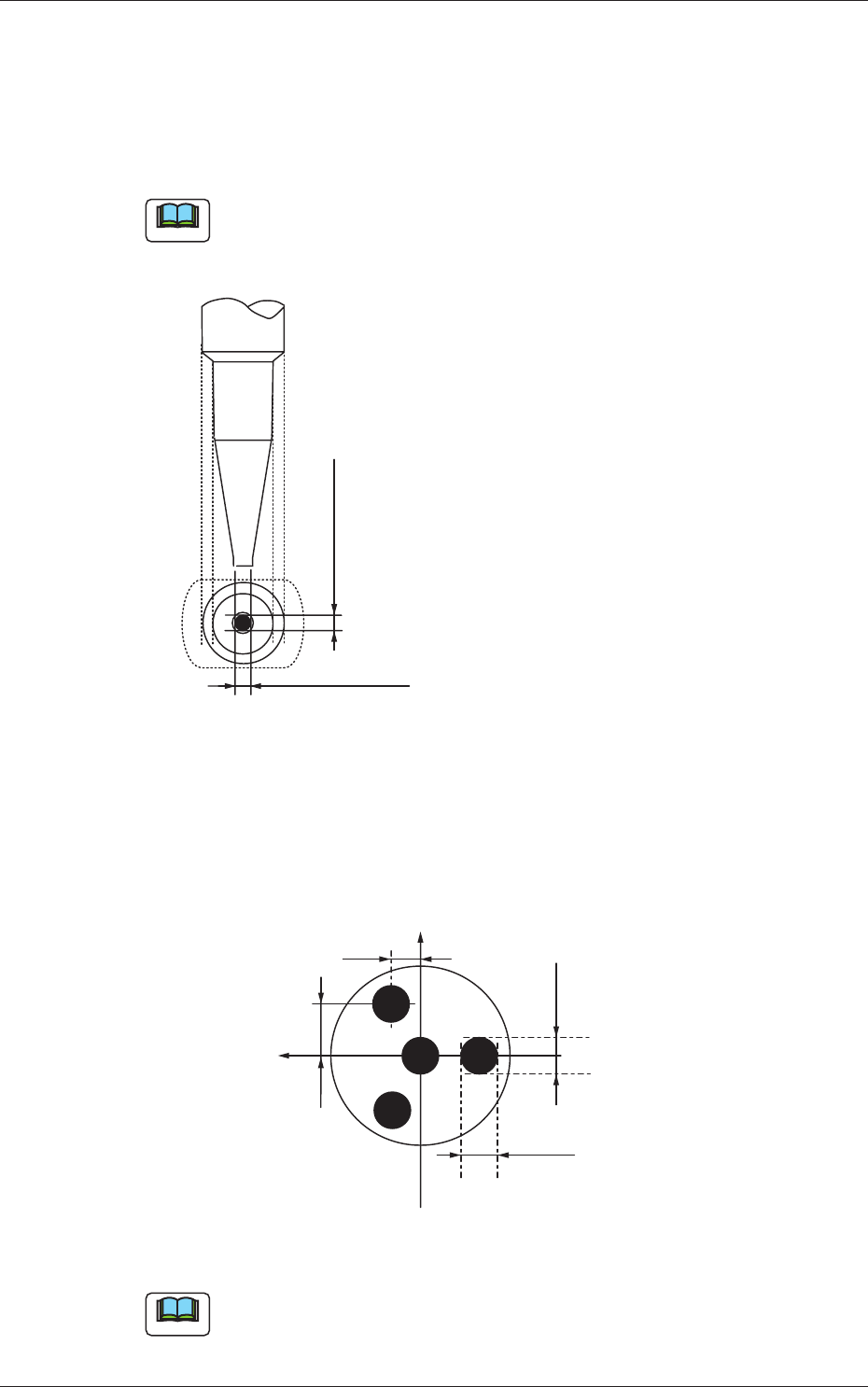
Pu Holes 1 through 4
Size X [mm], Y [mm]
Set the dimensions of the nozzle pickup holes in the text boxes.
Up to 4 pieces of pickup holes can be specifi ed.
Note
In the case of "Circle", set the same dimensions for "Size X [mm]" and
"Size Y [mm]"
In the case of "Rect", set Dimensions X and Y.
Outside Dimension X
Set the dimensions of the pickup hole.
Outside Dimension Y
Fig. 3F75
Lct X [mm], Y [mm]
Set parameters representing the locations of the pickup holes based on
the center of the nozzle ends.
Up to 4 pieces of pickup holes can be specifi ed.
+X
Size Y1
Size X1
+X2
+Y2
+Y
Fig. 3F76
Note
When no relevant hole is found, set "+0.00" in both text boxes.
0601-002
3.2 Nozzle Data
6-83
AKFEDT-ID
Silhouette Shape
"Circle" or "Rect" can be selected as a silhouette shape of the object
nozzle that will be captured when the back lighting recognition is
performed.
Silhouette Outer Sizes X (Horizontal) [mm] and Y (Vertical) [mm]
Set the outer sizes of the object nozzle ends (silhouettes) that will be
captured.
Note
In the case of "Circle", set the same dimensions for "X" and "Y".
In the case of "Rect", set the dimensions X and Y.
Nozzle Classifi cation
One of the following options can be selected as a classifi ed nozzle type.
High Speed
Odd-shape
Multi
Visible fl ag
"Visible" or "Unvisible" can be selected to determine whether or not
this nozzle should be displayed.
Visible :
This displays the selected nozzle in the "Nozzle Type"
list.
The "Visible"-selected nozzle is expressed in yellow in
the nozzle data.
Unvisible :
This does not display the selected nozzle in the "Nozzle
Type" list.
The "Unvisible"-selected nozzle is expressed in white in
the nozzle data.
0601-002
3.2 Nozzle Data
6-84
AKFEDT-ID
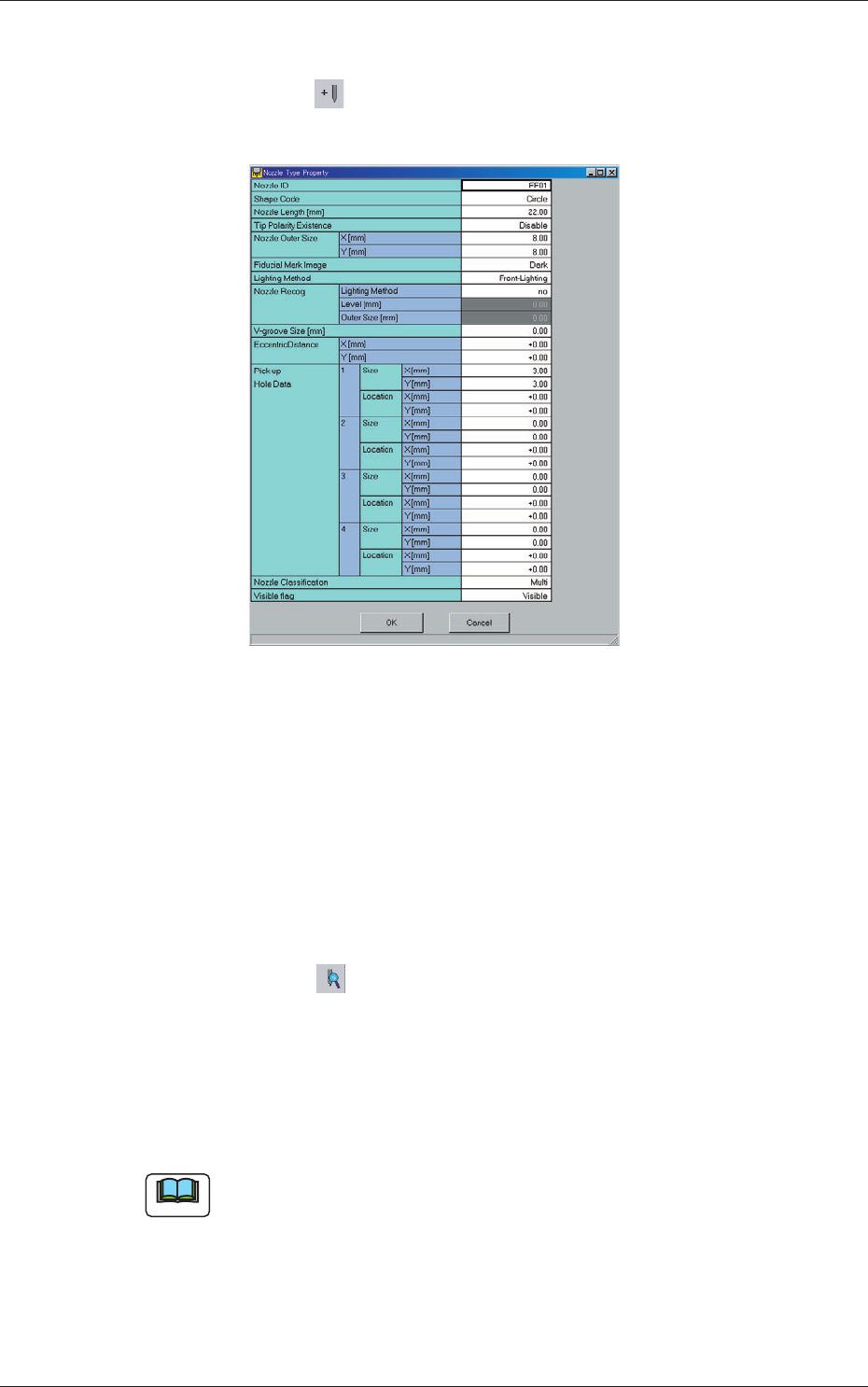
3.2.1 Addition of New Nozzle Type
(1) Press the icon ( ).
The "Nozzle Type Property" window opens.
Fig. 3F77
(2) Enter parameters (nozzle data) in the text boxes.
(3) Press the [OK] button.
The nozzle data is added as new one.
3.2.2 How to change a nozzle type
(1) Select the nozzle data to be changed.
(2) Press the icon ( ).
The "Nozzle Type Property" window opens.
(3) Change the data.
(4) Press the [OK] button.
The nozzle data is changed.
Note
When the [Cancel] button is pressed in the "Nozzle Type Property"
window, the window closes without newly adding or modifying the data.
0601-002
3.2 Nozzle Data