3OM-1343-008_w.pdf - 第318页
6-87 AKFEDT -ID [1] Screen Saver When the touch screen is kept intact for the speci fi ed period of time, the screen saver mode starts working to prevent a static background from being burned into the screen phosphors. Pr…
6-86
AKFEDT-ID
0607-003
4. Machine Setup
The screen saver function can be set, and the unit of length can be specifi ed,
and the data for the current production can edited.
When the [MACH SETUP] button on the "MACH SET" menu bar is
pressed, the "MACH SETUP" window opens.
Note
When the [MACH SET] button on the main menu bar is pressed, the
"MACH SETUP" window appears as an initial one.
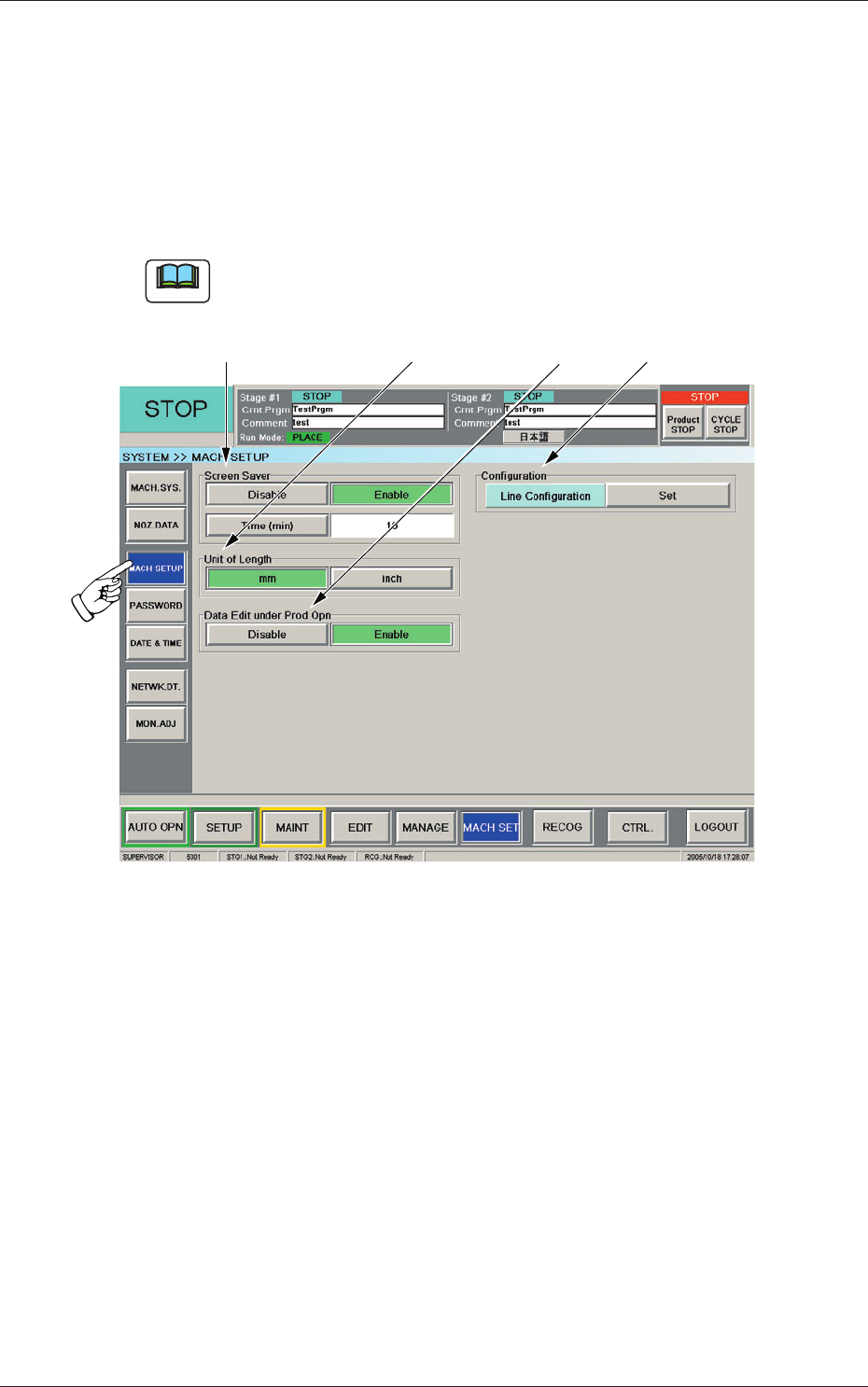
[3][2][1]
[4]
Fig. 3F79 "MACH SETUP" Window
4. Machine Setup

6-87
AKFEDT-ID
[1] Screen Saver
When the touch screen is kept intact for the specifi ed period of time, the
screen saver mode starts working to prevent a static background from
being burned into the screen phosphors.
Press the [Enable] button to validate the screen saver mode. The button
turns green.
Press the [Disable] button to cancel the screen saver mode.
When the [Enable] button for the screen saver function mode is
selected, and the [Time (min)] button is pressed, the "Time (min)" entry
window opens.
This window enables you to specify the number of minutes (5 to
60 minutes) to keep the screen idle before the screen saver mode is
activated. After the specifi cation, press the [Set] button.
[2] Unit of Length
Press either the [inch] or the [mm] button to select the US customary
system (inches) or the metric system for the dimensions to be displayed
on the screen.
The selected button turns green, indicating that it is selected.
[3] Data Edit under Prod Opn
To edit the data during the automatic operation, press the [Enable]
button.
Press the [Disable] button when it is not necessary to edit the data
during the automatic operation.
[4] [Set] Button (entitled "Line Confi guration")
When the machines on the production line are registered, it becomes
possible to check the component data for each machine in the "Local/
Line" window. (Operation Sequence: [AUTO OPN] Button on Main
Menu Bar
→
[COMP RELD] Button on Submenu Bar
→
[Local/Line]
Button in "COMP. RELD." Window
→
"Local/Line" Window)
Up to fi ve machines can be registered.
0601-002
4. Machine Setup
6-88
AKFEDT-ID
5. Password Setting
When the [PASSWORD] button on the "MACH SET" menu bar is pressed,
the "PASSWORD SETTING" window appears.
5.1 Password Setting
This window enables the operator to set a password according to the given
authority.
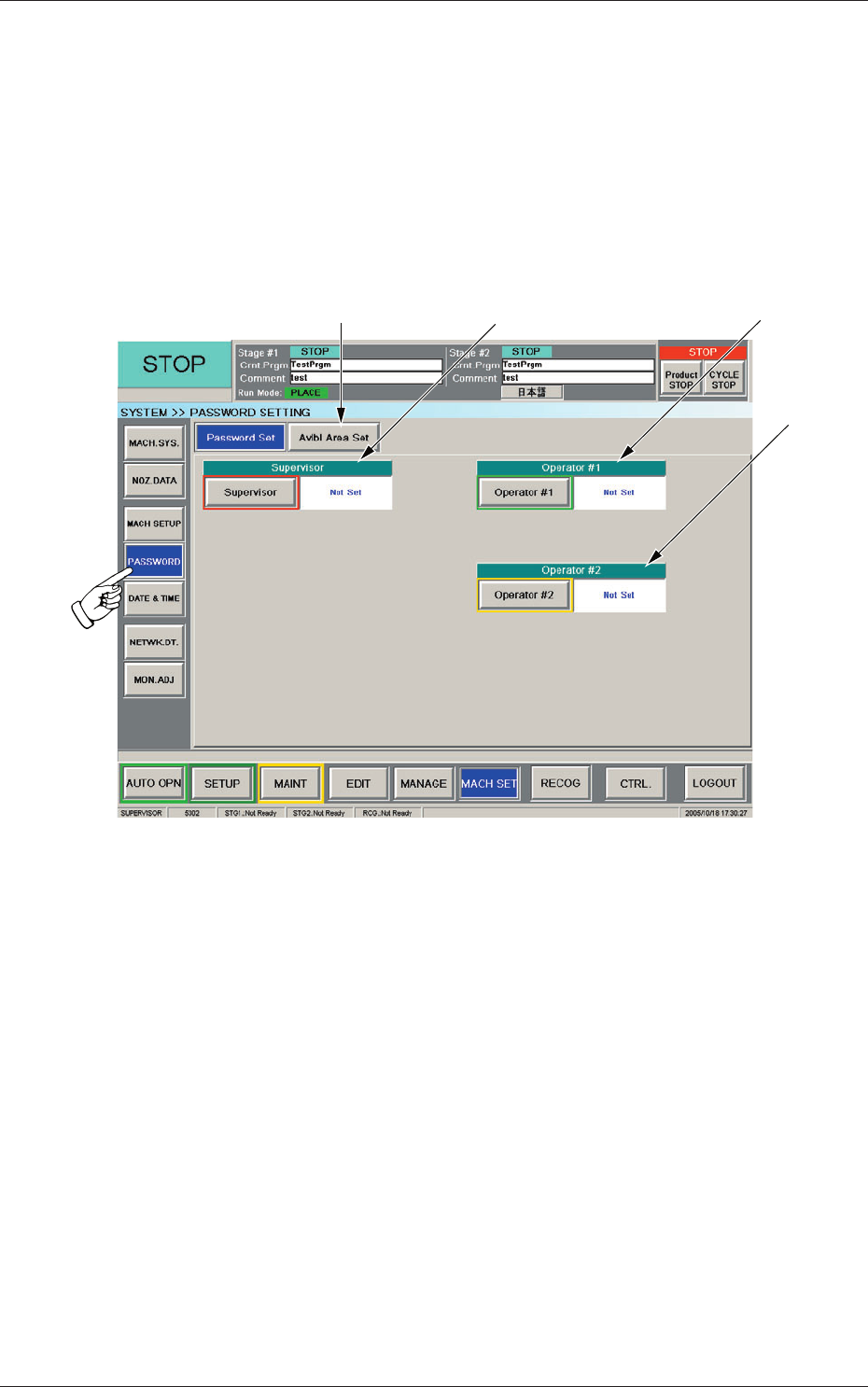
[3][2]
[4]
[1]
Fig. 3F80 "PASSWORD SETTING" Window
[1] [Avlbl Area Set] Button
When pressed, this button opens the "Avlbl Area Set" window, enabling
you to set the scope of authority to be given.
[2] Supervisor
A password can be set in this group box for the user who has the scope
of authority as "Supervisor".
[3] Operator #1
A password can be set in this group box for the user who has the scope
of authority as "Operator #1".
[4] Operator #2
A password can be set in this group box for the user who has the scope
of authority as "Operator #2".
0607-003
5. Password Setting