3OM-1343-008_w.pdf - 第82页
2-9 AKFEDT -ID Selection Buttons "Data Item Name" Box Fig. 3B14 " Pattern Program " Edit Window (Example of Item Selection and Parameter Entry) [Esc] Key : When this is selected, the data entry is int…
2-8
AKFEDT-ID
2.3 Data Entry with Touch Keypad for Data Editing
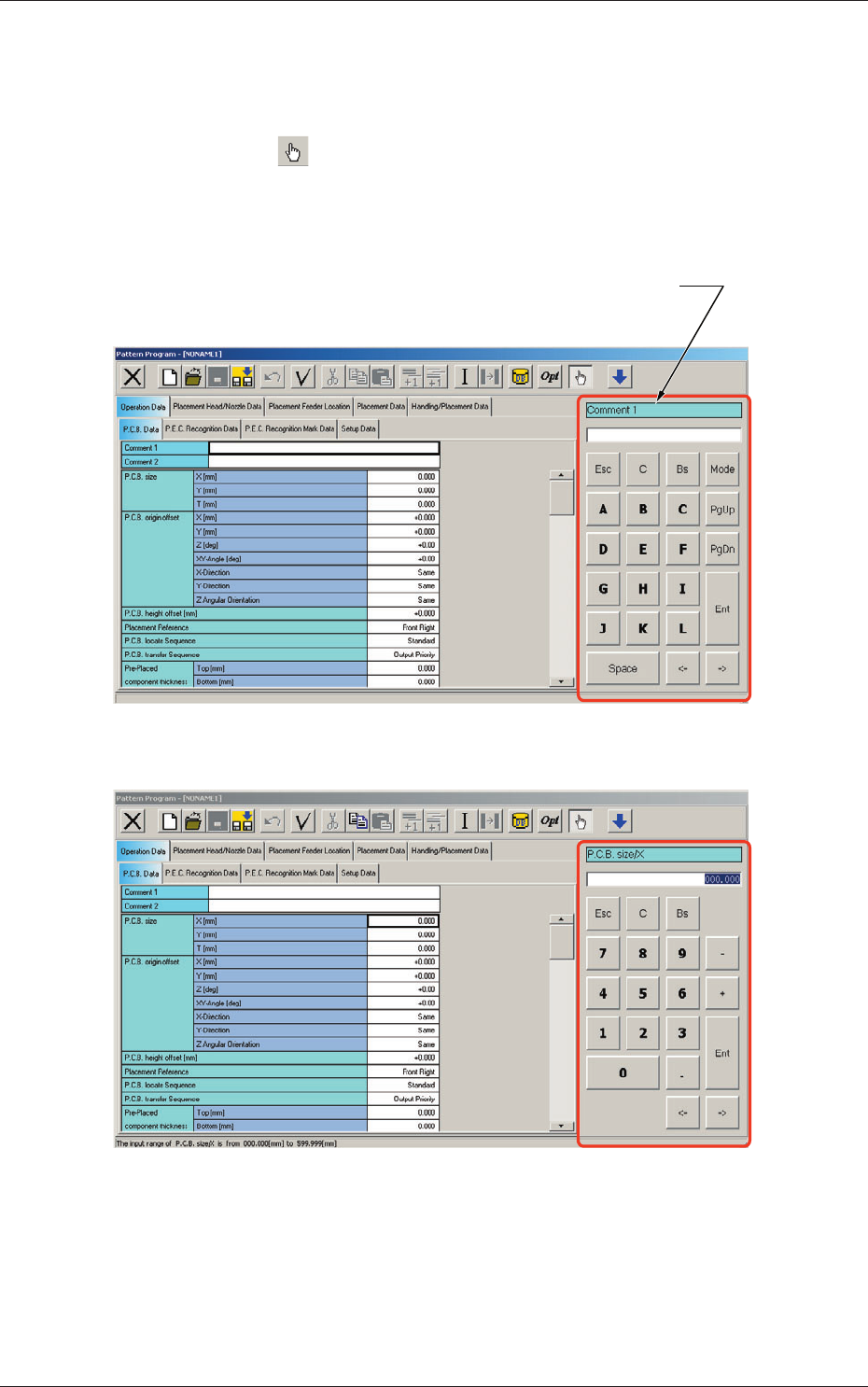
Data (parameters) can also be entered with a touch keypad.
(1) Press the
"
"
icon to open the touch keypad.
(2) Select the data item to be entered on the touch screen.
The selected data item appears on the touch keypad.
"Data Item Name" Box
Fig. 3B12
"
Pattern Program
"
Edit Window (Example of Text Data Editing)
Fig. 3B13
"
Pattern Program
"
Edit Window (Example of Numerical Value Entry)
0601-002
2.3 Data Entry with Touch Keypad for Data Editing
2-9
AKFEDT-ID
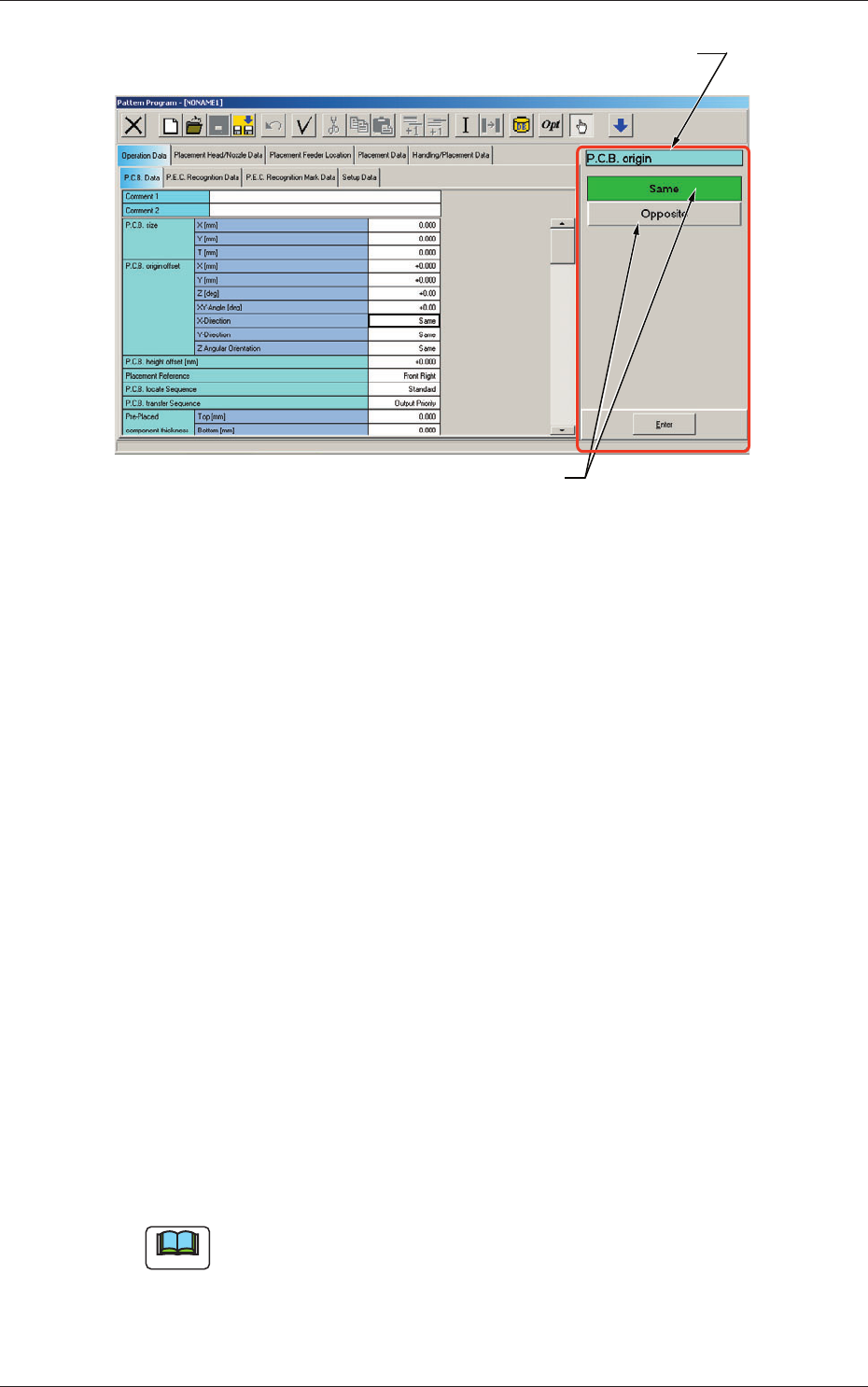
Selection Buttons
"Data Item Name" Box
Fig. 3B14
"
Pattern Program
"
Edit Window
(Example of Item Selection and Parameter Entry)
[Esc] Key :
When this is selected, the data entry is
interrupted.
[C] Key :
When this is selected, the data in the
"
Data Entry
"
box is cleared.
[BS] Key :
When pressed, this erases characters to the left of
the cursor in the
"
Data Entry
"
box.
[Mode] Key :
When pressed, this changes the input mode for
alphanumeric characters and symbols.
[PgUp] Key :
When pressed, this moves to the next page of the
data entry panel.
[PgDn] Key :
When pressed, this moves to the previous page of
the data entry panel.
[Space] Key :
When pressed, this inserts a space.
[
←
] and [
→
] Keys :
When either one of these keys is pressed, the
cursor moves in the selected arrow direction.
[Ent] Key or :
When this is pressed, the parameter in the
[Enter] Key
"
Data Entry
"
box is defi ned in the corresponding
text box.
(3) Edit the data through keyboard navigation.
Note
When the touch keypad is provided with some selection buttons, select the
desired option.
(4) Press the [Ent] or the [Enter] key to determine the selection.
0601-002
2.3 Data Entry with Touch Keypad for Data Editing

2-10
AKFEDT-ID
0601-002