3OM-1343-008_w.pdf - 第80页
2-7 AKFEDT -ID Note When there are may options, a scrollbar appears beside the list. T o make more options visible, scroll down the list and select the desired option. Fig. 3B10 T o enter a comment through keyboard navig…
2-6
AKFEDT-ID
2.2 How to enter a string of characters
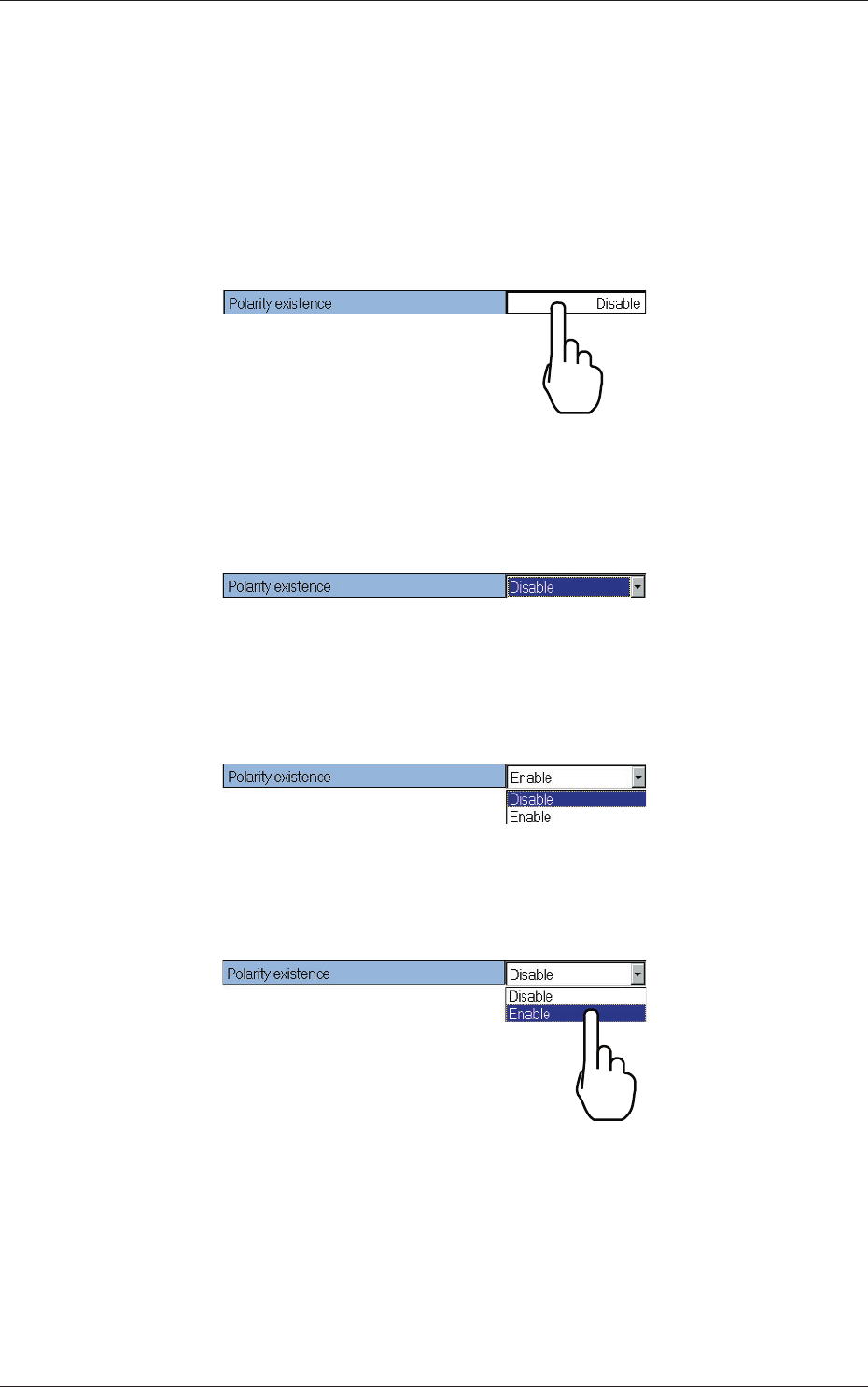
A string of characters can be entered by selecting an item from the drop-
down list, through keyboard navigation.
Selection of Option in Drop-Down List
(1) To enter a string of characters, press the text box quickly twice. Or,
double-click the text box with a track ball.
Fig. 3B6
A text box is changed to a combo box that has a down arrow on the
right side.
Fig. 3B7
(2) Press the down arrow. Or, click the downward arrow with a track ball.
The drop-down list box opens.
Fig. 3B8
(3) When the desired option in the list is pressed, it is set in the text box.
Fig. 3B9
0601-002
2.2 How to enter a string of characters
2-7
AKFEDT-ID
Note
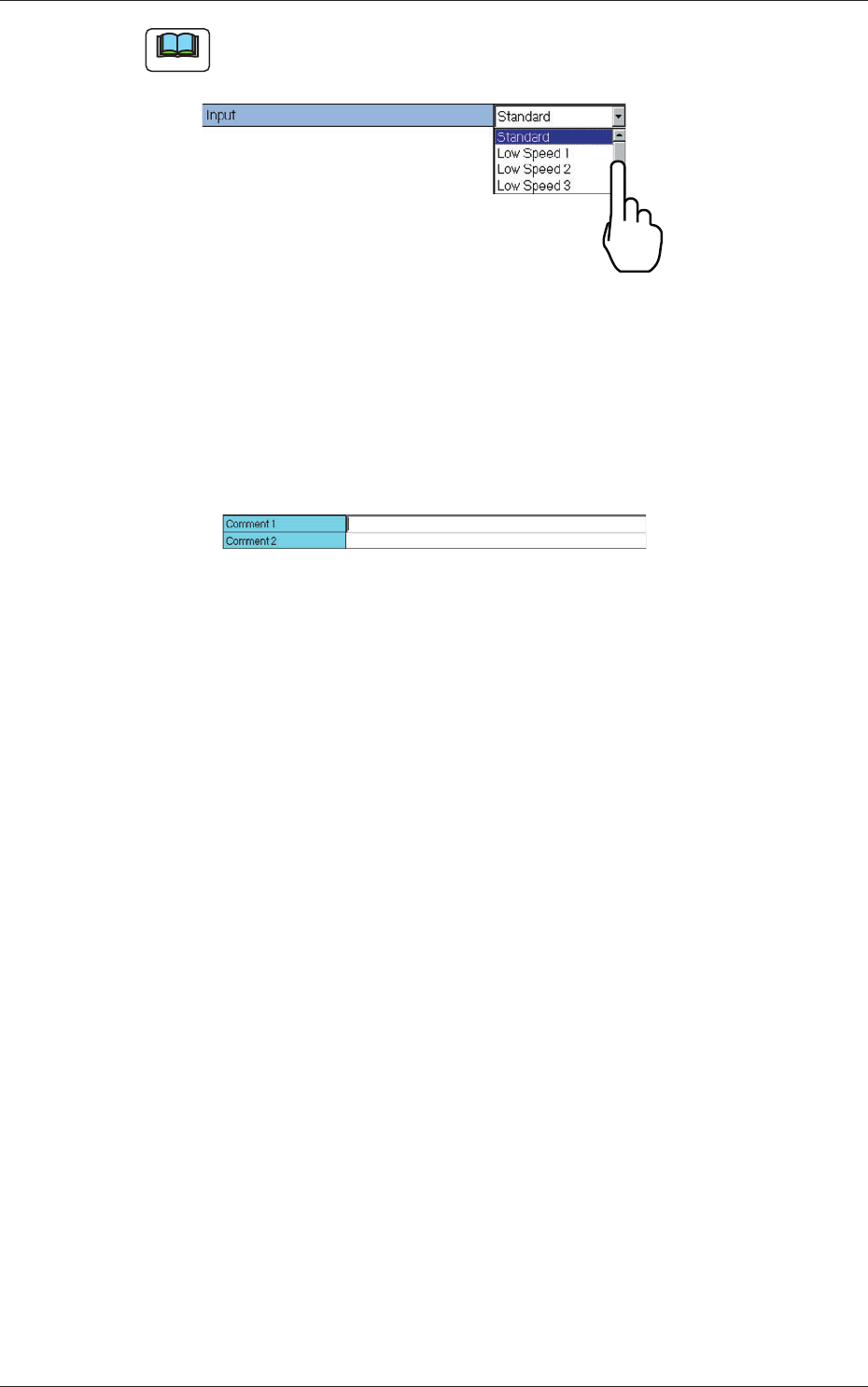
When there are may options, a scrollbar appears beside the list. To make
more options visible, scroll down the list and select the desired option.
Fig. 3B10
To enter a comment through keyboard navigation
(1) Press the
"
Comment
"
text box quickly twice.
Or, double-click the text box with a track ball. The text box is set ready
for data entry.
Fig. 3B11
(2) When data is entered through keyboard navigation and the [Enter] key
is pressed, the data is set in the text box.
0601-002
2.2 How to enter a string of characters
2-8
AKFEDT-ID
2.3 Data Entry with Touch Keypad for Data Editing
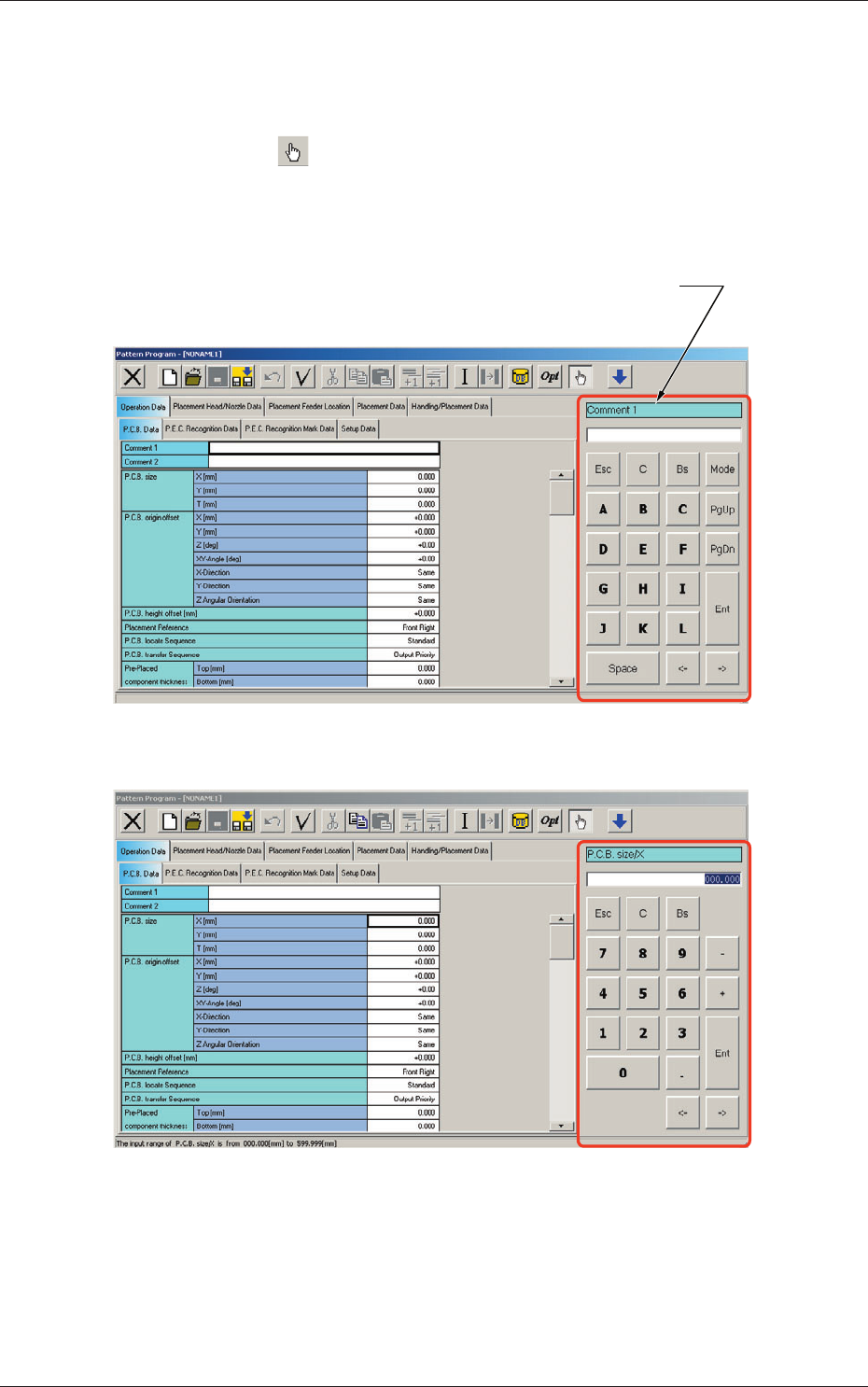
Data (parameters) can also be entered with a touch keypad.
(1) Press the
"
"
icon to open the touch keypad.
(2) Select the data item to be entered on the touch screen.
The selected data item appears on the touch keypad.
"Data Item Name" Box
Fig. 3B12
"
Pattern Program
"
Edit Window (Example of Text Data Editing)
Fig. 3B13
"
Pattern Program
"
Edit Window (Example of Numerical Value Entry)
0601-002
2.3 Data Entry with Touch Keypad for Data Editing