3OM-1343-008_w.pdf - 第316页
6-85 AKFEDT -ID 3.2.3 How to delete a nozzle type (1) Select the nozzle data to be deleted. (2) Press the icon ( ). The following "Con fi rmation" dialog box opens. Fig. 3F78 (3) When the [YES] button is pressed…
6-84
AKFEDT-ID
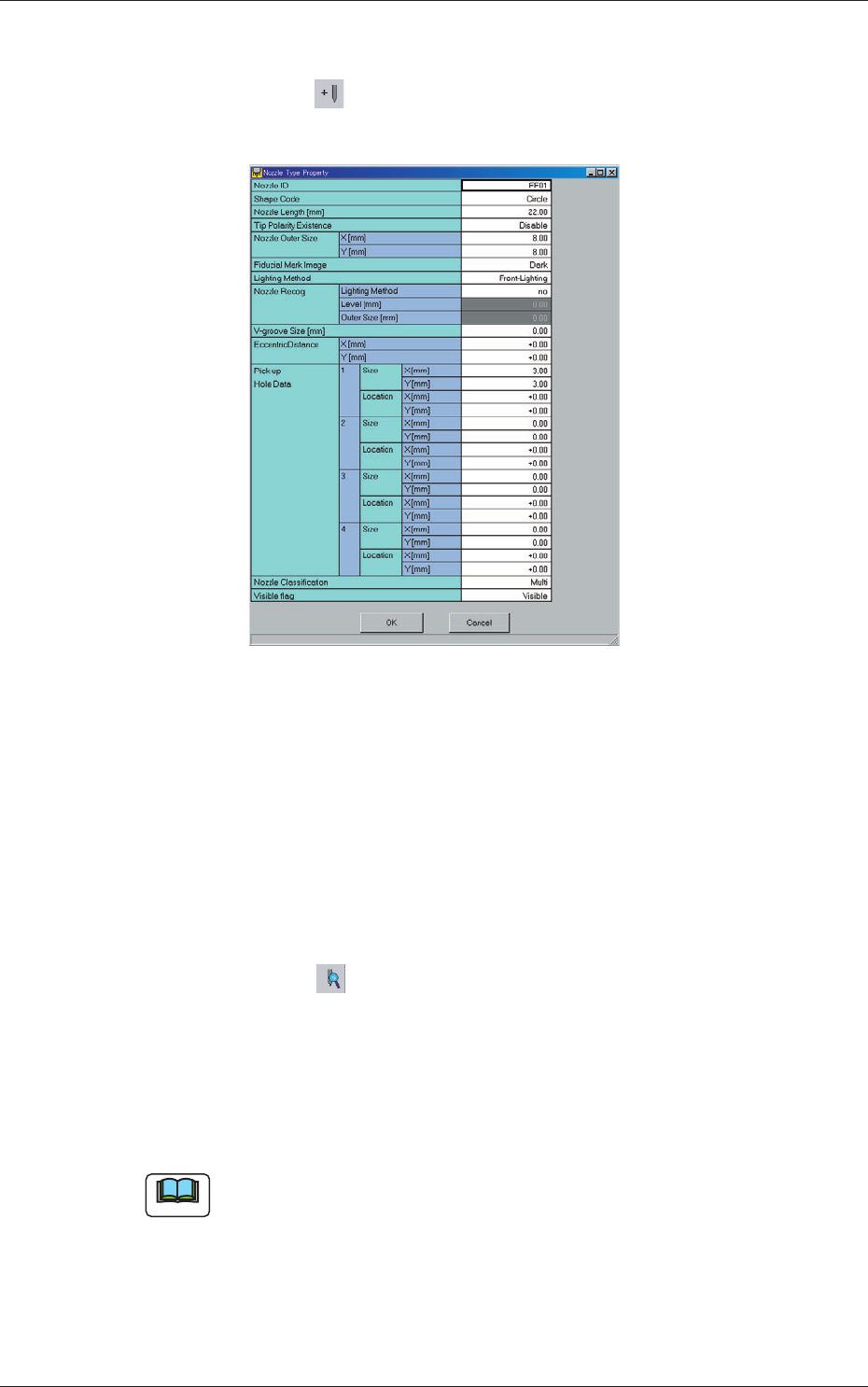
3.2.1 Addition of New Nozzle Type
(1) Press the icon ( ).
The "Nozzle Type Property" window opens.
Fig. 3F77
(2) Enter parameters (nozzle data) in the text boxes.
(3) Press the [OK] button.
The nozzle data is added as new one.
3.2.2 How to change a nozzle type
(1) Select the nozzle data to be changed.
(2) Press the icon ( ).
The "Nozzle Type Property" window opens.
(3) Change the data.
(4) Press the [OK] button.
The nozzle data is changed.
Note
When the [Cancel] button is pressed in the "Nozzle Type Property"
window, the window closes without newly adding or modifying the data.
0601-002
3.2 Nozzle Data
6-85
AKFEDT-ID
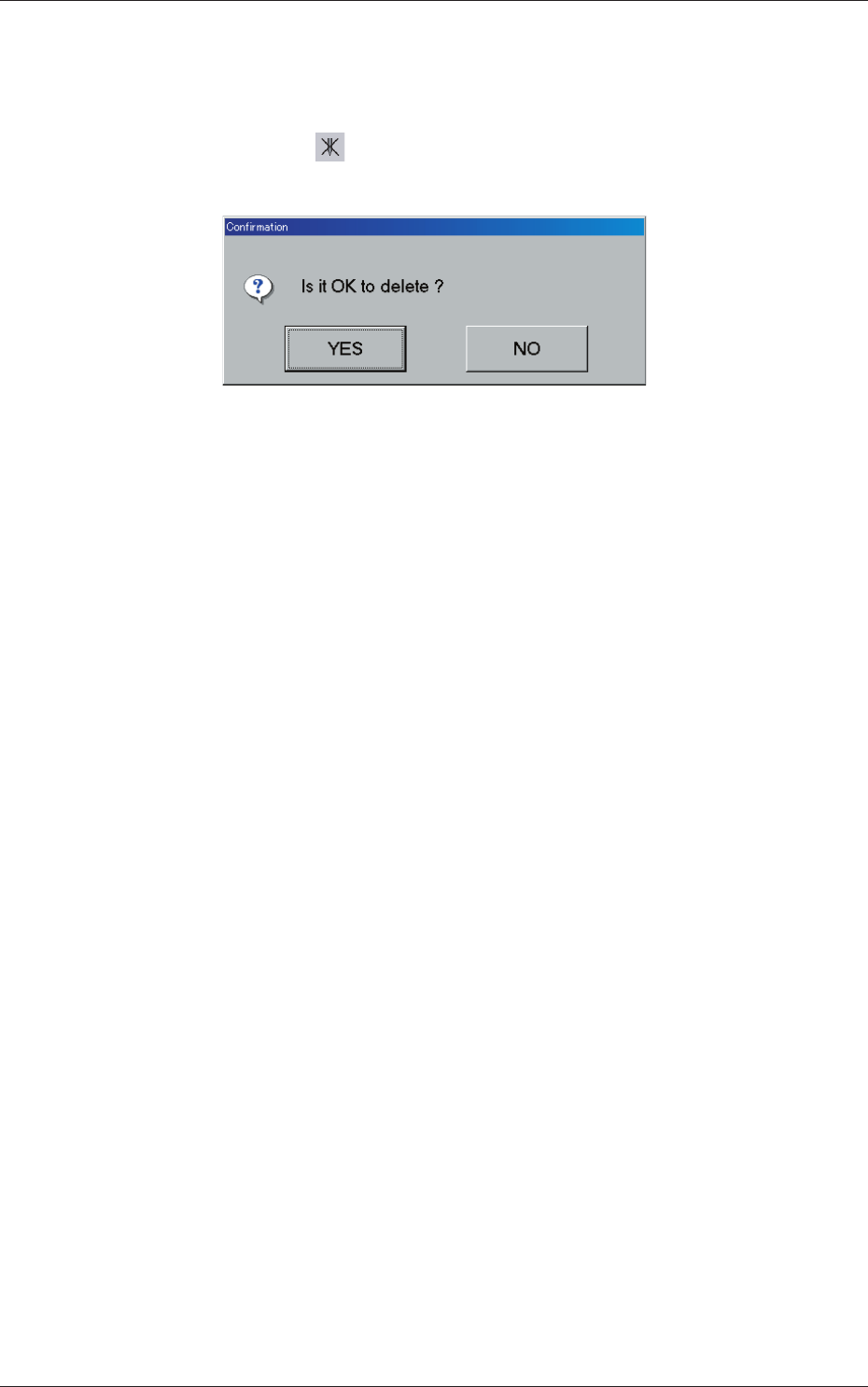
3.2.3 How to delete a nozzle type
(1) Select the nozzle data to be deleted.
(2) Press the icon ( ).
The following "Confi rmation" dialog box opens.
Fig. 3F78
(3) When the [YES] button is pressed, the selected nozzle data is deleted.
When the [NO] button is pressed, the deletion of the selected nozzle
data is canceled.
0601-002
3.2 Nozzle Data
6-86
AKFEDT-ID
0607-003
4. Machine Setup
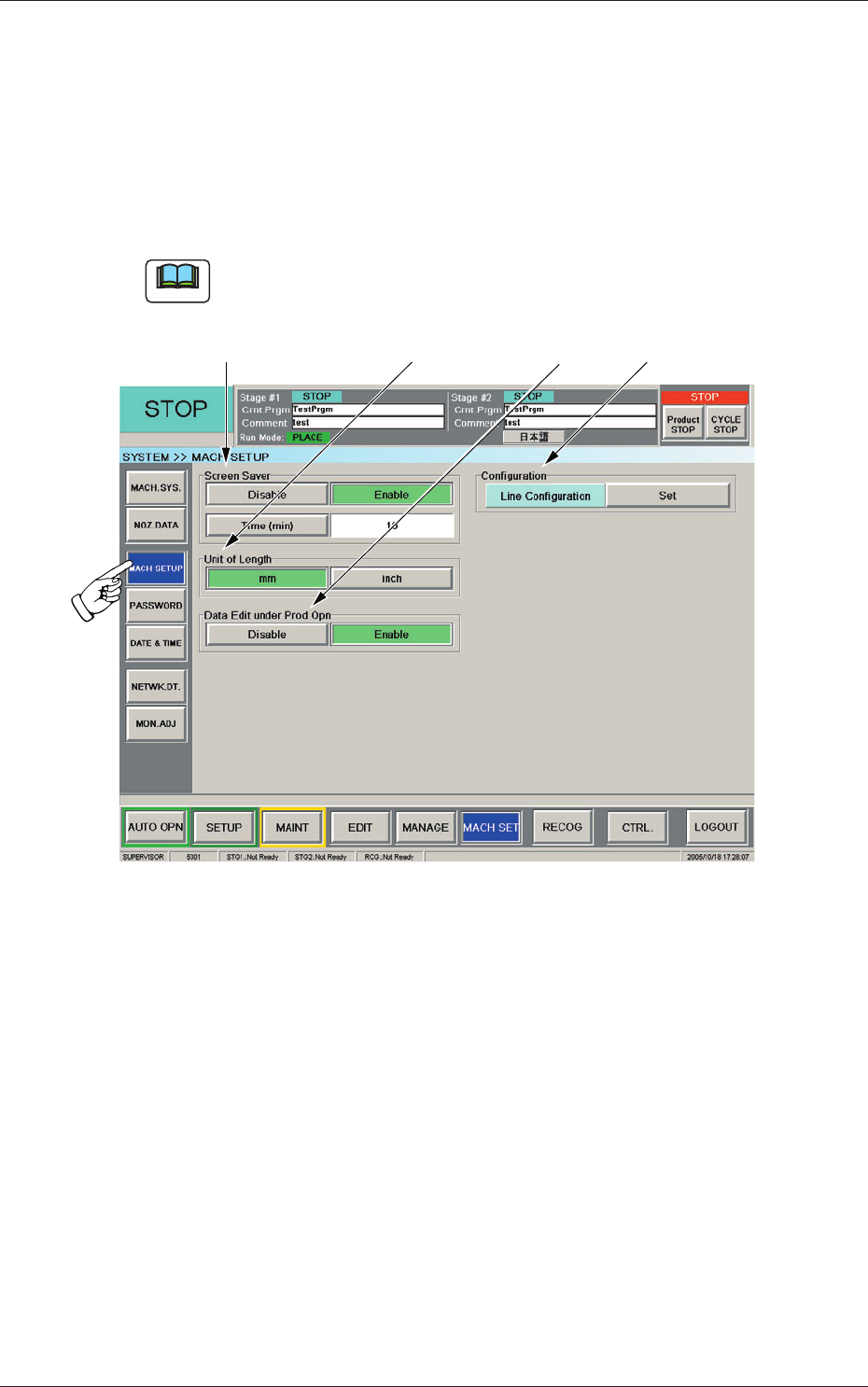
The screen saver function can be set, and the unit of length can be specifi ed,
and the data for the current production can edited.
When the [MACH SETUP] button on the "MACH SET" menu bar is
pressed, the "MACH SETUP" window opens.
Note
When the [MACH SET] button on the main menu bar is pressed, the
"MACH SETUP" window appears as an initial one.
[3][2][1]
[4]
Fig. 3F79 "MACH SETUP" Window
4. Machine Setup