00198374-02_UG_OSC-Paket_R18-2_DE_EN.pdf - 第62页
4 Working with the OSC Features 4.1 Placement of Snap-In Components (from R16-2) 62 Bedienungsanleitung OSC Package User Guide OSC-Paket 11/2018 After the first board has been completely produced, it will be transferred …
4 Working with the OSC Features
4.1 Placement of Snap-In Components (from R16-2)
Bedienungsanleitung OSC Package User Guide OSC-Paket 11/2018 61
4 Working with the OSC Features
This chapter describes how to work with the single OSC features. The section headings display
from which release the respective function is supported.
► Make use of the information provided in the Online Help files for SIPLACE Pro and the station
software. These files contain additional, detailed information about the OSC features.
4.1 Placement of Snap-In Components (from R16-2)
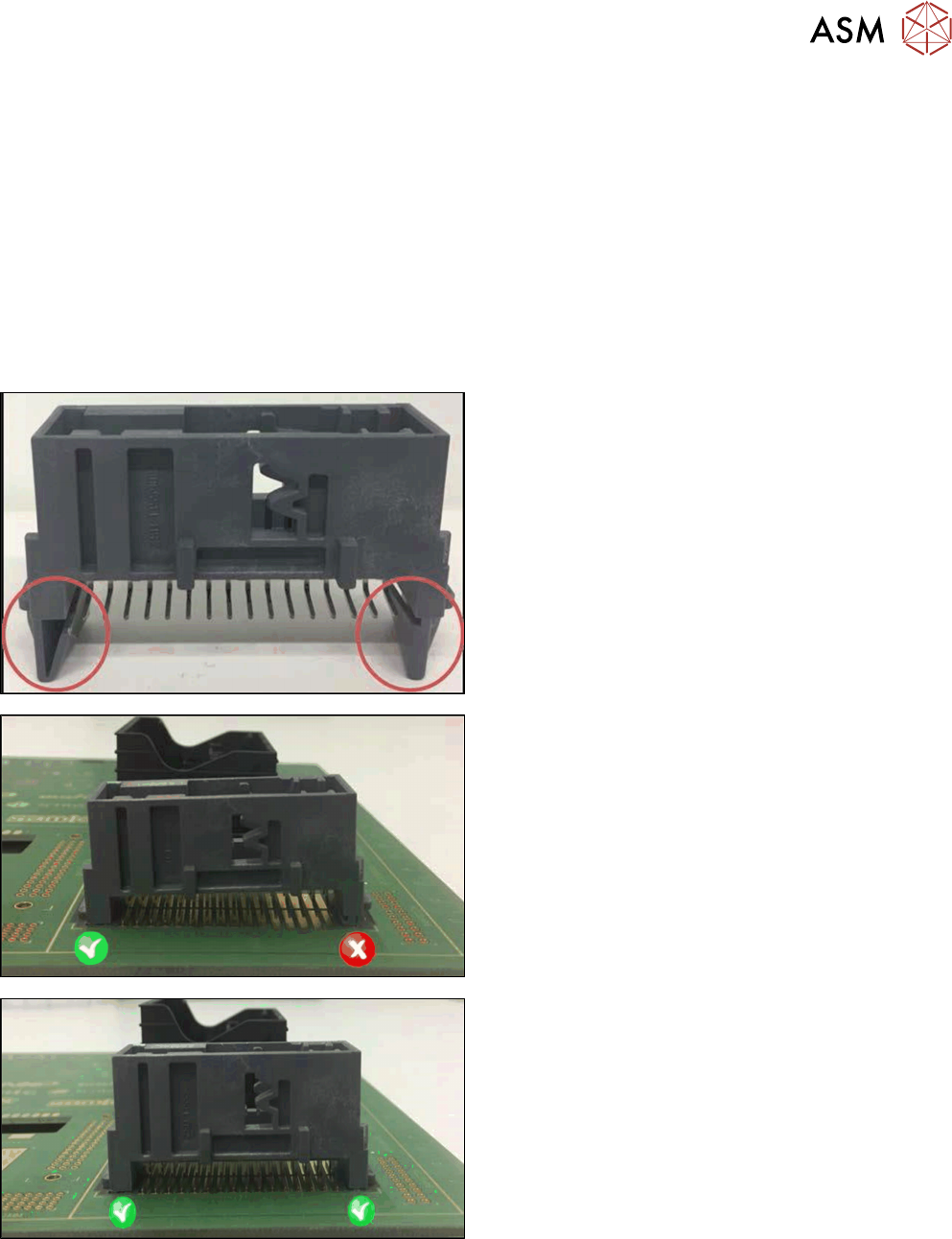
When placing snap-in components, it must be ensured that the components lock correctly into the
board. The system can verify this by an improved method.
Example
Snap-in component
Snap-in component – not placed correctly
Snap-in component – placed correctly
The actual Z-axis position of every snap-in placement will be compared with its corresponding
height reference value during the verification. These values must match each other.
The snap-in placement process has to be enabled for the component shape in SIPLACE Pro. Addi-
tionally, the snap-in threshold that shall be used for comparing the two values has to be specified.
4 Working with the OSC Features
4.1 Placement of Snap-In Components (from R16-2)
62 Bedienungsanleitung OSC Package User Guide OSC-Paket 11/2018
After the first board has been completely produced, it will be transferred to the output section or the
configured inspection station and marked for manual inspection. The operator has to inspect every
snap-in placement position and confirm whether the placement is correct or not. If correct, the cor-
responding Z-axis position will be stored as reference position and used as placement position for
all subsequent boards. If not correct, the measured height will be ignored and the operator must
confirm it again for the next board. The snap-in check is active now. If the Z-axis position deviates
more than the snap-in threshold value from the reference position in a subsequent placement, an
error is reported.
The height reference values are not uploaded to SIPLACE Pro. Thus, when the job is changed at
the placement machine or the machine is shut down, the height reference values have to be taught
again.
NOTICE
Using SIPLACE Smart Pin Support
For reliable snap-in detection it is recommended to set support pins close to the snap-in
placement positions. Detailed information on Smart Pin Support can be found in the
SIPLACE Smart Pin Support Operation and Configuration User Manual, item no.
[00197001-xx].

4 Working with the OSC Features
4.1 Placement of Snap-In Components (from R16-2)
Bedienungsanleitung OSC Package User Guide OSC-Paket 11/2018 63
4.1.1 Procedure
The following overview lists the single work steps that have to be performed in the specified order
to place snap-in components.
Placement of Snap-In Components
Step Action SIPLACE program
1) Enabling OSC package SIPLACE Pro
2) Selecting the snap-in placement process for the component
shape
SIPLACE Pro
3) Enabling the snap-in detection SIPLACE Pro
4) Setting Z-threshold (Default: 0.500 mm) SIPLACE Pro
5) If necessary, configuring the inspection station (Default:
Output section)
Station Software
6) Verifying and confirming all placement positions at the inspec-
tion station
Station Software