00198374-02_UG_OSC-Paket_R18-2_DE_EN.pdf - 第87页
4 Working with the OSC Features 4.6 Placement of Components with Centering Pins – PininPaste Height Check (from R18-2) Bedienungsanleitung OSC Package User Guide OSC-Paket 11/2018 87 4.6 Placement of Components with Ce…
4 Working with the OSC Features
4.5 Finding Best Acceleration (from R16-2)
86 Bedienungsanleitung OSC Package User Guide OSC-Paket 11/2018
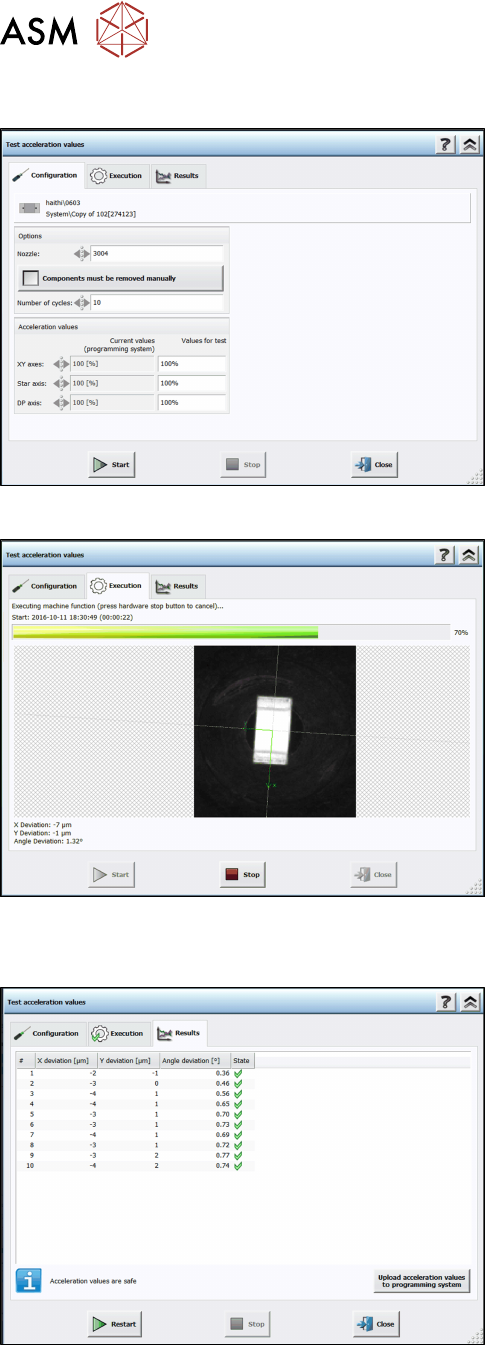
Step 6: Station software
► Set the recommended acceleration values from
the teach function.
► Click on Start.
The test is automatically performed and the Execution test dialog displayed.
The results are displayed in the Results test dialog.
Step 7: Station software
► Check the results.
► Click on Upload acceleration values to program-
ming system.
The upload to SIPLACE Pro is not available until the recommended values have been tested.

4 Working with the OSC Features
4.6 Placement of Components with Centering Pins – PininPaste Height Check (from R18-2)
Bedienungsanleitung OSC Package User Guide OSC-Paket 11/2018 87
4.6 Placement of Components with Centering Pins –
PininPaste Height Check (from R18-2)
When placing components with centering pins, it must be ensured that the centering pins fit into the
corresponding holes on the board. The same procedure is used for the verification as for the place-
ment of snap-in components, but with less placement force.

4 Working with the OSC Features
4.6 Placement of Components with Centering Pins – PininPaste Height Check (from R18-2)
88 Bedienungsanleitung OSC Package User Guide OSC-Paket 11/2018
4.6.1 Procedure
The following overview lists the single work steps that have to be performed in the specified order
to place components with centering pins (Pin in Paste height check).
Placement of components with centering pins (Pin in Paste height check)
Step Action SIPLACE program
1) Enabling OSC package SIPLACE Pro
2) Selecting the Standard placement process for the component
shape
SIPLACE Pro
3) Enabling Pin in Paste height check SIPLACE Pro
4) Setting Z-threshold (Default: 0.500 mm) SIPLACE Pro
5) If necessary, configuring the inspection station (Default:
Output section)
Station Software
6) Verifying and confirming all placement positions at the inspec-
tion station
Station Software