00198374-02_UG_OSC-Paket_R18-2_DE_EN.pdf - 第78页
4 Working with the OSC Features 4.3 Customer-specific Pattern Features (from R16-2) 78 Bedienungsanleitung OSC Package User Guide OSC-Paket 11/2018 Step 4: SIPLACE Vision ► Align the pattern feature for the correct posit…
4 Working with the OSC Features
4.3 Customer-specific Pattern Features (from R16-2)
Bedienungsanleitung OSC Package User Guide OSC-Paket 11/2018 77
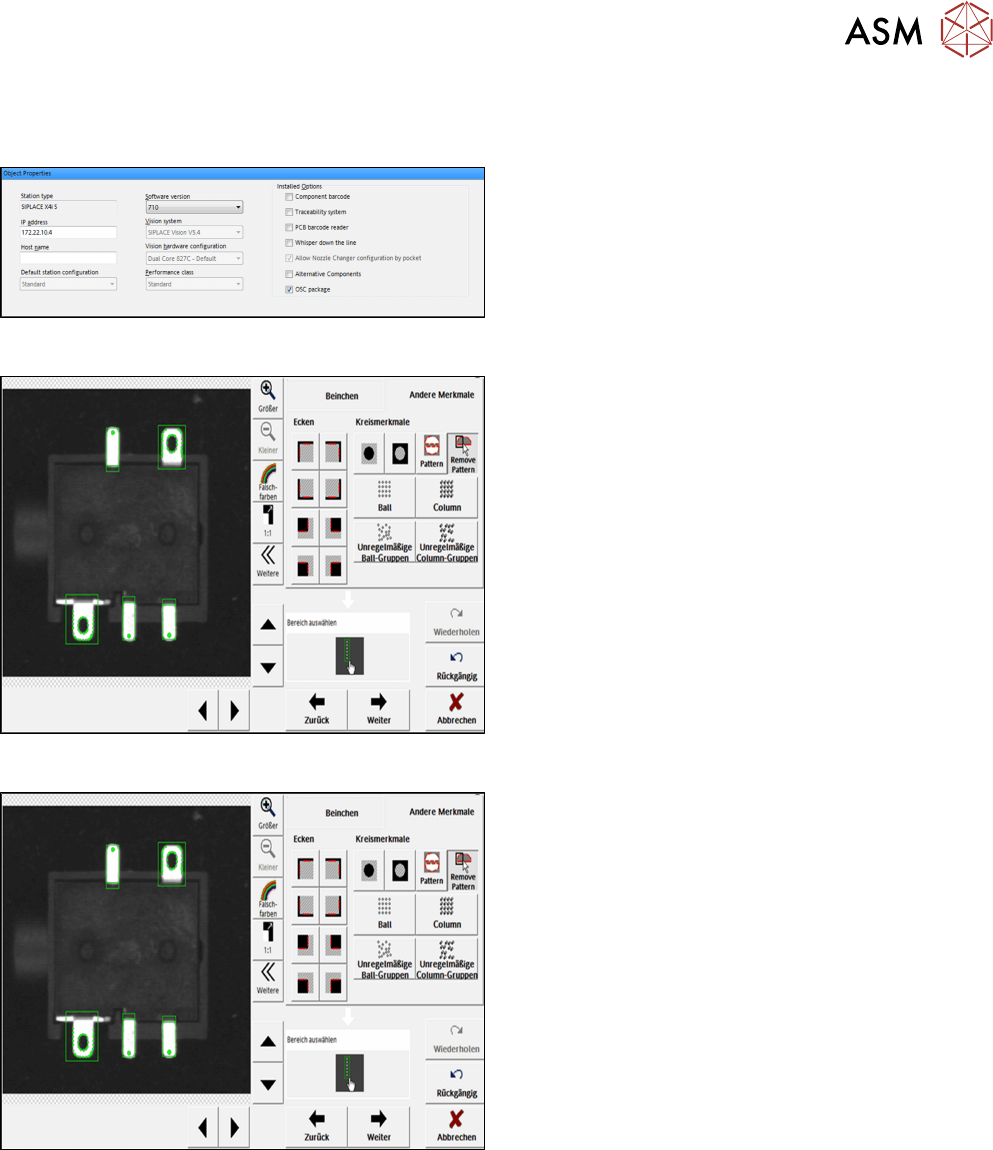
4.3.2 Application Example
Step 1: SIPLACE Pro
► In the Station Editor under Placement Station,
enable the OSC Package option under Installed
options.
Step 2: SIPLACE Vision
► In the Component Shape Wizard, select the Non-
standard or Connectors component shape type.
► Click on Other features – Pattern.
► Select the area to be taught in the image.
Step 3: SIPLACE Vision
► Click on Remove pattern.
► Zoom in the image extract and select not needed
points in the image to be deleted.
4 Working with the OSC Features
4.3 Customer-specific Pattern Features (from R16-2)
78 Bedienungsanleitung OSC Package User Guide OSC-Paket 11/2018
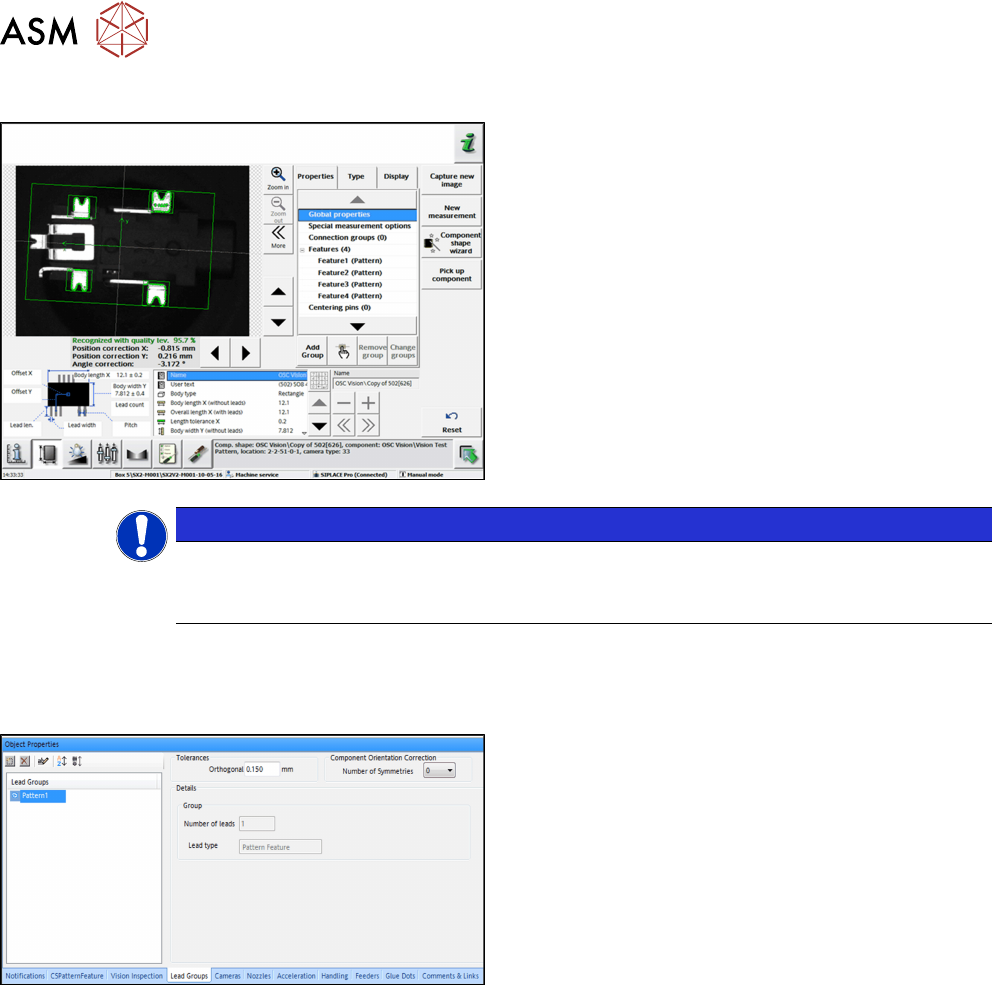
Step 4: SIPLACE Vision
► Align the pattern feature for the correct position in
the Geometry data.
► If necessary, correct the reference point of the
component.
NOTICE
Correct settings
Please note that the component center changes depending on the settings und thus, also
the placement position will change.
A pattern feature can be renamed or deleted but not created, edited or copied in SIPLACE Pro.
The number of leads in such a group is always one.
Step 5: SIPLACE Pro
► In the Component Shape Editor, select the
pattern feature in the Lead group tab.
► Right-click with the mouse on the pattern feature.
► In the context menu, select Delete Lead Group or
Rename.
4 Working with the OSC Features
4.4 Special Position Evaluation (from R16-2)
Bedienungsanleitung OSC Package User Guide OSC-Paket 11/2018 79
4.4 Special Position Evaluation (from R16-2)
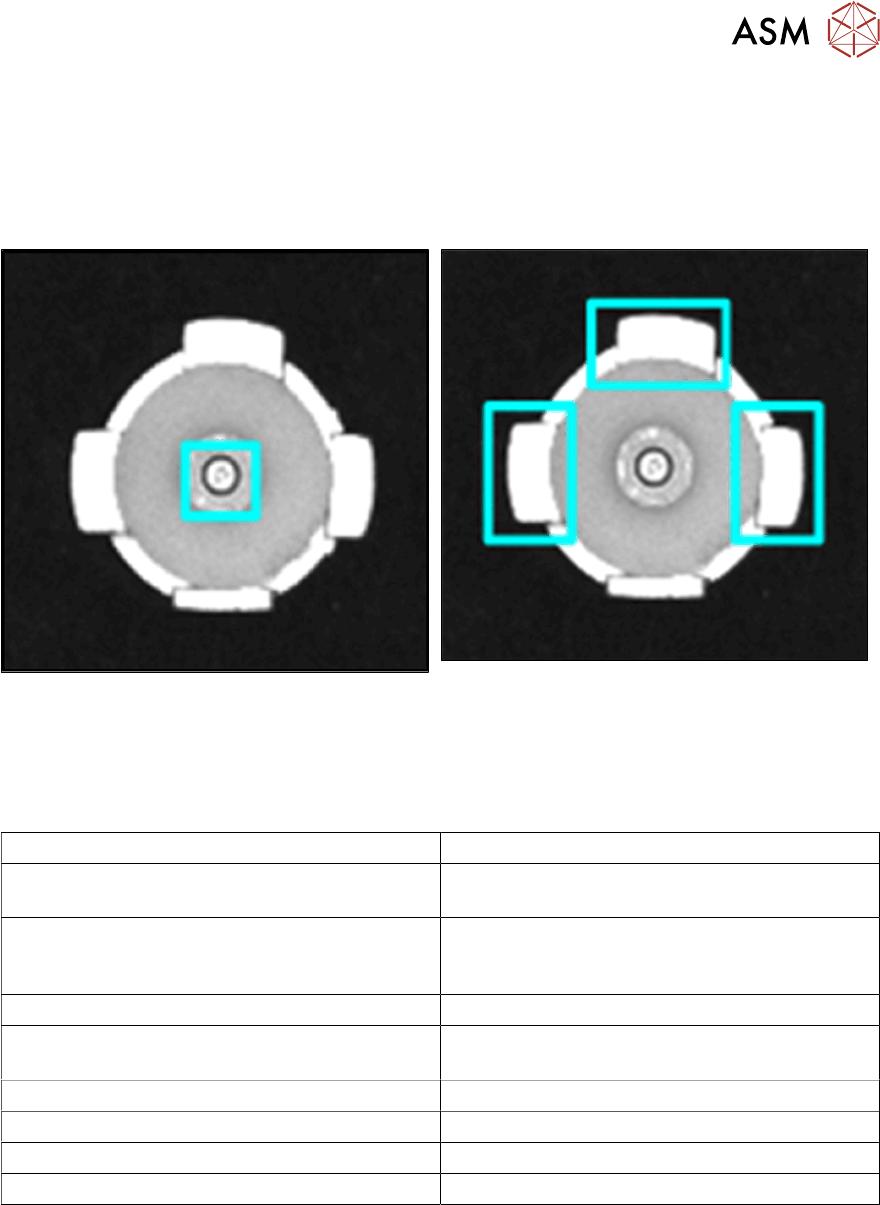
For OSC components it is often difficult to find the X-/Y-position and determine the rotation of a
component by using the same feature. Therefore, a new function has been introduced that allows
using one feature for the X-/Y-alignment and another feature for the rotational alignment.
Example
Using a pin to determine the X-/Y-alignment Using 3 leads to determine the angle for the ro-
tational alignment
The new Evaluation of position attribute is displayed as parameter of the respective feature group
on the GUI and is only visible in SIPLACE Vision.
Following settings are available for the special position evaluation:
Setting Evaluation
Standard Default value, normal evaluation
(X, Y, angle)
None Group is not used to determine the component
position
(but for inspection)
Angle Group is only used to determine the angle
X and Y Group is only used for X and Y, not for the
angle
X Group is only used for X, not for Y and angle
Y Group is only used for Y, not for X and angle
X and angle Group is only used for X and angle, not for Y
Y and angle Group is only used for Y and angle, not for X
The X- and Y-coordinates always refer to the component coordinate system.