00198374-02_UG_OSC-Paket_R18-2_DE_EN.pdf - 第65页
4 Working with the OSC Features 4.1 Placement of Snap-In Components (from R16-2) Bedienungsanleitung OSC Package User Guide OSC-Paket 11/2018 65 Correct locking after a correct Z-threshold value has been set 1. Z-axis po…
4 Working with the OSC Features
4.1 Placement of Snap-In Components (from R16-2)
64 Bedienungsanleitung OSC Package User Guide OSC-Paket 11/2018
4.1.2 Application Example
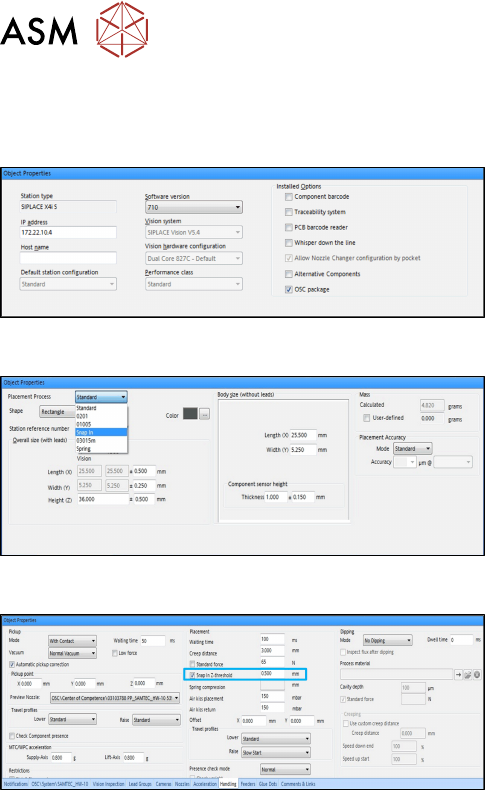
Step 1: SIPLACE Pro
► In the Station Editor under Placement Station,
enable the OSC Package option under Installed
options.
Step 2: SIPLACE Pro
► In the Component Shape Editor, select the Snap
In feature as placement process for the compo-
nent shape.
Step 3 and Step 4: SIPLACE Pro
► In the Handling tab, enable the Snap In Z-
threshold option in the Placement group for the
component shape.
► Define a Z-threshold value in mm.
The threshold value must be > 0.
Default value: 0.500 mm
The first board has to be inspected and confirmed as described in Step 5 and Step 6 below. After
this, the machine uses the Z-threshold value to determine whether the snap-in component is com-
pletely locked in the subsequent boards or not.
Setting Z-threshold value
The Z-threshold value is used to evaluate whether the snap-in component is locked or not. The cur-
rent Z-axis position of every snap-in placement will be compared with its corresponding height ref-
erence position. If the difference between the two values is <= the set Z-threshold value in
SIPLACE Pro, the snap-in component is considered to be locked. If the difference is greater, the
snap-in component is considered not to be locked and an error message is displayed.
If the Z-value is too large, the machine can not detect an erroneous locking. If the Z-threshold value
is too small, the machine may stop often.
Depending on the component, you can start with the default value of 0.500 mm for the Z-threshold
and change this value successively in small steps.
4 Working with the OSC Features
4.1 Placement of Snap-In Components (from R16-2)
Bedienungsanleitung OSC Package User Guide OSC-Paket 11/2018 65
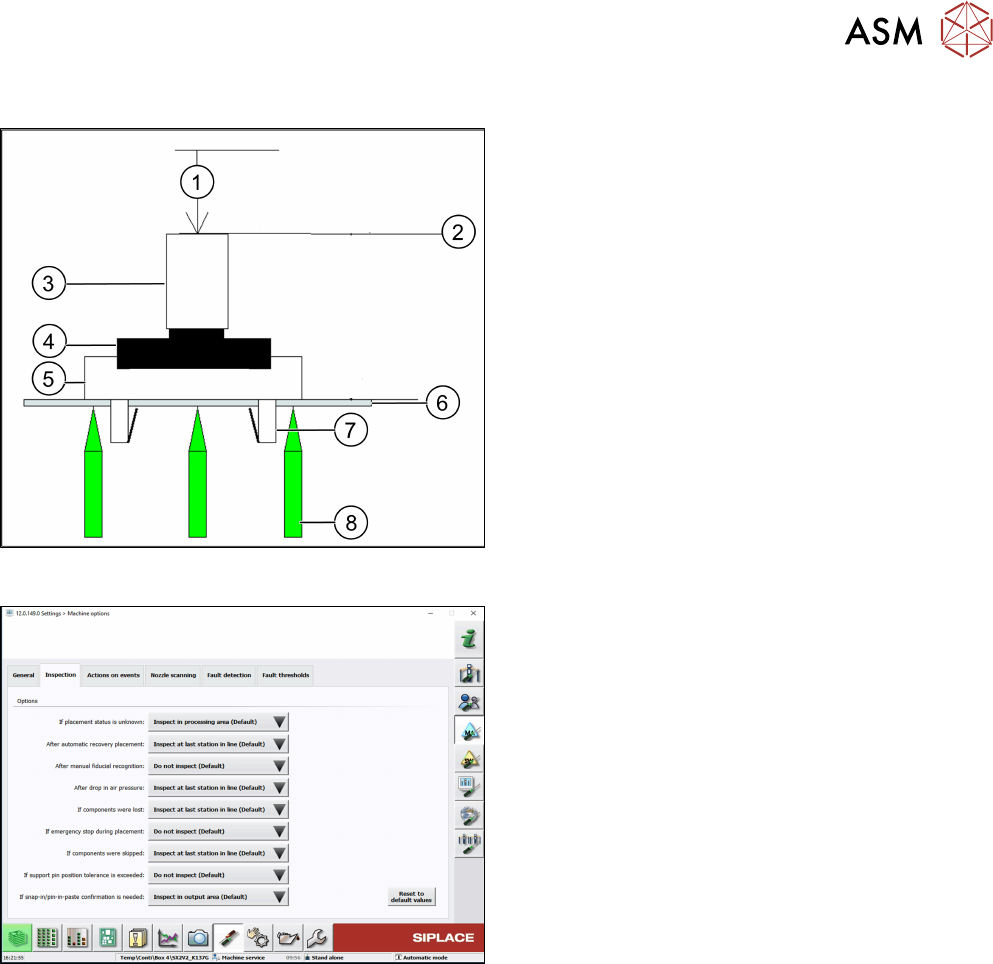
Correct locking after a correct Z-threshold value has been set
1. Z-axis position = 0
2. Z-axis = reference position
3. Segment
4. Gripper
5. Snap-in component
6. Board
7. Locking mechanism
8. Support pin
Step 5: Station software
► If necessary, configure the inspection station
under Machine options – Inspection – If snap-in/
pin-in-paste confirmation is needed
.
(Default: Inspect in output area.
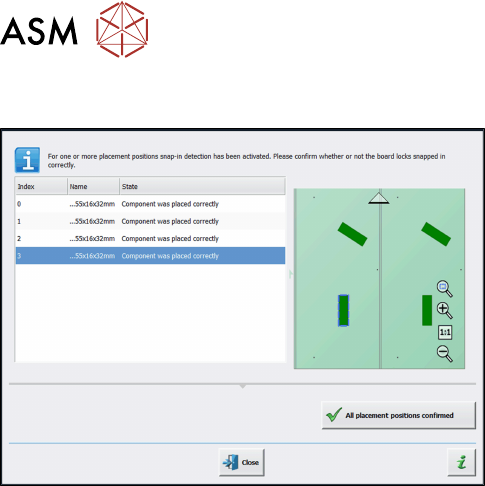
When the board enters the output section, a detailed message is displayed.
The message contains:
●
The position of the board in the machine.
●
A list including all placement positions on the board which have to be confirmed.
●
A graphical board overview in which the selected items in the list are highlighted.
There are two options for each row in the list:
● Component was placed correctly
The Z-height will be set as good for the snap-in detection.
● Repeat measurement
The measured height will be ignored and the user has to confirm the height whenever the next
component is placed. The board keeps marked for inspection.
After setting the results for all placement positions, the settings have to be confirmed.
4 Working with the OSC Features
4.1 Placement of Snap-In Components (from R16-2)
66 Bedienungsanleitung OSC Package User Guide OSC-Paket 11/2018
Step 6: Station software
► Check all placement positions at the inspection
station.
► Confirm all placement positions with the All
placement positions confirmed button.
After that, the placement will continue automatically.
4.1.3 Improved Teaching (from R18-2)
If the next board is already present in the input section, it will be moved in but not placed until the
settings for the first board have been confirmed.