P-TOOL说明书.pdf - 第100页
2-66 2 Board Explorer 6. Creating a production plan (plan file) When manufacturing boards of different types continuously , you may want to create a file called “plan file” in which two or more board types and their prod…
2-65
2
Board Explorer
5.5
'Database Set All' function when Board data is copied from Board Explorer to floppy disk
This function conducts “Database Set All” when Board Data is copied from Board Explorer to a floppy disk as a
wayofmakingBoardDataasup-to-dataaspossibleinDatabase.
Database Set All is conducted when board data is moved from board explorer to machine with a floppy disk,
etc.tomakeBoardDataasup-to-dataaspossibleinDatabase.
n
Content of operation
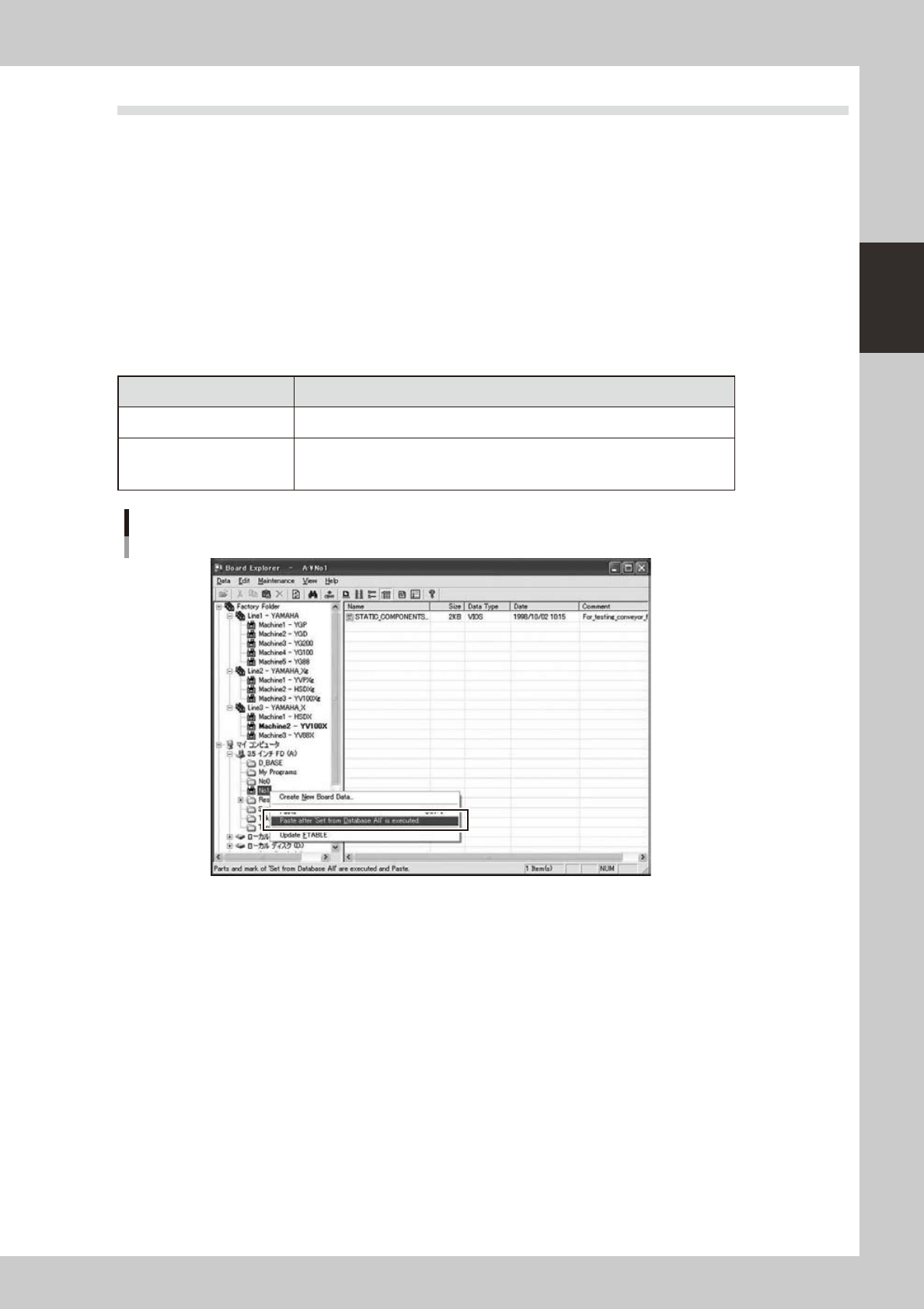
Specifyboarddataofthemachinefolder(inthefactoryfolder)with“Copy”andright-clickthemachinefolder
in the My Computer or My Network and “Paste after Set from Database All” will be displayed in addition to the
old “Paste” menu.
When you select “Paste after Set from Database All”, “Database Set All” will be executed to the board data
specified with the “Copy” menu and the board data will be saved to the paste destination.
n
Menu and content of operation for paste
Right-clicking menu Content of operation
Paste The board data of the copy origin is paste and it copies it.
Paste after Set from
Database All
Conducts “Database Set All” to the board data specified with the “Copy” menu
and saves the board data to the paste destination.
(The board data of the copy origin doesn't change)
Paste after 'Set from Database All'
64292-S0-00
n
About notes in operation
1.“PasteafterDatabaseSetAll”allowscopybytheunitofone-machineboarddatabyselectingamachinefolderinthe
factory folder and copy by the unit of line board data by selecting a line folder in the factory folder.
2.“PasteafterDatabaseSetAll”menuisdisplayedonlywhenthepastedestinationoftheboarddataisMycomputer,My
Network folder or under them except the factory folder.
3. “Database Set All” works on Parts database and Mark database with the database setting specified in the “Option
Setting”.
4. An error is displayed when board data for which the Database is specified incorrectly is specified and the copy of
board data will not be executed. Please refer to the contents of error for database specification.
5.Thesizeofavailableboarddatainpastedestinationshouldbelargerthanthatofthecopysourcedatatoexecute
“Paste after Database Set All”. Secure enough empty capacity before operation.
2-66
2
Board Explorer
6. Creating a production plan (plan file)
When manufacturing boards of different types continuously, you may want to create a file called “plan file”
in which two or more board types and their production quantity are specified. This plan file can be used by
the “Feeder setup error prevention system” (option), “Feeder Viewer” and “Common parts setup optimizer”
(option).
6.1 Production Plan window
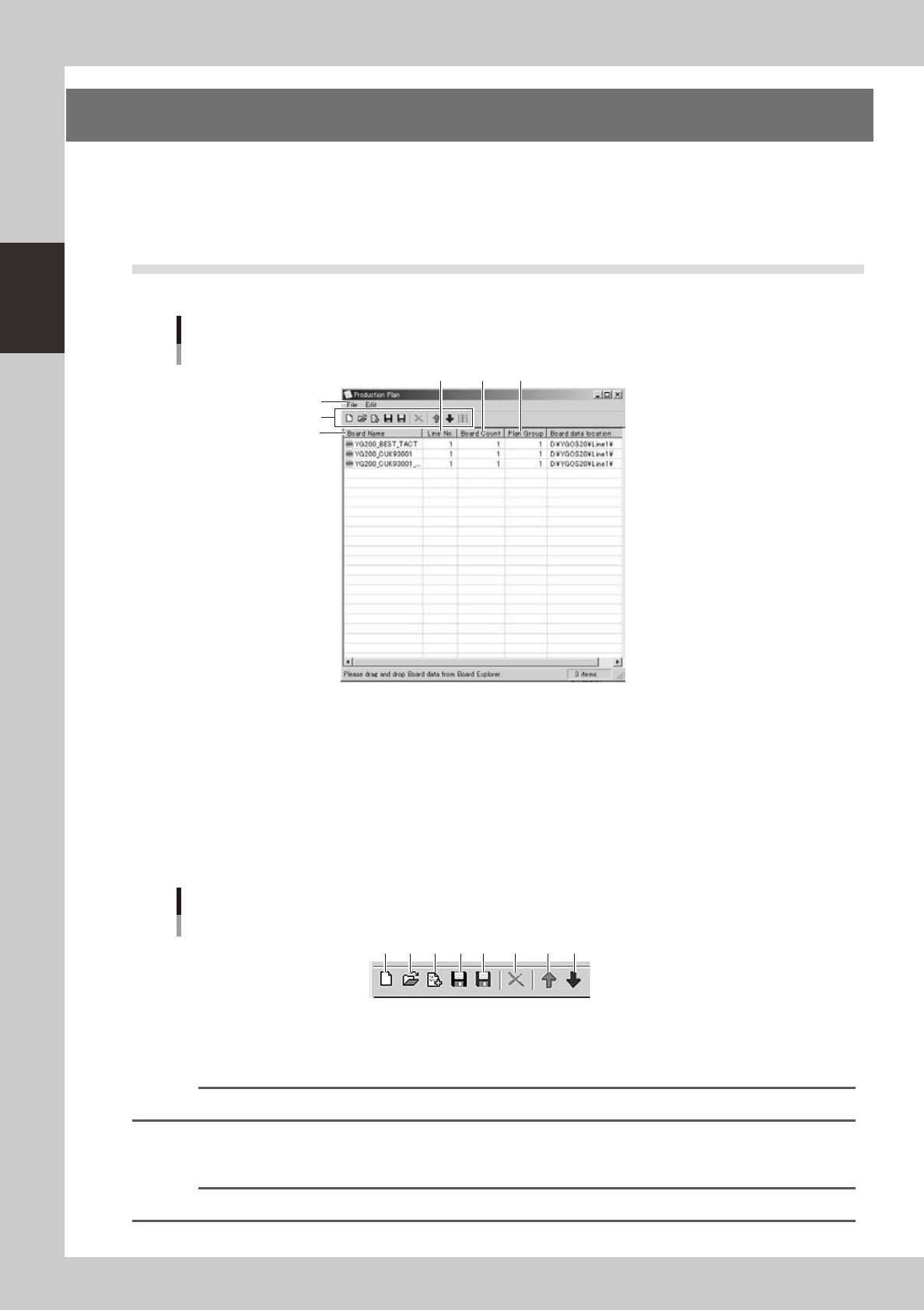
The Production Plan window appears when you select “Production Plan” from the Data menu.
Production Plan window
1
5
4
2
3
6
64251-S0-00
1. Menu bar
The menu bar at the top of the Production Plan window contains the File and Edit menus with commands grouped by
function.
• File
The File menu allows you to select commands for manipulating files, such as “New”, “Open” and “Save…”.
• Edit
TheEditmenuallowsyoutoselectcommandsforeditingfiles,suchas“Remove”,“Up”and“Down”.
2. Toolbar
Toolbar in the Production Plan window
1 42 3 5 86 7
64252-S0-00
1. [New] button
Creates a new production plan file.
Reference
This button has the same function as the "New" command in the File menu.
2. [Open] button
Opens a production plan file that is stored.
Reference
This button has the same function as the "Open" command in the File menu.
2-67
2
Board Explorer
3. [Add] button
Loads a production plan file that is stored and adds it to the production plan file currently being created.
Reference
This button has the same function as the "Add" command in the File menu.
4. [Save YGOS1.xx] button (black)
Savestheproductionplanfileyoucreated,inYGOS1.xxformat.
Reference
This button has the same function as the "Save YGOS1.xx" command in the File menu.
c
CAUTION
Production plan files should be saved in YGOS1.xx format when used with the “Feeder setup error prevention system”
(option).
5. [Save YGOS2.xx] button (blue)
Savestheproductionplanfileyoucreated,inYGOS2.xxformat.
Reference
This button has the same function as the "Save YGOS2.xx" command in the File menu.
c
CAUTION
Production plan files should be saved in YGOS2.xx format when used with the “Feeder Viewer” or “Common parts
setup optimizer” (option).
6. [Remove] button
Removesaproductionplanfilethatisstored.
Reference
This button has the same function as the "Remove" command in the Edit menu.
7. [Up] button
Moves the selected data up one level.
Reference
This button has the same function as the "Up" command in the Edit menu.
8. [Down] button
Moves the selected data down one level.
Reference
This button has the same function as the "Down" command in the Edit menu.
3. BOARD NAME
Shows the names of board data registered in the Board Explorer.
4. LINE NO.
Shows the line No. where board data is registered.
5. Board Count
Shows the number of boards to be produced.
6. Plan Group
Shows the setup group.