P-TOOL说明书.pdf - 第40页
2-6 2 Board Explorer The small right arrow mark “ ” next to a command indicates that the command has a submenu. Sub menu Sub menu 64208-S0-00 The check mark next to a menu item indicates that the menu item has been selec…
2-5
2
Board Explorer
2.2 Board Explorer window
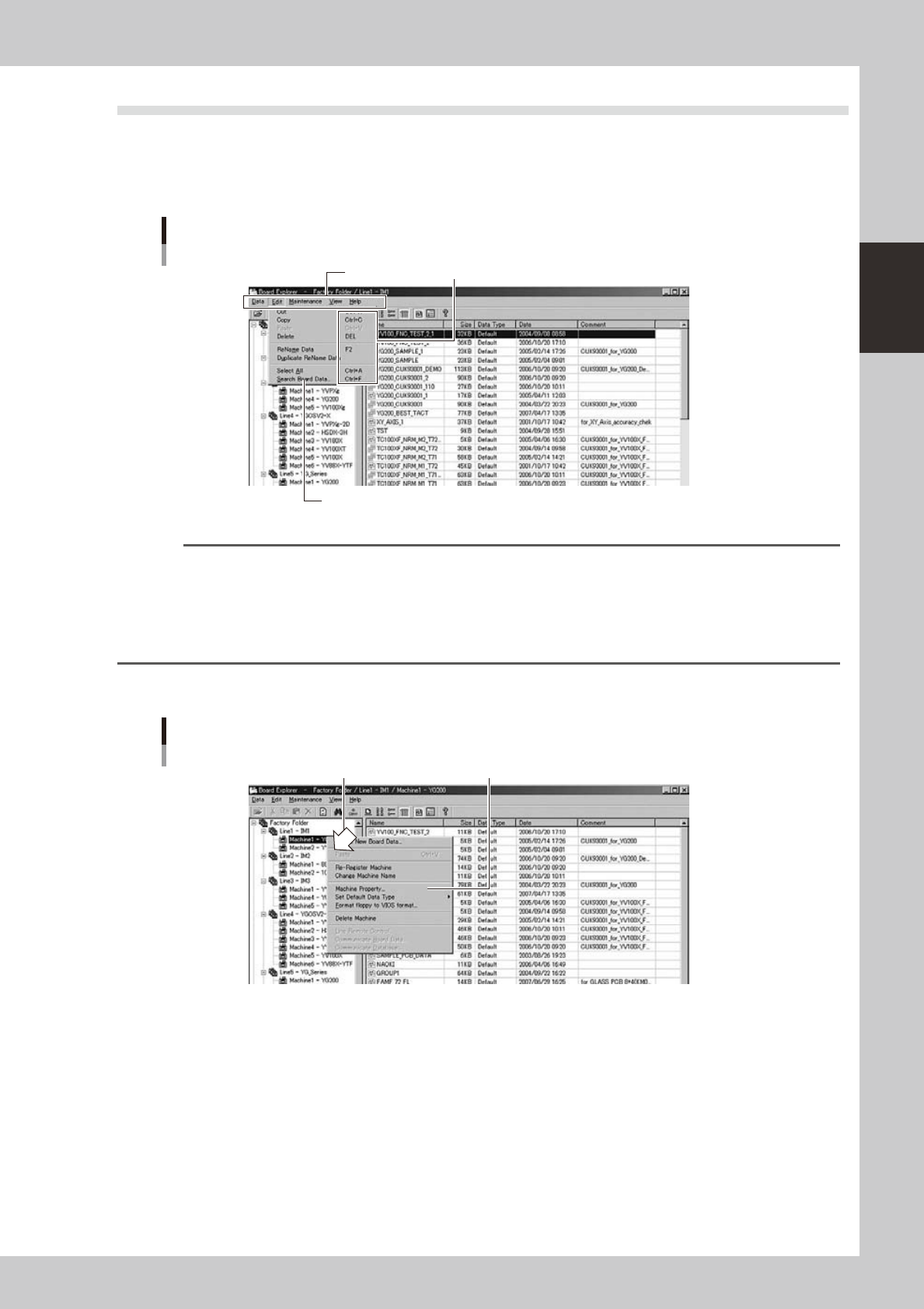
When the Board Explorer starts up, the Board Explorer window appears as shown below.
●
Menu bar
ThemenubaratthetopoftheBoardExplorerwindowcontainsdrop-downmenuswithcommandsgroupedbyfunction.
Menu bar
Menu bar
Drop-down menu
Shortcut keys
64206-S0-00
Reference
A shortcut key is a combination of keys or a function key (such as [F1] and [F2] keys) on the keyboard to execute a
defined command. A shortcut key is displayed to the right of a command if it can be executed with the shortcut key.
For example, the "Copy" command on the Edit menu can be executed by pressing the [Ctrl] and [C] keys
simultaneously.
When you have become accustomed to operating the Board Explorer, try to use shortcut keys to edit data more
efficiently.
Whenyouclicktherightmousebuttononaselected“line”or“machine”,thecontextmenu(right-clickmenu)
appears as shown below, allowing you to select or execute the associated commands quickly.
Right-click context menu
Context menuClick the right mouse button.
64207-S0-00
2-6
2
Board Explorer
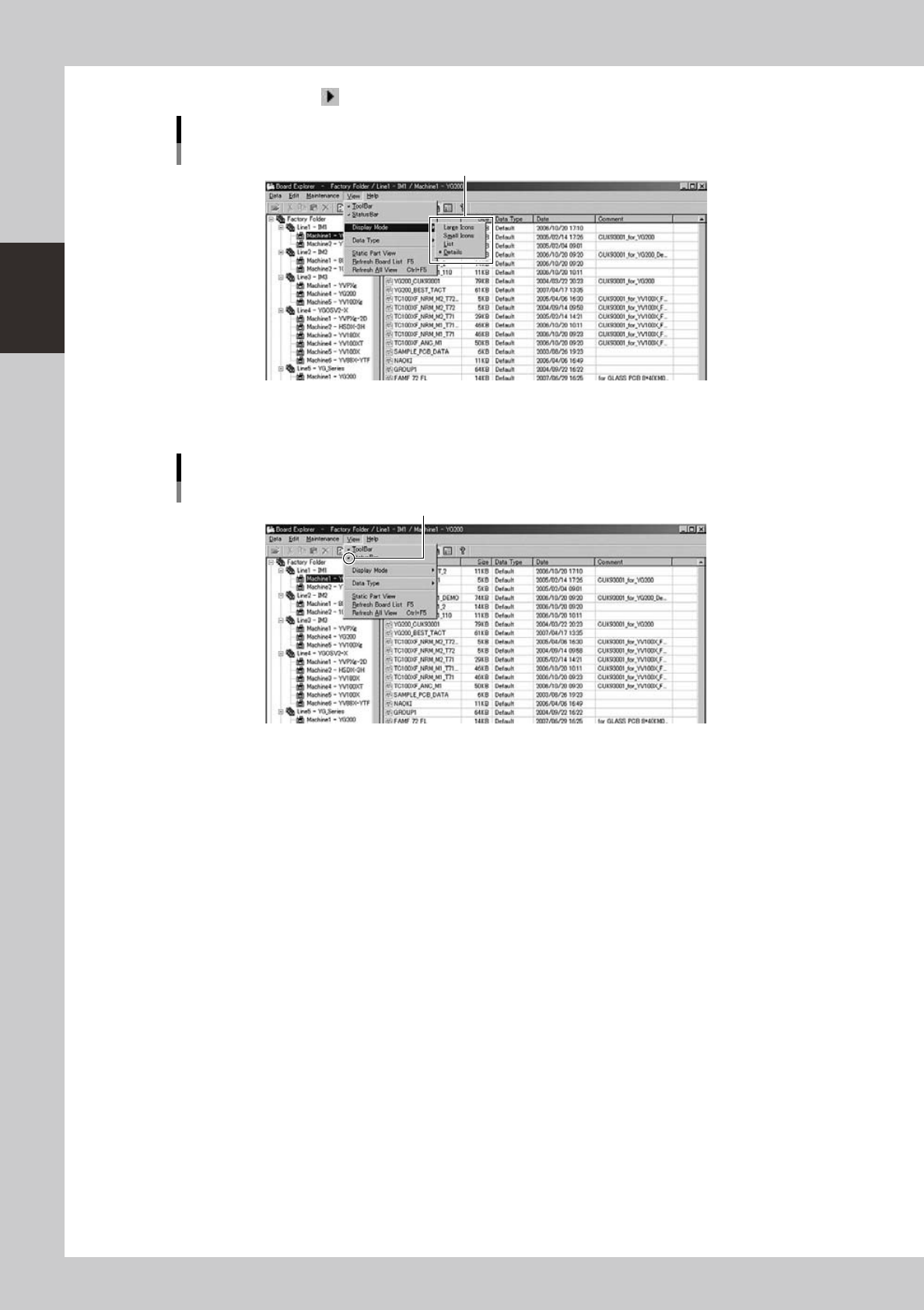
The small right arrow mark “ ” next to a command indicates that the command has a submenu.
Sub menu
Sub menu
64208-S0-00
The check mark next to a menu item indicates that the menu item has been selected.
Menu items are alternately selected and deselected each time they are clicked.
Check mark
Check mark
64209-S0-00
2-7
2
Board Explorer
●
Toolbar
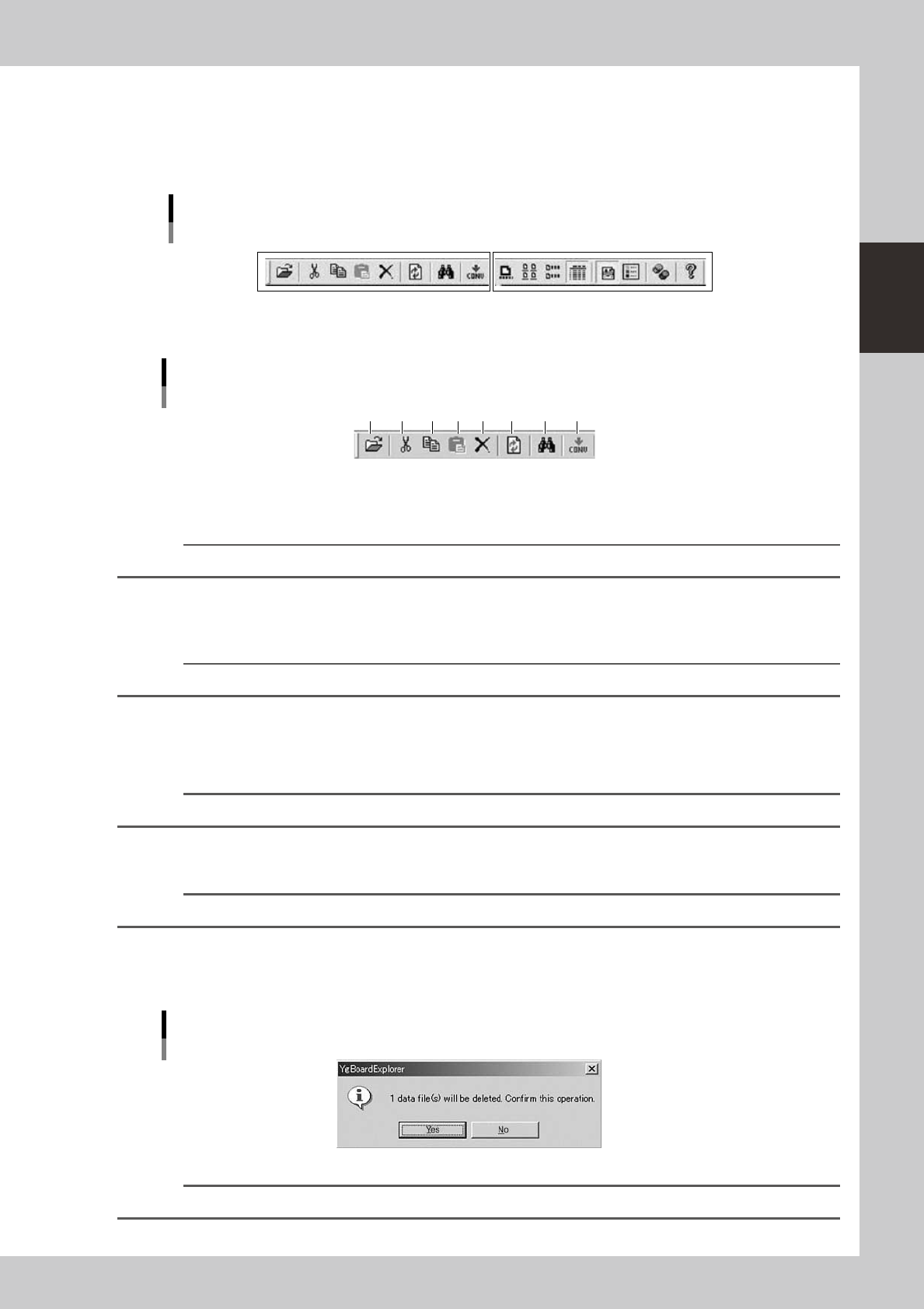
Among the Board Explorer functions, those that are frequently used are registered as the toolbar buttons. The toolbar
consistsoftwogroupsofbuttons:oneformainlymanipulatingboarddatafilesandonefordisplayingboarddataand
“line” information.
File manipulation Display manipulation
Toolbar
64210-S0-10
File manipulation buttons
1 2 3 4 5 6 7 8
Toolbar
File manipulation buttons
64211-S0-00
1. [Open] button
When this [Open] button is clicked after selecting a board data icon, the Board Editor starts to open the board data.
Reference
The [Open] button has the same function as the "Open" command in the File menu.
2. [Cut] button
Cuts and removes the selected item such as board data. The data that was cut is stored in the clipboard. The contents
previously stored in the clipboard are overwritten.
Reference
The [Cut] button has the same function as the "Cut" command in the Edit menu.
3. [Copy] button
Copies the selected item such as board data into the clipboard. The contents previously stored in the clipboard are
overwritten.
Reference
The [Copy] button has the same function as the "Copy" command in the Edit menu.
4. [Paste] button
Pastes the contents currently stored in the clipboard, such as board data, into the selected place.
Reference
The [Paste] button has the same function as the "Paste" command in the Edit menu.
5. [Delete] button
Deletes the selected item such as board data. A confirmation dialog box appears when this button is clicked, asking if
you want to delete the selected item. Click the [Yes] button to delete it.
Confirmation dialog box
64212-S0-00
Reference
The [Delete] button has the same function as the "Delete" command in the Edit menu.