P-TOOL说明书.pdf - 第91页
2-57 2 Board Explorer n Database Utility Window Ifyouselectthe“RegisterDatabaseUtility”menuitemonright-clickingmenuintheBoardExplorer,the Database Utility window is displayed and the selected board data …
2-56
2
Board Explorer
●
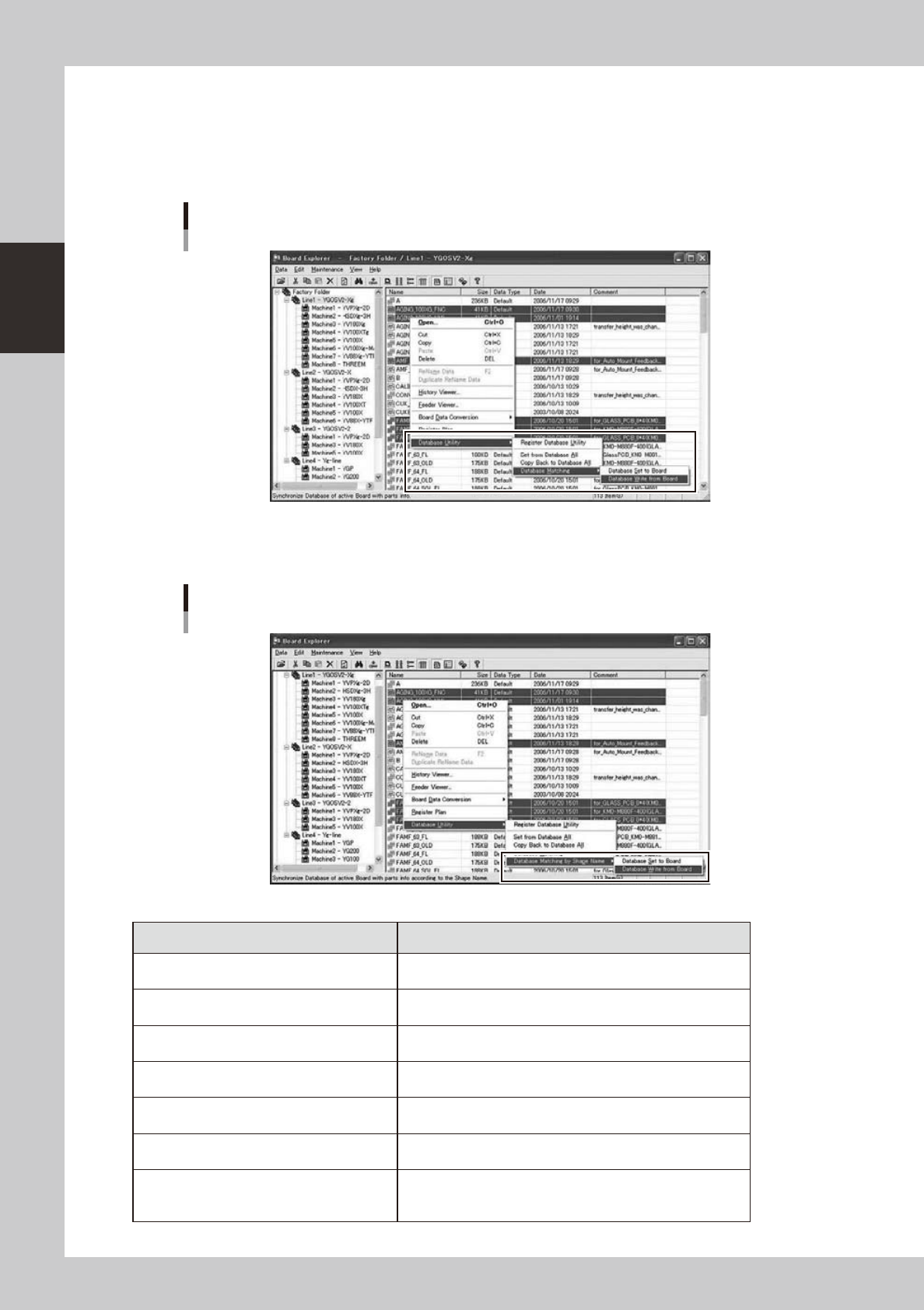
Right-clicking menu of the List View
“DatabaseUtility”menuitemsarepresentintheright-clickcontextmenuoftheListView.Youcanperform
database operations to all selected board data by batch.
If “Use Database” in the Option Setting is set to “Not Use”, the menu is not displayed.
Database operations are possible only for board data present in the Factory Folder and its subfolders.
Right-clicking menu of the List View
64272-S0-00
In addition, if ”Shape Database” is set to “Use” in the Option Setting, the “Database Matching by Shape Name”
menu is displayed.
Database Matching by Shape Name menu
64273-S0-00
Items Description
Register Database Utility
Register all selected board data to Database Utility window.
(Refer to “
n
Database Utility Window”)
Set from Database All
Set from Database All to all selected board data.
(Refer to “
n
Set from Database All”)
Copy Back to Database All
Copy Back to Database All from all selected board data.
(Refer to “
n
Copy Back to Database All”)
Database Matching
Database Set to Board
Database Matching to all selected board data.
(Refer to “
n
Database Matching”)
Database Matching
Database Write from Board
Database Matching from all selected board data.
(Refer to “
n
Database Matching from board”)
Database Matching by Shape Name
Database Set to Board
Database Matching by Shape Name to all selected board data.
(Refer to “
n
Database Matching by Shape Name”)
Database Matching by Shape Name
Database Write from Board
Database Matching by Shape Name from all selected board
data. (Refer to “
n
Database Matching from board by Shape
Name”)
2-57
2
Board Explorer
n
Database Utility Window
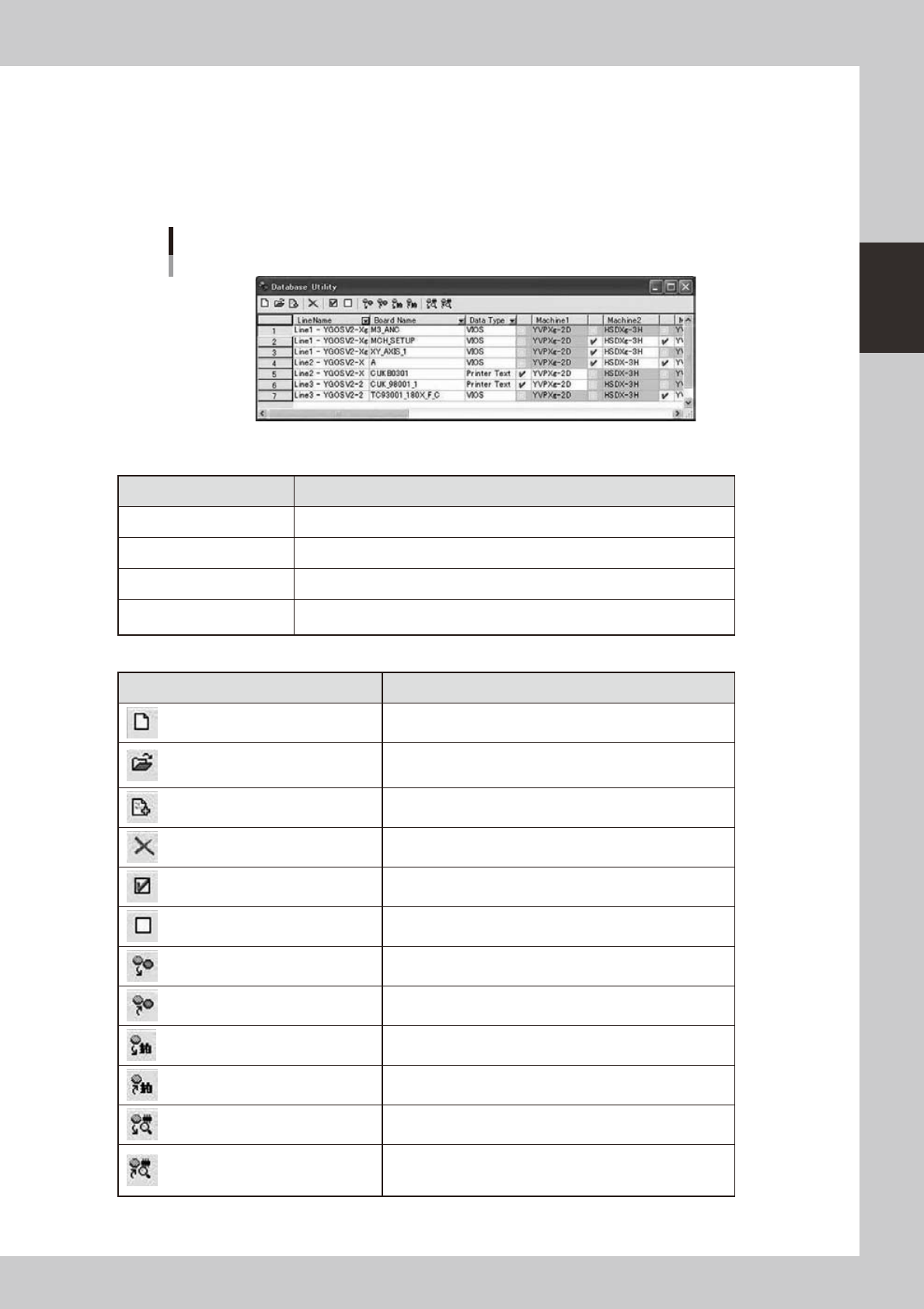
Ifyouselectthe“RegisterDatabaseUtility”menuitemonright-clickingmenuintheBoardExplorer,the
Database Utility window is displayed and the selected board data are added. If the Database Utility window is
already open, the selected board data are added in this list.
You can operate Database to any board data by batch.
You can select each board data by the check box.
Database Utility Window
64274-S0-00
Description of list items
Items Description
Line Name Displays registered Line Number and Line Name.
Board Name Displays registered board name.
Data Type Displays registered board data type.
Machine1 ... 10
Displays machine name of registered board data. The board with this checkbox
is the operation object of the database.
Description of Toolbar items
Buttons Description
New Makes a new list.
Open plan file
Reads registered data from a plan file. The data is read as line
data.
Add plan file
Reads a plan file additionally while leaving the registered board
as is. The data is read as line data as well.
Remove Removes selected board data in the list.
Select The check box in the range that has been selected is turned on.
Deselect The check box in the range that has been selected is turned off.
Set from Database All
Conducts Set from Database All to all board data checked in
the list. (Refer to “
n
Set from Database All”) *2
Copy Back to Database All
Conducts Copy Back to Database All from all board data
checked in the list. (Refer to “
n
Copy Back to Database All”) *2
Database Matching
Conducts Database Matching to all board data checked in the
list. (Refer to “
n
Database Matching”) *2
Database Matching from board
Conducts Database Matching from Board from all board data
checked in the list. (Refer to “
n
Database Matching from board”) *2
Database Matching by Shape Name *1
Conducts Database Matching by Shape Name to all board data checked
in the list. (Refer to “
n
Database Matching by Shape Name”) *2
Database Matching from board by
Shape Name *1
Conducts Database Matching from Board by Shape Name
from all board data checked in the list. (Refer to “
n
Database
Matching from board by Shape Name”) *2
*1 If “Shape Database” is “Not Use” in the Option Setting, these buttons are not displayed.
2-58
2
Board Explorer
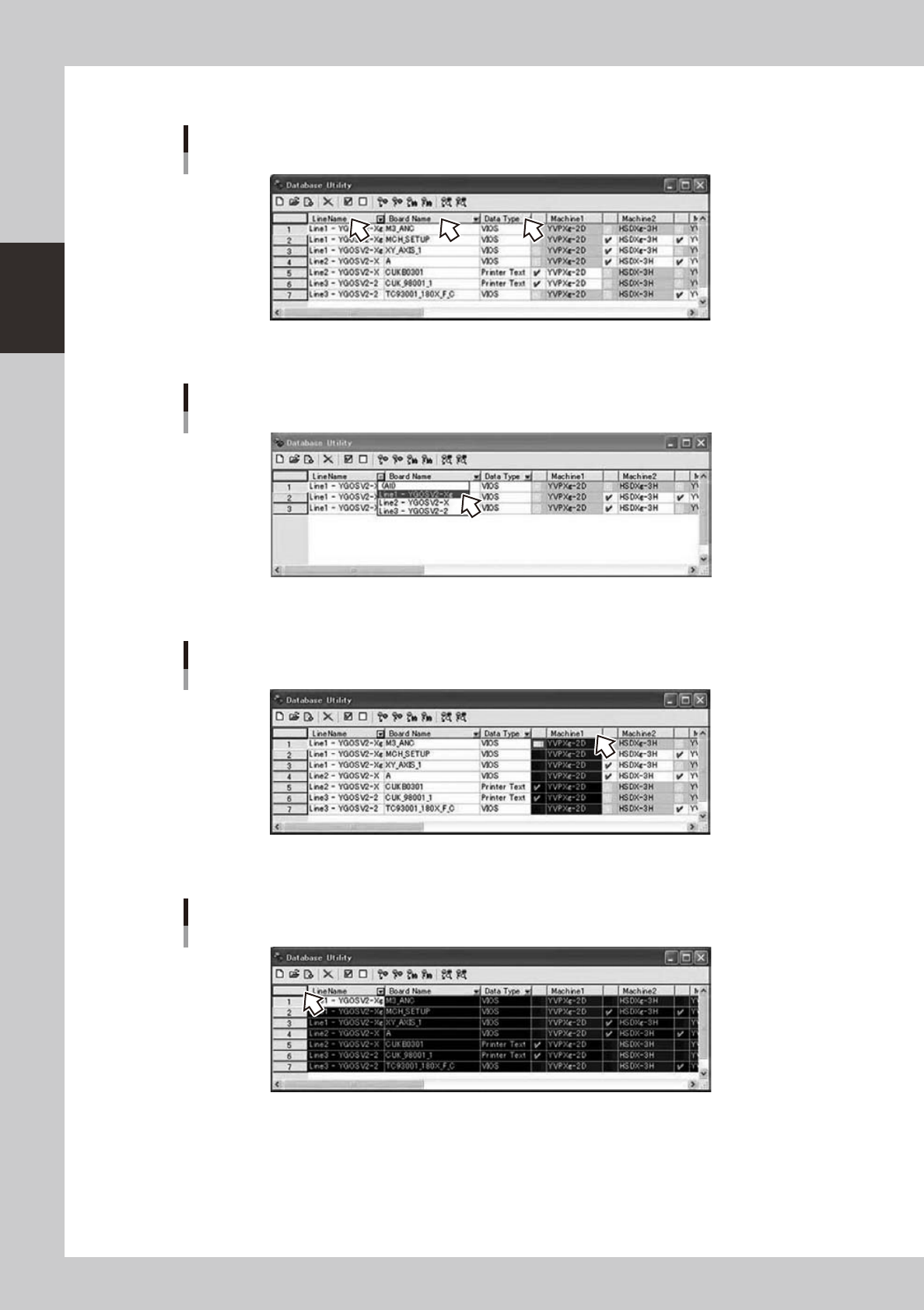
You can sort by Line Name, Board Name, and Data Type.
You can sort by Line Name, Board Name, and Data Type
64275-S0-00
You can filter by Line Name, Board Name, and Data Type.
You can filter by Line Name, Board Name, and Data Type
64276-S0-00
IfyouclickMachine1...10,acolumnisselected.
Select column
64277-S0-00
Ifyouclick[corner]buttonorCtrl+Akey,theentirelistisselected.
Select all
64278-S0-00