P-TOOL说明书.pdf - 第35页
2-1 2 Board Explorer 1. Star ting and quitting the Board Explorer The Board Explorer allows you to register or delete “lines” (production lines) and “machines”, as well as making data backups. After installation of the F…

6. Creating a production plan (plan file) 2-66
6.1 Production Plan window 2-66
6.2 Creating a new production plan 2-68
7. Creating the backup folders 2-70
8. File table restoration tool 2-72
8.1 About the file table check function of each application 2-72
8.2 Update of File Table 2-73
8.3 About the error kind and method of the restoration 2-75
9. Program List Editor 2-76
9.1 Start of the Program List Editor 2-76
9.2 Open and Save 2-76
9.3 Edit the Program List 2-77
9.4 Option 2-79
9.4.1 Grid View Setting 2-79
9.4.2 Program List Editor Item Edit 2-79
9.5 Limitation 2-80
10. Multi Lane Support 2-81
10.1 Multi Lane View 2-81
10.2 Multi Lane Utility 2-83
10.2.1 Single-Combined Program 2-83
10.2.2 Multi-Combined Program 2-84
10.2.3 Divide Combined Program 2-84
2-1
2
Board Explorer
1. Starting and quitting the Board Explorer
The Board Explorer allows you to register or delete “lines” (production lines) and “machines”, as well as
making data backups.
After installation of the Factory Tools is complete, start up the Board Explorer and be sure to register the lines
and machines.
1.1 Starting the Board Explorer
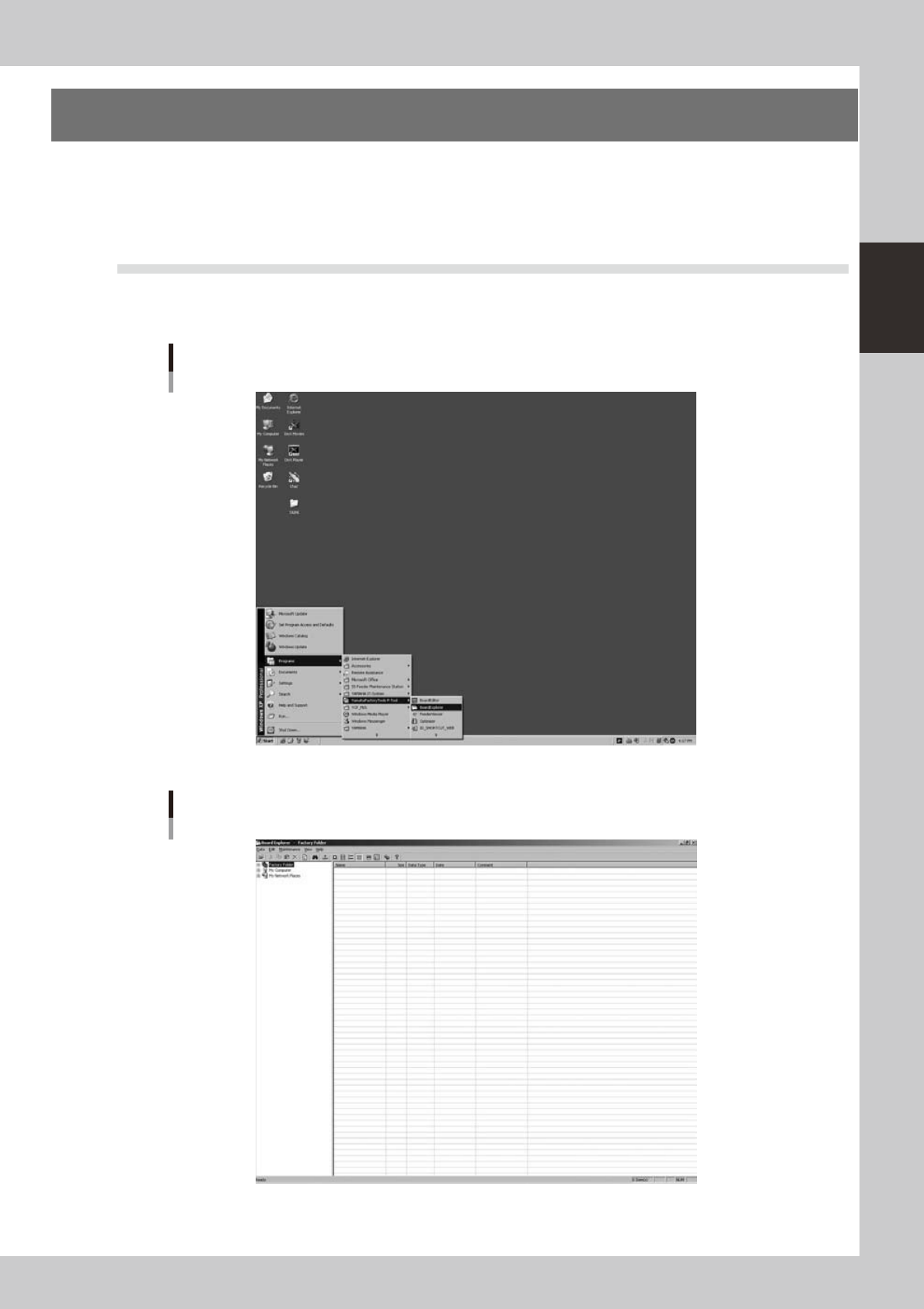
You can start up the Board Explorer from the Start menu on the Windows taskbar.
FromtheStartmenu,select“Programs”-“YAMAHAFactoryToolsP-Tool”andthenclick“BoardExplorer”.
Start menu
Board Explorer
64200-S0-10
Board Explorer initial screen
64201-S0-10
2-2
2
Board Explorer
1.2 Quitting the Board Explorer
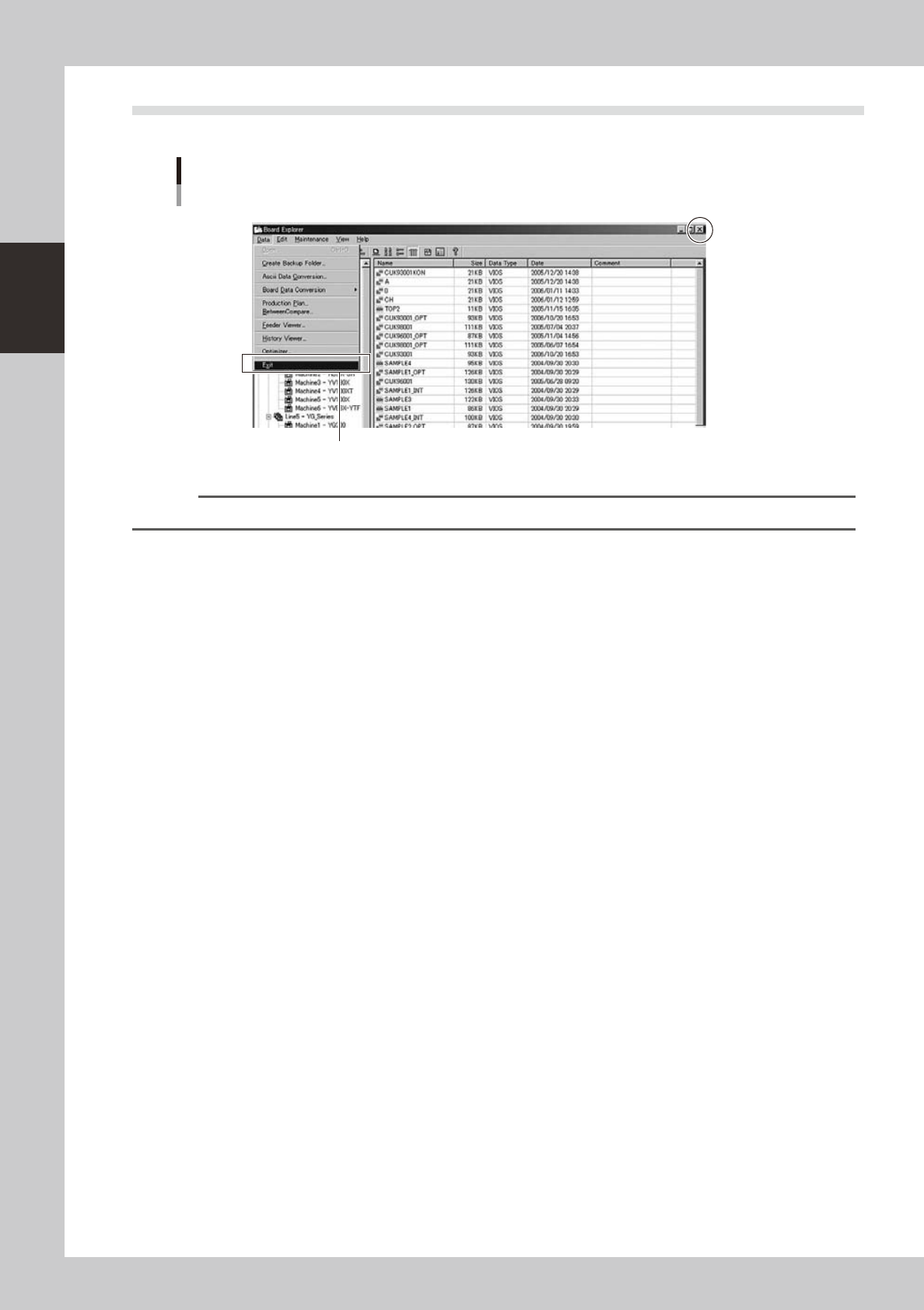
Select “Exit” from the Data menu to quit the Board Explorer.
Data menu
Exit
Close button
Select "Exit" from Data menu.
64202-S0-00
Reference
You can click the "Close (x)" button in the top right corner of the application window to quit the Board Explorer.