P-TOOL说明书.pdf - 第45页
2-11 2 Board Explorer ● Status bar Displays the Board Explorer operation status, as well as the status and description of an item selected by the mouse cursor. Selecting the “Status Bar” command from the View menu shows …
2-10
2
Board Explorer
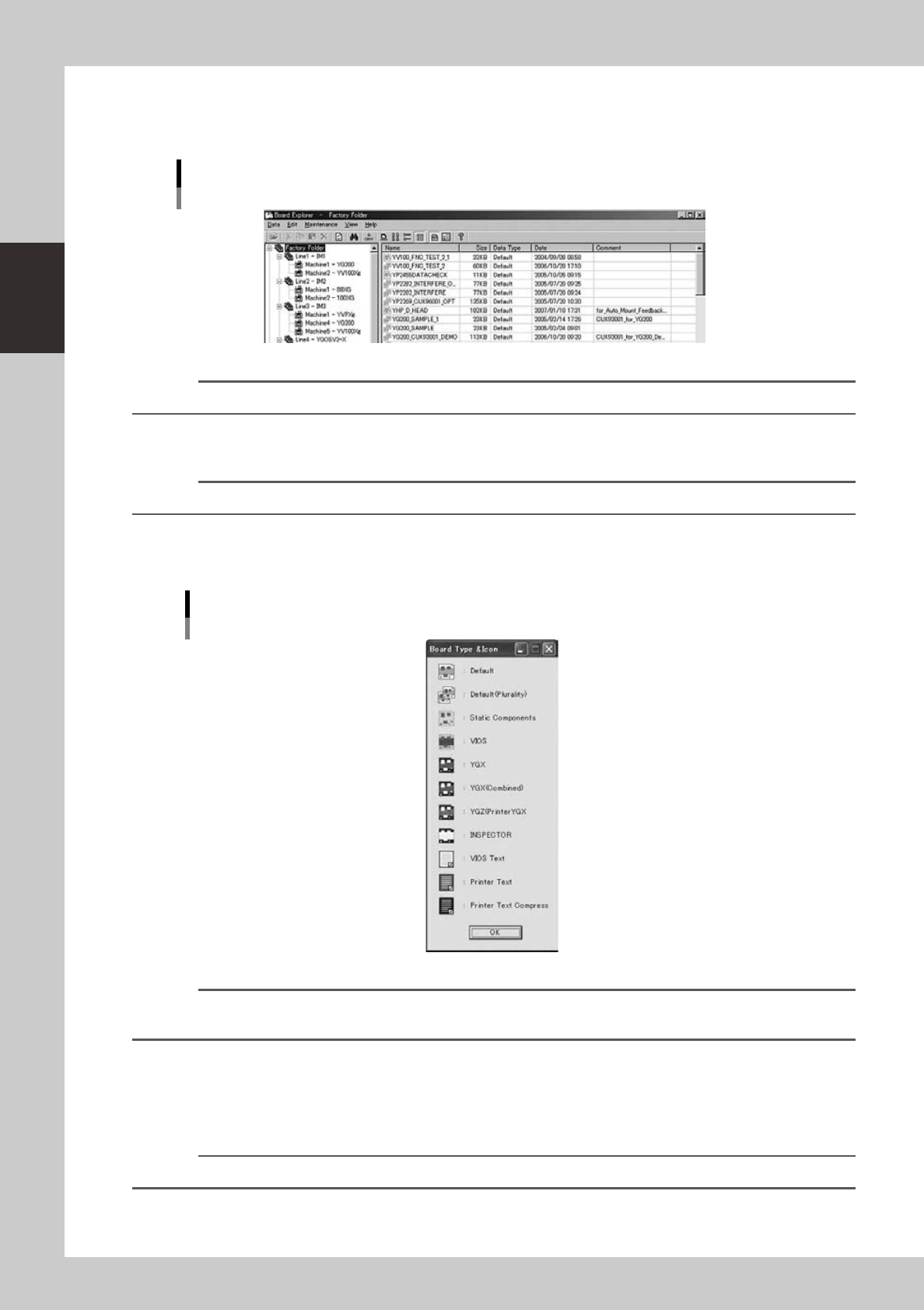
4. [Detail View] button
Shows a list of data with detailed information in the main view.
The detailed information includes data size, data type, update date and comment.
Detail display in the main view
64218-S0-00
Reference
The [Detail View] button has the same function as the "Display Mode" - "Detail" command in the View menu.
5. [DEFAULT] button
Shows or hides default type board data.
Reference
This button has the same function as the "Data Type" - "DEFAULT" command in the View menu.
6. [Board Type Icon] button
Shows a list of board data type icons displayed in the main view. Each data type uses a different icon.
List of Board data type icons
64219-S0-20
Reference
The [Board Type Icon] button has the same function as the "Data Type" - "Board Type Icon" command in the View
menu.
7. [Database Utility] button
Start the database utility.
8. [Version] button
Shows the version of the Board Explorer.
Reference
The [Version] button has the same function as the "Version" command in the Help menu.
2-11
2
Board Explorer
●
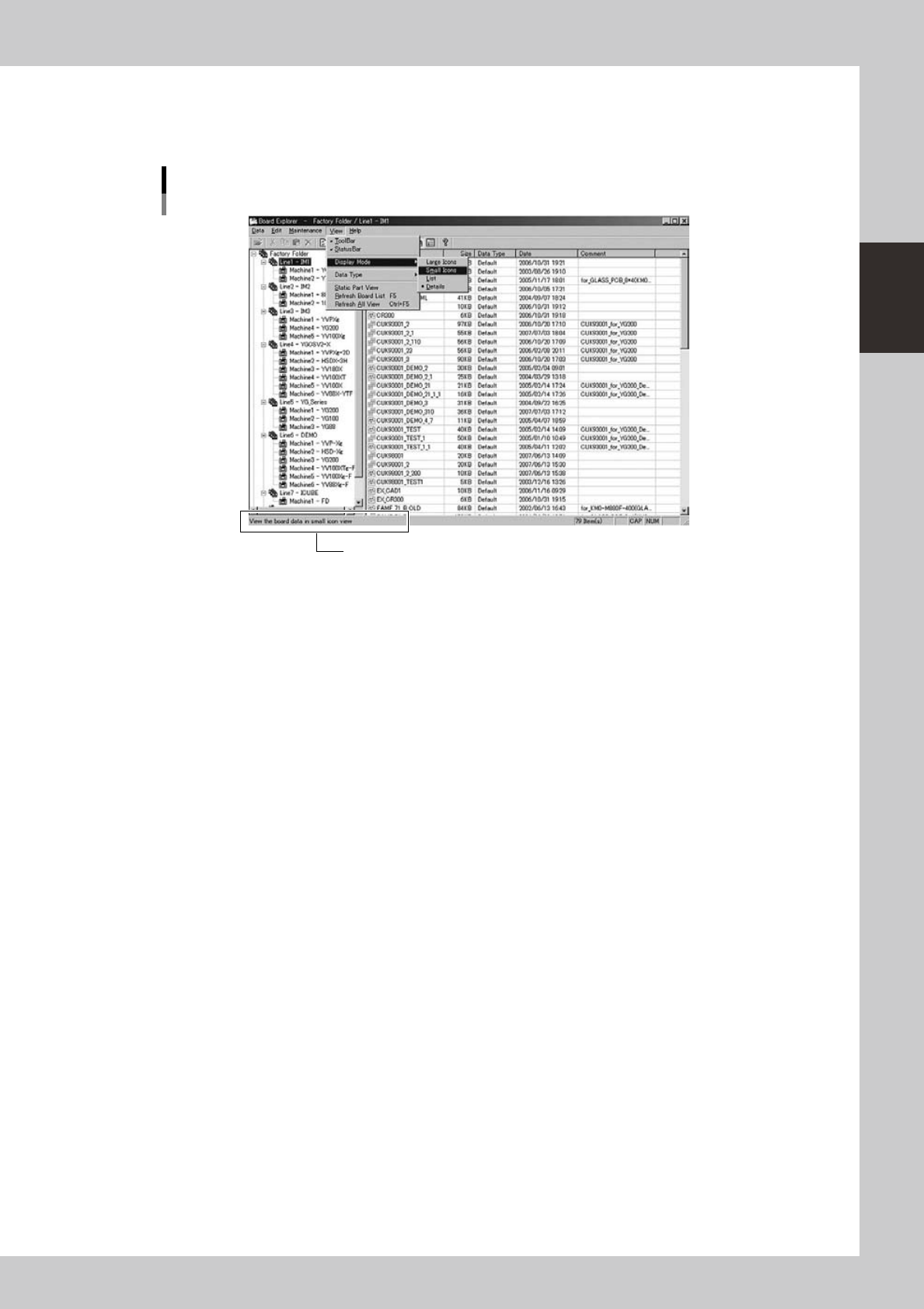
Status bar
Displays the Board Explorer operation status, as well as the status and description of an item selected by the mouse
cursor. Selecting the “Status Bar” command from the View menu shows or hides the status bar.
Status bar
Status bar
64220-S0-00
2-12
2
Board Explorer
3.
Registering or deleting “lines” and “machines”
When using the Board Editor of the Factory Tools to edit Board data or optimize data, you must register
“machines” connected with a “line”. This section explains how to register or delete “lines” and “machines”.
3.1 Registering “lines” and “machines”
1
Create a board data disk or board folder for each machine.
For a description of how to create a board data disk or board folder, refer to the programming manual
for each series.
n
NOTE
When registering a machine stored on the network, browse the "No.1" folder on the network to register the line and
machine. You do not have to create a board data disk or board folder in this case.
2
Start the Board Explorer.
3
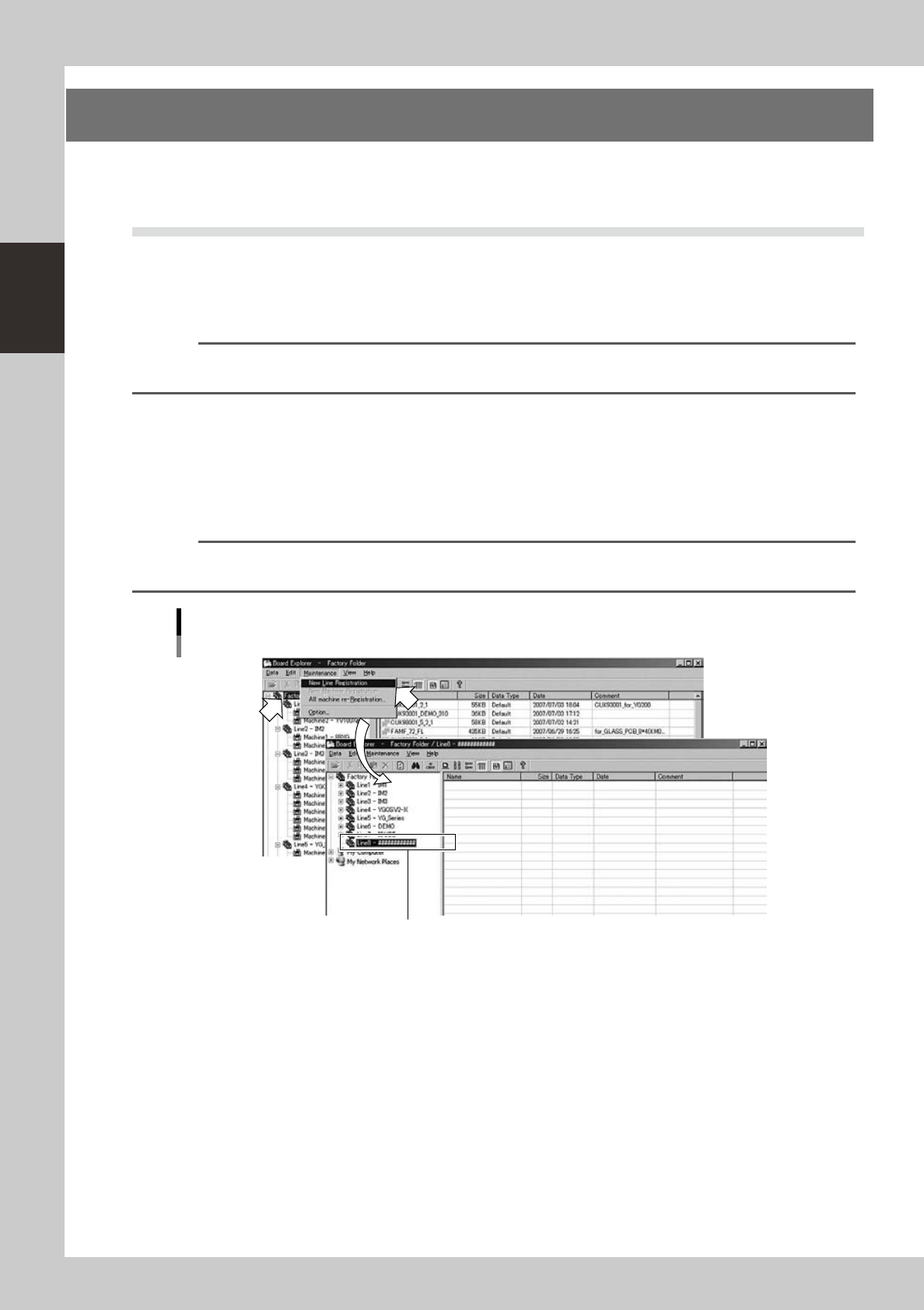
Register a new line.
1. Click the Factory Folder in the tree view.
2. Select "New Line Registration" from the Maintenance menu.
A new line is created and displayed in the tree view.
Reference
You can select the same command from the context menu that appears by clicking the right mouse button on the
Factory Folder.
Maintenance menu
Selecting "New Line Registration"
A new "line" is displayed.
64221-S0-00