P-TOOL说明书.pdf - 第175页
5. Multi Lane Support 4-5 0 5.1 Production board list is e xtended 4-5 0 5.2 [Multiply Parts] and [Combine Parts] dialog are extended 4-5 0 5.3 [Production Plan]-[Plan Board Order Change] dialog is e xtended 4-5 1 5.4 [O…

Chapter 4 Feeder Viewer
Contents
1. About the Feeder Viewer 4-1
1.1 Starting the Feeder Viewer 4-1
1.2 Quitting the Feeder Viewer 4-3
2. Basic operation 4-4
2.1 Plan information screen 4-4
2.2 Creating new plan information 4-18
2.3 Opening a plan file 4-21
3.
Editing the data on the plan information screen
4-22
3.1 Switching the production lines 4-22
3.2 Adding or deleting board data 4-23
3.2.1 Adding board data 4-23
3.2.2 Deleting board data 4-24
3.3 Changing the order of board data 4-25
3.4 Editing the board data 4-27
3.5 Saving the board data 4-28
3.6 Changing the feeder or tray position 4-30
3.6.1 Moving a feeder within the same machine 4-30
3.6.2 Moving a feeder between machines 4-32
3.7 Dividing the parts 4-34
3.8 Combining the parts 4-36
4. Feeder Viewer Setting 4-38
4.1 Feeder Viewer Setting 4-38
4.1.1 Start of setting screen (menu selection) 4-38
4.1.2 Content of setting 4-39
4.2 Dump Station Arrangement Setting 4-40
4.2.1 Detailed explanation of operation 4-40
4.2.2 Settings 4-42
4.2.3 Error Message 4-44
4.2.4 Limitations 4-44
4.3 For 0 mount point parts 4-45
4.3.1 Setting 4-45
4.3.2 Display 4-46
4.3.3 Move parts 4-47
4.3.4 Multiply parts (Only at the feeder layout display) 4-48
4.3.5 Combine parts (Only at the feeder layout display) 4-48
4.3.6 Interference Check (Only at the feeder layout display) 4-49
4.3.7 Setup Assignment 4-49

4-1
4
Feeder Viewer
1. About the Feeder Viewer
The Feeder Viewer allows you to check the positions of feeders installed on the feeder plate by graphically
displaying them on the screen. You can find feeder setup errors and correct them on the Feeder Viewer to
prevent possible interference with moving parts or other problems.
1.1 Starting the Feeder Viewer
The Feeder Viewer can be started from the Start menu on the Windows task bar, or from the Board Explorer or
Board Editor.
The following explains how to start the Feeder Viewer from the Start menu on the Window taskbar.
1
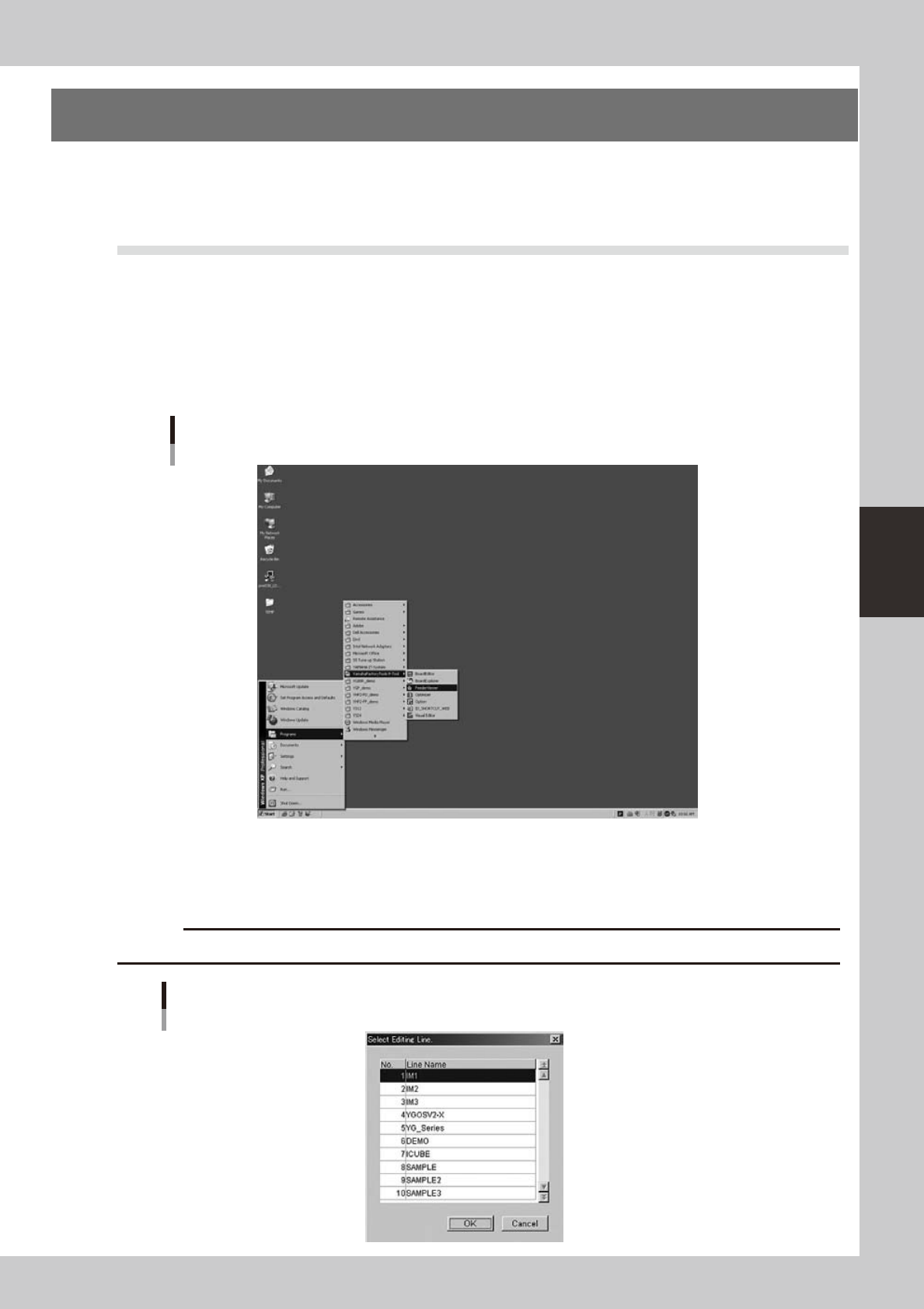
Start the Feeder Viewer.
From the Start menu on Windows taskbar, select "Programs" - "YAMAHA Factory Tools P-Tool " and click
"Feeder Viewer".
Start menu
Feeder Viewer
64400-S0-20
2
Select the line.
When two or more lines are registered, the "Select Editing Line" dialog box appears. Select the line to
work with and click the [OK] button.
c
CAUTION
When only one line is registered, the “Select Editing Line” dialog box does not appear.
"Select Editing Line" dialog box
64401-S0-00