P-TOOL说明书.pdf - 第56页
2-22 2 Board Explorer 4.2 Inspection program conversion setting Sets up a setting for converting board data to the Inspection program with the board explorer. The converted Inspection program can be imported with the ins…

2-21
2
Board Explorer
1. Use Database
Select whether to use the database and the condition from the “Use Database” drop-down list.
Item Description
NotUse Select when not using the database.
FDX/MDX Select when using fdx/mdx database.
FDX/MDX (with saving FD/MS) Select when using both fdx/mdx and fd/md database.
FD/MD Select when using fd/md database.
2. Database folder
Shows the path to the registered database.
You can also use the [Browse] button to check the location where the database is stored.
3. Parts
Backs up and restores Parts database.
4. Mark
Backs up and restores Mark database.
5. Perform All Set
“All Set” is conducted when loading circuit board with editor or when optimization is performed.
6. Database matching condition
Selects whether a name or key is selected as a key term to match parts and database.
7. Synchronous operation setting
Select the use of database synchronization. “Database use” is only valid for “FDX/MDX (also saved on FD/MD)”.
8. Database by models
Select if Database by models is to be used/not to be used. For more information, please refer to P-Tool User's Manual
Chapter 6, Database.
9. Database by types
Select if Database by types is to be used/not to be used. For more information, please refer to P-Tool User's Manual
Chapter 6, Database.
10. Database duplicate check
Select if Database duplicate check is to be used/not to be used. For more information, please refer to P-Tool User's
Manual Chapter 6, Database.
11. Additional parameter database management
Add parameters to be included in the management objects for database setting, setting from board. For more information,
please refer to P-Tool User's Manual Chapter 6, Database.
4.1.3 [Option] tab
Clicking the “Option” tab in the Option Settings window displays the option settings. Hardware key options
and available tools are listed and can be confirmed.
4.1.4 [Special Setting] tab
Clicking the [Special Setting] tab shows a list of special functions available for the Factory Tools.
2-22
2
Board Explorer
4.2 Inspection program conversion setting
Sets up a setting for converting board data to the Inspection program with the board explorer.
The converted Inspection program can be imported with the inspector or YViOS, offline software of the
inspector.
4.2.1 Conversion of Inspection program
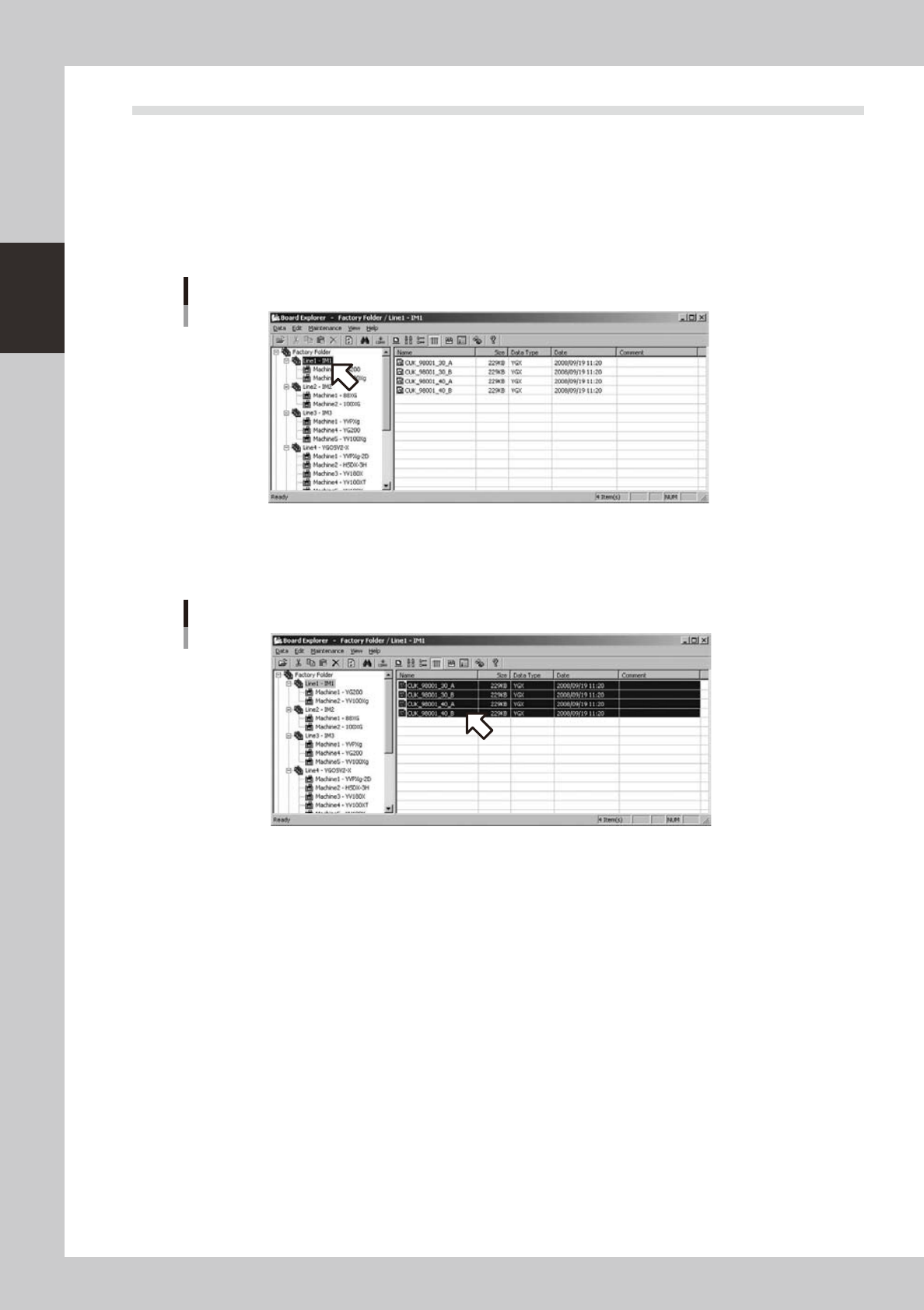
1
Select a line folder with the tree view of the Board explorer.
Selection of line folder
642A1-S0-00
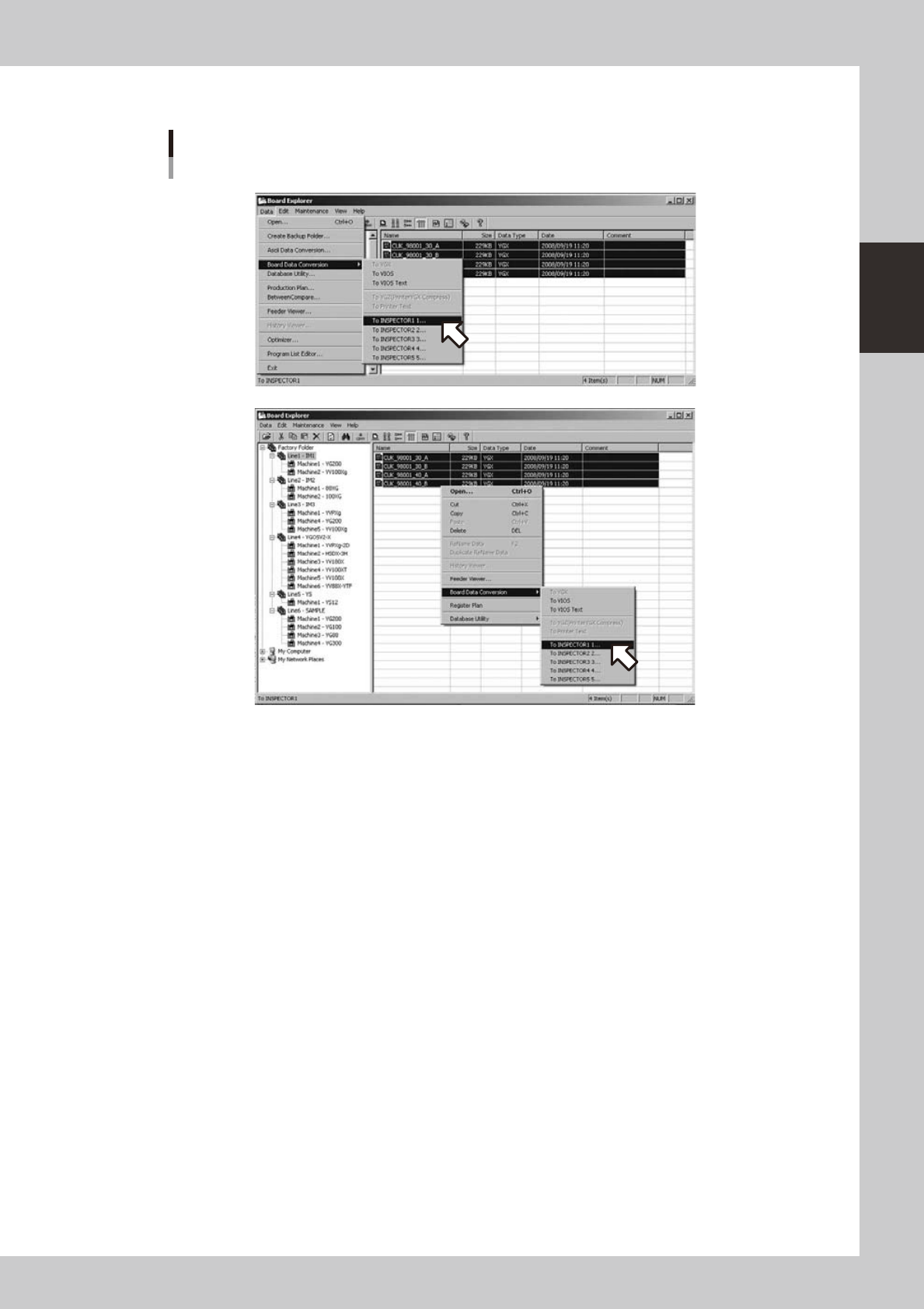
2
Select a board data to be converted with the list view. (Multiple data can be
selected)
Selection of board data
642A2-S0-00
2-23
2
Board Explorer
3
Select an inspector to convert with the data menu or right-click menu.
Selection of inspector to convert
• Selection from right-click
• Selection from data menu
642A3-S0-00
This menu is effective when a line folder is selected with the tree view and when a board data for a
mounter is selected with the list view at the same time.
When "Use Inspection program conversion" for the Inspection program conversion setting is turned off,
the menu will not be shown (Refer to the section 4.2.4, "How to set up").
The menu shows the name of inspector selected in the setting display for Inspection program conversion
(refer to the section 4.2.4, "How to set up"). Up to five inspector names can be set up. When a name of
an inspector is blank, it will not be indicated.