P-TOOL说明书.pdf - 第43页
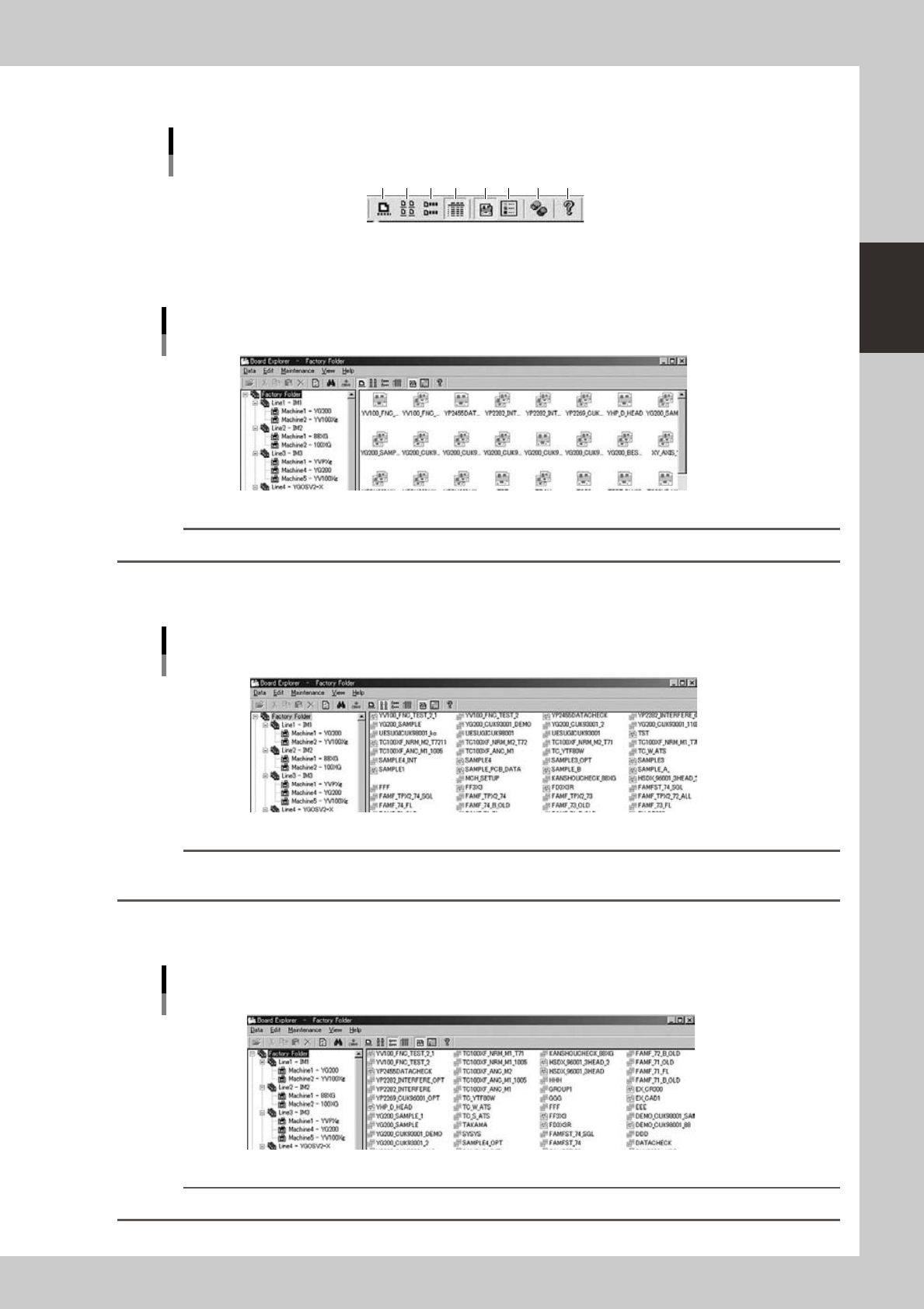
2-9 2 Board Explorer Display manipulation buttons T oolbar Display manipulation buttons 1 2 3 4 5 6 7 8 64214-S0-10 1. [Large Icon View] button Shows data as large icons in the main view. Large icon display in the main v…
2-8
2
Board Explorer
6. [Refresh Board Data] button
Updates the information in the board list.
Reference
This button has the same function as the "Refresh Board List" command in the View menu.
Reference
When "Refresh All View" is selected from in the View menu, all data including line information and board data are
updated.
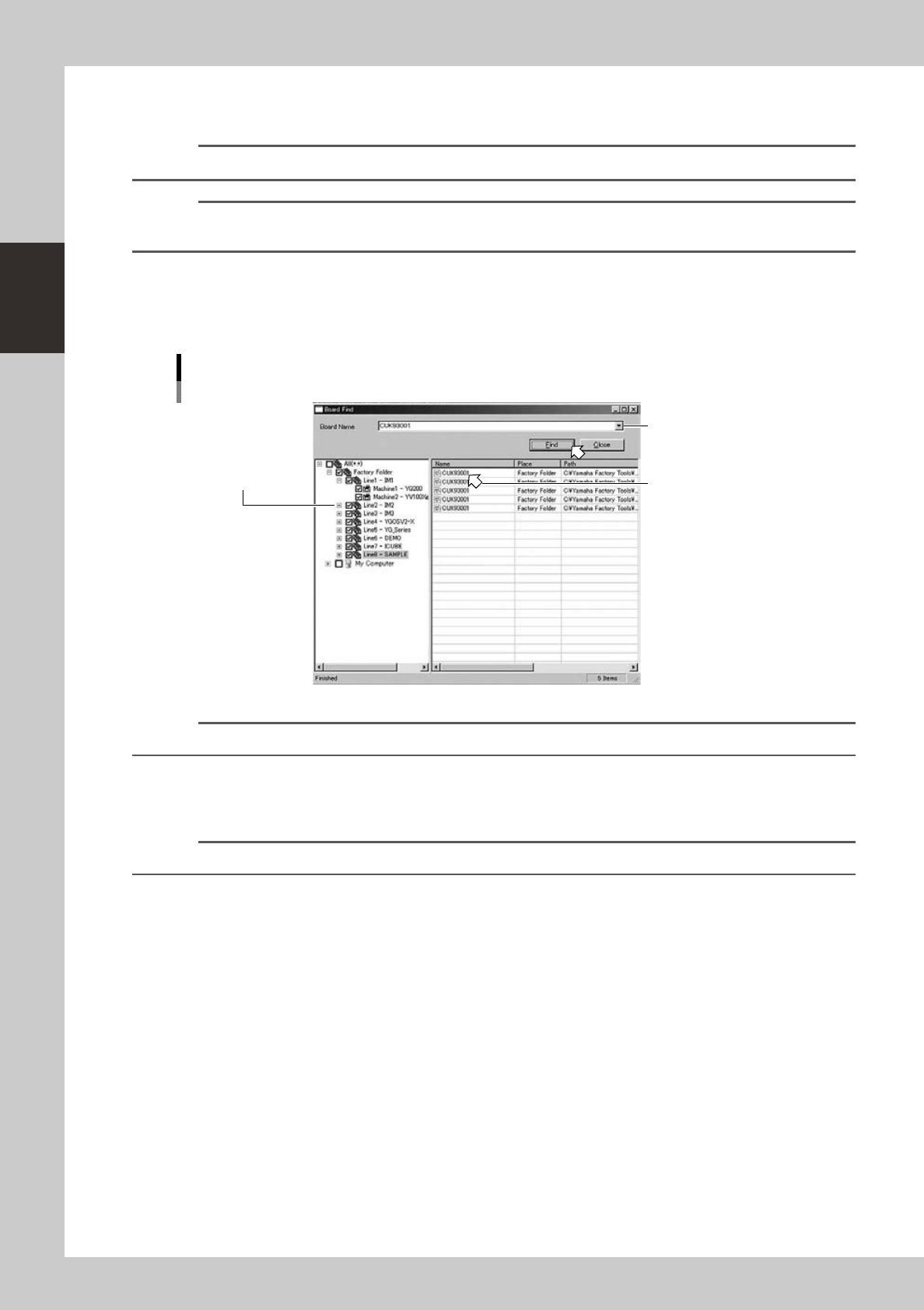
7. [Search Board Data] button
Use this button to search for specific board data.
The “Find board” dialog box appears when this button is clicked. Place a check mark on the locations to make the
search.enterorselecttheboarddatanamefromtheboardNamedrop-downcombobox,andclickthe[Find]button.
"Find Board" dialog box
Click to place a
check mark on
the locations to
make the search.
Select the Board
data name from
the drop-down combo box.
Board Editor starts
by double-clicking.
64213-S0-00
Reference
The [Search Board Data] button has the same function as the "Search Board Data" command in the Edit menu.
8. [Execute Conversion] button
Use this button to convert ASCII data into YGX data.
This button appears when the ASCII converter is used.
Reference
The [Execute Conversion] button has the same function as the "Ascii data conversion" command in the Data menu.
2-9
2
Board Explorer
Display manipulation buttons
Toolbar
Display manipulation buttons
1 2 3 4 5 6 7 8
64214-S0-10
1. [Large Icon View] button
Shows data as large icons in the main view.
Large icon display in the main view
64215-S0-00
Reference
The [Large Icon View] button has the same function as the "Display Mode" - "Large Icons" command in the View menu.
2. [Small Icon View] button
Shows data as small icons in the main view.
Small icon display in the main view
64216-S0-00
Reference
The [Small Icon View] button performs the same function as the "Display Mode" - "Small Icons" command in the View
menu.
3. [List View] button
Shows a list of data as small icons in the main view.
List display in the main view
64217-S0-00
Reference
The [List View] button has the same function as the "Display Mode" - "List" command in the View menu.
2-10
2
Board Explorer
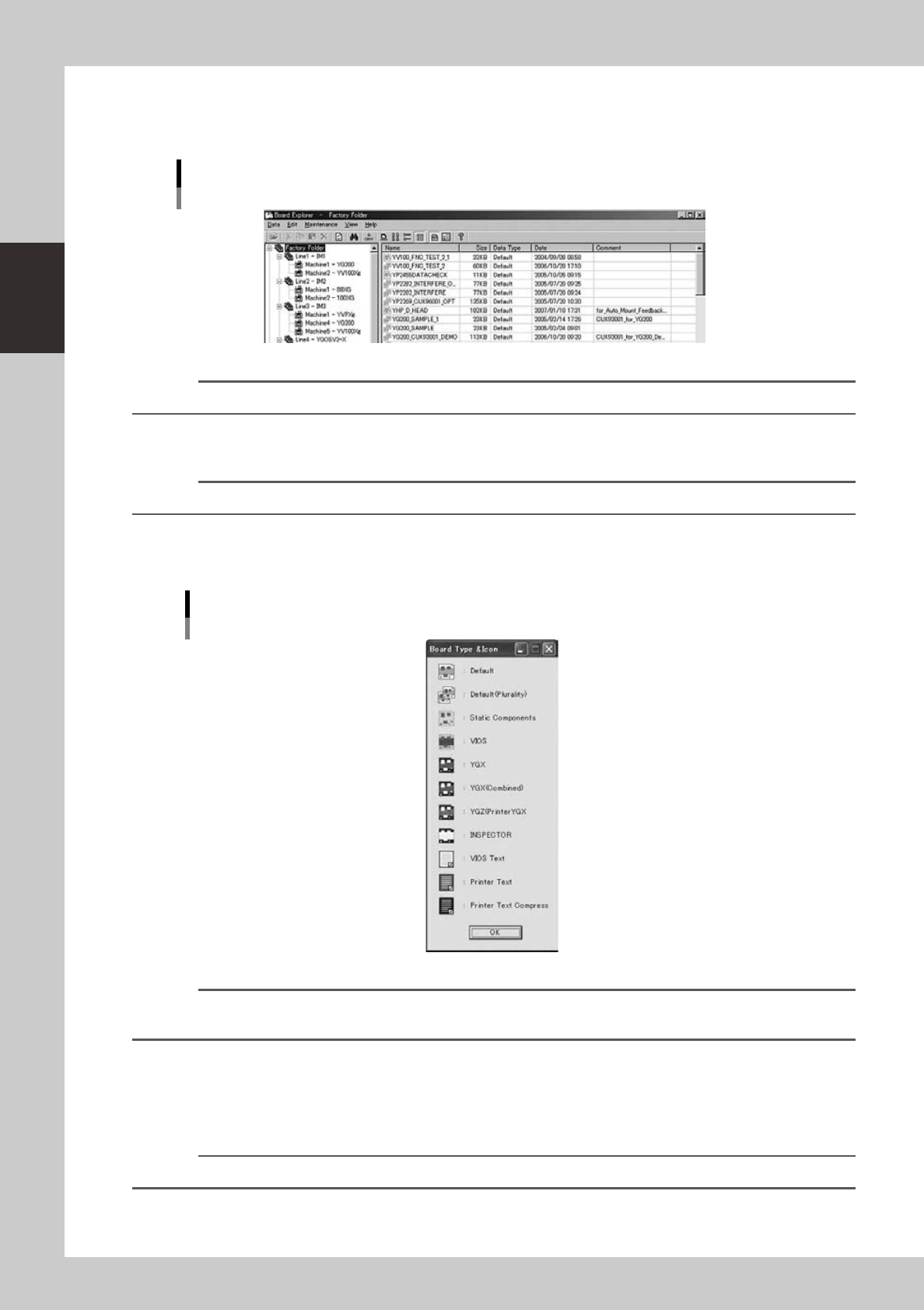
4. [Detail View] button
Shows a list of data with detailed information in the main view.
The detailed information includes data size, data type, update date and comment.
Detail display in the main view
64218-S0-00
Reference
The [Detail View] button has the same function as the "Display Mode" - "Detail" command in the View menu.
5. [DEFAULT] button
Shows or hides default type board data.
Reference
This button has the same function as the "Data Type" - "DEFAULT" command in the View menu.
6. [Board Type Icon] button
Shows a list of board data type icons displayed in the main view. Each data type uses a different icon.
List of Board data type icons
64219-S0-20
Reference
The [Board Type Icon] button has the same function as the "Data Type" - "Board Type Icon" command in the View
menu.
7. [Database Utility] button
Start the database utility.
8. [Version] button
Shows the version of the Board Explorer.
Reference
The [Version] button has the same function as the "Version" command in the Help menu.