P-TOOL说明书.pdf - 第126页
3-6 3 Board Editor ● T oolbars AmongtheBoardEditorfunctions,thosethatarefrequentlyusedareregisteredasthetoolbarbuttons.Thereare5types oftoolbars:“Standardtoolbar”,“Graphictoolbar”,“Solder-print…
3-5
3
Board Editor
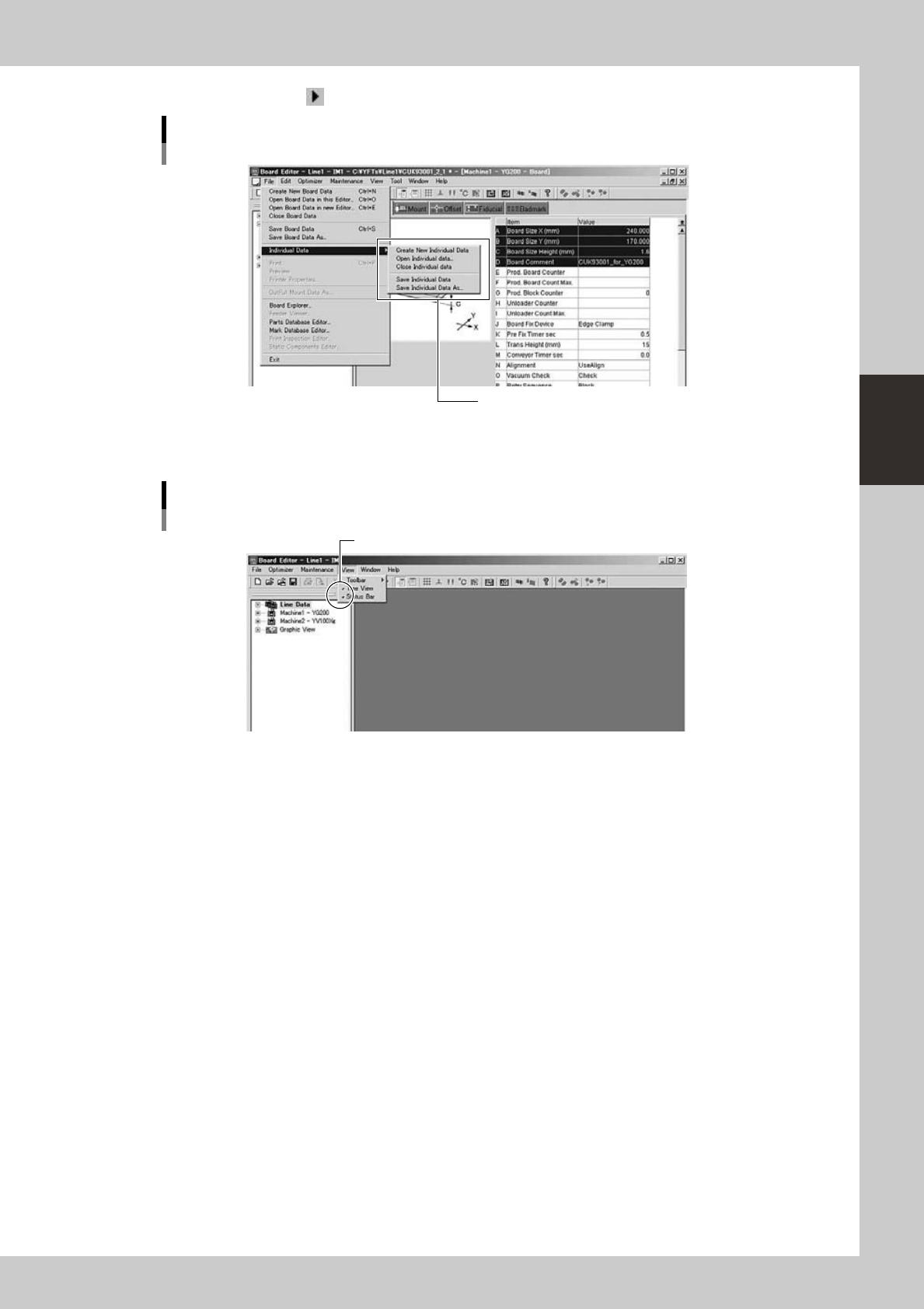
The small right arrow mark “ ” next to a command indicates that the command has a submenu.
Sub menu
Sub menu
64306-S0-00
The check mark next to a menu item indicates that the menu item has been selected.
Menu items are alternately selected and deselected each time they are clicked.
Check mark
Check mark
64307-S0-00
3-6
3
Board Editor
●
Toolbars
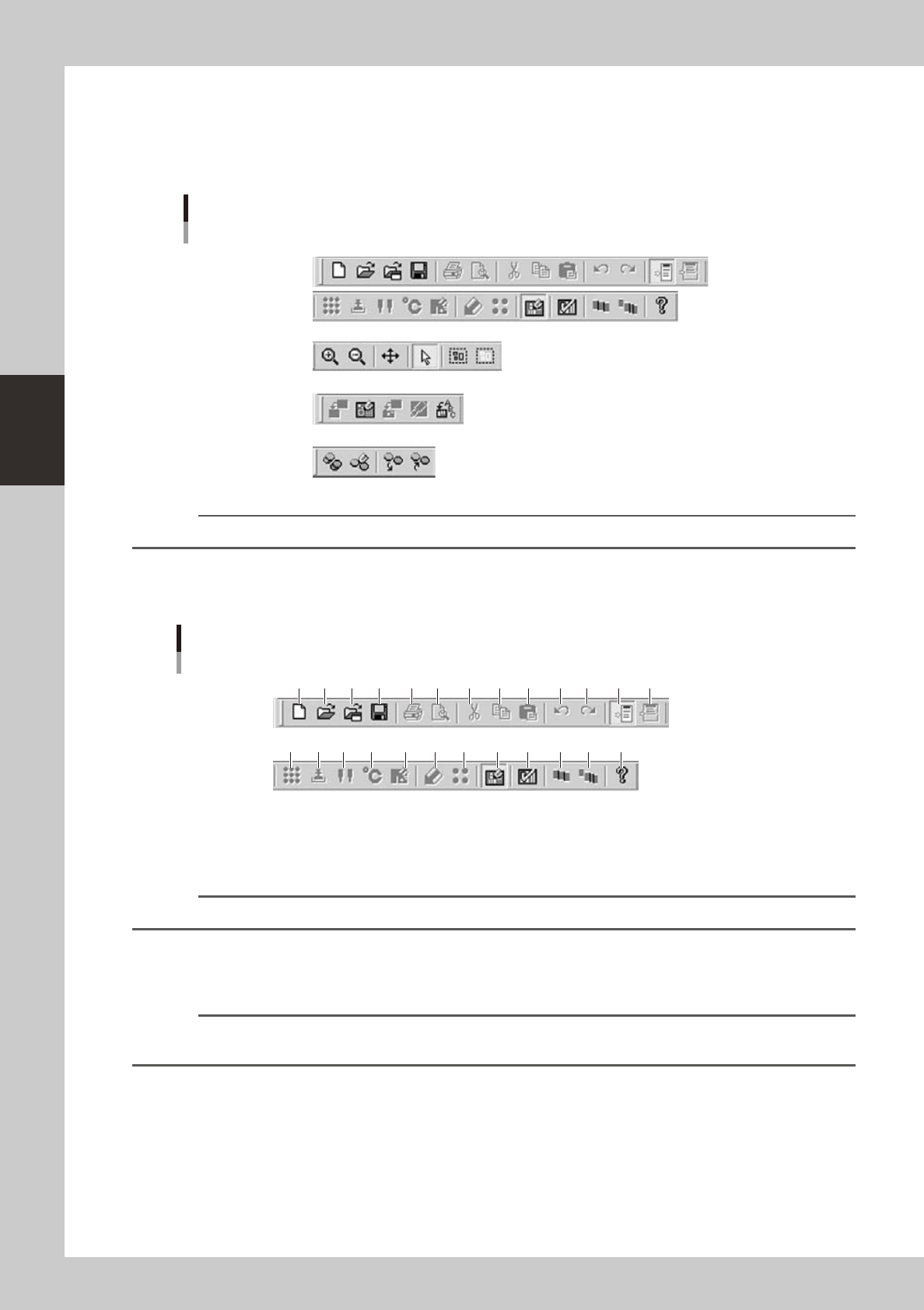
AmongtheBoardEditorfunctions,thosethatarefrequentlyusedareregisteredasthetoolbarbuttons.Thereare5types
oftoolbars:“Standardtoolbar”,“Graphictoolbar”,“Solder-printinspectiontoolbar”(option),“Databasetoolbar”.
Each toolbar can be hidden or redisplayed by selecting it from the “Toolbar” submenu on the View menu.
Toolbars
Standard toolbar
Graphic toolbar
Solder-print inspection toolbar
Database toolbar
64308-S0-00
Reference
Some buttons on the toolbars are grayed out (dimmed) and cannot be used depending on the specifications.
Standard toolbar
This toolbar is available when you are manipulating the Board Editor window.
1 2 3 4 5 6 7 8 9 10 11 1312
14 16 17 18 19 20 21 22 23 24 2515
Standard toolbar
64309-S0-00
1. [New Board Data] button
Click this button to create new board data.
The initial data is loaded for creating new board data.
Reference
The [New Board Data] button has the same function as the "Create New Board Data" command in the File menu.
2. [Open Board Data on This Editor] button
Click this button to load board data that is already registered.
The “Board data select” dialog box appears. Select the Board you want to load in the current window of the Board Editor.
Reference
The [Open Board Data on This Editor] button has the same function as the "Open Board Data on This Editor" command
in the File menu.

3-7
3
Board Editor
3. [Open Board Data on New Editor] button
Click this button to load board data by opening a new window of the Board Editor.
The “Board data select” dialog box appears. Select the Board you want to load in the new window of the Board Editor.
Reference
The [Open Board Data on New Editor] button has the same function as the "Open Board Data on New Editor"
command in the File menu
4. [Save Board Data] button
Saves the currently edited board data over the original data.
Reference
The [Save Board Data] button has the same function as the "Save Board Data" command in the File menu.
5. [Print] button
Prints information of the currently edited board data.
Reference
The [Print] button has the same function as the "Print" command in the File menu. For details on print functions, refer to
section 11, "Printing the board data", in chapter 1.
6. [Preview] button
Displays an image that will be printed.
Reference
The [Preview] button has the same function as the "Preview" command in the File menu.
7. [Cut] button
Cuts and removes the selected range or item.
The data that was cut is stored in the clipboard. The contents previously stored in the clipboard are overwritten.
Reference
The [Cut] button has the same function as the "Cut" command in the Edit menu.
8. [Copy] button
Copies the selected range or item into the clipboard. The contents previously stored in the clipboard are overwritten.
Reference
The [Copy] button has the same function as the "Copy" command in the Edit menu.
9. [Paste] button
Pastes the contents currently stored in the clipboard into the selected place.
Reference
The [Paste] button has the same function as the "Paste" command in the Edit menu.
10. [Undo] button
Reversesthepreviousactions.
Reference
The [Undo] button has the same function as the "Undo" command in the Edit menu.
11. [Redo] button
Redoesthepreviousactionsthatwerecanceledwiththe[Undo]button.
Reference
Clicking the [Redo] button has the same function as the "Redo" command in the Edit menu.
12. [Toggle Tree View] button
Shows or hides the tree view in the left pane of the Board Editor window.
Reference
This button has the same function as the "Tree View" command in the View menu.