P-TOOL说明书.pdf - 第196页
4-21 4 F eeder Vie wer 2.3 Opening a plan file To open a plan file that is already registered, follow these steps. 1 Select “Open” from the Plan file. The "Select Plan File" dialog bo x appear s. Reference Clic…
4-20
4
Feeder Viewer
4
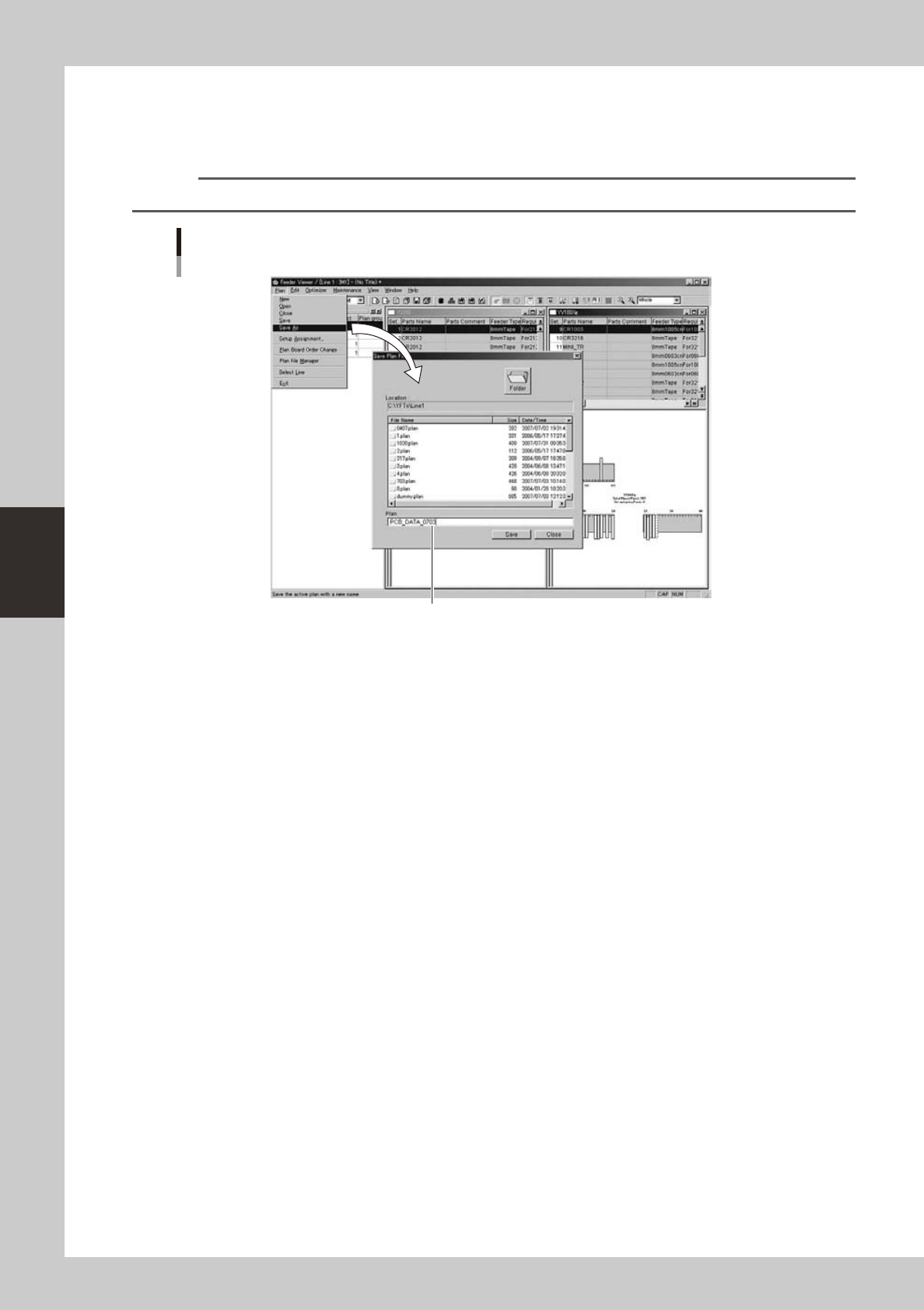
Save the plan information.
Select "Save As" from the Plan menu.
When the "Save Plan File" dialog box appears, enter the plan information name in the Plan text box and
click the [Save] button.
Reference
Clicking the [Save] button on the toolbar performs the same operation.
Selecting the "Save As" command
Enter a new name.
64432-S0-00
4-21
4
Feeder Viewer
2.3 Opening a plan file
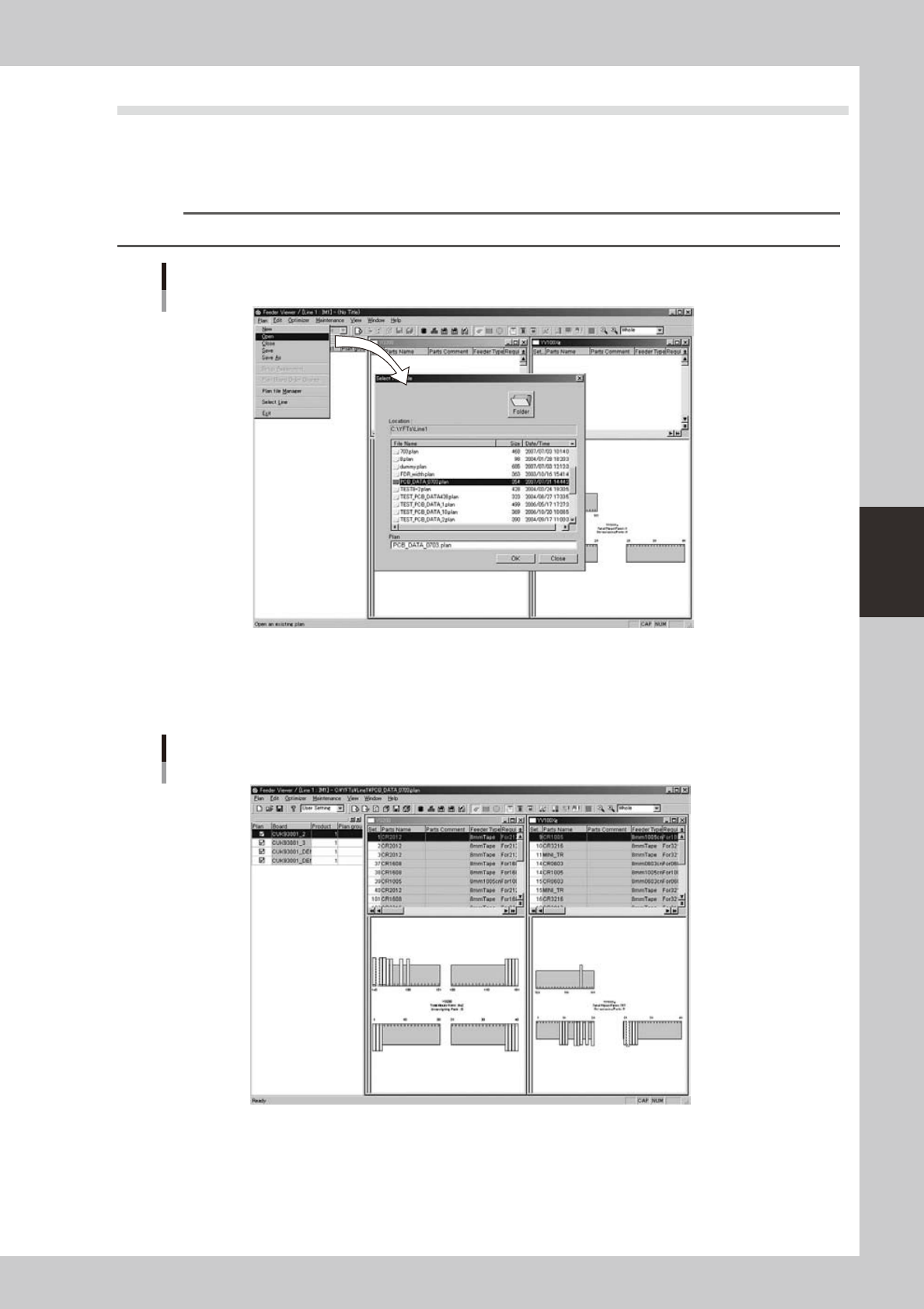
To open a plan file that is already registered, follow these steps.
1
Select “Open” from the Plan file.
The "Select Plan File" dialog box appears.
Reference
Clicking the [Open] button on the toolbar performs the same operation.
Selecting the "Open" command
64433-S0-00
2
Select the file to open.
Select the file from the File Name list in the dialog box and click the [OK] button.
The plan information data is loaded from the selected file and then displayed.
Plan information screen
64434-S0-00
4-22
4
Feeder Viewer
3.
Editing the data on the plan information screen
You can edit the board data on the plan information screen.
3.1 Switching the production lines
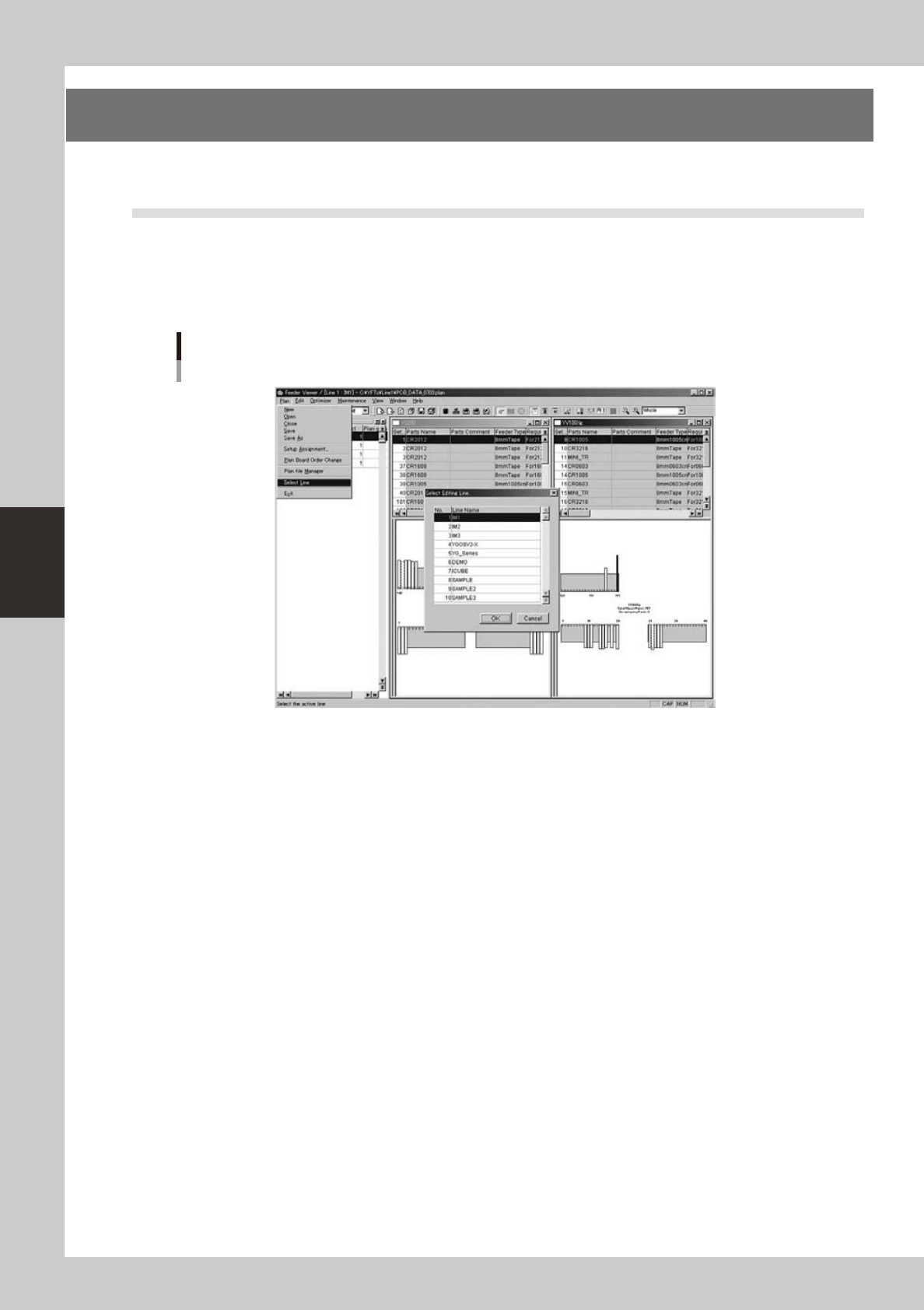
You can switch the currently selected production line to another line while the Feeder View is still in operation.
Note that you must first close the currently selected line.
1
Select “Select Line” from the Plan menu.
The "Select Editing Line" dialog box appears.
Feeder Viewer initial screen
Selecting the "Select Line" command
64435-S0-00
2
Select the line and click the [OK] button.
3
The Feeder Viewer for the selected line starts up.
The new line name appears in the title bar of the Feeder Viewer.