P-TOOL说明书.pdf - 第163页
3-43 3 Board Editor 2. Magnification drop-down list Thegraphicviewcanbeexpandedorreducedasneeded.Selectthedesiredmagnificationfromthe“Zoom”drop-down list. In this case, the top right corner of the Board…
3-42
3
Board Editor
3.2 Manipulating the graphic view
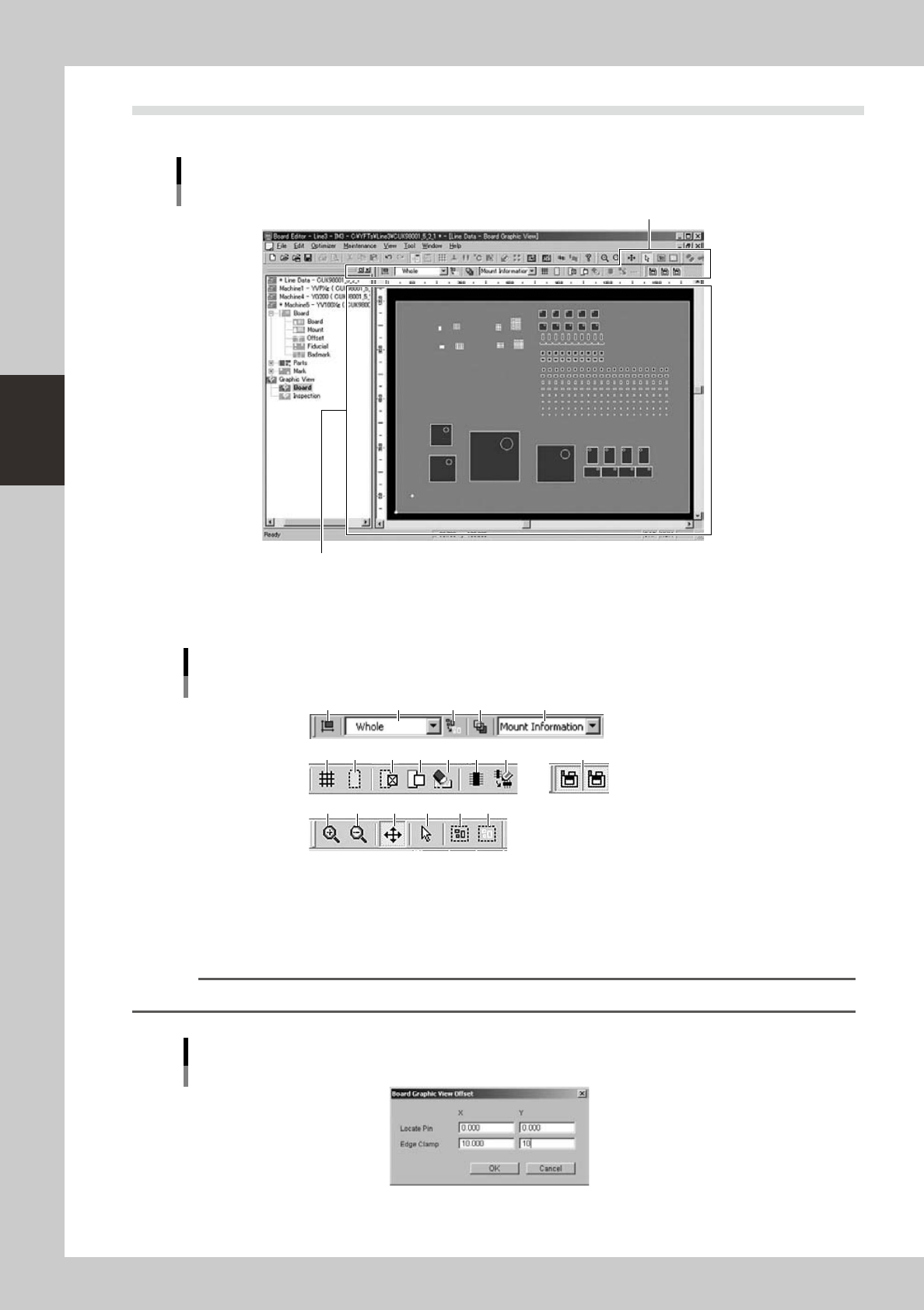
The graphic view consists of a graphic window and a toolbar.
Graphic view screen
Graphic toolbar
Board graphic window
64349-S0-00
●
Graphic toolbar
1 2 3 54
6 7 8 9 10 11 12 13
14 15 16 17 18 19
Graphic toolbar
64350-S0-10
1.
All offset
Setsuptheoffsetvaluefortheentiregraphicviewindication.(Referto3.4Graphicviewindicationoffsetsetting)
Select a board securing method and enter the origin position of board in the respective fields. Click the [OK] button to
close the window and the values will be applied to the graphic view.
Reference
The origin position of board is usually shown at the position of X=5mm, Y=5mm on the graphic view.
Indication offset
64351-S0-00
3-43
3
Board Editor
2.
Magnification drop-down list
Thegraphicviewcanbeexpandedorreducedasneeded.Selectthedesiredmagnificationfromthe“Zoom”drop-down
list. In this case, the top right corner of the Board is used as the reference point
3. [Deselect All] button
Cancels the selection of all objects in the graphic view. (Each object in the graphic view can be selected when the
[Select] button is pressed.)
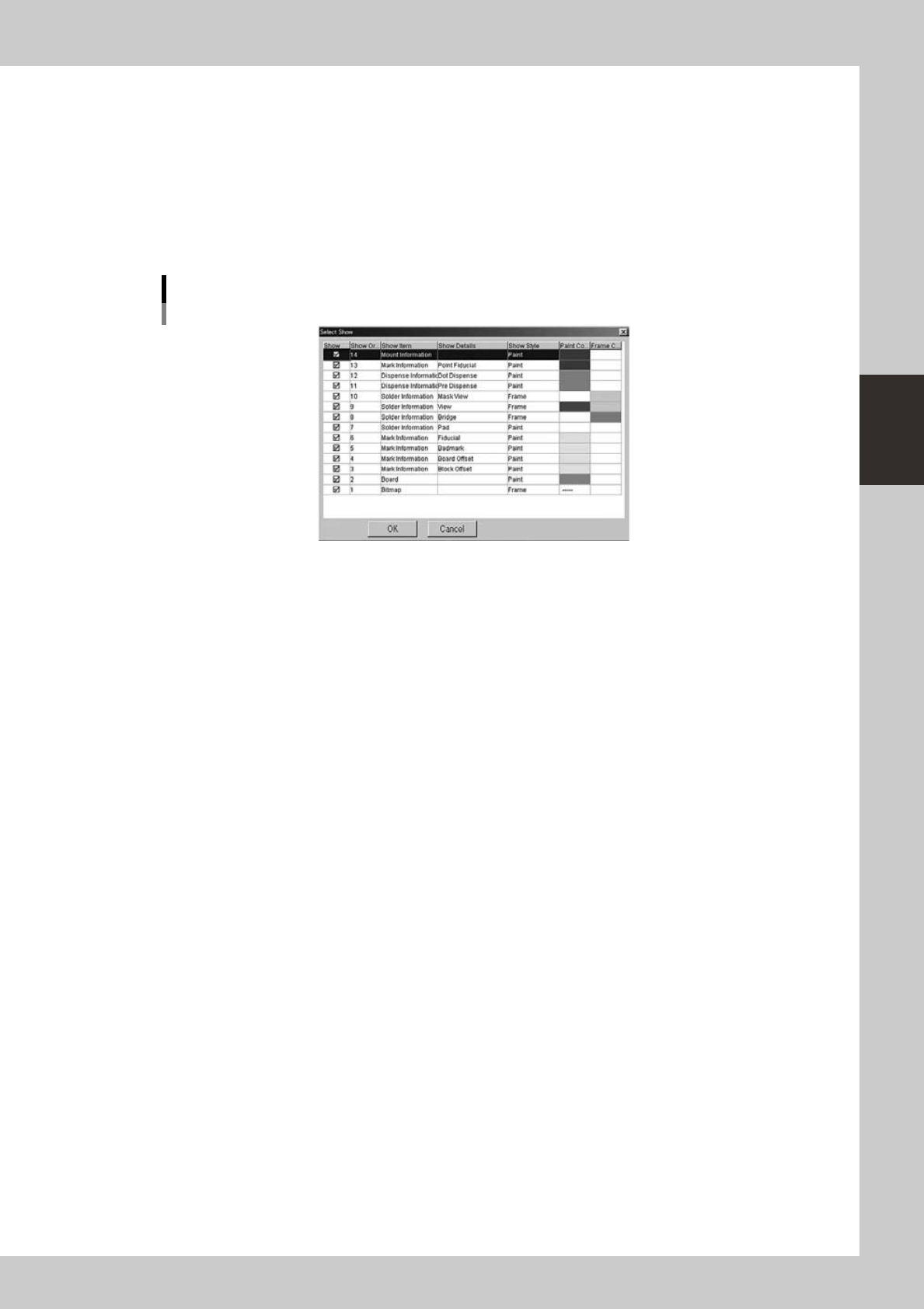
4. [Edit Display Color] button
Opens the dialog box shown below for editing the display colors.
Dialog box for editing display colors
64352-S0-00
5. Data item drop-down list
From this drop down list, select the data item you want to check and edit in the graphic view.
6. [Grid View] button
Displays grid lines in the graphic view.
7. [Skip Show/Hide] button
Shows or hides the objects set to “skip” in the mount information.
8. [Skip] button
Set the selected objects to “skip”.
9. [Skip Off] button
Cancels the “skip” setting for the selected objects.
10. [Delete Selected Items] button
Deletes the selected objects.
11. [Create New Mount Info] button
Creates new mount information.
12. [Change Mount Position] button
Changes the mount position.
13. [Select Machine] button
Selects the machine for displaying the graphic view.
14. [Zoom In] button
Enlarges the graphic view.
15. [Zoom Out] button
Reducesthegraphicview.
16. [Move] button
Moves the graphic view in the direction you drag.
17. [Select] button
Allows selecting each object in the graphic view. Selected objects are shown in a different color.
18. [Select Rectangle] button
Allows selecting objects in the graphic view by dragging to draw a rectangle.
3-44
3
Board Editor
19. [Unselect Rectangle] button
Allows unselecting objects in the graphic view by dragging to draw a rectangle.
n
NOTE
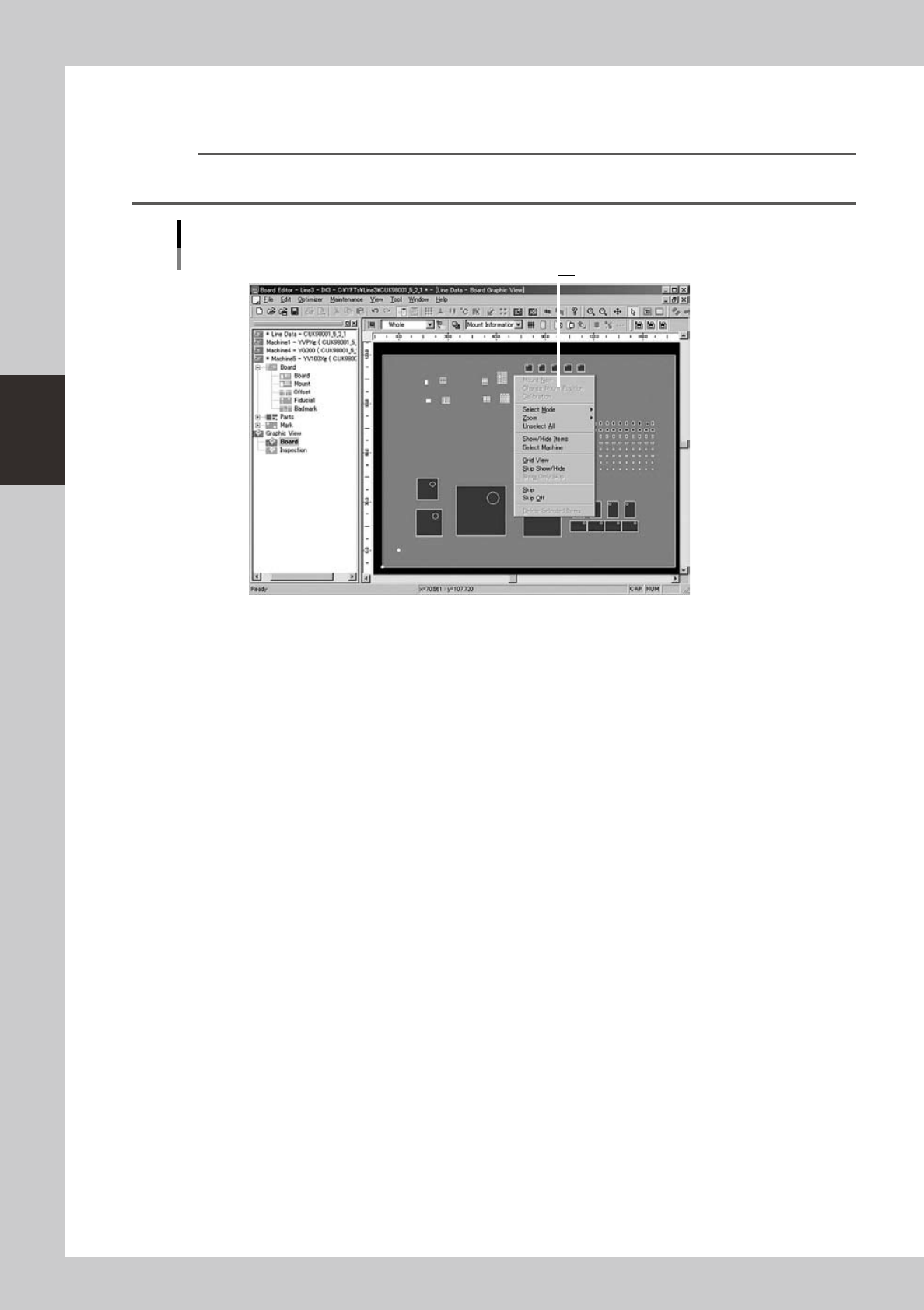
You can select the above commands from the context menu (right-click menu) that appears when the right mouse
button is pressed at any position in the main view.
Graphic view example
Context menu
Select the command from the menu.
64353-S0-00