P-TOOL说明书.pdf - 第151页
3-31 3 Board Editor 2.10 Search and replace You can search for a data item from the main view and replace it with another item This function can be used in the main view for “mount Information”, “parts Information”, “mar…
3-30
3
Board Editor
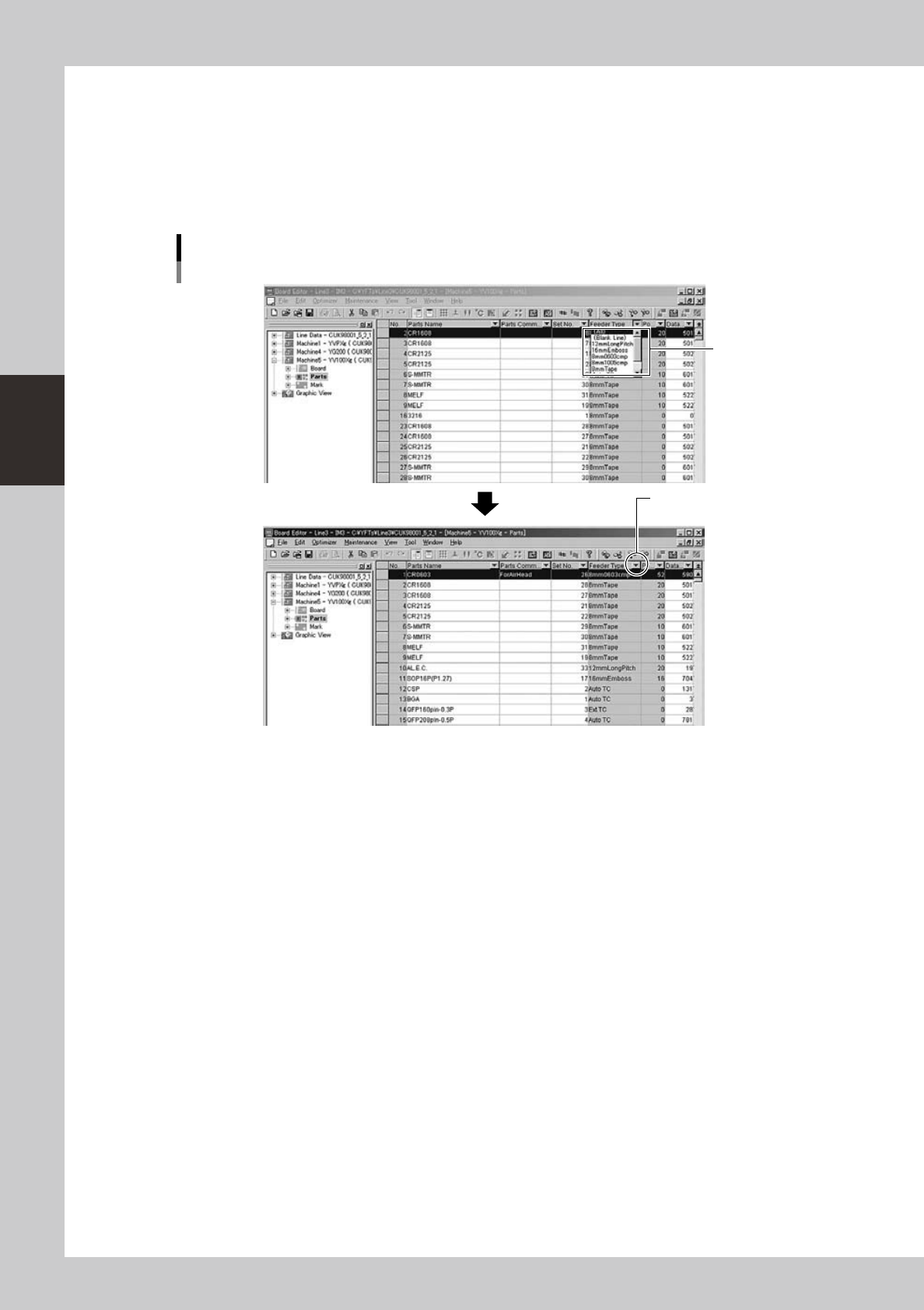
2.9.2 Canceling the filter
To cancel the filtering, proceed as follows.
1
Click the filter drop-down button of the filtered column.
2
Select “(All)” from the drop-down menu.
The filtering is canceled and the filter drop-down button turns back to black.
Canceling the filter
Filter drop-down
button turns black.
Select "ALL".
64340-S0-00
3-31
3
Board Editor
2.10 Search and replace
You can search for a data item from the main view and replace it with another item
This function can be used in the main view for “mount Information”, “parts Information”, “mark Information”,
“block offset”, “local fiducial”, “local badmark”, “predispense” and “dot dispense”.
2.10.1 Search
To search for a data item in the main view, proceed as follows.
1
Select the desired information from the tree view to display it in the main view.
2
Click any row in the main view.
The clicked row becomes a starting point.
Reference
Search for a target item can be performed only within a specied area. To specify a search area:
1. Click on the header of the first row in the search area. That row is highlighted.
2. To specify a block of consecutive rows as the search area, click on the header of the last row in the search area.
All rows in the search area between the first and last rows are now selected and highlighted.
If you want to specify non-consecutive rows as the search area, click on the header of each row you want to
select while holding down the [Ctrl] key. The clicked rows are selected and highlighted.
The highlighted rows indicate the currently selected search area.
3
Perform search.
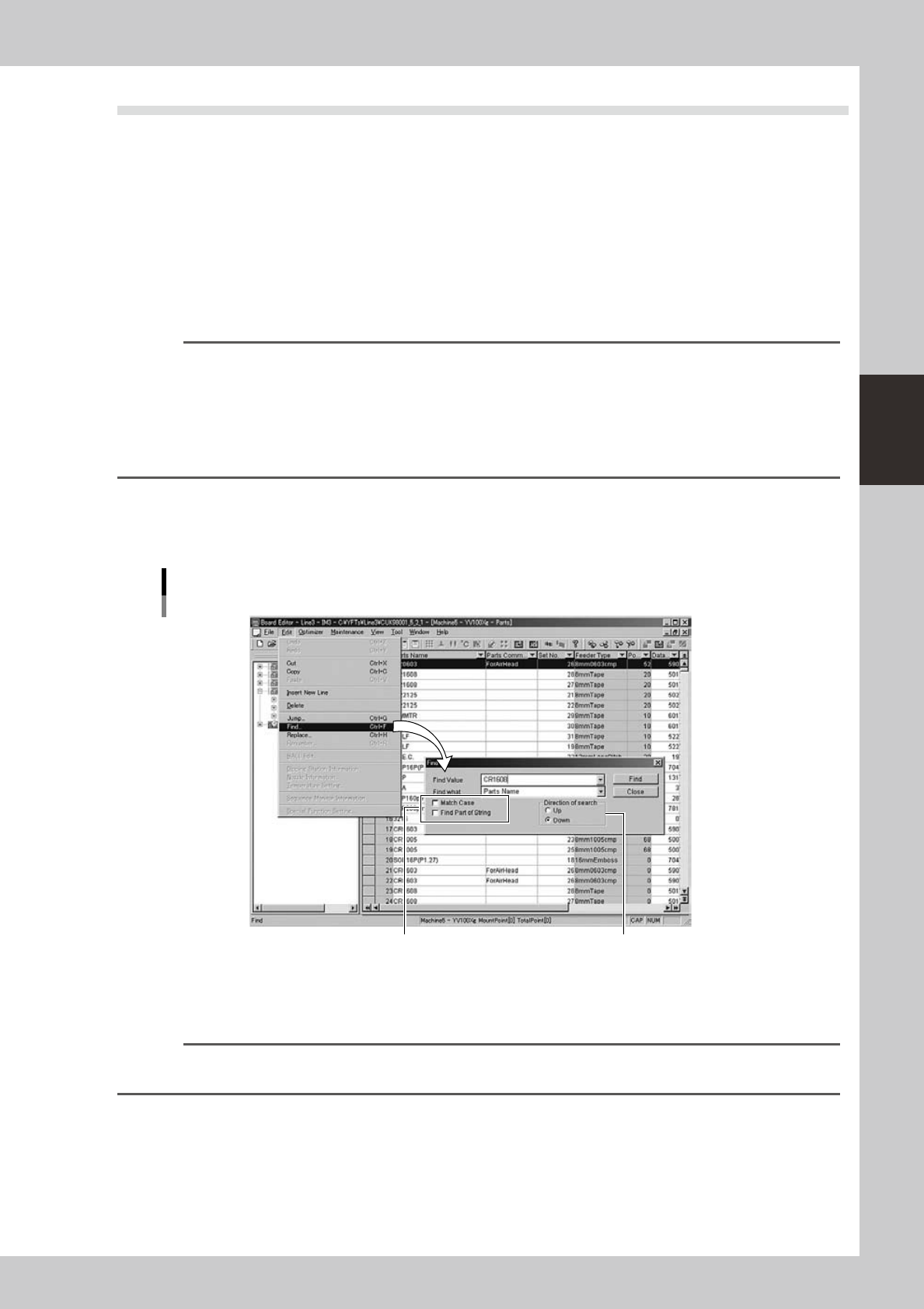
1. Select "Find" from the Edit menu.
The "Find" dialog box appears.
Selecting the "Find" command
Select these check boxes as needed. Select the direction
to perform search.
64341-S0-00
2. From the "Find what" drop-down list, select the item to be found.
3. In the "Find value" box, specify the character string or value to be found.
Reference
When you select "Feeder Type" from the "Find what" drop-down list, the feeder type can be selected from the "Find
Value" drop-down list.
3-32
3
Board Editor
4. To distinguish between uppercase and lowercase letters, select the "Match Case" check box.
5. Select the "Find Part of String" check box if you want to search for all objects that contain the value
or character string you entered in the "Find Value" box.
6. Select the direction of search.
Click the "Up" radio button to perform search backward (toward the beginning of the data rows),
starting from the row you selected in step 2.
Click the "Down" radio button to search forward (toward the end of the data rows), starting from the
row you selected in step 2.
7. Click the "Find" button to start a search.
When the target item is found, the row of the target item is highlighted. When you want to continue
to search under the same conditions, click the [Find] button again.
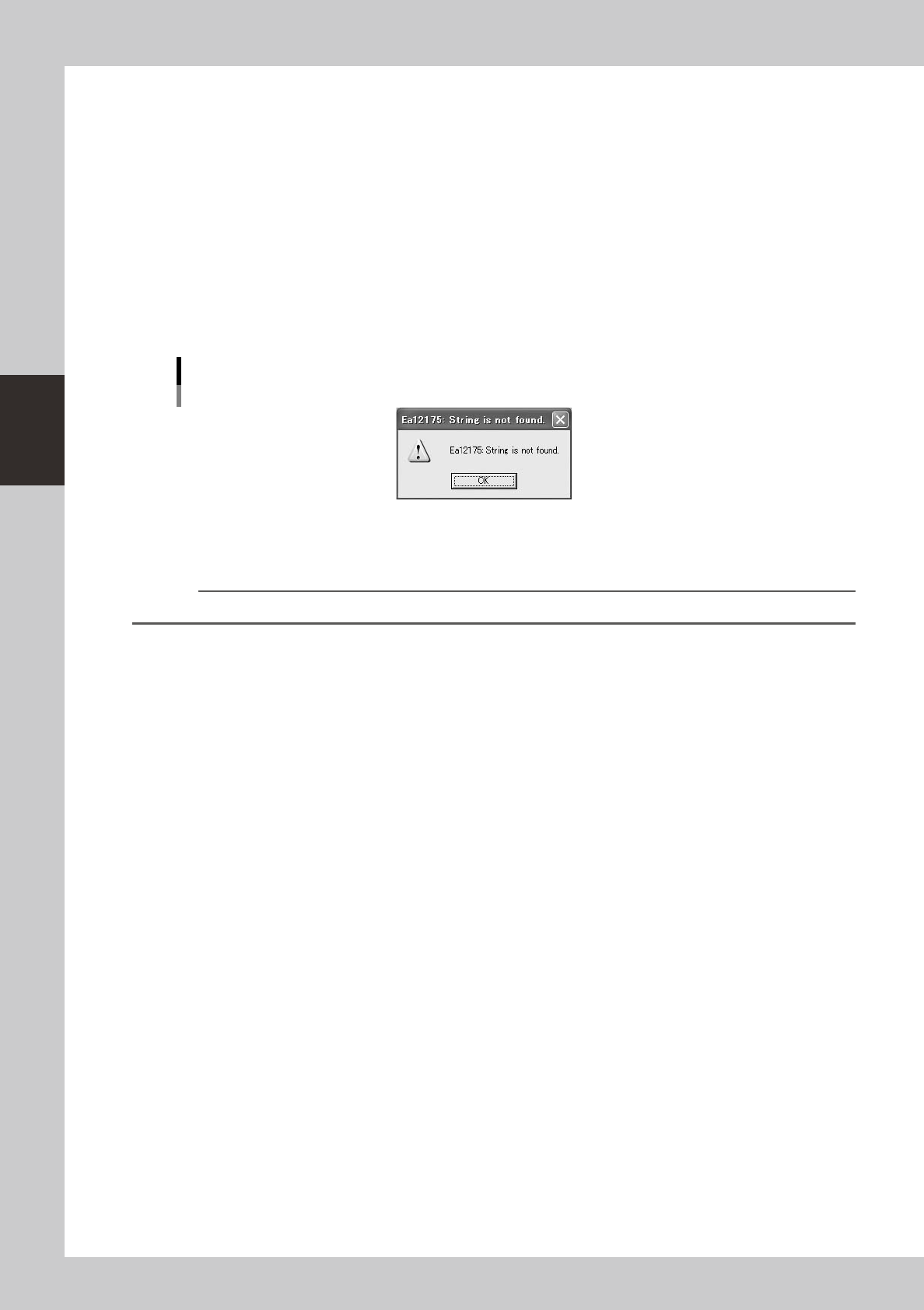
If no target item has been found, the following message dialog box appears. Click the [OK] button
to close this dialog box, and change the search conditions in the "Find" dialog box.
Dialog box displayed when no match is found
64342-S0-00
4
Close the “Find” dialog box.
Click the [Close] button to close the "Find" dialog box.
Reference
You can close the dialog box by clicking the [Close] button in the upper right corner.