KY8030 Programmers Manual.pdf - 第26页
24 | KY-8030 Series (KYOS-2007001_rev0) 3D In ‐ line Solder Paste Inspection Systems 5) Export (Ctrl + E) Open the "Export" dialog box to export work data into a t ext file. ※ Note: Activated when m…
Programmers Manual
| 23
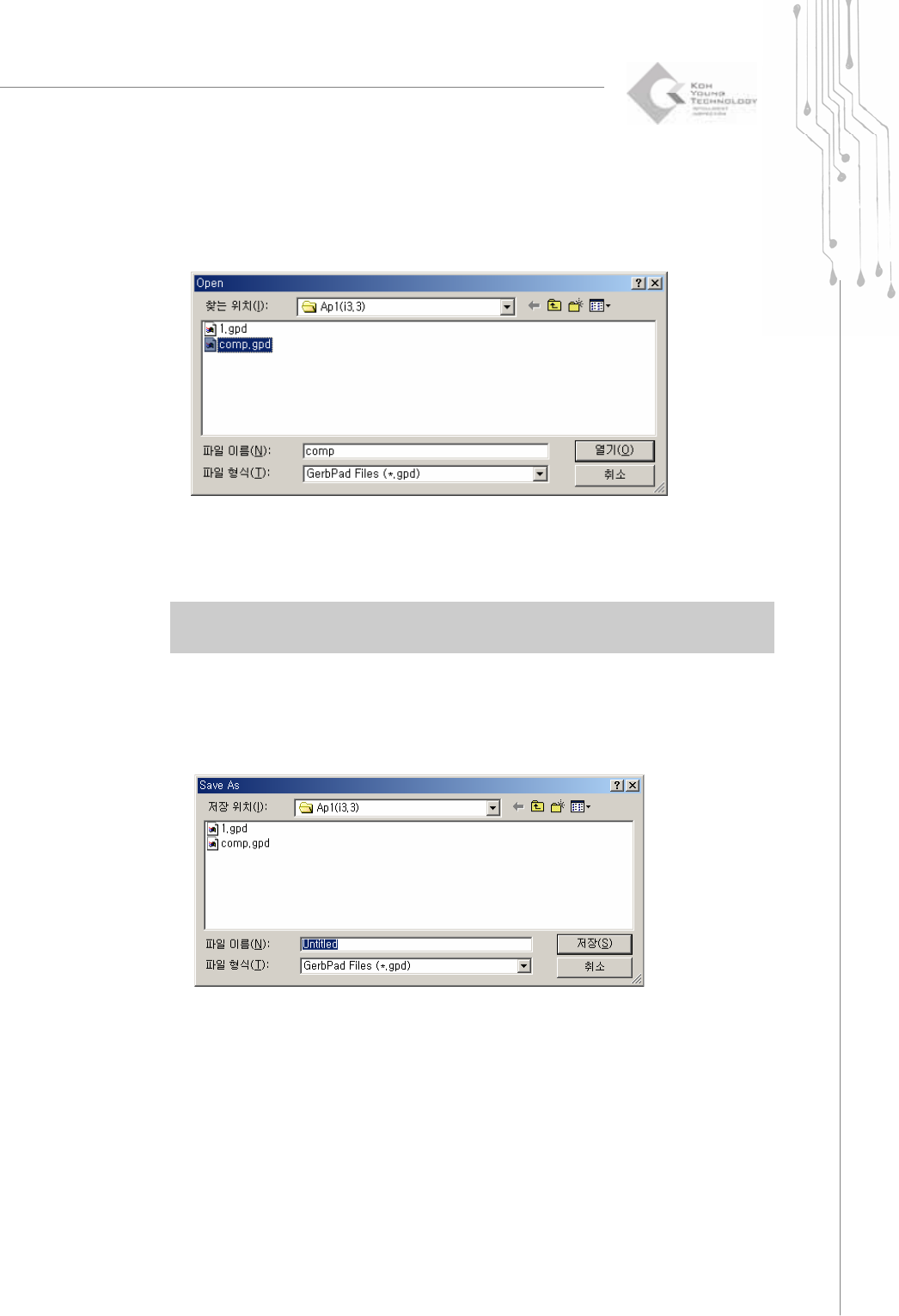
2) Open (Ctrl + O)
Open the "Open" dialog box to load a work file (.gpd file).
The "Open" Dialog Box
3) Save (Ctrl + S)
Save work data in a GerbPad file.
The extension for a work file is "gpd".
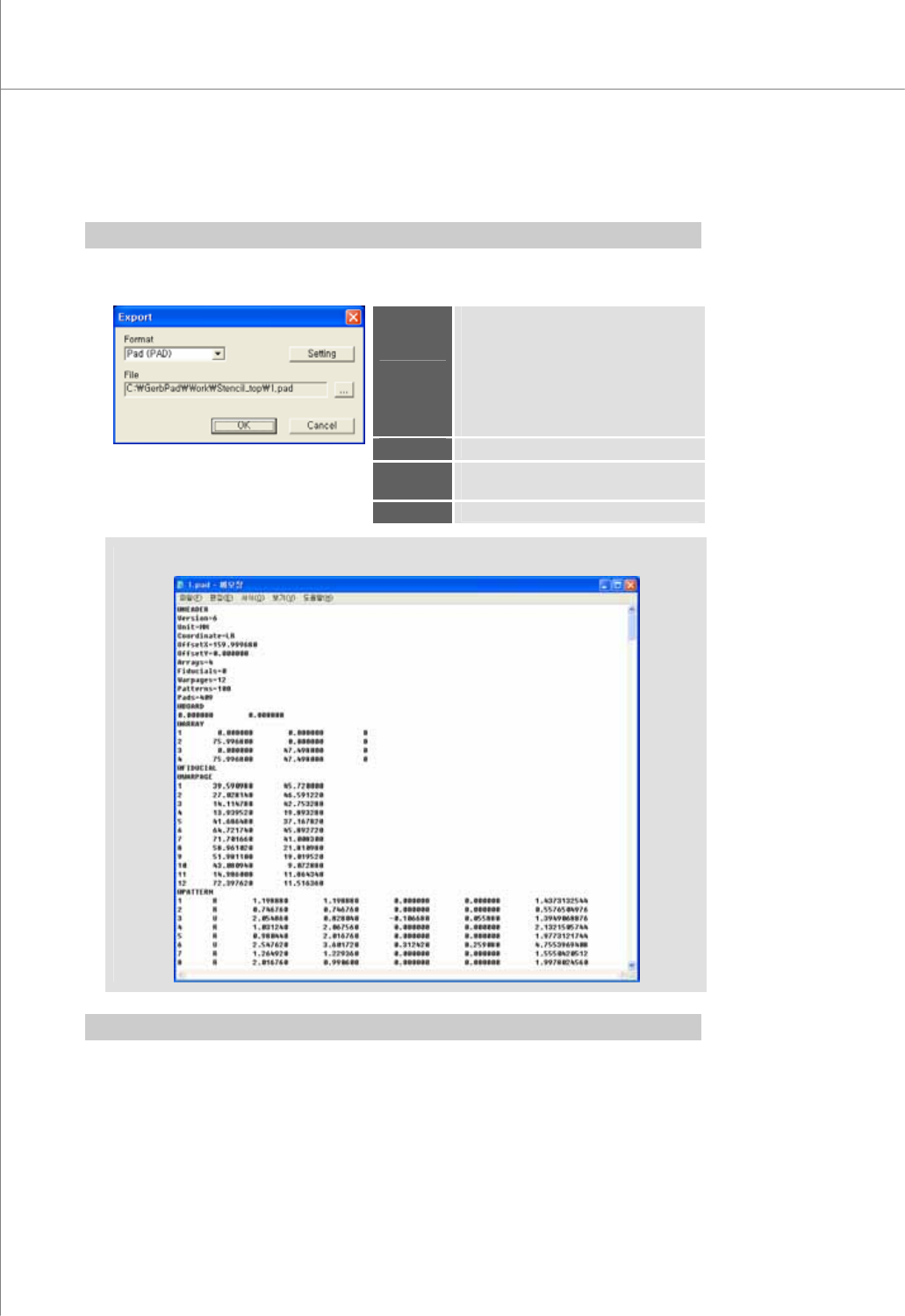
※ Note: When saving work data for the first time after working on a Gerber file, the "Save As"
dialog box will be displayed.
4) Save As
Open the "Save As" dialog box to save work data in a different file.
The "Save As" Dialog Box
24 | KY-8030 Series(KYOS-2007001_rev0)
3DIn‐lineSolderPasteInspectionSystems
5) Export (Ctrl + E)
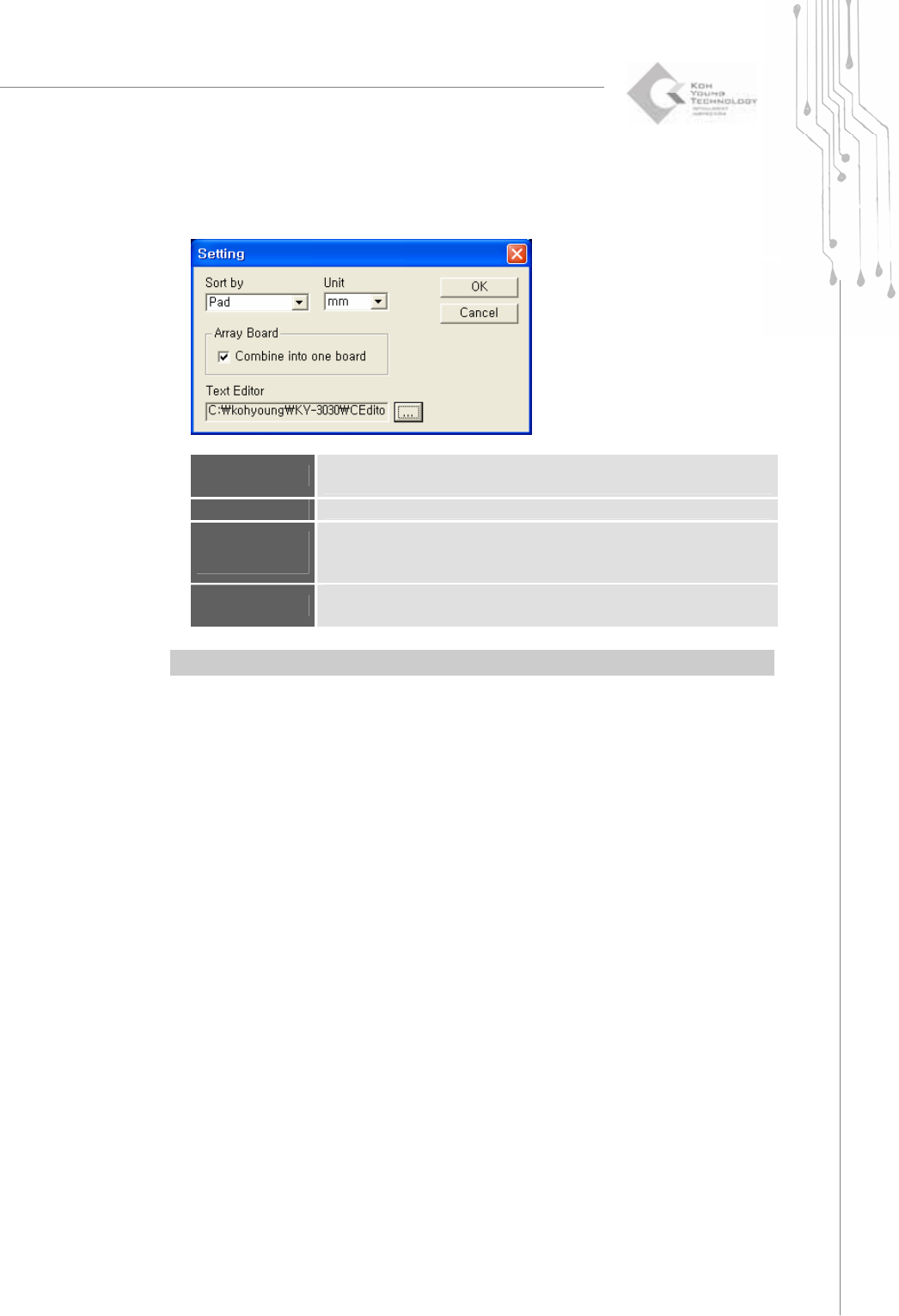
Open the "Export" dialog box to export work data into a text file.
※ Note: Activated when more than one pads have been created.
The "Export" Dialog Box
Format
Select the export file format.
Available Formats: Pad (PAD), TX
1) Pad (PAD): PCB data, pad data
2) TX format: pad data, camera FOV
and path data
* Only the * pad format is supported at
this time.
File
Specify a path for the export file.
Setting
Open the "Setting" dialog box and edit
settings for the export file.
OK
Export data and open the export file.
(An Export File Example)
※ Note: TX format is not used in KY-3030.
Programmers Manual
| 25
The "Setting" Dialog Box
If you select "Pad" under "Format" in the "Export" dialog box:
Sort by
Select the sorting criteria for pad data.
(Pad / Pattern / Shape / Reference)
Unit
Select the unit for export files (mm/inches).
Combine into
one board
Check this option to export multiple array boards as one.
※ Note: Activated when a PCB is registered as array boards.
Text Editor
Specify a text editor that will be used to view an export file.
※ Note: By default, this is set to Windows Notepad.
※ Note: Set CEditor as a text Editor to run CEditor immediately after exporting.