KY8030 Programmers Manual.pdf - 第31页
Program mers Manual | 2 9 1.3.2. Sel ect 1) Flash (Ctrl + F) Change the mouse pointer mode to Flash Selection mode. You can s elect flash(es) to perform the foll owing tasks: 1) To add a pattern : Choose "Edit ▶ Add…
28 | KY-8030 Series(KYOS-2007001_rev0)
3DIn‐lineSolderPasteInspectionSystems
8) Exit (Alt + X)
Exit the program.
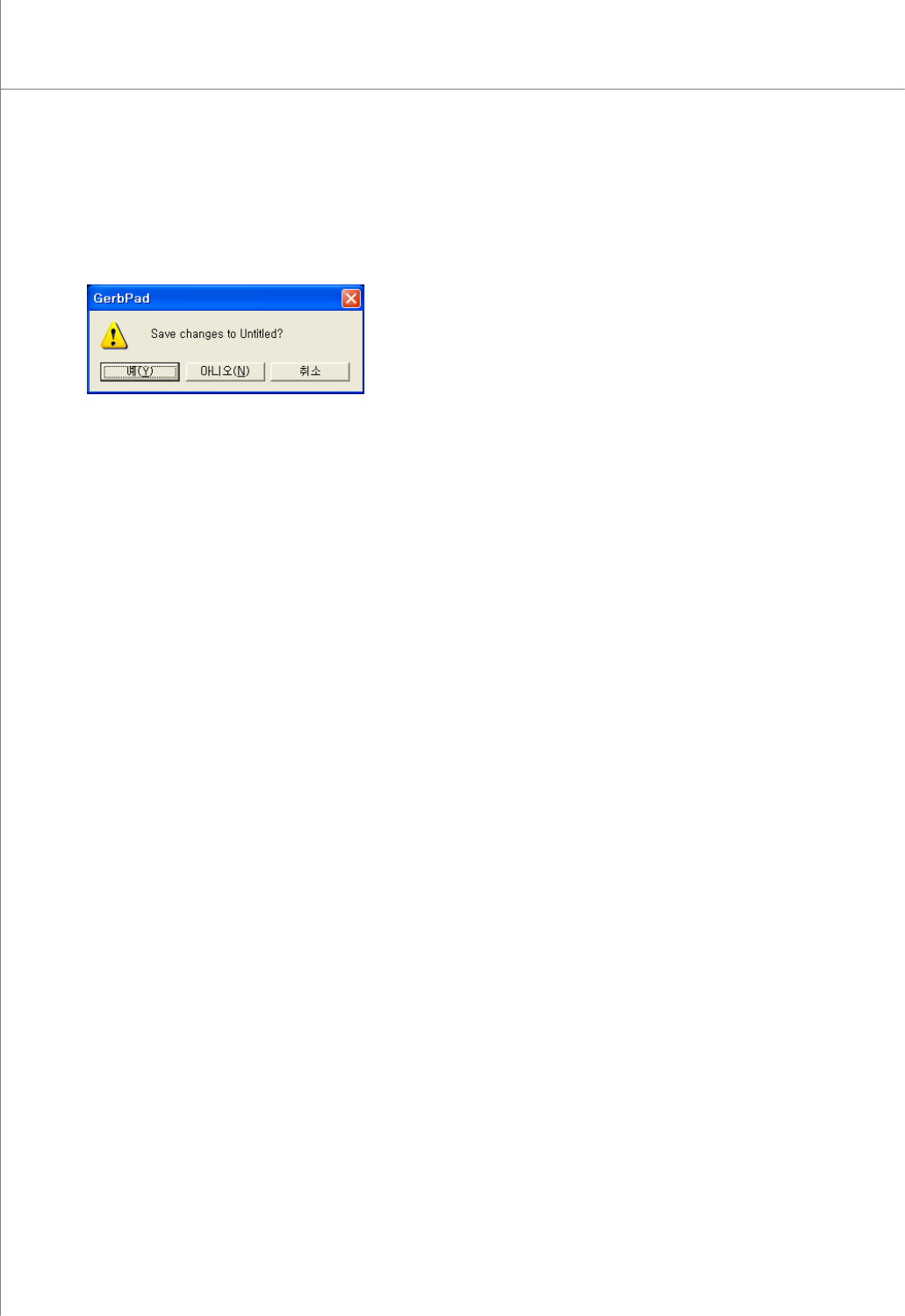
If you exit the program without saving your data, the save confirmation window
appears as follows:
Click the Yes button to save the file and exit the program.
Click the No button to exit the program without saving the file.
Click the Cancel button to return to the previous screen.
Programmers Manual
| 29
1.3.2. Select
1) Flash (Ctrl + F)
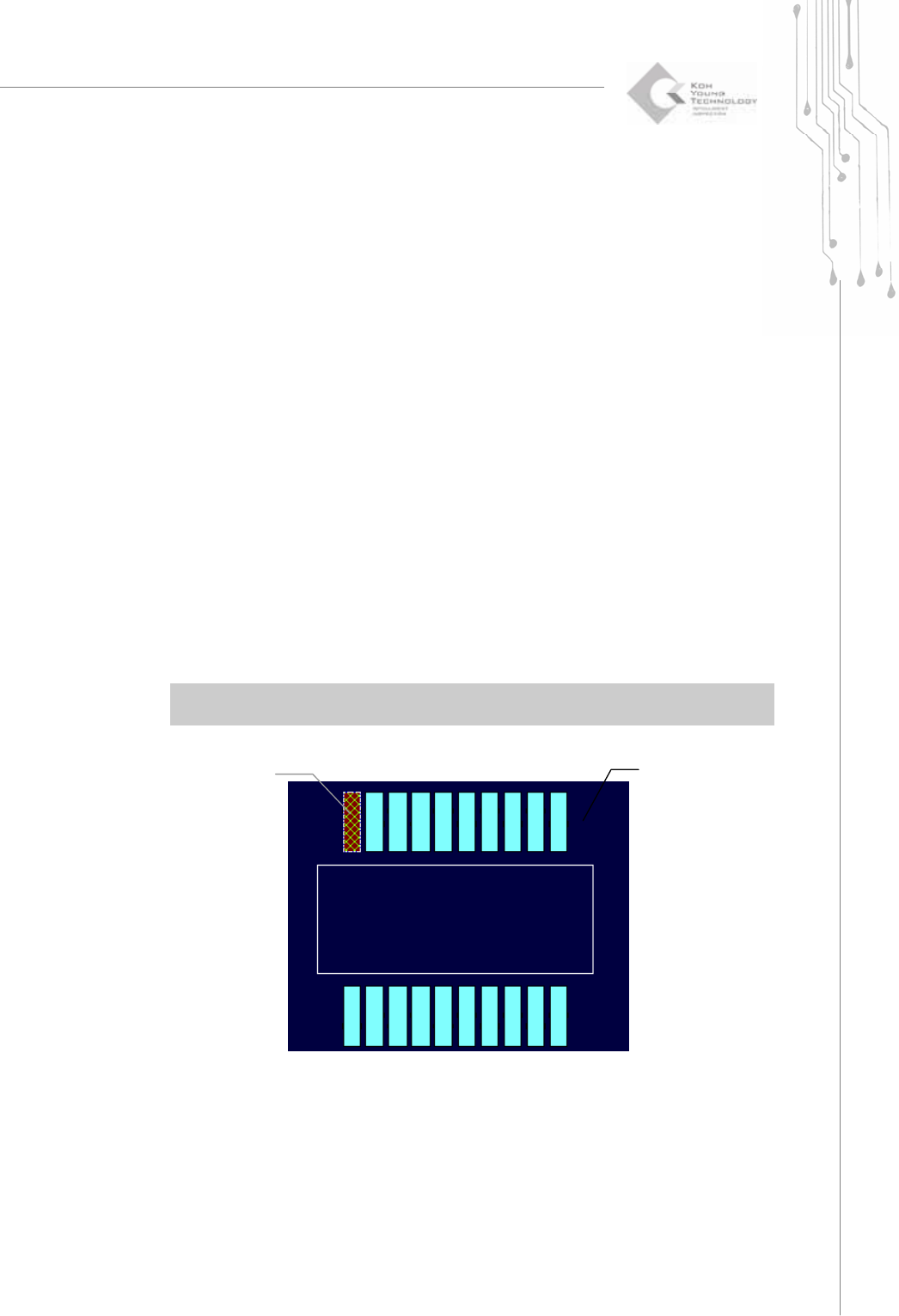
Change the mouse pointer mode to Flash Selection mode.
You can select flash(es) to perform the following tasks:
1) To add a pattern : Choose "Edit ▶ Add Pattern" in the menu bar.
2) To set the origin : Choose "Setup ▶ Origin" in the menu bar.
3) To add a fiducial : Choose "Setup ▶ Add Fiducial" in the menu bar.
4) To create an edge trace : Choose "Edit ▶ Edge Trace" in the menu bar.
You can select or unselect flash(es) as follows:
1) To select a flash: Click your mouse over a flash.
2) To select all flashes: Drag your mouse around the flashes that you want to select.
All flashes contained in the rectangle created by the mouse drag will be selected.
3) To unselect a flash: Click your mouse again over the selected flash.
4) To unselect all flashes: Choose "Select ▶ Unselect" in the menu bar or use “ESC”.
※ Note: In Flash Selection mode, you cannot select a flash that has already been registered as a
pad.
A Selected Flash
A Flash
30 | KY-8030 Series(KYOS-2007001_rev0)
3DIn‐lineSolderPasteInspectionSystems
2) Trace (Ctrl + T)
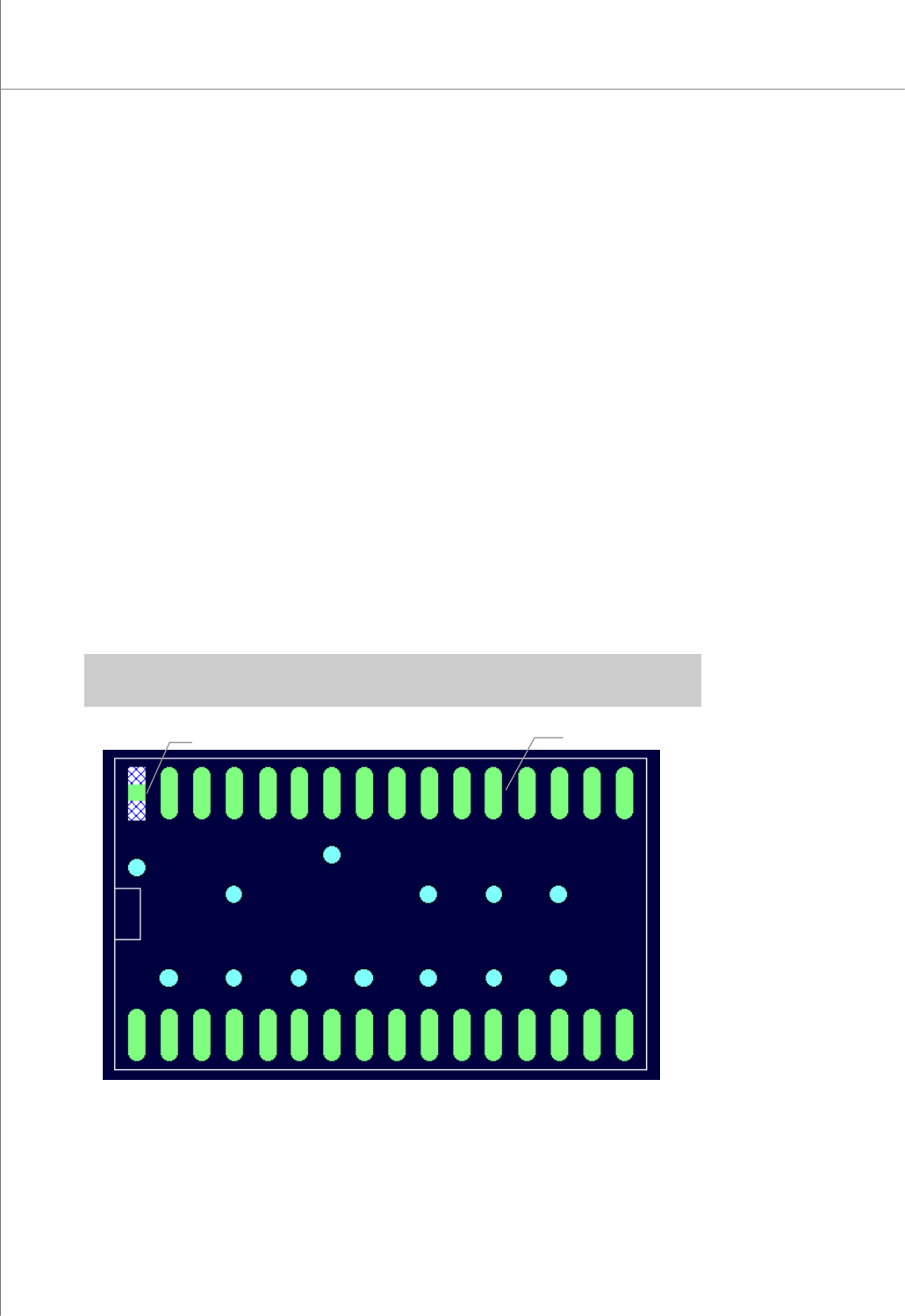
Change the mouse pointer mode to Trace Selection mode.
You can select trace(s) to perform the following tasks:
1) To add a pattern : Choose "Edit ▶ Add Pattern" in the menu bar.
2) To set the origin : Choose "Setup ▶ Origin" in the menu bar.
3) To add a fiducial : Choose "Setup ▶ Add Fiducial" in the menu bar.
4) To create an edge trace : Choose "Edit ▶ Edge Trace" in the menu bar.
5) To remove a trace : Choose "Edit ▶ Remove Trace" in the menu bar.
You can select or unselect trace(s) as follows:
1) To select a trace: : Drag your mouse over a trace.
2) To select all traces: Drag your mouse around the traces that you want to select.
All traces contained in the rectangle created by the mouse drag will be selected.
3) To unselect a trace: : Drag your mouse again over the selected trace.
4) To unselect all traces: Choose "Select ▶ Unselect" in the menu bar or use “ESC”.
※ Note: In Trace Selection mode, you cannot select a trace that has already been registered as
a pad.
A Selected Trace
A Trace