KY8030 Programmers Manual.pdf - 第46页
44 | KY-8030 Series (KYOS-2007001_rev0) 3D In ‐ line Solder Paste Inspection Systems 3) Paint Area Change the mouse p ointer mode to Paint Area S election mode. You can add, remove or resize a paint area. (1)…
Programmers Manual
| 43
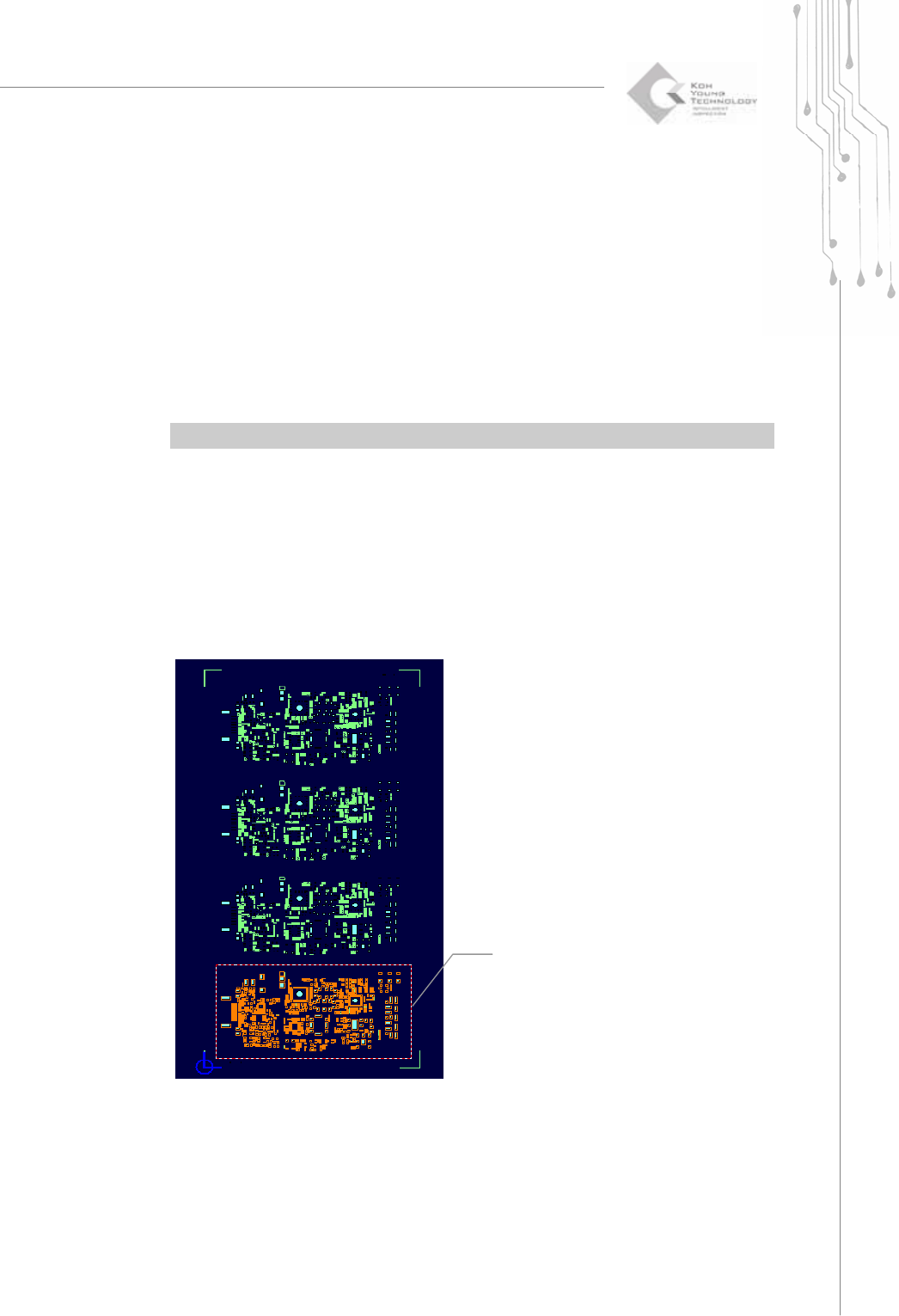
2) Work Area
Change the mouse pointer mode to Work Area Selection mode.
You can add, remove or resize a work area as follows:
(1) Add: Select a work area by dragging your mouse. The rectangular area created
by the mouse drag will be set as a work area.
(2) Remove: Click your mouse over the work area that you want to remove.
(3) Resize: Move the mouse pointer over the center of each side of the work area.
When the shape of the mouse pointer is changed to a bi-directional
arrow, resize the work area by dragging your mouse.
※ Note: You can specify up to 40 work and paint areas altogether.
You can perform the following tasks in relation to a work area.
(1) Choose "Setup ▶ Create All Patterns" in the menu bar.
(2) Choose "Edit ▶ Edge Trace" in the menu bar.
(3) Choose "Edit ▶ Nonbase All Off" in the menu bar.
(4) Choose "Edit ▶ Add Pattern" in the menu bar.
(5) Choose "Edit ▶ Scan Reference" in the menu bar.
Work Area
44 | KY-8030 Series(KYOS-2007001_rev0)
3DIn‐lineSolderPasteInspectionSystems
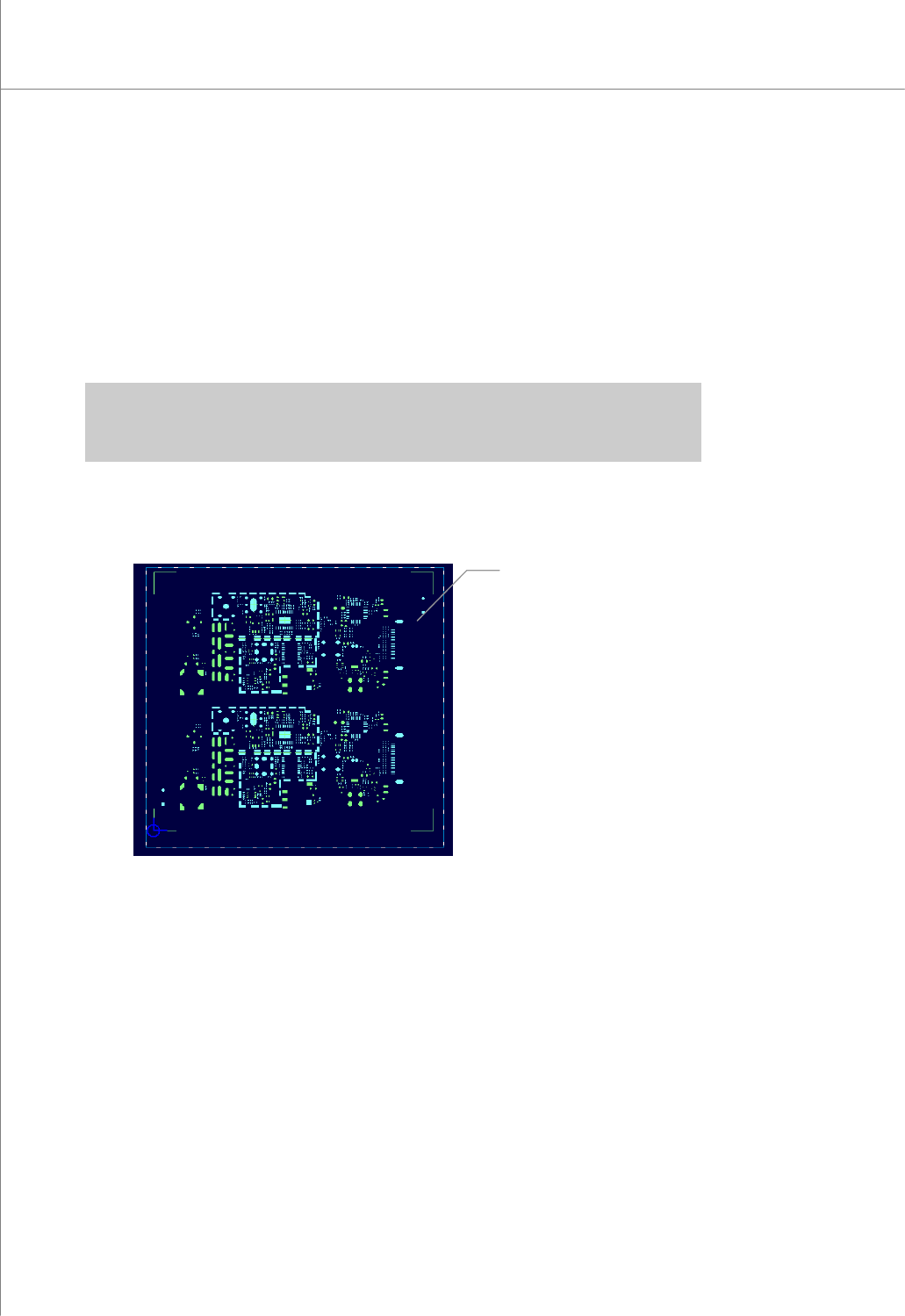
3) Paint Area
Change the mouse pointer mode to Paint Area Selection mode.
You can add, remove or resize a paint area.
(1) Add: Select a paint area by dragging your mouse. The rectangular area created
by the mouse drag will be set as a paint area.
(2) Remove: Click your mouse over the paint space that you want to remove.
(3) Resize: Move the mouse pointer over the center of each side of the paint area.
When the shape of the mouse pointer is changed to a bi-directional
arrow, resize the paint area by dragging your mouse.
※ Note: You can specify up to 40 work and paint areas altogether.
※ Caution: Specify a paint area before performing the "Paint" task. Otherwise, unnecessary parts
may be included in the picture file.
You can perform the following tasks in relation to a paint area.
(1) Choose "File ▶ Paint" in the menu bar.
Picture Area
Programmers Manual
| 45
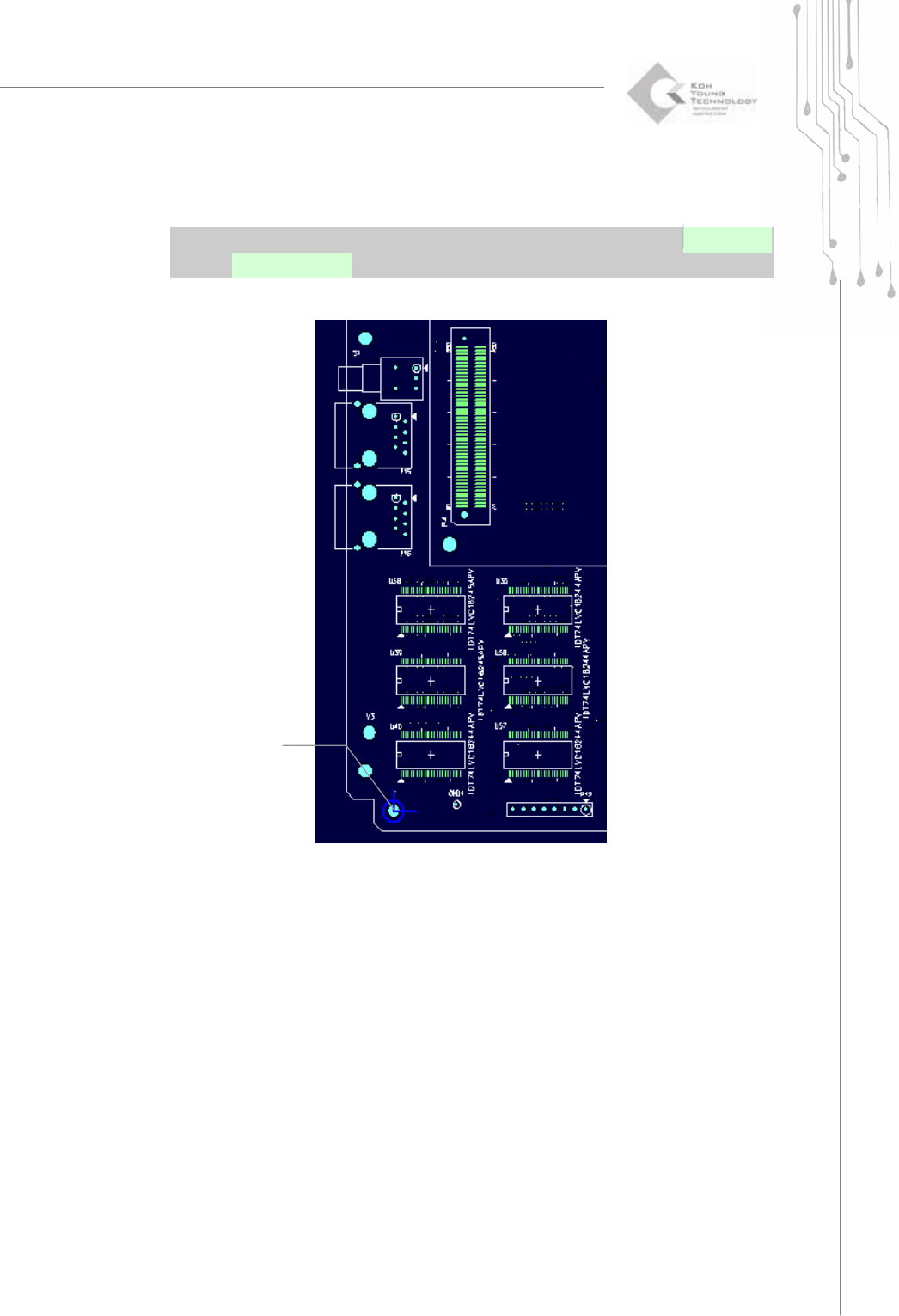
4) Origin
Set the center point of the selected flash, trace or pad as the origin for a PCB.
※ Note: Because the initial origin provided by a Gerber file is set during the design, it may exist on
the inside of a PCB. The origin should be set to the left bottom side of the actual PCB.
Setting the center
point of the selected
flash
(
Pad
)