KY8030 Programmers Manual.pdf - 第72页
70 | KY-8030 Series (KYOS-2007001_rev0) 3D In ‐ line Solder Paste Inspection Systems 2.1.4. Main V iew Popup Menu In the main view , right-click your mouse to display the pop-up menu show n below: Act ua l V …
Programmers Manual
| 69
2.1.3. Menu Layout
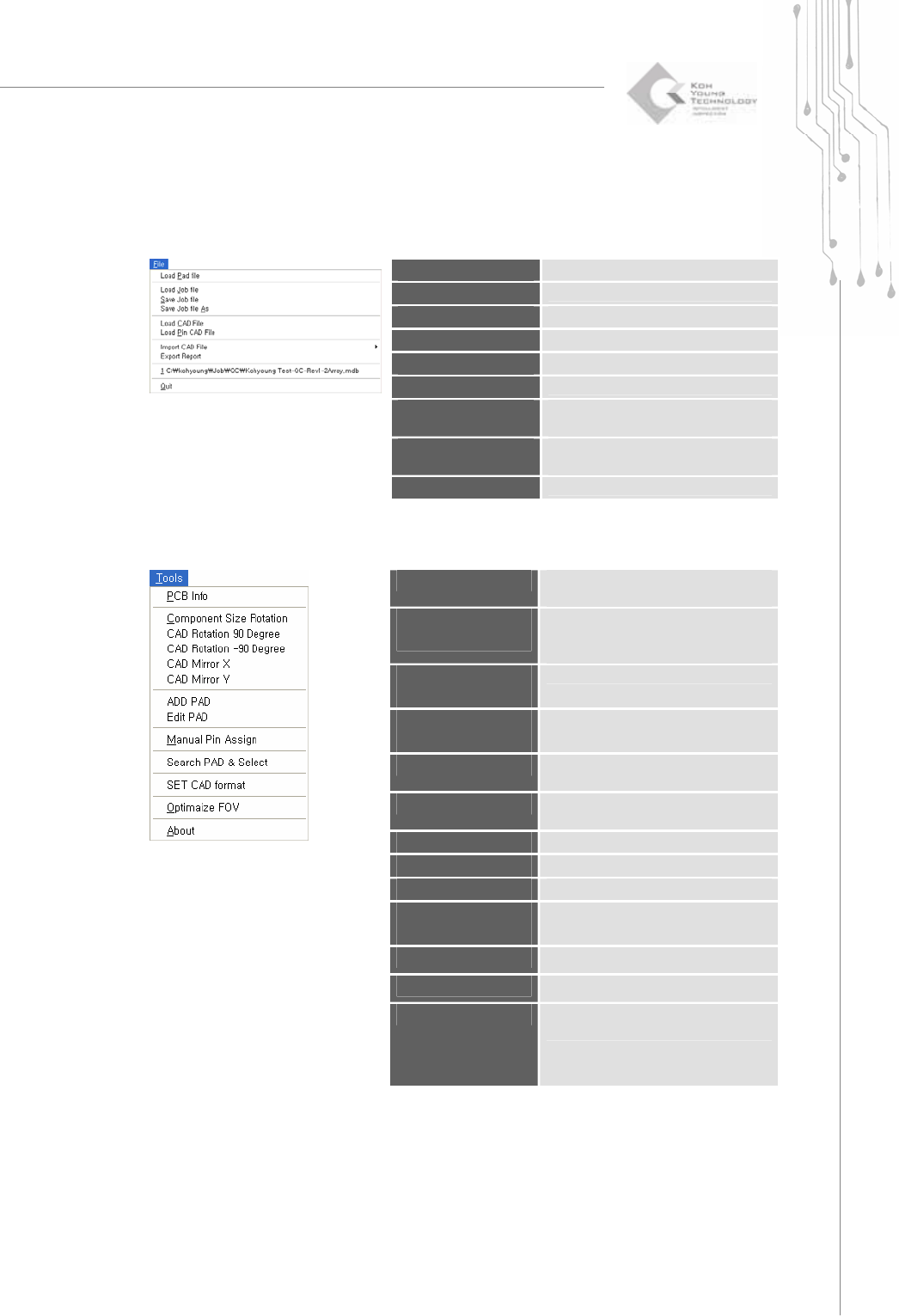
1) File Menu
Load Pad file
Load a pad file(*.pad ).
Load Job file
Load a job file (*.mdb).
Save Job file
Save a job file (*.mdb).
Load CAD File
Load a CAD file.
Load Pin CAD File
Load a pin CAD file.
Import CAD File
Import a CAD file in various formats.
Export Report
Save the contents of a job file in csv
format (*.csv).
Recent files
Open the most recent job file (up to 10
files).
Quit
Quit the CEditor program.
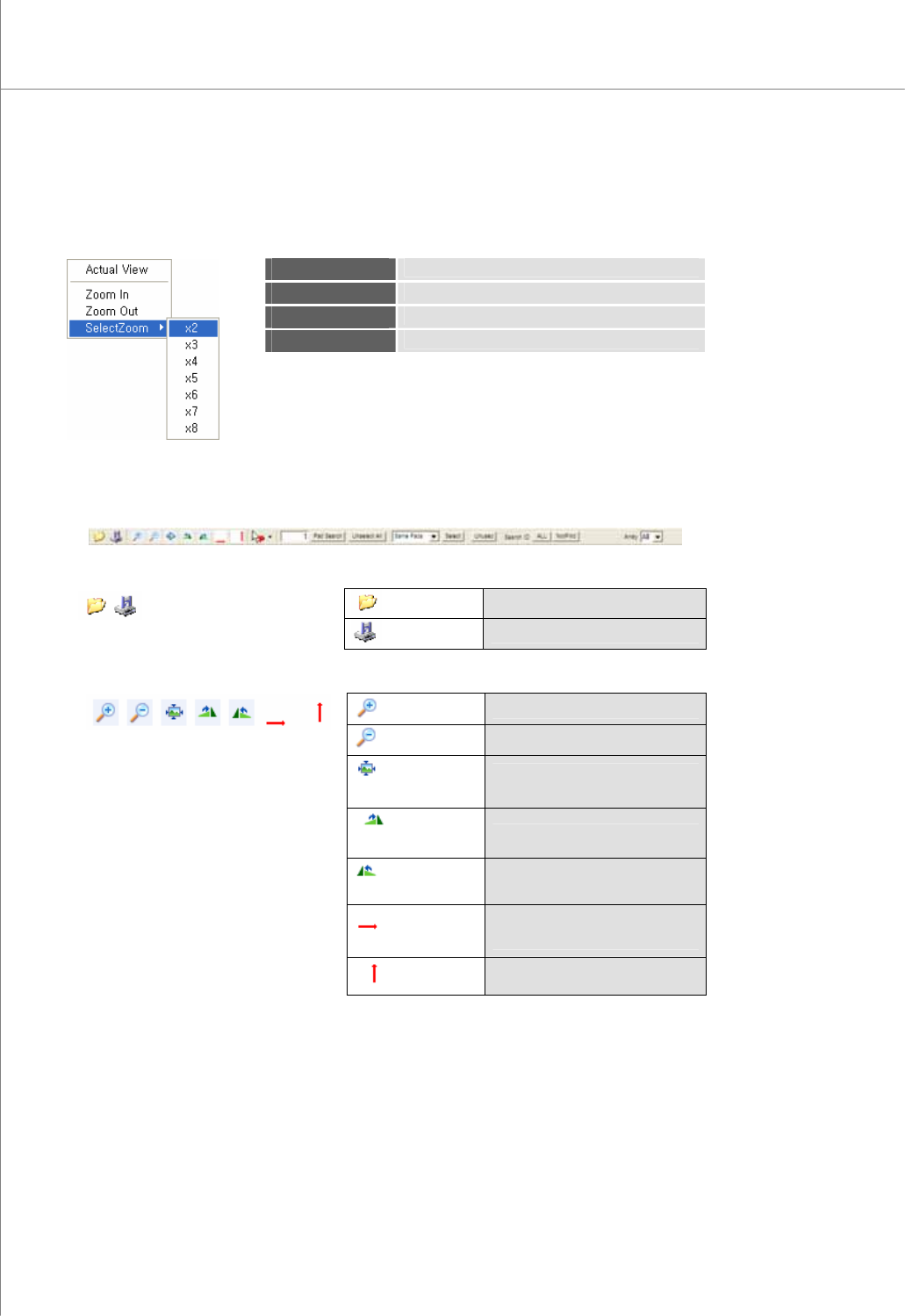
2) Tools Menu
PCB Info
When a job file (*.mdb) is loaded,
change PCB information.
Component Size
Rotation
Swap the values of the width and
length for a component ID.
(when using CAD file only)
CAD Rotation 90
Degree
Rotate the CAD screen by +90°.
CAD Rotation -90
Degree
Rotate the CAD screen by -90°.
CAD Mirror X
Move the CAD screen symmetrically
along the X-axis.
CAD Mirror Y
Move the CAD screen symmetrically
along the Y-axis.
ADD PAD
Create a pad.
Edit PAD
Edit a pad.
Manual Pin Assign
Assign a pin number manually.
Search PAD &
Select
Search and select a pad by
conditions.
SET CAD Format
Specify a CAD file format.
Optimize FOV
Specify a FOV (Field of View).
About
Display the CEditor program version
and system information.
70 | KY-8030 Series(KYOS-2007001_rev0)
3DIn‐lineSolderPasteInspectionSystems
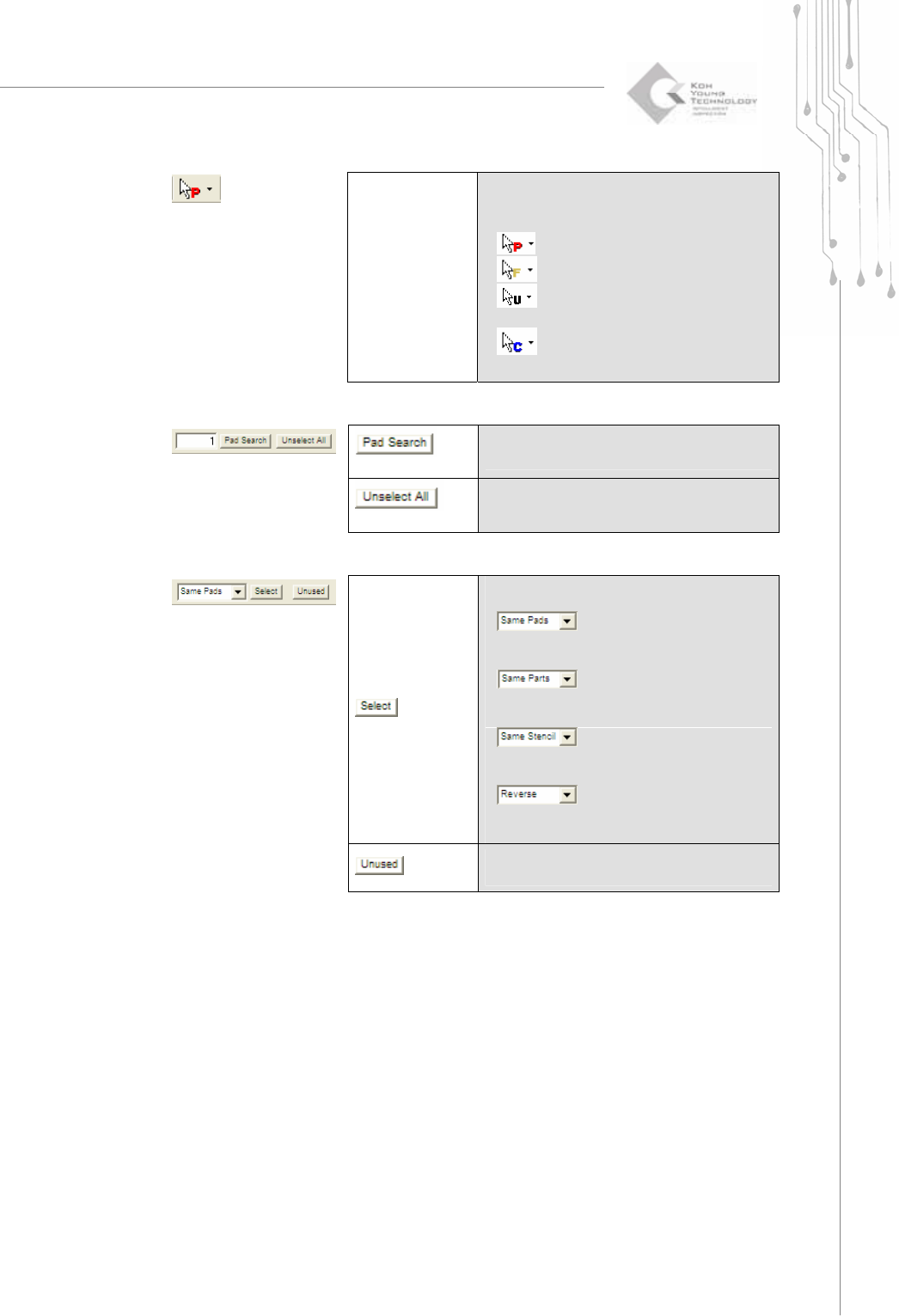
2.1.4. Main View Popup Menu
In the main view, right-click your mouse to display the pop-up menu shown below:
Actual View
Display a PCB pad image in full screen.
Zoom In
Zoom in the main view screen by one step.
Zoom Out
Zoom out the main view screen by one step.
Select Zoom
Select the zoom ratio (2x to 8x) that you want.
2.1.5. Tool bar.
1) Full Display of the Tool Bar
Load
Load a job file (*.mdb).
2)
Save
Save a job file (*.mdb).
Zoom In
Zoom in a work area.
Zoom Out
Zoom out a work area.
Fit to the
window
Zoom in/out the screen until it fits
to the window.
PCB
Rotation 90°
Rotate a PCB clockwise by 90°.
PCB
Rotation -90°
Rotate a PCB counter-clockwise
by 90°.
Flip
Horizontal
Move a PCB symmetrically along
the Y-axis.
3)
Flip Vertical
Move a PCB symmetrically along
the X-axis.
Programmers Manual
| 71
4)
Mouse mode
Select a desired mouse mode from the
following:
* Pad: Select a pad.
* Fiducial: Select a fiducial.
* Unused: Select a pad which will not be
inspected.
* CAD Move: Move a CAD position.
Pad Search
Search for a pad with a pad ID or component
ID.
5)
Unselect All
Unselect all selected pads.
Select
Select a pad that meets a search condition as
follows:
* Same Pads:
Select all pads that have the same shape as
the selected pad.
* Same Parts:
Select all pads within the part to which the
selected pad belongs.
* Same Stencil:
Select all pads within the stencil to which the
selected pad belongs.
* Reverse:
Select the unselected pads and unselect the
selected pads.
6)
Unused
Set the state of a pad to “unused” or set the
"unused" pad state back to “normal”.