KY8030 Programmers Manual.pdf - 第32页
30 | KY-8030 Series (KYOS-2007001_rev0) 3D In ‐ line Solder Paste Inspection Systems 2) Trace (Ctrl + T) Change the mouse p ointer mode to Tr ace Selection mode. You can select trace(s ) to perform the follo …
Programmers Manual
| 29
1.3.2. Select
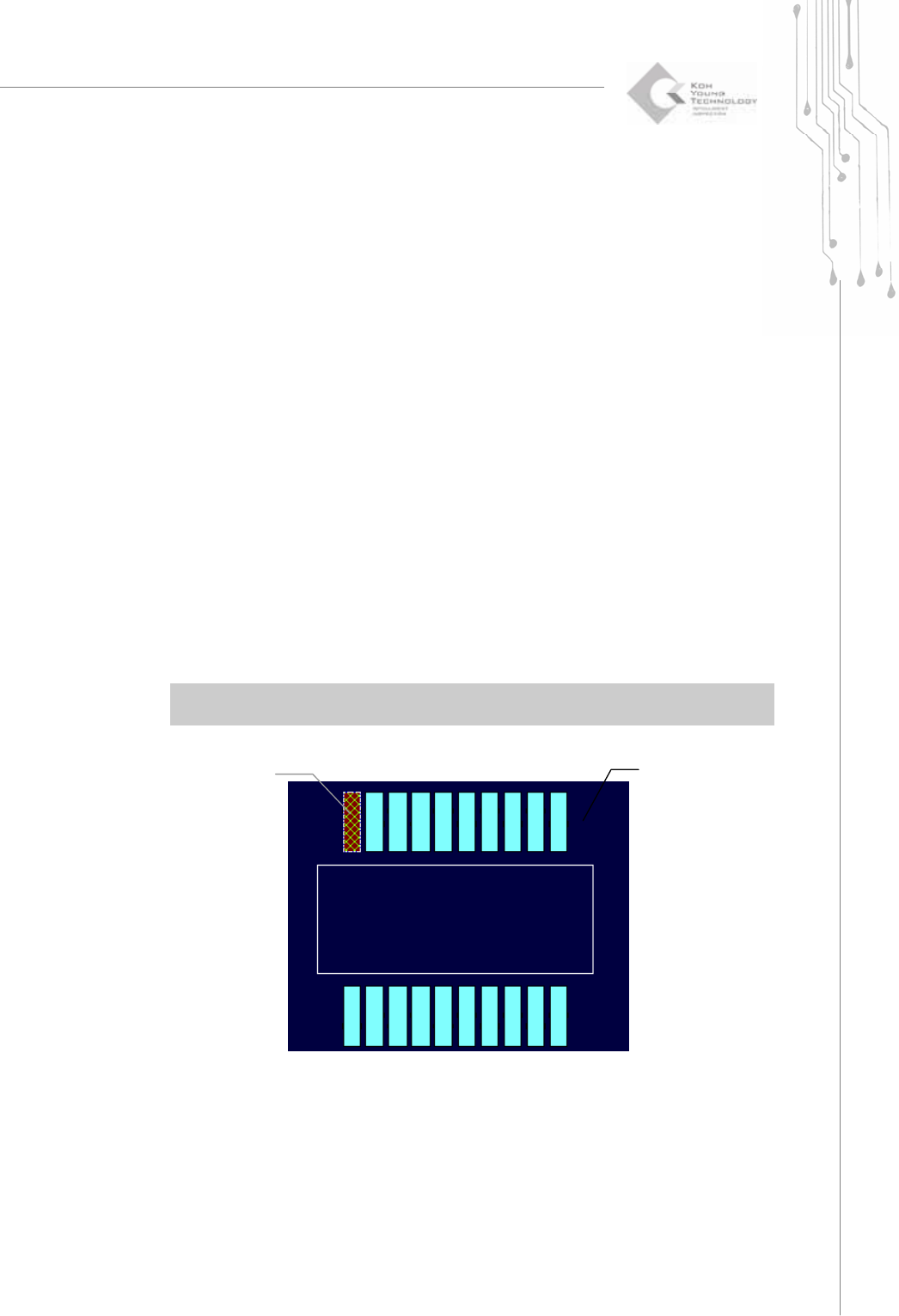
1) Flash (Ctrl + F)
Change the mouse pointer mode to Flash Selection mode.
You can select flash(es) to perform the following tasks:
1) To add a pattern : Choose "Edit ▶ Add Pattern" in the menu bar.
2) To set the origin : Choose "Setup ▶ Origin" in the menu bar.
3) To add a fiducial : Choose "Setup ▶ Add Fiducial" in the menu bar.
4) To create an edge trace : Choose "Edit ▶ Edge Trace" in the menu bar.
You can select or unselect flash(es) as follows:
1) To select a flash: Click your mouse over a flash.
2) To select all flashes: Drag your mouse around the flashes that you want to select.
All flashes contained in the rectangle created by the mouse drag will be selected.
3) To unselect a flash: Click your mouse again over the selected flash.
4) To unselect all flashes: Choose "Select ▶ Unselect" in the menu bar or use “ESC”.
※ Note: In Flash Selection mode, you cannot select a flash that has already been registered as a
pad.
A Selected Flash
A Flash
30 | KY-8030 Series(KYOS-2007001_rev0)
3DIn‐lineSolderPasteInspectionSystems
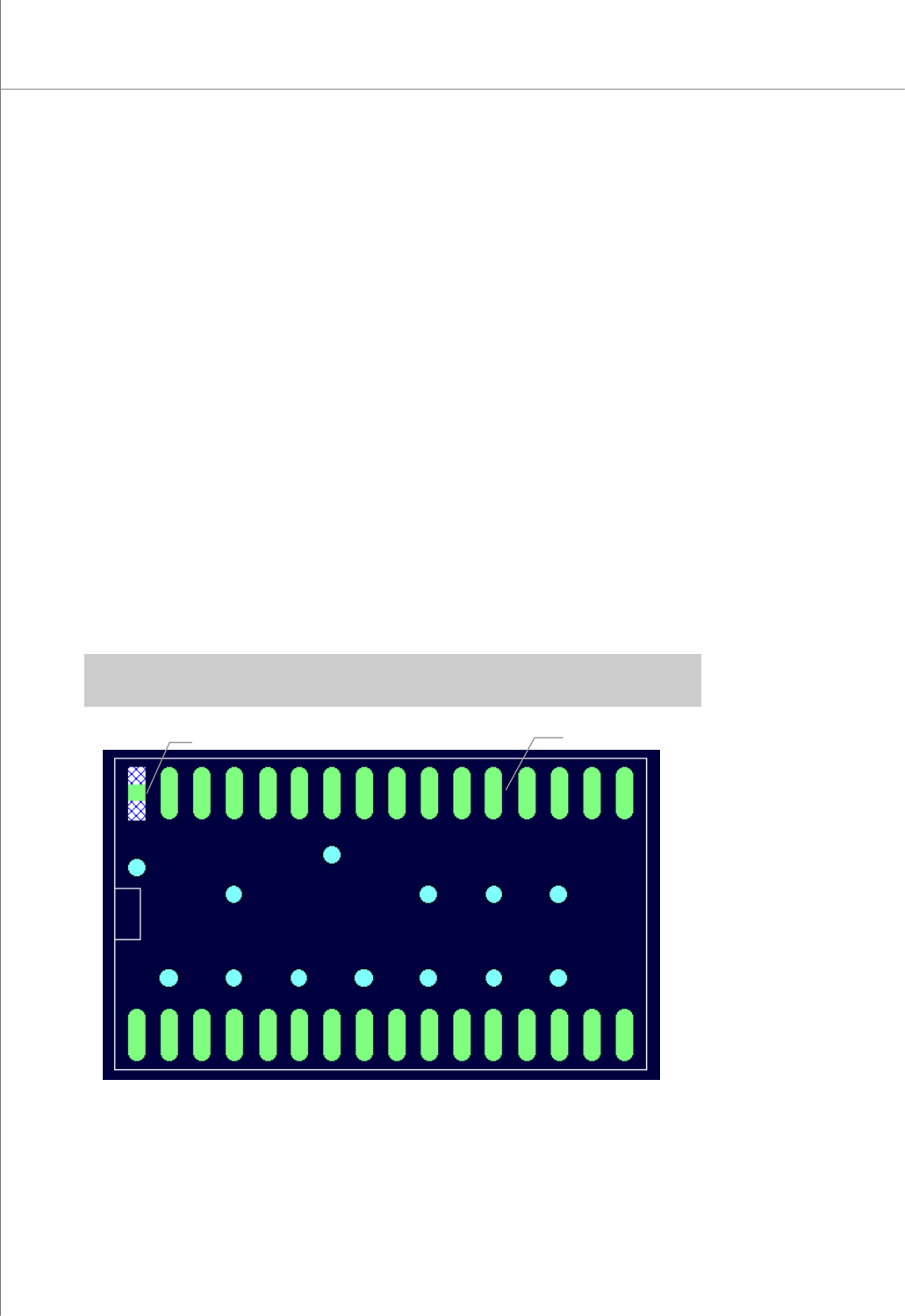
2) Trace (Ctrl + T)
Change the mouse pointer mode to Trace Selection mode.
You can select trace(s) to perform the following tasks:
1) To add a pattern : Choose "Edit ▶ Add Pattern" in the menu bar.
2) To set the origin : Choose "Setup ▶ Origin" in the menu bar.
3) To add a fiducial : Choose "Setup ▶ Add Fiducial" in the menu bar.
4) To create an edge trace : Choose "Edit ▶ Edge Trace" in the menu bar.
5) To remove a trace : Choose "Edit ▶ Remove Trace" in the menu bar.
You can select or unselect trace(s) as follows:
1) To select a trace: : Drag your mouse over a trace.
2) To select all traces: Drag your mouse around the traces that you want to select.
All traces contained in the rectangle created by the mouse drag will be selected.
3) To unselect a trace: : Drag your mouse again over the selected trace.
4) To unselect all traces: Choose "Select ▶ Unselect" in the menu bar or use “ESC”.
※ Note: In Trace Selection mode, you cannot select a trace that has already been registered as
a pad.
A Selected Trace
A Trace
Programmers Manual
| 31
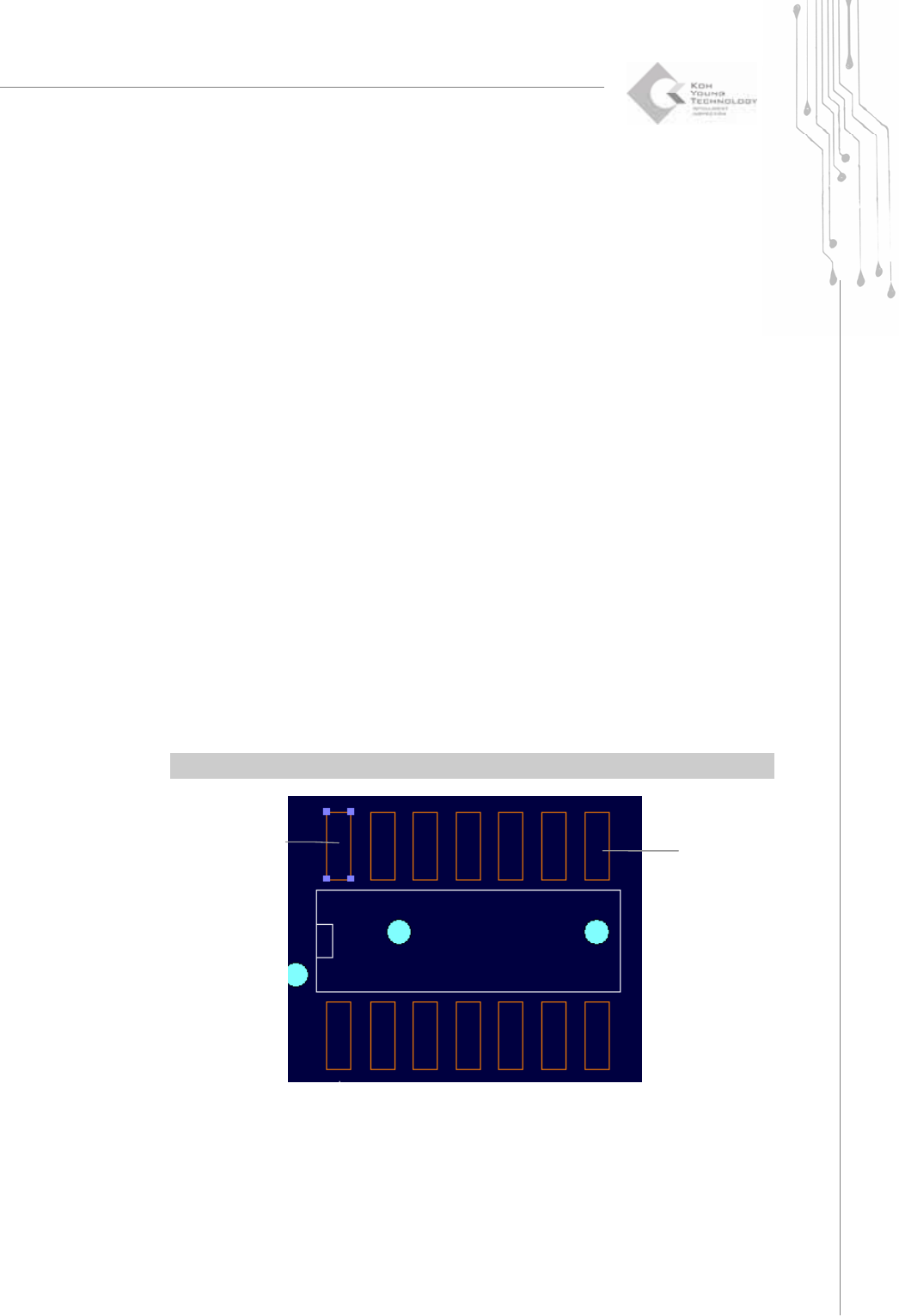
3) Pad (Ctrl + P)
Change the mouse pointer mode to Pad Selection mode.
You can select pad(s) to perform the following tasks:
1) To modify a pad : Choose "Edit ▶ Modify Pad" in the menu bar.
2) To remove a pad : Choose "Edit ▶ Remove Pad" in the menu bar.
3) To modify a pattern : Choose "Edit ▶ Modify Pattern" in the menu bar.
You can modify pads of which pattern number is the same
as the selected pad.
4) To remove a pattern : Choose "Edit ▶ Remove Pattern" in the menu bar.
You can remove pads of which pattern number is the same
as the selected pad.
5) To scan a reference code : With a reference code, you can work on the selected
group of pads as if they were a single part.
(Currently not used)
You can select or unselect pad(s) as follows:
1) To select a pad : Click your mouse over a pad.
2) To select all pads : Drag your mouse around the pads that you want to select.
All pads contained in the rectangle created by the mouse drag will be selected.
3) To unselect a pad : Click your mouse again over the selected pad.
4) To unselect all pads: Choose "Select ▶ Unselect" in the menu bar or use “ESC”
※ Note: You can select or unselect a pad from the list in the pad bar.
A Selected
Pad
A Pad