KY8030 Programmers Manual.pdf - 第35页
Program mers Manual | 3 3 4) Point Change the mouse pointer mode to Point Selection mode . You can s elect any poi nt to perform th e following task s: 1) To set the origi n : Choose "Setup ▶ Origin" in the men…

32 | KY-8030 Series(KYOS-2007001_rev0)
3DIn‐lineSolderPasteInspectionSystems
Programmers Manual
| 33
4) Point
Change the mouse pointer mode to Point Selection mode.
You can select any point to perform the following tasks:
1) To set the origin : Choose "Setup ▶ Origin" in the menu bar.
2) To calculate a position : Choose "View ▶ Position" in the menu bar.
You can select or unselect a point as follows:
1) To select a point: Click your mouse over a point.
2) To unselect a point: Choose "Select ▶ Unselect" in the menu bar.
Ú Caution: When calculating a position with a point, a positional deviation may occur.
5) Unselect (Esc)
Unselect all selected items (flash, trace, pad or point).
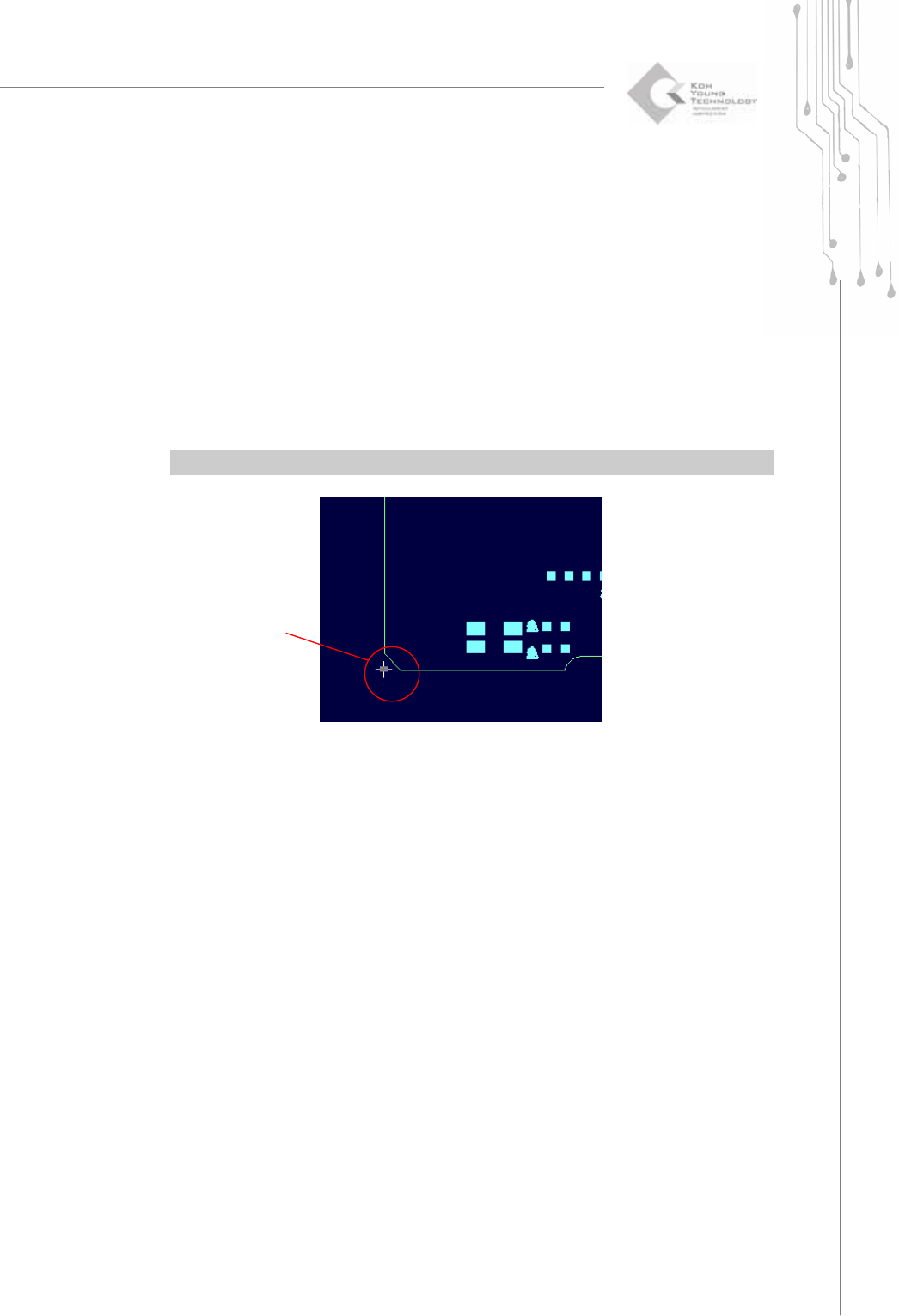
A Selected Point
34 | KY-8030 Series(KYOS-2007001_rev0)
3DIn‐lineSolderPasteInspectionSystems
1.3.3. Edit
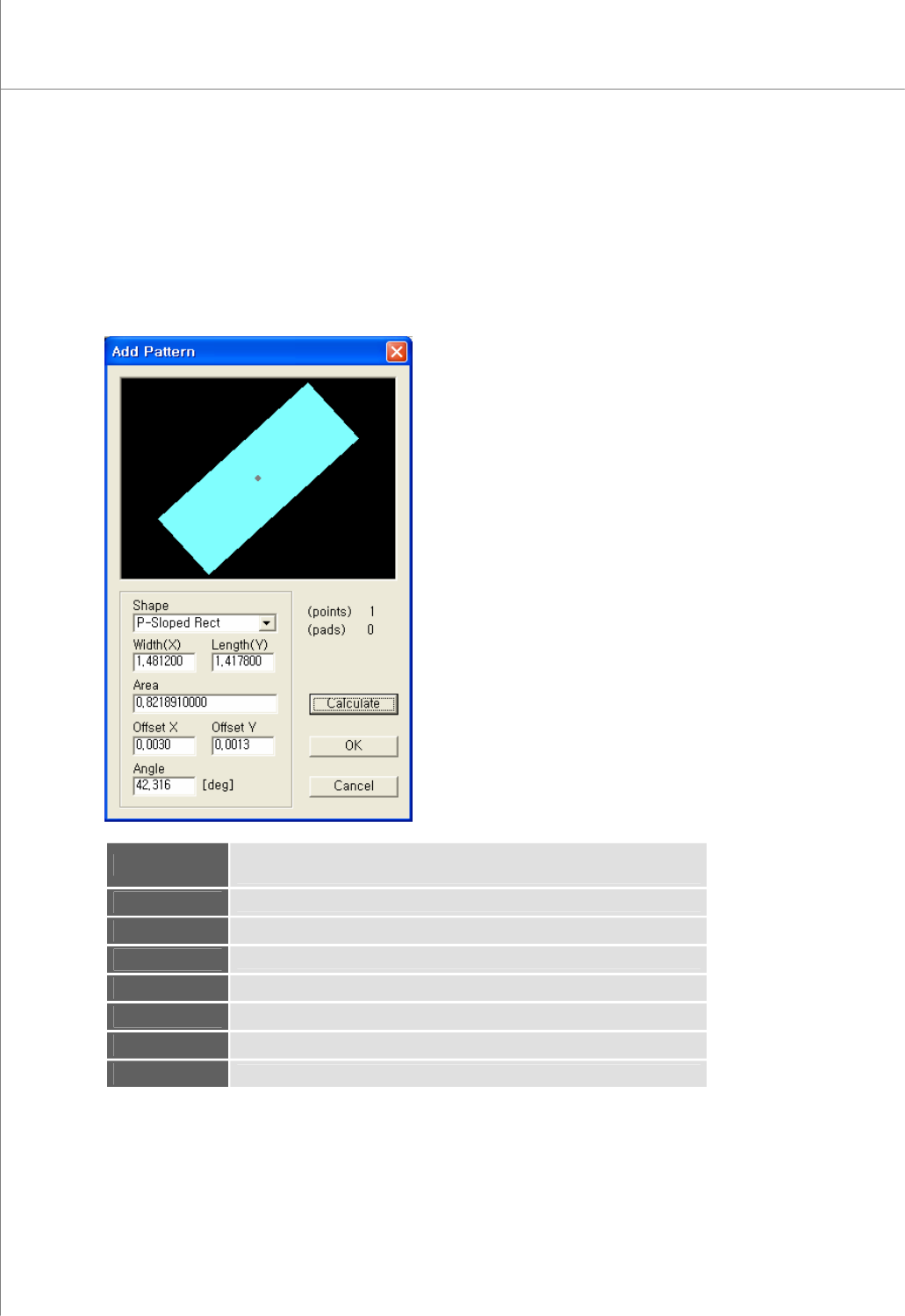
1) Add Pattern
Register one or more flash or trace in a pattern.
The “Add Pattern” Dialog Box
View
The picture of the currently selected pattern.
The gray point represents the center of gravity.
(points)
The number of flash(es) and trace(s) contained in the pattern
(pads)
The number of pads created with the pattern
Shape
The shape of the pattern
Width
The width of the pattern
Length
The length of the pattern
Area
The area of the pattern
Offset X
The Center of Gravity X - The Center of Area X
(View)