00192405-02.pdf - 第180页
5 Station extensions User Manual S IPLACE S-25 H M 5.6 PCB data transfer Software Version SR.502.xx 01/2001 US Edition 180 5.6 PCB da t a transfer 5.6.1 Functional description The ’ Machi ne options ’ menu cont ains a ’ …
User Manual SIPLACE S-25 HM 5 Station extensions
Software Version SR.502.xx 01/2001 US Edition 5.5 Ceramic substrate centering
179
base material, such as ceramic or CEM. Fiducials covered with solder resist can also be
detected better on a light background.
– Infrared lighting
This type of illumination is particularly useful for fiducials that are covered with solder resist or
for fiducials on flex materials. It is also sometimes possible to improve recognition of silver/
platinum fiducials on ceramic. This should be tested by carrying out a test centering /
placement run.
5 Station extensions User Manual SIPLACE S-25 HM
5.6 PCB data transfer Software Version SR.502.xx 01/2001 US Edition
180
5.6 PCB data transfer
5.6.1 Functional description
The ’Machine options’ menu contains a ’PCB data transfer’ option. The aim of this function is to
increase the placement system’s performance on the line. To do this, an entire PCB is measured
at the first placement station and the associated fiducial, single circuit, ink spot, etc. data is deter-
mined, saved and sent to the next station. At subsequent stations, the data is then determined for
two fiducial positions only. These two fiducial positions are then used to correct the position for the
PCB to be processed at each station. It is thus not necessary to measure the entire PCB again,
together with its single circuits, ink spots etc. 5
5.6.2 Activating the ’PCB data transfer’ option
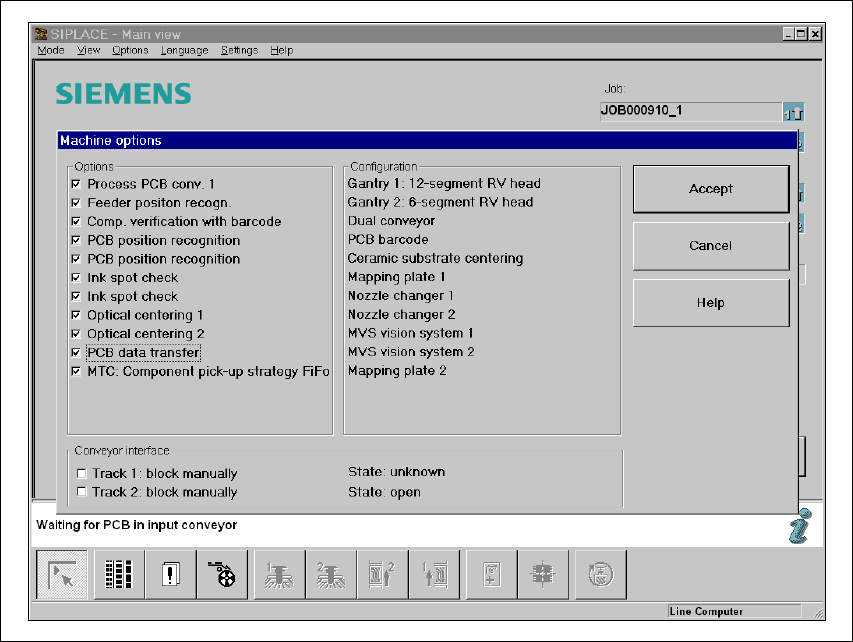
Fig. 5.6 - 1 Machine option: PCB data transfer

User Manual SIPLACE S-25 HM 5 Station extensions
Software Version SR.502.xx 01/2001 US Edition 5.6 PCB data transfer
181
Å Click on the ’Machine options’ button in the basic view.
The ’Machine options’ window opens.
Å In the ’Options’ box, check the ’PCB data transfer’ option for the station concerned.
Å Click on the ’OK’ button. The ’PCB data transfer’ option is now active.
PLEASE NOTE: The ’PCB data transfer’ option can only be used in conjunction with a PCB bar-
code reader. 5