SOM-1735-001.pdf - 第47页
9. "TEACHING" Window (Submenu) • • • • • Window Layout When the [TEACHING] button on the submenu bar is pressed, the fol- lowing window (submenu) opens. (Operation Sequence: [MAINT .] But- ton Æ [TEACHING] Butt…
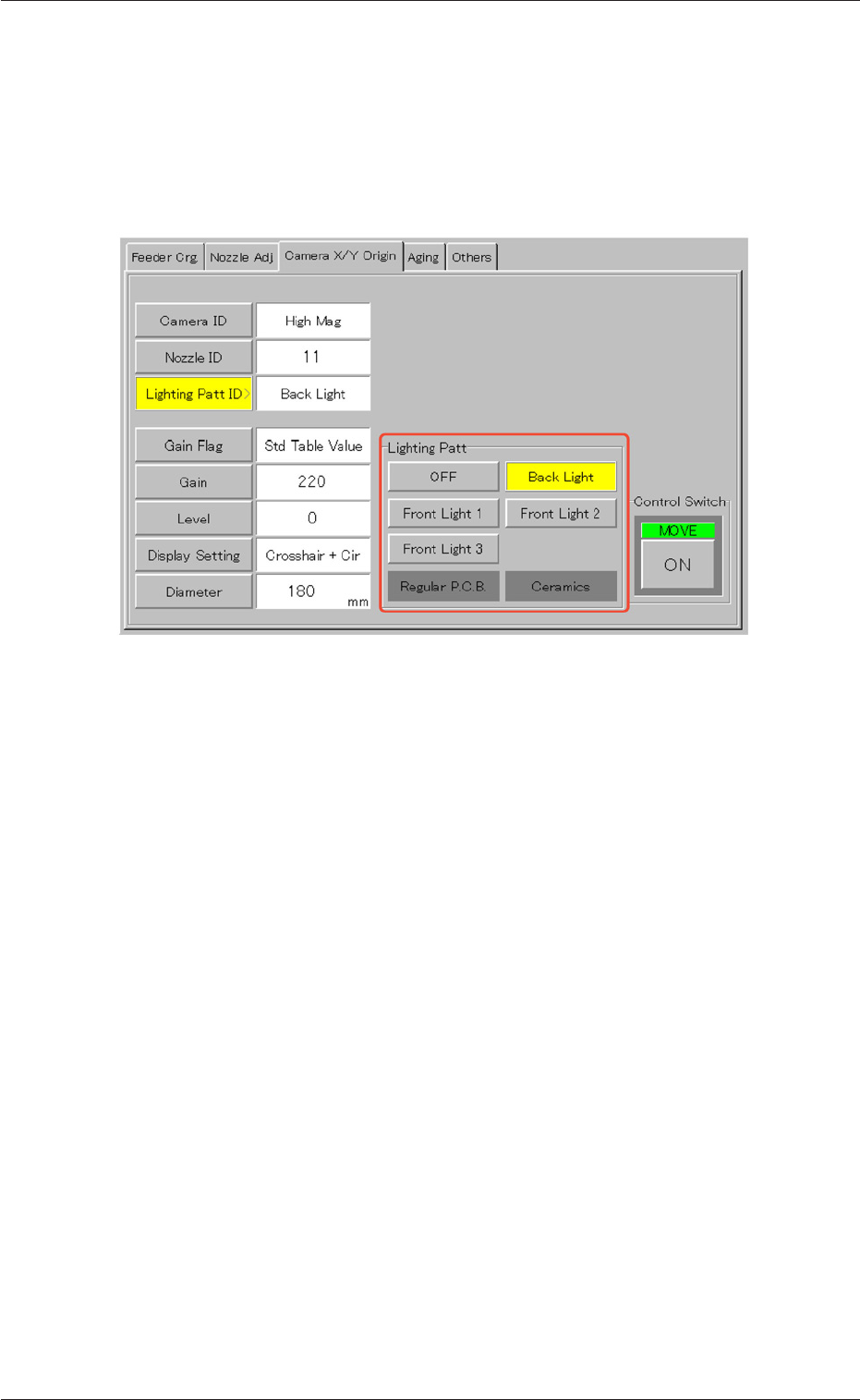
*2 Adjustment and Setting Buttons
The displayed contents change as follows, depending on which
button was selected in "*1".
• When the [Lighting Patt ID] button is pressed, the following ad-
justment and setting buttons appear.
Fig. 99
When one of the buttons ([OFF], [Back Light], [Front Light 1], [Front
Light 2], and [Front Light 3 (Option)] buttons) is pressed, the speci-
fied item appears in the "Lighting Patt ID" text box.
*3 Control Switch
When the [ENABLE] button on the front operation panel is
pressed in 2 seconds after each parameter is specified in "*2"
and [ON] button is pressed, the machine performs the zeroing
adjustment.
8.1 "Camera X/Y Origin" Tab
0307-001 45 Tg0930-PM-SO
9. "TEACHING" Window (Submenu)
••
••
• Window Layout
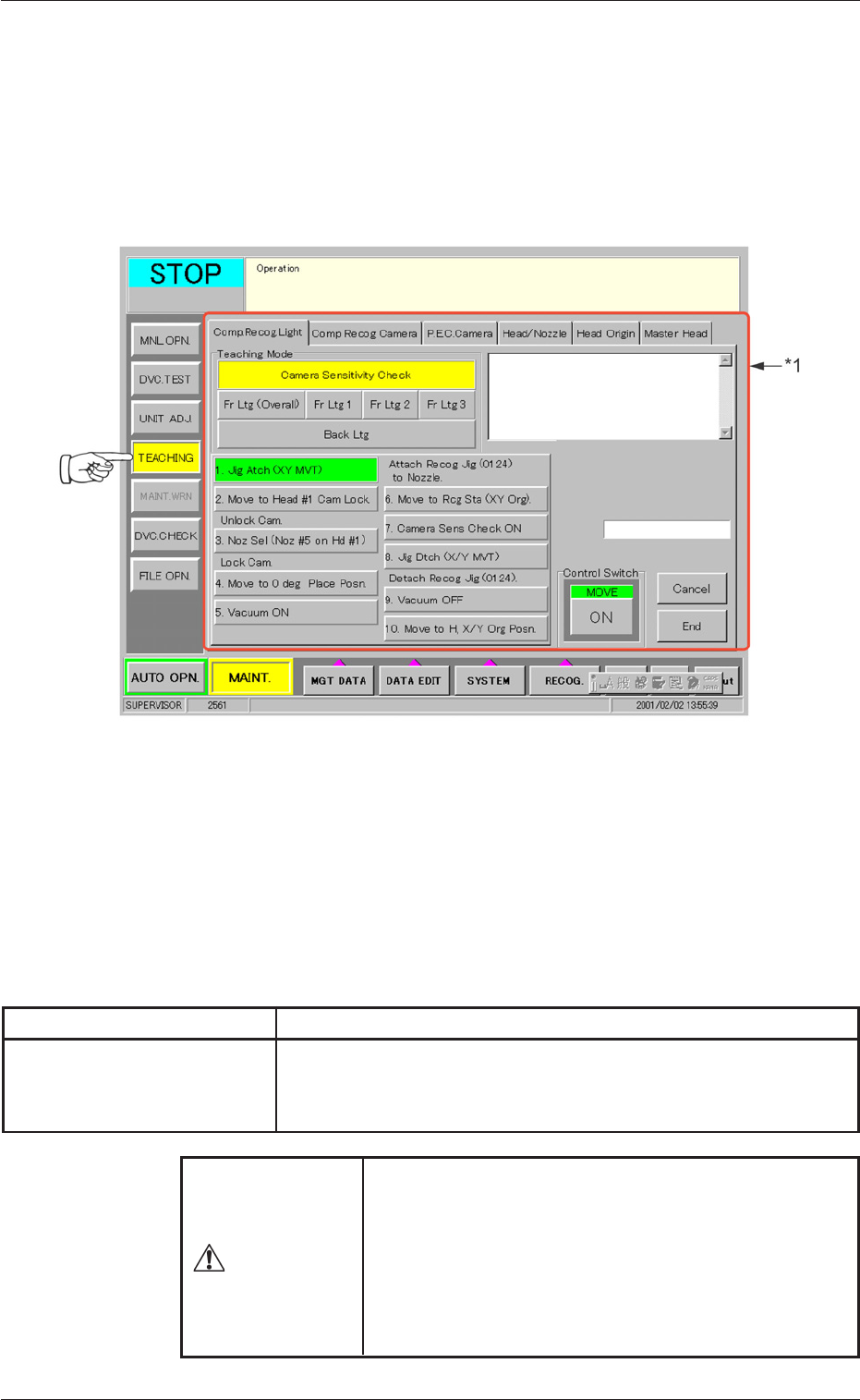
When the [TEACHING] button on the submenu bar is pressed, the fol-
lowing window (submenu) opens. (Operation Sequence: [MAINT.] But-
ton Æ [TEACHING] Button on Submenu Bar Æ "TEACHING" Window)
Fig. 100 "TEACHING" Window (Submenu)
••
••
• Window Composition
*1 Tab
The "TEACHING" window (submenu) is provided with 6 tab
sheets. When each tab is pressed, the corresponding tab sheet
appears inside the window.
Table 15
Tab Description
Comp. Recog. Light The corresponding tab sheet enables the operator to perform
the teaching operation on the sensitivity of the camera and the
lighting intensity.
9. "TEACHING" Window (Submenu)
Various teaching operations must be performed with
the [OPERATION] switch set to the "SETUP" side.
Only the person in charge of maintenance work should
perform teaching operations.
No teaching operation can be implemented with the
[OPERATION] switch set to the "RUN" side.
WARNING
0307-001 46 Tg0930-PM-SO
9.1 "Comp. Recog. Light" Tab
The corresponding tab sheet enables the operator to perform the teach-
ing operation on the sensitivity of the camera and the lighting intensity.
9.1.1 Camera Sensitivity Check
••
••
• Sheet Layout
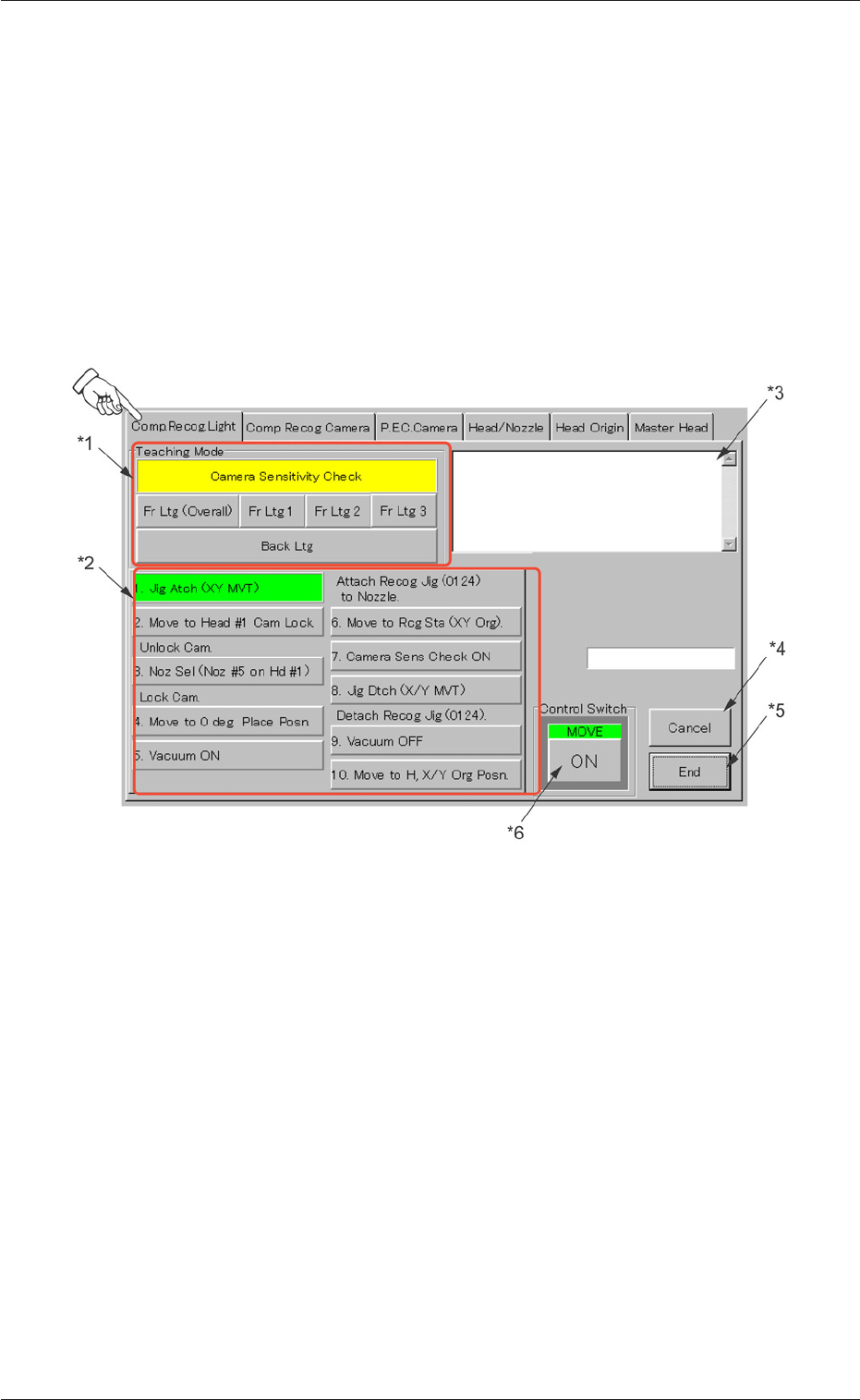
When the "Comp. Recog. Light" tab is pressed in the "TEACHING" win-
dow (submenu), the following tab sheet appears inside the window.
Fig. 101 "Comp. Recog. Light" Tab Sheet
••
••
• Sheet Composition
*1 Teaching Selection Buttons
The following buttons are arranged.
[Camera Sensitivity Check] Button :
[Fr Ltg (Overall)] Button :
[Fr Ltg 1] Button :
[Fr Ltg 2] Button :
[Fr Ltg 3] Button (Option) :
[Back Ltg] Button :
9.1 "Comp. Recog. Light" Tab
0307-001 47 Tg0930-PM-SO