SOM-1735-001.pdf - 第49页
When the [Camera Sensitivity Check] button is pressed to check the sensitivity of the camera, the background color of the button turns yellow and the step s to be followed appear in "*2". *2 T eaching Selection…
9.1 "Comp. Recog. Light" Tab
The corresponding tab sheet enables the operator to perform the teach-
ing operation on the sensitivity of the camera and the lighting intensity.
9.1.1 Camera Sensitivity Check
••
••
• Sheet Layout
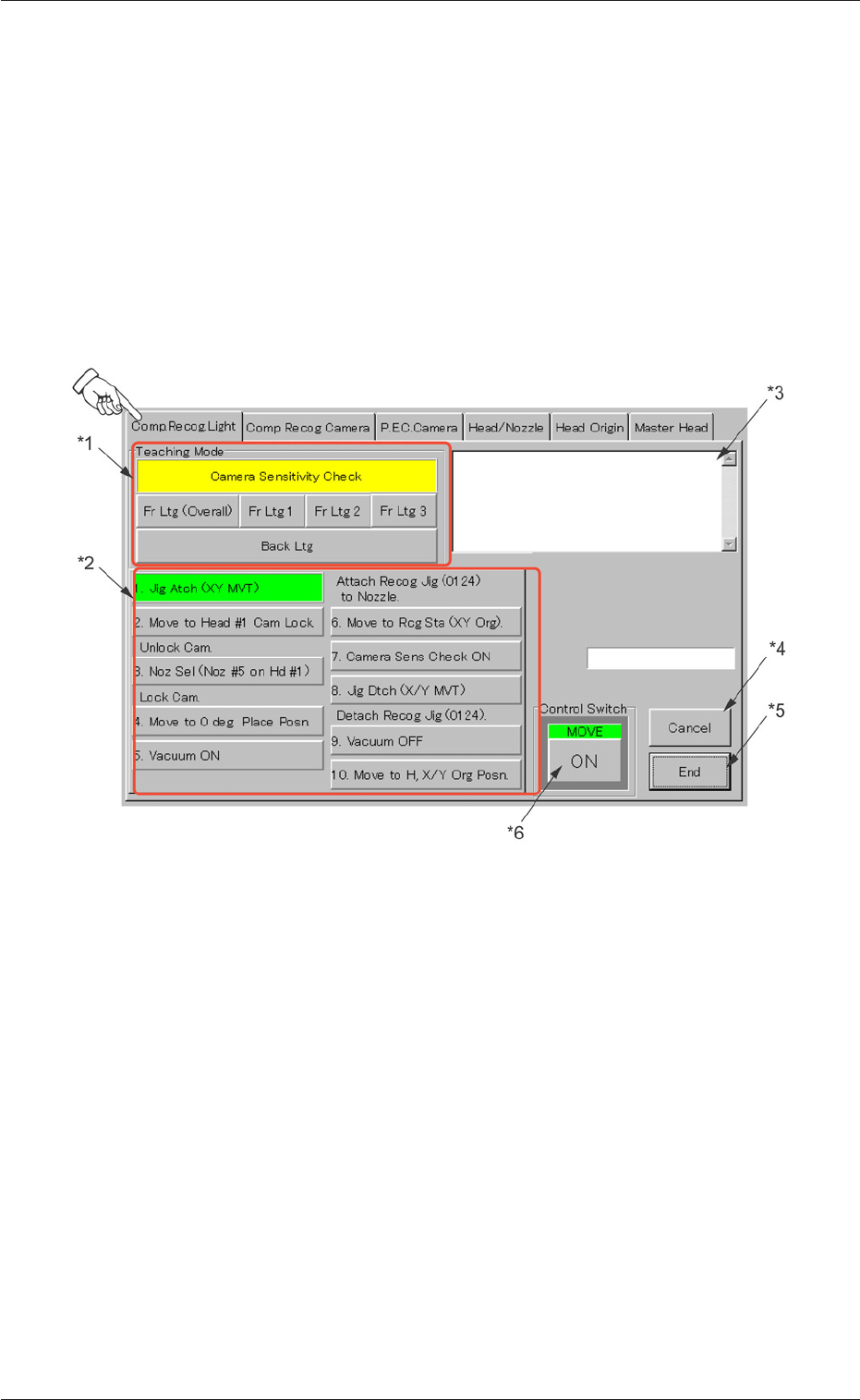
When the "Comp. Recog. Light" tab is pressed in the "TEACHING" win-
dow (submenu), the following tab sheet appears inside the window.
Fig. 101 "Comp. Recog. Light" Tab Sheet
••
••
• Sheet Composition
*1 Teaching Selection Buttons
The following buttons are arranged.
[Camera Sensitivity Check] Button :
[Fr Ltg (Overall)] Button :
[Fr Ltg 1] Button :
[Fr Ltg 2] Button :
[Fr Ltg 3] Button (Option) :
[Back Ltg] Button :
9.1 "Comp. Recog. Light" Tab
0307-001 47 Tg0930-PM-SO

When the [Camera Sensitivity Check] button is pressed to check
the sensitivity of the camera, the background color of the button
turns yellow and the steps to be followed appear in "*2".
*2 Teaching Selection Buttons
Displayed are the steps to be followed for the teaching operation
on the item selected in "*1".
[1. Jig Atch (XY MVT)]
[2. Move to Head #1 Cam Lock]
Unlock Cam.
[3. Noz Sel (Noz #5 on Hd #1)]
Lock Cam.
[4. Move to 0 deg Place Posn.]
[5. Vacuum ON]
Attach Recog Jig (0124) to Nozzle.
[6. Move to Rcg Sta (XY Org).]
[7. Camera Sens Check ON]
[8. Jig Dtch (X/Y MVT)]
Detach Recog Jig (0124).
[9. Vacuum OFF]
[10. Move to H, X/Y Org Posn.]
9.1 "Comp. Recog. Light" Tab
0307-001 48 Tg0930-PM-SO
*3 Status Indication
*4 [Cancel] Button
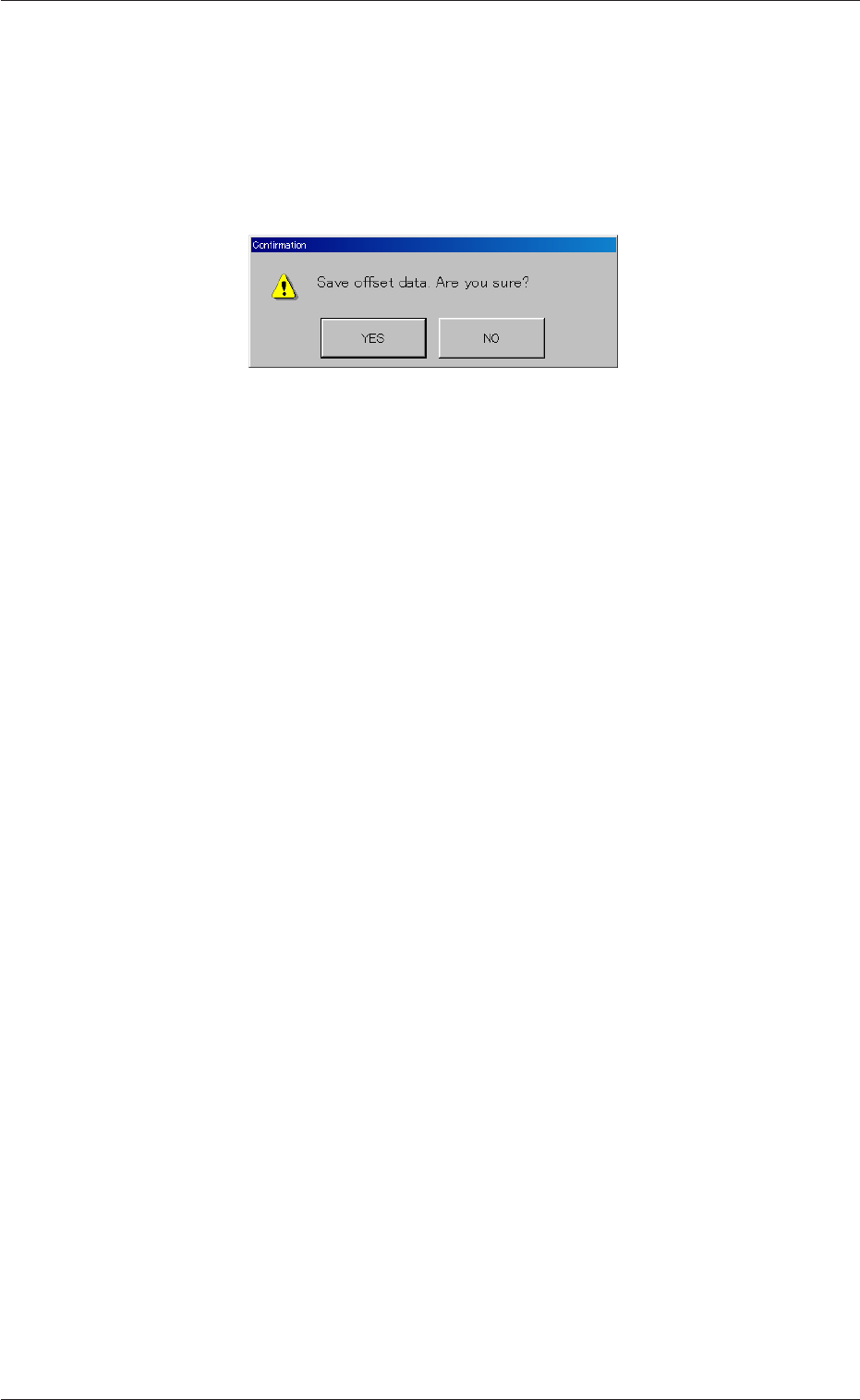
*5 [End] Button
When this button is pressed, a "Confirmation" dialog box opens.
Fig. 102
*6 Control Switch
When the [ENABLE] button on the front operation panel is
pressed in two seconds after the [ON] button (entitled "MOVE")
is pressed, teaching operations are performed to obtain the
offset data.
9.1 "Comp. Recog. Light" Tab
0307-001 49 Tg0931-PM-SO