88192278-01-19 Installation Master.pdf - 第150页
PRINTER PREPARATION PRINTER ASSEMBLY 4.48 Installation Manual Chapter Issue 15, May 20 conveyor in the X and Y planes. 4. If adjustment is required, carry out the fo llowing: a. By careful adjustment of the grub screws o…
PRINTER PREPARATION
PRINTER ASSEMBLY
Chapter Issue 15, May 20 Installation Manual 4.47
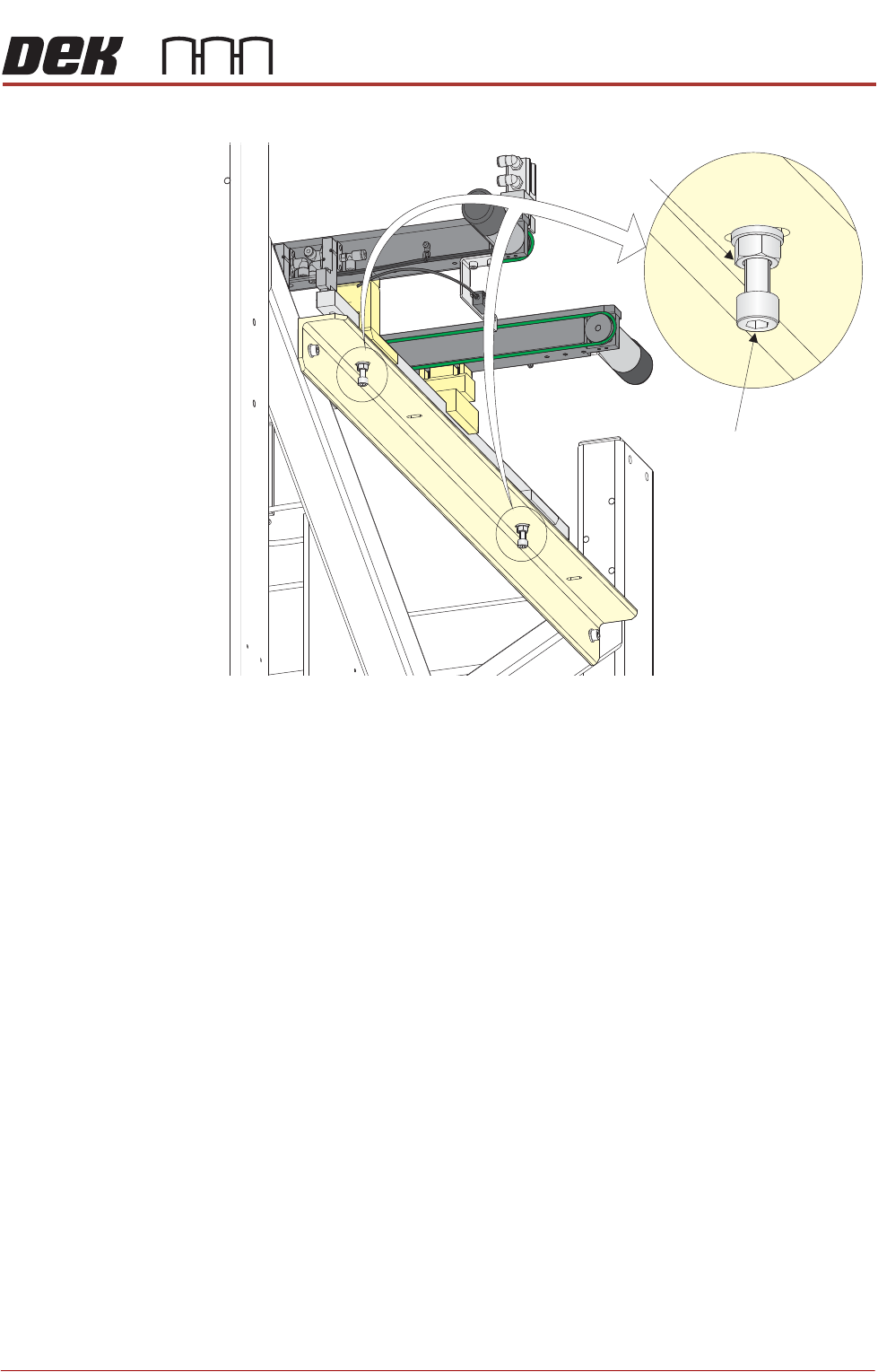
conveyor height adjustment bolts.
3. Adjust the position of the conveyor to obtain the 3.5mm ±0.5mm gap
between the front and rear rails of the auxiliary conveyor and the front and
rear rails of the print station.
4. Re-tighten the locking nuts disturbed in Step 2 and re-check the gap
measurement.
5. On completion, carry out Auxiliary Conveyor Front Rail Parallelism check.
Auxiliary Conveyor
Levelling
To check and if required adjust the levelling of the auxiliary conveyors, carry out
the following procedure:
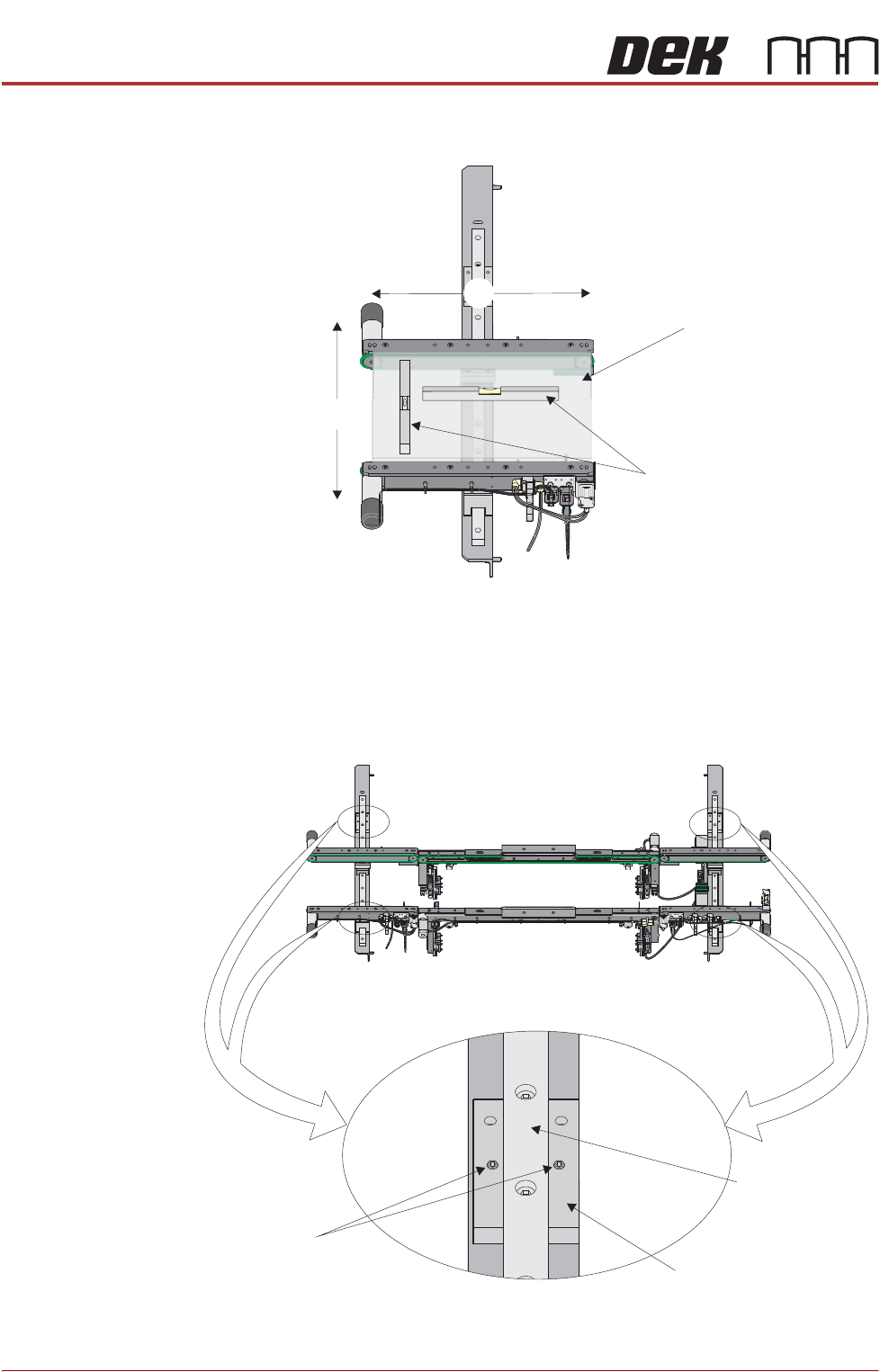
1. Manually adjust the auxiliary conveyor rail width to 250mm.
2. Place a Board Clamp Setting Plate Part No. 140403 onto the auxiliary
conveyor transport belts.
3. Place a spirit level on top of the setting plate and check the levelness of the
Auxiliary Conveyor
Height Adjustment
Bolt
Locking Nut
PRINTER PREPARATION
PRINTER ASSEMBLY
4.48 Installation Manual Chapter Issue 15, May 20
conveyor in the X and Y planes.
4. If adjustment is required, carry out the following:
a. By careful adjustment of the grub screws on the top face of the auxiliary
conveyor front and rear linear bearing holders, raise or lower the height
of the conveyor about the auxiliary conveyor height adjustment bolt, to
achieve conveyor levelness.
b. Carry out Steps 2 and 3 to re-check for conveyor levelness.
View on Auxiliary Conveyor
Y
Board Clamp
Setting Plate
Spirit Level
X
Front View of HTC Rails
Grub Screw
Linear Bearing
Linear Bearing Holder
PRINTER PREPARATION
PRINTER ASSEMBLY
Chapter Issue 15, May 20 Installation Manual 4.49
NOTE
Auxiliary conveyor height settings and parallelism is checked after Printer
Power Up Sequence.
ProFlow & ProFlow
ATx
The printer is shipped with the squeegee mechanism fitted as standard. To
change the printer to ProFlow or ProFlow ATx, use the following procedures:
• Remove Squeegee Pressure Mechanism
• Remove Drip Tray
Remove Squeegee
Pressure
Mechanism
To remove the squeegee pressure mechanism, carry out the following
procedure:
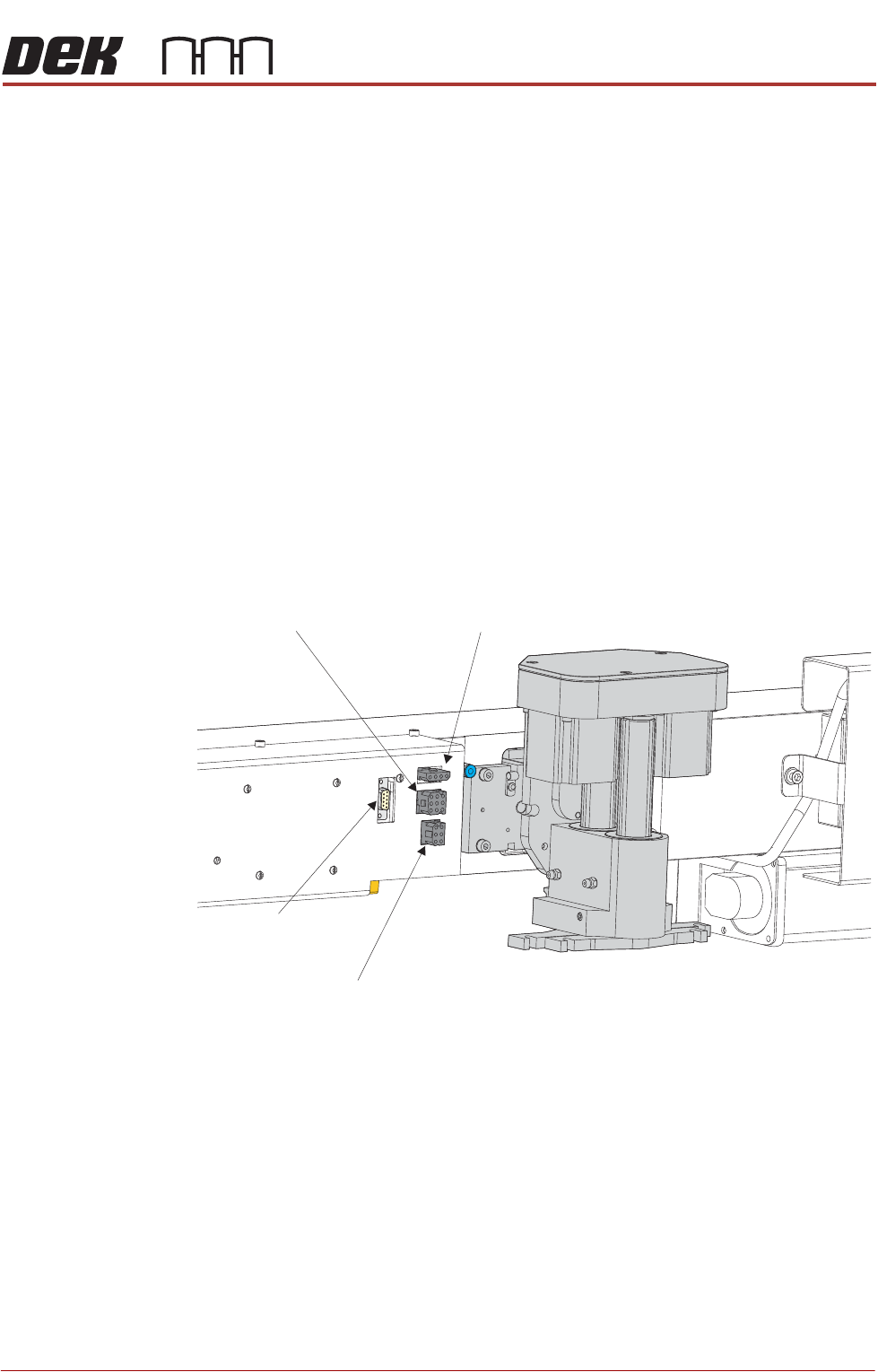
1. Disconnect the four squeegee mechanism connectors from the print
carriage, left hand side:
• Rear Squeegee Motor
• Front Squeegee Motor
• Home Sensors
• Squeegee Pressure Amplifier
2. Loosen the four captive screws securing the squeegee printhead
mechanism to the print carriage using a 4mm Allen key. Carefully remove
Rear Squeegee
Motor (9SK17)
Front Squeegee
Motor (9SK16)
Home Sensors
(9SK08)
Squeegee Pressure
Amplifier (N3SK16)