88192278-01-19 Installation Master.pdf - 第186页
POWER UP SEQUENCE MACHINE POWER UP SEQUENCE 5.10 Installation Manual Chapter Issue 10, Nov 19 9. Ensure that the Paste Cartridge Empt y is displaying OFF . 10. Paste consistency varies throughout the cartridge, ensure th…

POWER UP SEQUENCE
MACHINE POWER UP SEQUENCE
Chapter Issue 10, Nov 19 Installation Manual 5.9
To setup the USC carry out the following:
1. Ensure that the external solvent tank is fitted with an empty 5 litre container.
2. Select Maintenance.
3. Select Calibrations.
4. Select Classic Calibrations.
5. Select Solvent.
6. Select Set Solv Empty.
7. Confirm by selecting Yes.
8. Replace the empty 5 litre container with a 5 litre container full of the solvent
to be used.
9. Select Set Solv Full.
10. Confirm by selecting Yes.
11. Select Exit.
12. Select Exit.
13. Select Back.
14. Select Open Cover Commands.
15. Open the printhead cover.
16. Select Prime Solvent.
17. When prompted, press the two button control switches simultaneously until
the paper is wet (this may take several attempts before solvent is sprayed
onto the paper).
18. Select Back.
19. Select Prime Paper.
20. When prompted, press the two button control switches simultaneously to
feed a clean area of dry paper over the solvent dispense pipe ensuring that
the paper feeds correctly.
21. Select Back.
22. Close the printhead cover and press the System button.
23. Select Back.
Paste Dispenser
Function Check
To check that the paste dispenser level sensor works with the customers’ paste,
use the following procedure:
1. Select Maintenance.
2. Select Diagnostics.
3. Using the Next or Previous buttons to highlight Paste Dispenser System.
4. Select Select Module.
5. Note that the Paste Cartridge Empty is displaying ON.
6. Open printhead cover.
7. Fit a full paste cartridge containing the paste to be used by the customer.
8. Move the paste dispenser by hand so that the paste level sensor is aligned
with the paste in the cartridge.
POWER UP SEQUENCE
MACHINE POWER UP SEQUENCE
5.10 Installation Manual Chapter Issue 10, Nov 19
9. Ensure that the Paste Cartridge Empty is displaying OFF.
10. Paste consistency varies throughout the cartridge, ensure the sensor can
detect paste throughout the length of the cartridge without the Paste Car-
tridge Empty switching to ON.
NOTE
If adjustment of the paste level sensor is required, refer to the Technical
Reference manual - Paste Dispenser System - Adjustments and Settings
section.
11. Close printhead cover.
12. Press the System button.
13. Select Exit.
14. Select Exit.
15. Select Back.
ProFlow Contact
Position Setup
For machines using ProFlow only, set up the contact height position as follows:
1. Select Open Cover Commands.
2. Select Carriage To Front.
3. Open the printhead cover.
4. Load the calibration screen into the chase.
5. Fit an empty transfer head to the ProFlow pressure mechanism and remove
the ProFlow cover.
6. Position a 0.1mm shim on the stencil under the transfer head.
7. Close the printhead cover.
8. Press the System button.
9. Select Back.
10. Select Load Screen.
11. Select Maintenance.
12. Select Calibrations.
13. Select Classic Calibrations.
14. Select ProFlow.
15. Select ProFlow Heights.
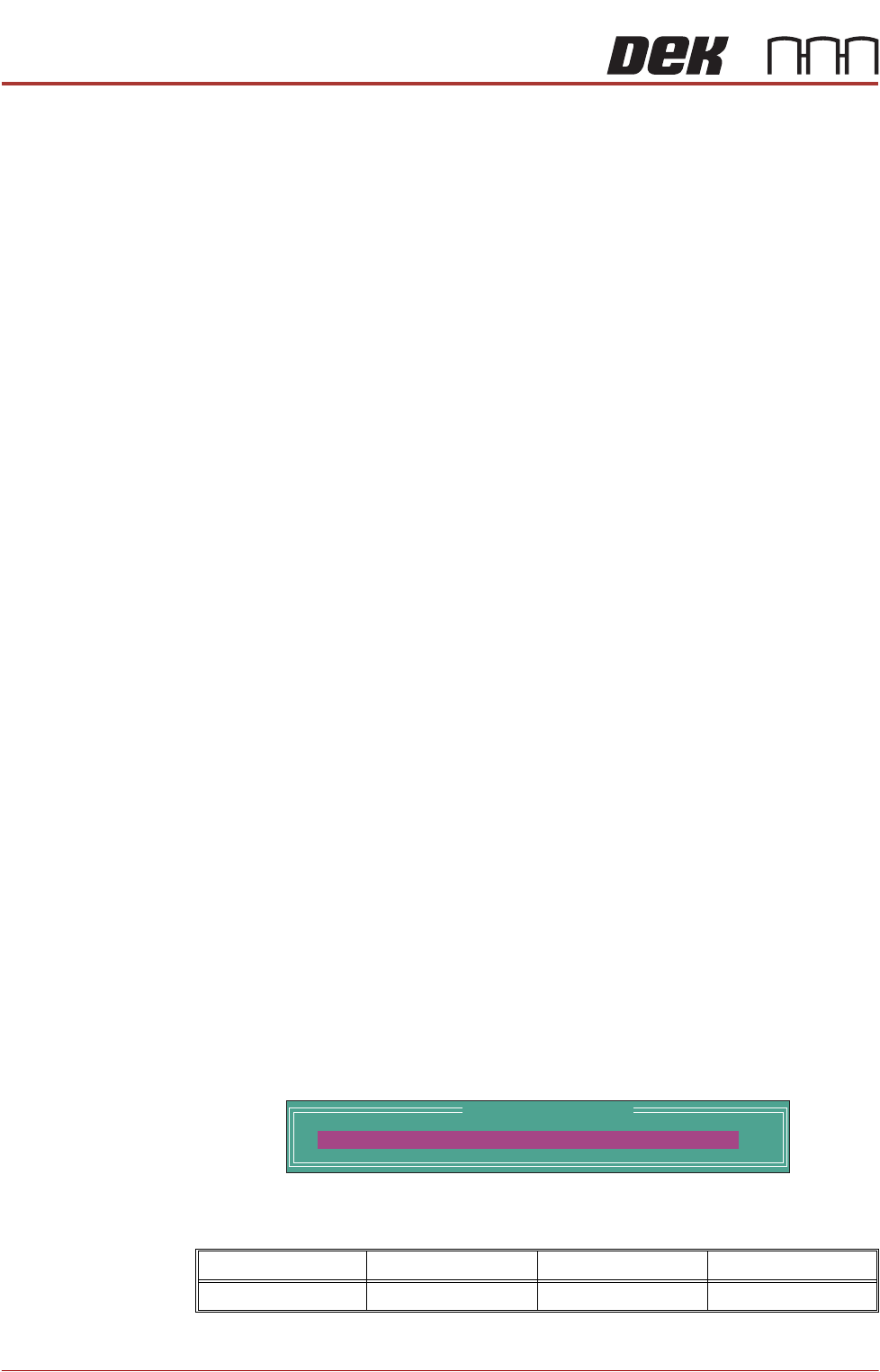
The following window is displayed:
The ProFlow contact position sets the height of the ProFlow printhead so
that it just touches the stencil surface.
Minimum Maximum Increment Default
- 10mm +10mm 0.1mm 0.0mm
ProFlow Calibrations
PFLOW CONTACT POS.
0.0
mm

POWER UP SEQUENCE
MACHINE POWER UP SEQUENCE
Chapter Issue 10, Nov 19 Installation Manual 5.11
16. Using the Incr. or Decr. buttons, set the ProFlow contact position to 5.5mm.
17. Select Move to Position, the ProFlow unit is driven to the position set.
18. Open the printhead cover.
NOTE
Correct contact height is when the shim is just held between the transfer
head wipers and stencil. At this position it is not possible to slide the shim
sideways past the transfer head skis.
19. If correct contact height is achieved go to Step 25.
20. Close the printhead cover.
21. Press the System button.
22. Using the Incr. or Decr. buttons, increase or decrease the Contact Position
set height by 0.5mm (eg 5.0mm or 6.0mm).
NOTE
Normally the contact position is between 4mm and 8mm (nominally 6mm).
23. Select Move to Position, the ProFlow unit is driven to the position set.
24. Repeat steps 18 and 19.
25. Close the printhead cover.
26. Press the System button.
27. Select Exit.
28. Select Exit.
29. Select Exit.
30. Select Back.
31. Select Back.
32. Select Unload Screen.
33. Open the printhead cover.
34. Remove the shim
35. Remove empty transfer head.
36. Remove calibration screen.
37. Close the printhead cover.
38. Press the System button.