DECAN_S1_Troubleshooting_Guide(Eng_Ver1.3)_Print_Web.pdf - 第144页
1-120 Next Generation, Multi-Functional Plac er DECAN S1 Troubleshooting Guide $a610 Can not find the first lead (l eft side) of upper lead group. [Problem] Failed to recognize the left lead of upper lead gr oup on the…

1-119
System Messages of the MMI and Solutions
$a403 Can not generate fiducial data due to wrong fiducial type.
[Problem]
An undefined fiducial type is used.
[Solution]
Click the <Fiducial Mark …> button in the “Board” dialog box of the PCB edit menu.
Then check and correct the data related to the corresponding fiducial mark setup.
Please refer to section “6.3 Fiducial Mark Setup” of the Administrator’s Guide.
$a404 Fiducial is not registered.
[Problem]
The system attempted to use the fiducial while it was unregistered due to H/W
problem or S/W problem.
[Solution]
Click the <Fiducial Mark …> button in the “Board” dialog box of the PCB edit menu.
Then check and correct the data related to the corresponding fiducial mark setup.
Please refer to section “6.3 Fiducial Mark Setup” of the Administrator’s Guide.
$a405 Fiducial size is too large.
[Problem]
The size of fiducial intended to register and use is larger than the maximum value that
the vision can recognize.
[Solution]
Register the smaller mark in the PCB as the fiducial mark.
$a406 Fiducial size is too small.
[Problem]
The size of fiducial intended to register and use is smaller than the minimum value that
the vision can recognize.
[Solution]
Register the larger mark in the PCB as the fiducial mark.
$a407 Too many number of fiducials to register.
[Problem]
More fiducial marks than can be registered in the equipment were registered.
[Solution]
Delete the excess fiducials.
If same fiducial is registered repeatedly, register it as one fiducial.
1-120
Next Generation, Multi-Functional Placer DECAN S1 Troubleshooting Guide
$a610 Can not find the first lead (left side) of upper lead group.
[Problem]
Failed to recognize the left lead of upper lead group on the SMVision window while
recognizing components.
[Solution]
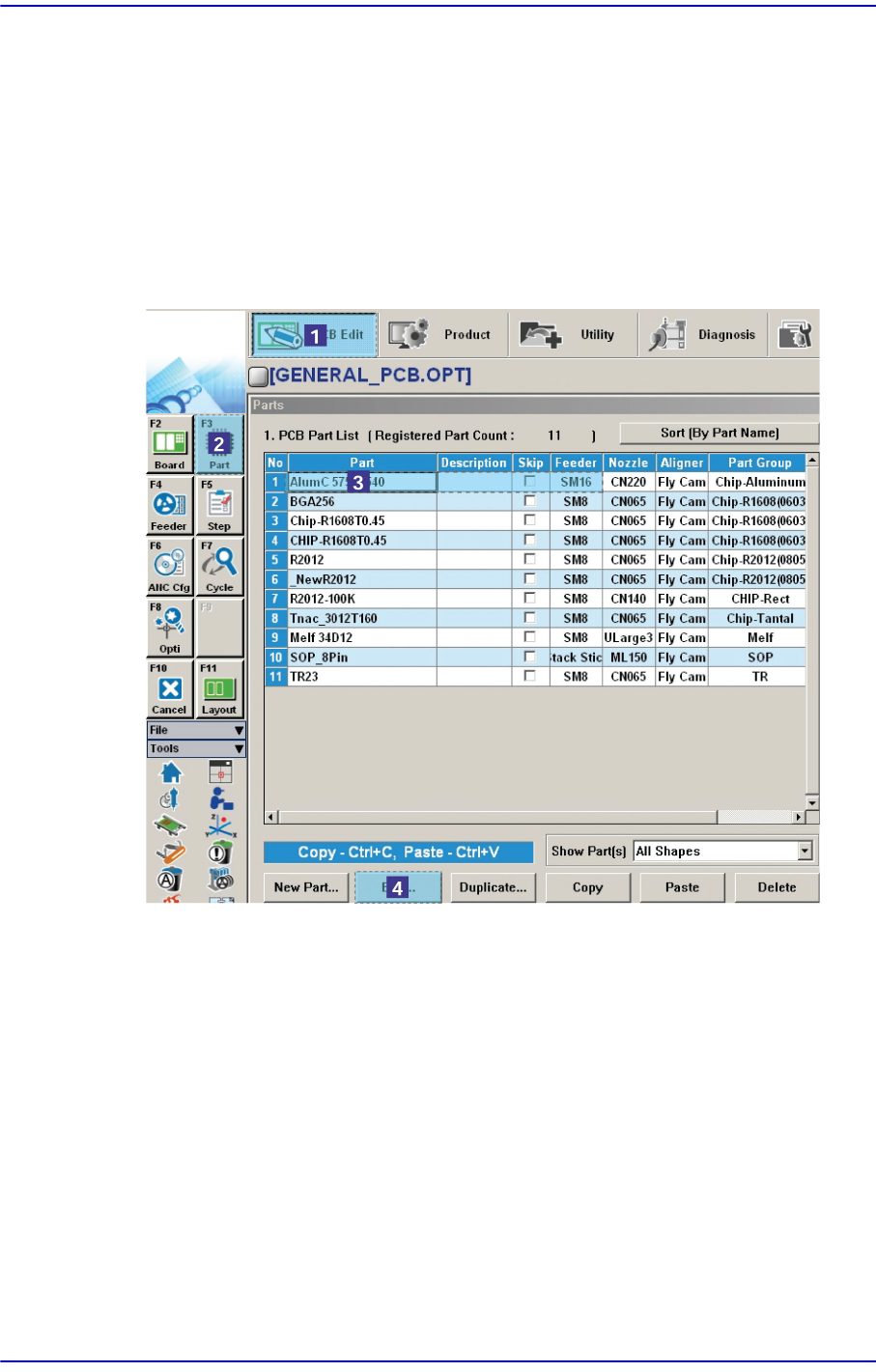
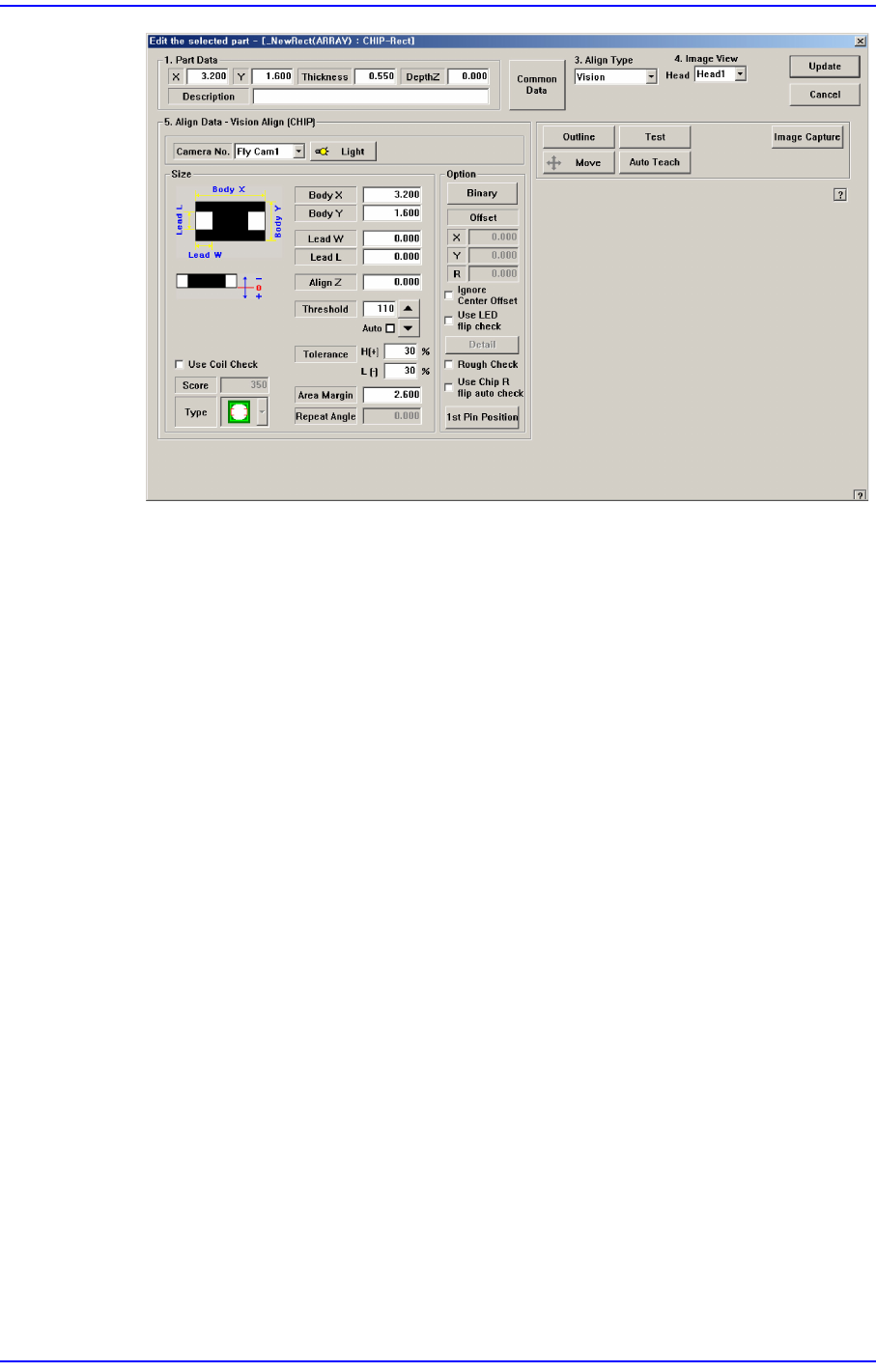
In order to verify if the component data is normal, select the error occurred component
in “Part” of the “PCB Edit” menu and check if the information of the <Align Data>
group is set up in the Profile Editor correctly.
1-121
System Messages of the MMI and Solutions
In addition, if the <Light Control> button is clicked to check and reset the illumination
level for the corresponding component, a dialog box for adjusting the illumination
level is displayed. Here, change the illumination level to make the shape and image of
the SMVision appear clear. For more details, please refer to “7.1 New Components
Registration” in the “Administrator’s Guide”
$a611 Can not find the final (right side) lead of upper lead group.
[Problem]
Failed to recognize the right lead of upper lead group on the SMVision window while
recognizing components.
[Solution]
Perform [Solution] in $a610.
$a612 Can not find the first (upper side) lead of left lead group.
[Problem]
Failed to recognize the right lead of upper lead group on the SMVision window while
recognizing components.
[Solution]
Perform [Solution] in $a610.
$a613 Can not find the last (lower side) lead of left lead group.
[Problem]
Failed to recognize the right lead of upper lead group on the SMVision window while
recognizing components.