SWIA_503.04_EN.pdf - 第13页
L&A I NSTA LLATION M ANUAL L INE C OMPUTER LCL 50 3.04 NSTALLING THE LINE COMPUTER SOF TWARE INUX U I LRL L (S SE 9.0) 4. At the prompt, press «F3 Driver Update». Th e mes sage «Please get your Dr iver Update Floppy …
L&A INSTALLATION MANUAL LINE COMPUTER LCL 503.04
NSTALLING THE LINE COMPUTER SOFTWARE INUX U
I
LRL L (S SE 9.0)
4.2.3 Installation Manual «new installation»
Switch the computer on and insert the installation CD, if you haven't already done so. This is
necessary in order to install from CD ROM
4.2.3.1 Installation with 19” Monitor
1. If you use an 19” Monitor (flat screen) for the installation, consider step 2 below. Otherwise con-
tinue at step 3 below.
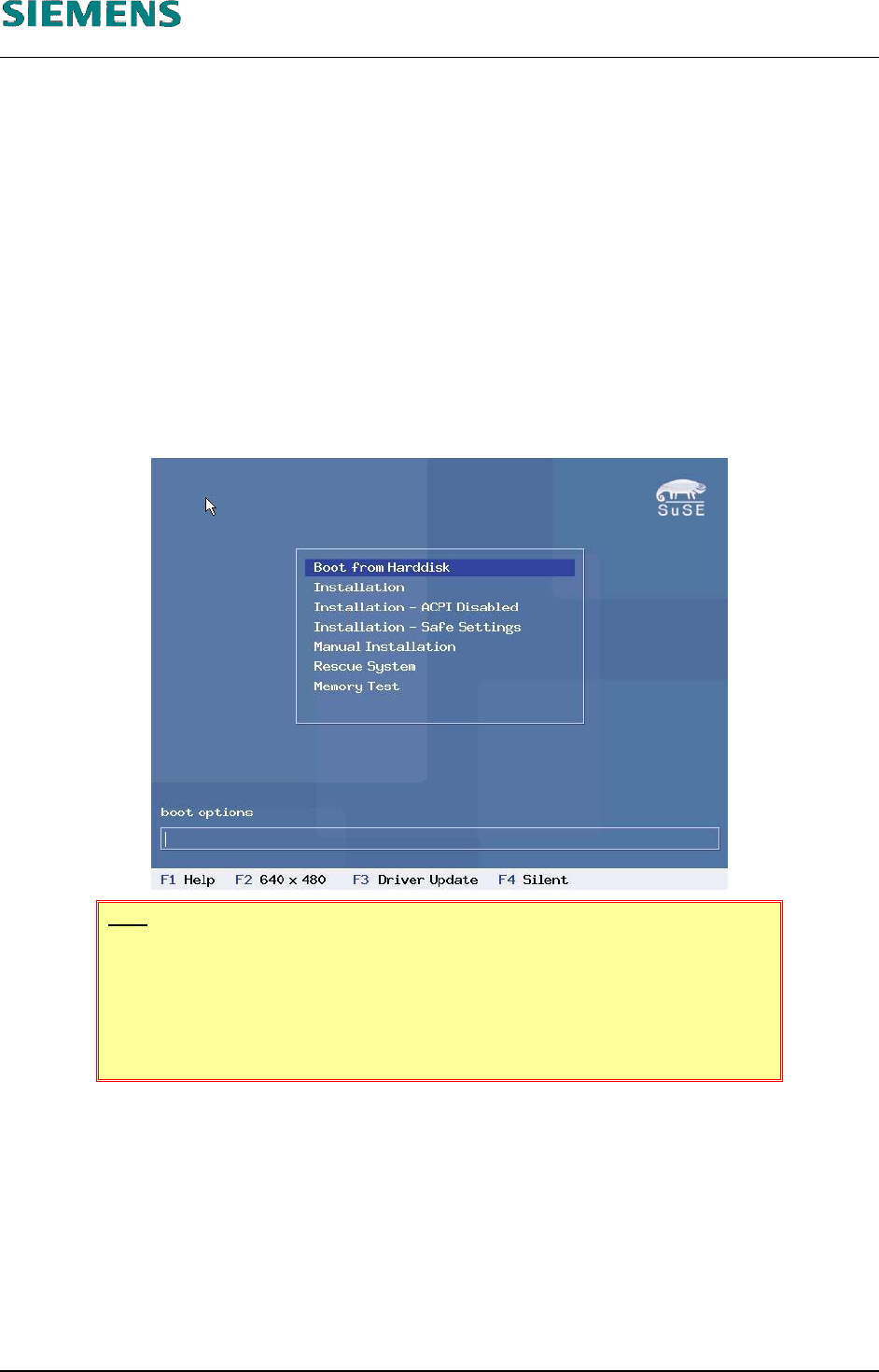
2. On systems, using the 19” monitor, the resolution must be changed to the value of 1024x768
before starting the installtion. Press ‹F2› key on the start screen to change the resolution, then
continue the installation as normal.
HINT
After the installtion had been finished, you could use the configuration tool
«YaST2» to change the resolution to 1280x1024. But since the line com-
puter application is designed for the resolution 1024x768, not the whole dis-
play will be used.
4.2.3.2 Installation of Econel 50
3. Performing the new installation on a system «Econel 50», you have to follow the steps at 4 be-
low.
For older systems until «Econel 40», continue at step 14 below on page 15.
L&A EA SUBJECT TO CHANGE WITHOUT PRIOR NOTICE 03.03.2005
RUPERT-MAYER-STR. 44
D-81359 M
UNICH SWIA_503.04_EN.DOC PAGE 12 / 75
L&A INSTALLATION MANUAL LINE COMPUTER LCL 503.04
NSTALLING THE LINE COMPUTER SOFTWARE INUX U
I
LRL L (S SE 9.0)
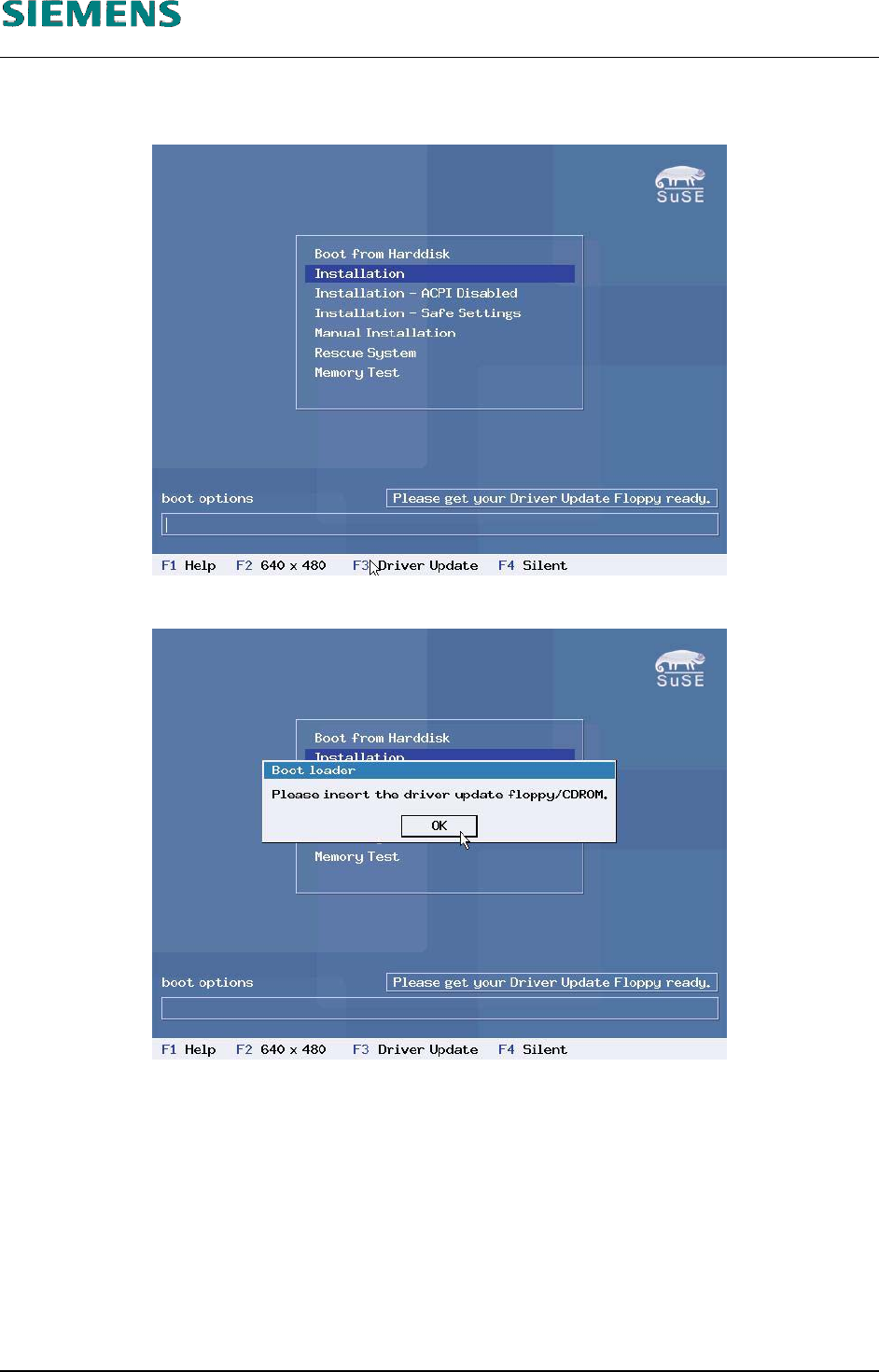
4. At the prompt, press «F3 Driver Update». The message «Please get your Driver Update Floppy
ready» appears.
5. Then select the «Installation» menu item and confirm with ‹Enter›.
6. When the prompt «Please insert the driver update floppy/CDROM.» appears, insert the first
driver floppy (Disc SATA RAID ) and confirm with ‹Enter›.
L&A EA SUBJECT TO CHANGE WITHOUT PRIOR NOTICE 03.03.2005
RUPERT-MAYER-STR. 44
D-81359 M
UNICH SWIA_503.04_EN.DOC PAGE 13 / 75
L&A INSTALLATION MANUAL LINE COMPUTER LCL 503.04
NSTALLING THE LINE COMPUTER SOFTWARE INUX U
I
LRL L (S SE 9.0)
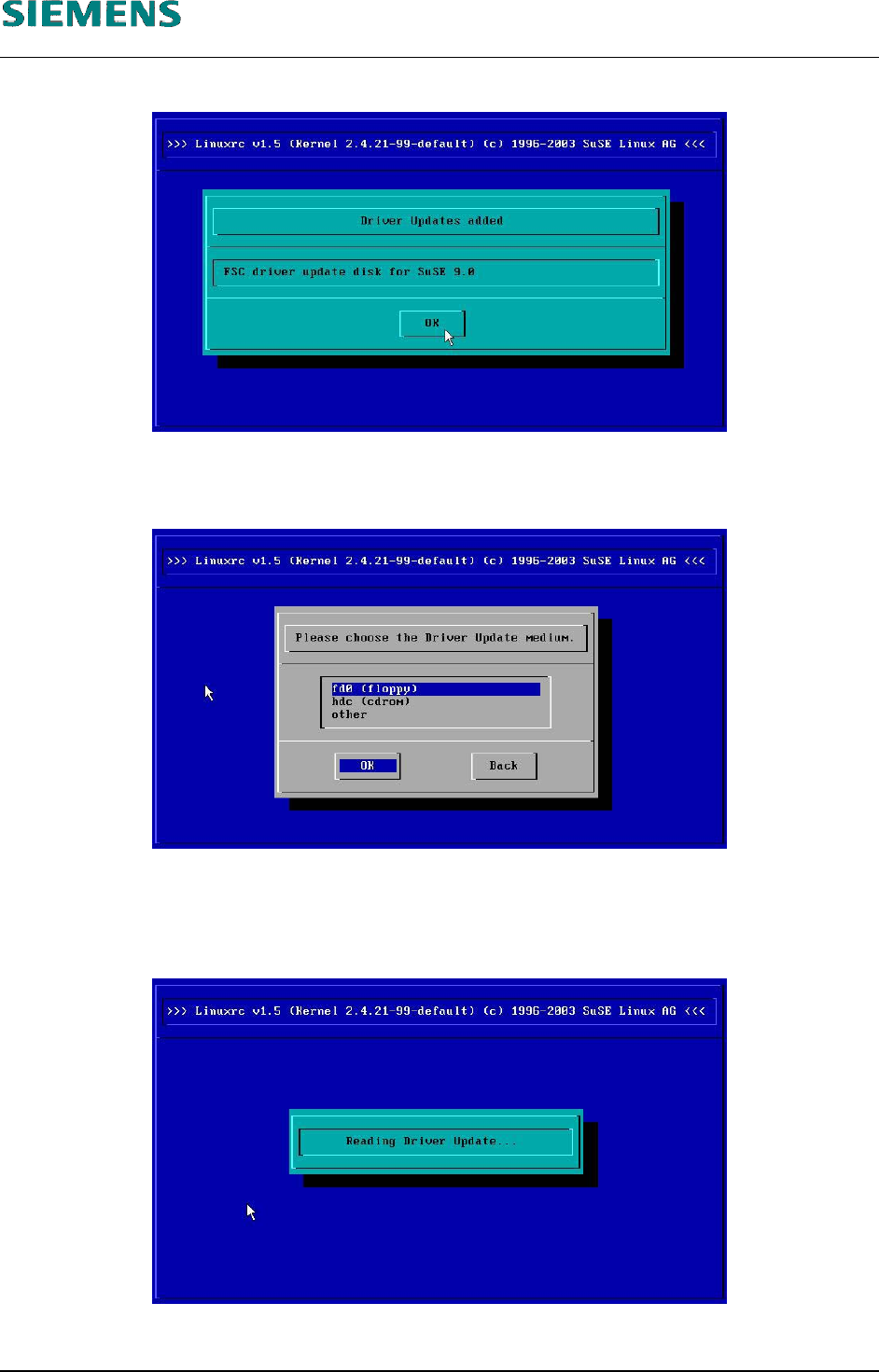
7. A confirmation is displayed after the data had been read from the first floppy:
This message can be confirmed with the ‹Enter› button.
8. The following dialog box appears, allowing you to start installation of a further driver.
9. Insert the second floppy (Disc NETWORK CHIP SET ) and confirm the dialog box with ‹Enter›.
(Do not change the selection «fd0 (floppy)» !)
10. The following message appears while the second floppy is being read.
11. The message shown in 7 above appears while the second floppy is being read. This message
can then be confirmed with the ‹Enter› button.
L&A EA SUBJECT TO CHANGE WITHOUT PRIOR NOTICE 03.03.2005
RUPERT-MAYER-STR. 44
D-81359 M
UNICH SWIA_503.04_EN.DOC PAGE 14 / 75