SWIA_503.04_EN.pdf - 第50页
L&A I NSTA LLATION M ANUAL L INE C OMPUTER LCL 50 3.04 ONFIGURATION OF PRINTER AND ETWORK C HP 5850 (USB N ) 18. You can specify a name for the prin ter: The suggested name « lp» can be accepted. 19. Confirm« the dia…
L&A INSTALLATION MANUAL LINE COMPUTER LCL 503.04
ONFIGURATION OF PRINTER AND ETWORK
C
HP 5850 (USB N )
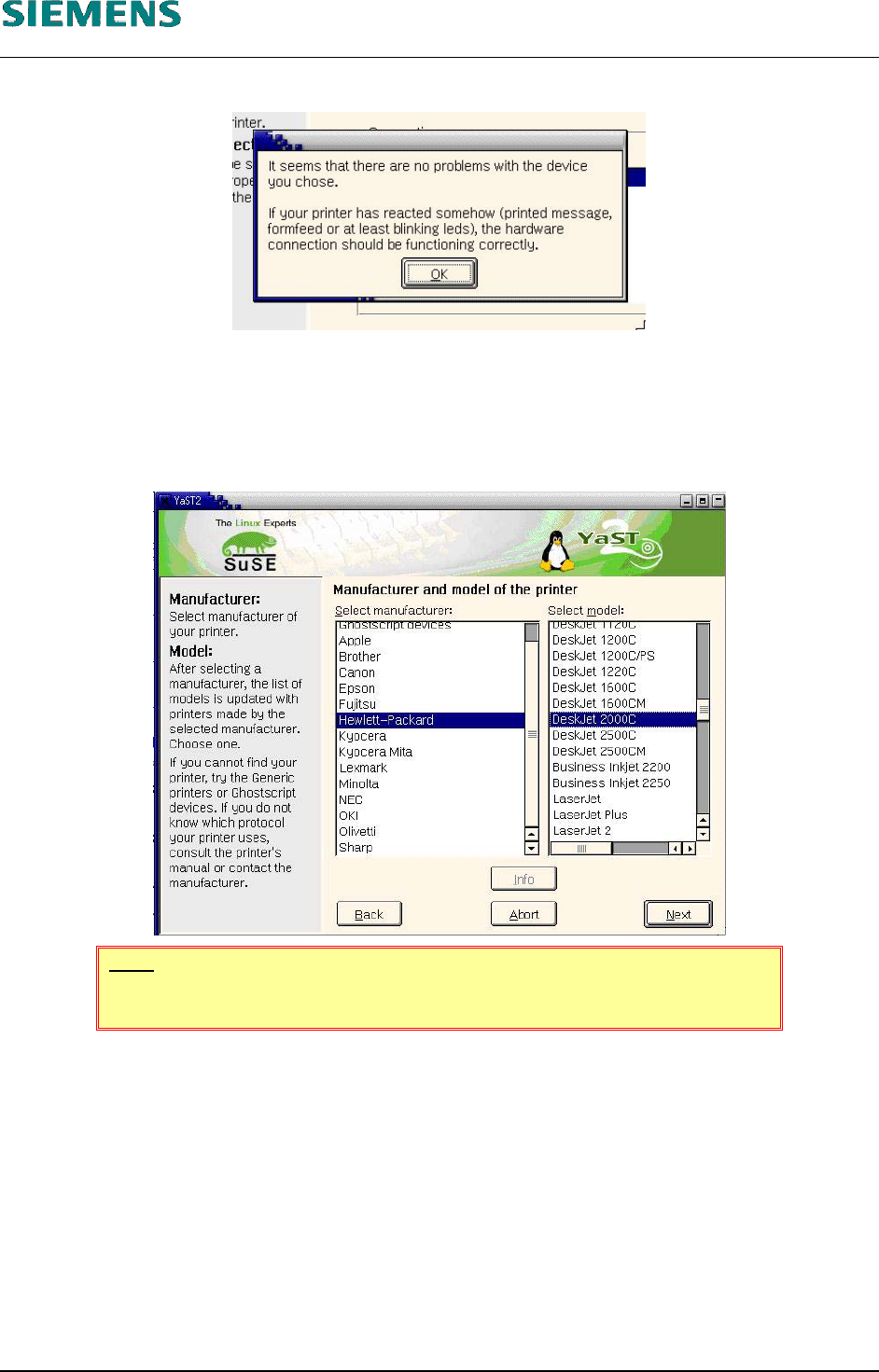
14. If the connection test was successful, confirm the message with «OK».
15. Confirm the dialog box shown in point 10 above by clicking the «Next» button.
16. Select the printer manufacturer and model:
Hewlett-Packard
DeskJet 2000C
NOTE
The model specified above must be selected!
17. Confirm the dialog box by clicking «Next».
L&A EA SUBJECT TO CHANGE WITHOUT PRIOR NOTICE 03.03.2005
RUPERT-MAYER-STR. 44
D-81359 M
UNICH SWIA_503.04_EN.DOC PAGE 49 / 75
L&A INSTALLATION MANUAL LINE COMPUTER LCL 503.04
ONFIGURATION OF PRINTER AND ETWORK
C
HP 5850 (USB N )
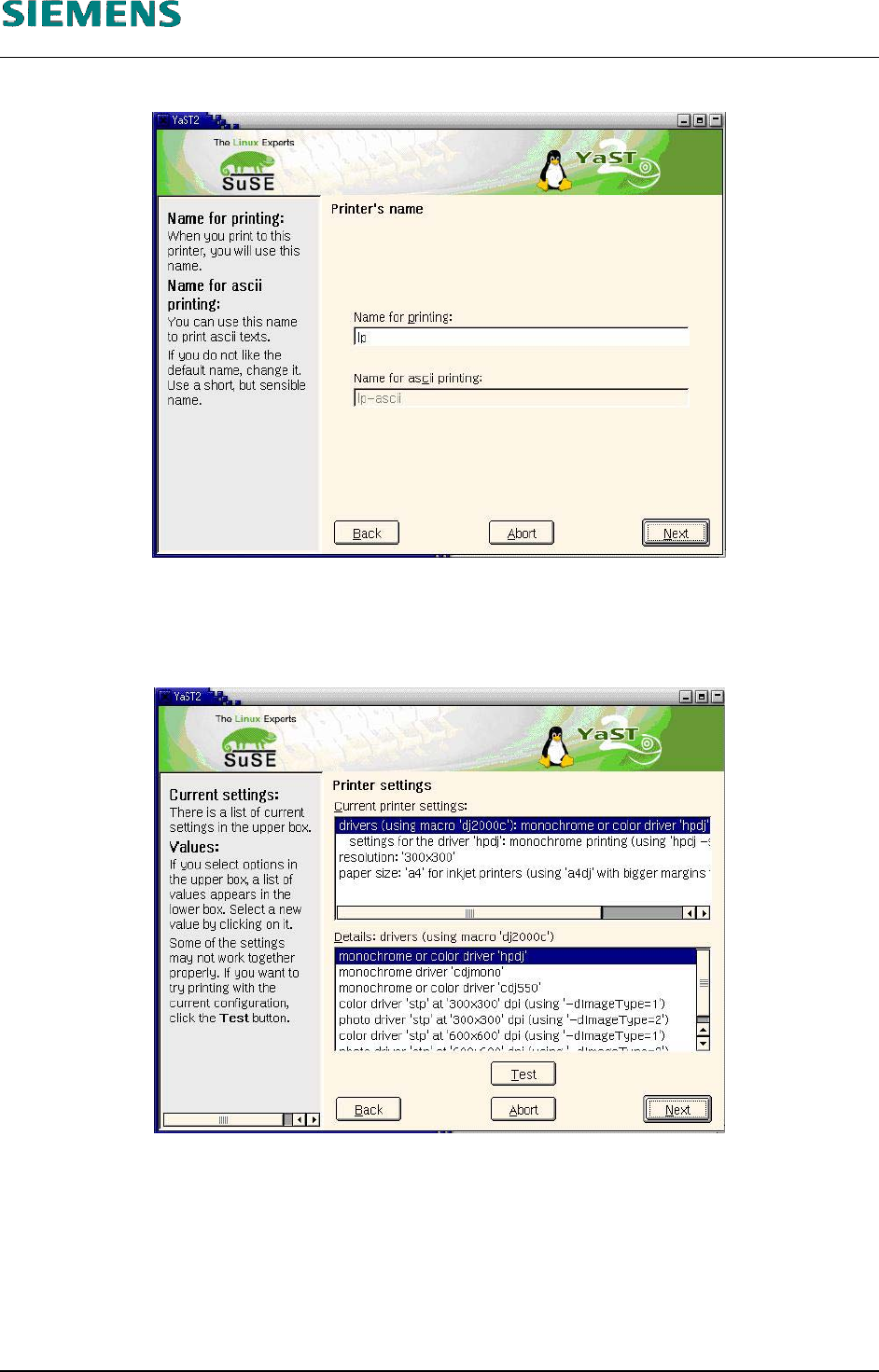
18. You can specify a name for the printer: The suggested name «lp» can be accepted.
19. Confirm« the dialog box by clicking «Next».
20. The next dialog box allows you to make further driver settings. You can accept the preset values
with «Next».
21. The next dialog box allows you to make further «hardware-independent settings». You can ac-
cept the default settings with «Next».
22. The final dialog box shows all the printers now configured.
L&A EA SUBJECT TO CHANGE WITHOUT PRIOR NOTICE 03.03.2005
RUPERT-MAYER-STR. 44
D-81359 M
UNICH SWIA_503.04_EN.DOC PAGE 50 / 75
L&A INSTALLATION MANUAL LINE COMPUTER LCL 503.04
ONFIGURATION OF PRINTER AND ETWORK
C
HP 5850 (USB N )
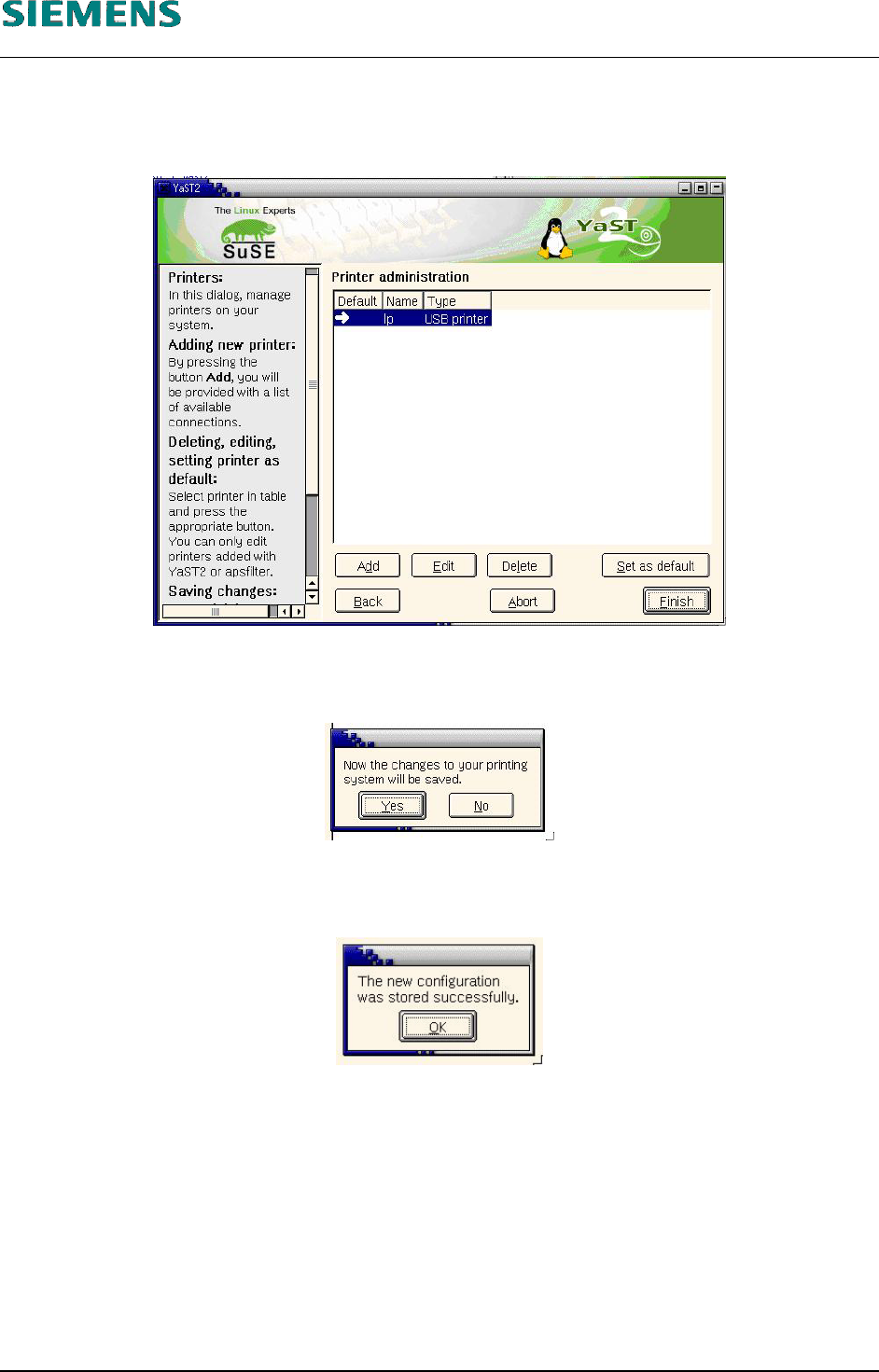
23. If more than one printer is installed, you must select the default printer (this is indicated by the
arrow in the left-hand column). Select the line containing the required printer and set it as the
default printer by clicking the «Set as default» button.
24. Exit the printer configuration by clicking the «Finish» button.
25. A message is displayed indicating that the settings will be saved.
26. Confirm the message with «Yes», otherwise the data specified will not be saved.
27. A message appears indicating that the data has been saved successfully.
28. Confirm the message by clicking «OK».
29. Finally, exit the «YaST2 Control Center» by clicking «Close».
30. You can now use the configured printer. It is not necessary to restart the line computer.
L&A EA SUBJECT TO CHANGE WITHOUT PRIOR NOTICE 03.03.2005
RUPERT-MAYER-STR. 44
D-81359 M
UNICH SWIA_503.04_EN.DOC PAGE 51 / 75