SWIA_503.04_EN.pdf - 第15页
L&A I NSTA LLATION M ANUAL L INE C OMPUTER LCL 50 3.04 NSTALLING THE LINE COMPUTER SOF TWARE INUX U I LRL L (S SE 9.0) 12. Now, the second floppy can be removed from the disc drive. 13. The dialog box shown in 8 abov…
L&A INSTALLATION MANUAL LINE COMPUTER LCL 503.04
NSTALLING THE LINE COMPUTER SOFTWARE INUX U
I
LRL L (S SE 9.0)
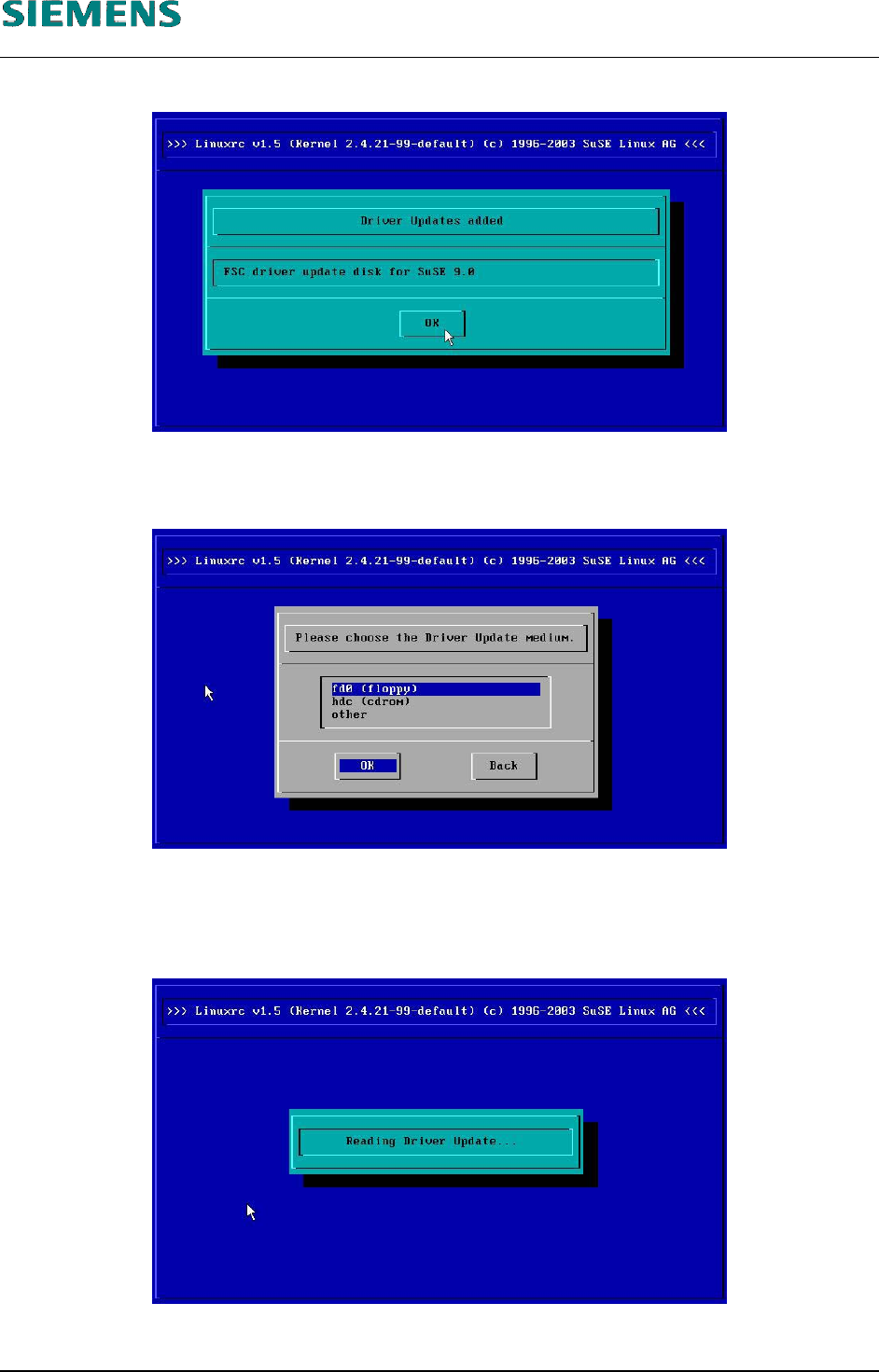
7. A confirmation is displayed after the data had been read from the first floppy:
This message can be confirmed with the ‹Enter› button.
8. The following dialog box appears, allowing you to start installation of a further driver.
9. Insert the second floppy (Disc NETWORK CHIP SET ) and confirm the dialog box with ‹Enter›.
(Do not change the selection «fd0 (floppy)» !)
10. The following message appears while the second floppy is being read.
11. The message shown in 7 above appears while the second floppy is being read. This message
can then be confirmed with the ‹Enter› button.
L&A EA SUBJECT TO CHANGE WITHOUT PRIOR NOTICE 03.03.2005
RUPERT-MAYER-STR. 44
D-81359 M
UNICH SWIA_503.04_EN.DOC PAGE 14 / 75
L&A INSTALLATION MANUAL LINE COMPUTER LCL 503.04
NSTALLING THE LINE COMPUTER SOFTWARE INUX U
I
LRL L (S SE 9.0)
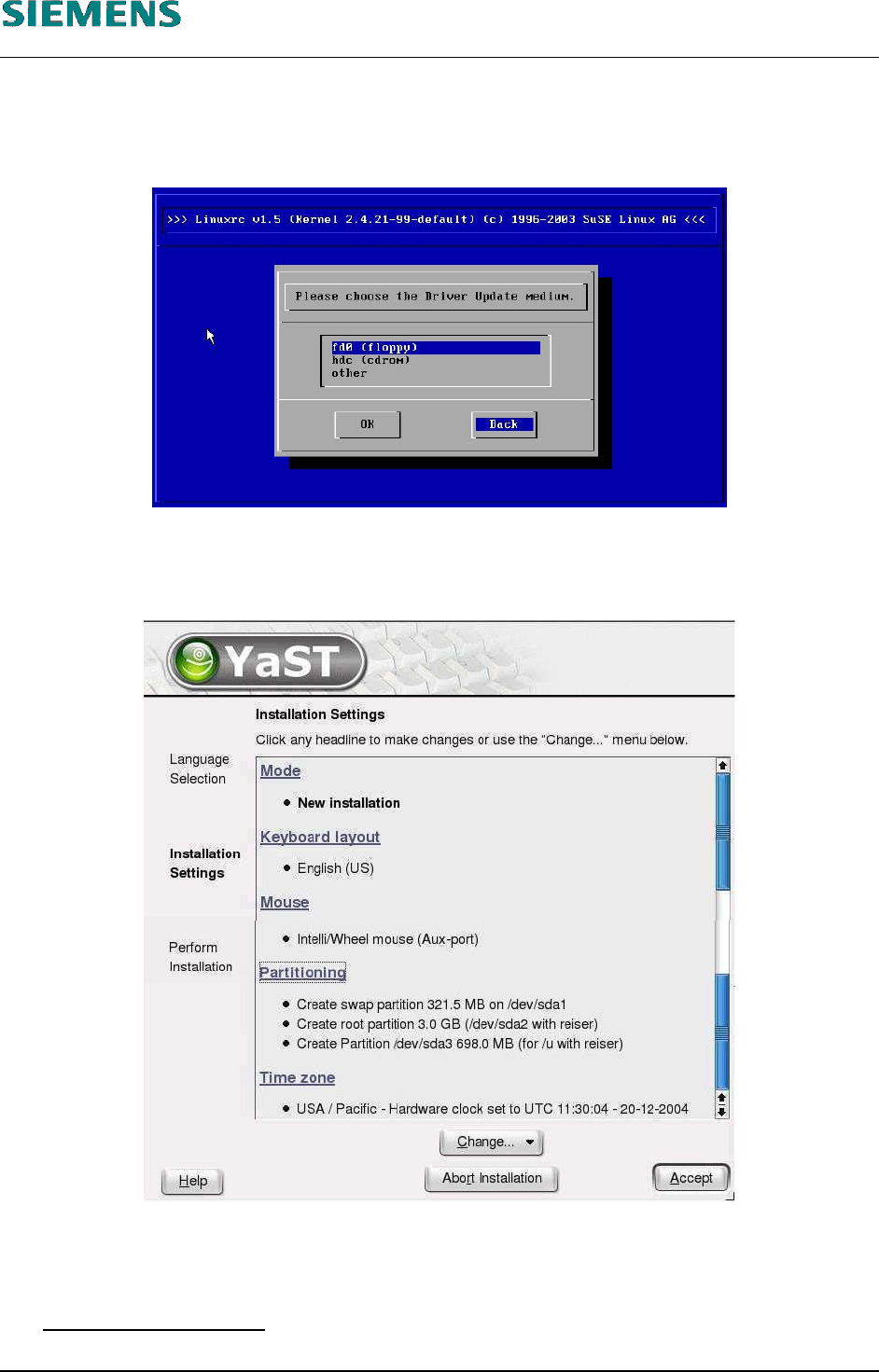
12. Now, the second floppy can be removed from the disc drive.
13. The dialog box shown in 8 above is displayed again.
This time, press the ‹Tab› key to activate the «Back» button and select it with ‹Enter›.
4.2.3.3 Change to Ext3 Filesystem
14. The following dialog box shows the installation settings.
15. If the preconfigured filesystem should be used (not to be recommended), continue at step 27
below on page 19.
For selecting another filesytem, the preset partitioning of the harddrive had to be changed
Note on the hardcopies:
The details on the partition size and name depend on the computer type and may therefore vary.
L&A EA SUBJECT TO CHANGE WITHOUT PRIOR NOTICE 03.03.2005
RUPERT-MAYER-STR. 44
D-81359 M
UNICH SWIA_503.04_EN.DOC PAGE 15 / 75
L&A INSTALLATION MANUAL LINE COMPUTER LCL 503.04
NSTALLING THE LINE COMPUTER SOFTWARE INUX U
I
LRL L (S SE 9.0)
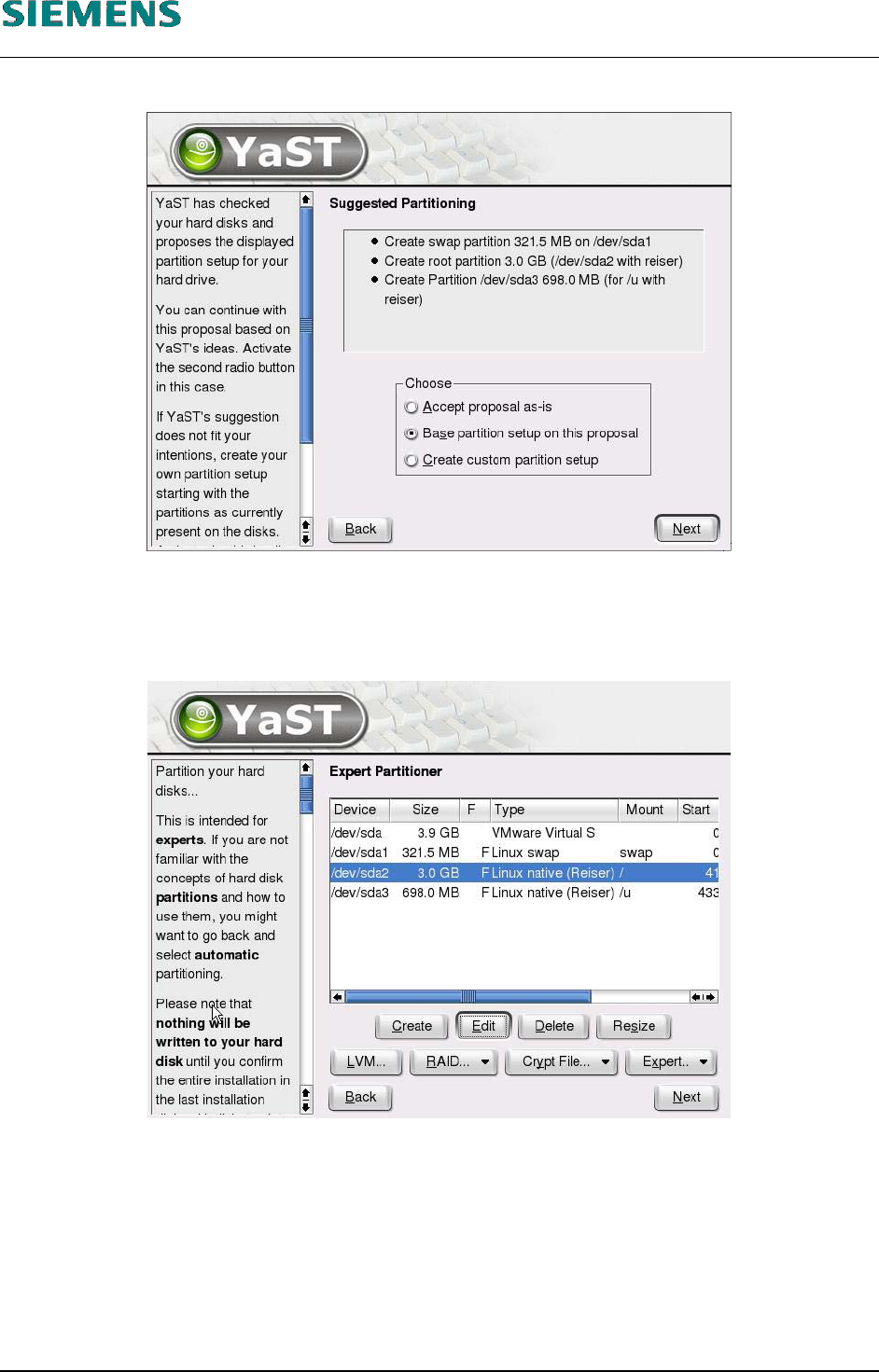
16. To change the default for the filesystem, select the «Partitioning» menu item.
17. The suggested partitioning is displayed. In the «Choose» box, select the «Base partition setup
on this proposal» option.
18. Confirm your choice with «Next».
19. Select the third line (the «Mount» column contains the entry «/»).
20. Select the «Edit» button
L&A EA SUBJECT TO CHANGE WITHOUT PRIOR NOTICE 03.03.2005
RUPERT-MAYER-STR. 44
D-81359 M
UNICH SWIA_503.04_EN.DOC PAGE 16 / 75