SWIA_503.04_EN.pdf - 第29页
L&A I NSTA LLATION M ANUAL L INE C OMPUTER LCL 50 3.04 NSTALLING THE LINE COMPUTER SOF TWARE INUX U I LRL L (S SE 9.0) 65. Close the «Printer setup: Autodete cted printers» dialog box b y clicking « Finish ». This co…
L&A INSTALLATION MANUAL LINE COMPUTER LCL 503.04
NSTALLING THE LINE COMPUTER SOFTWARE INUX U
I
LRL L (S SE 9.0)
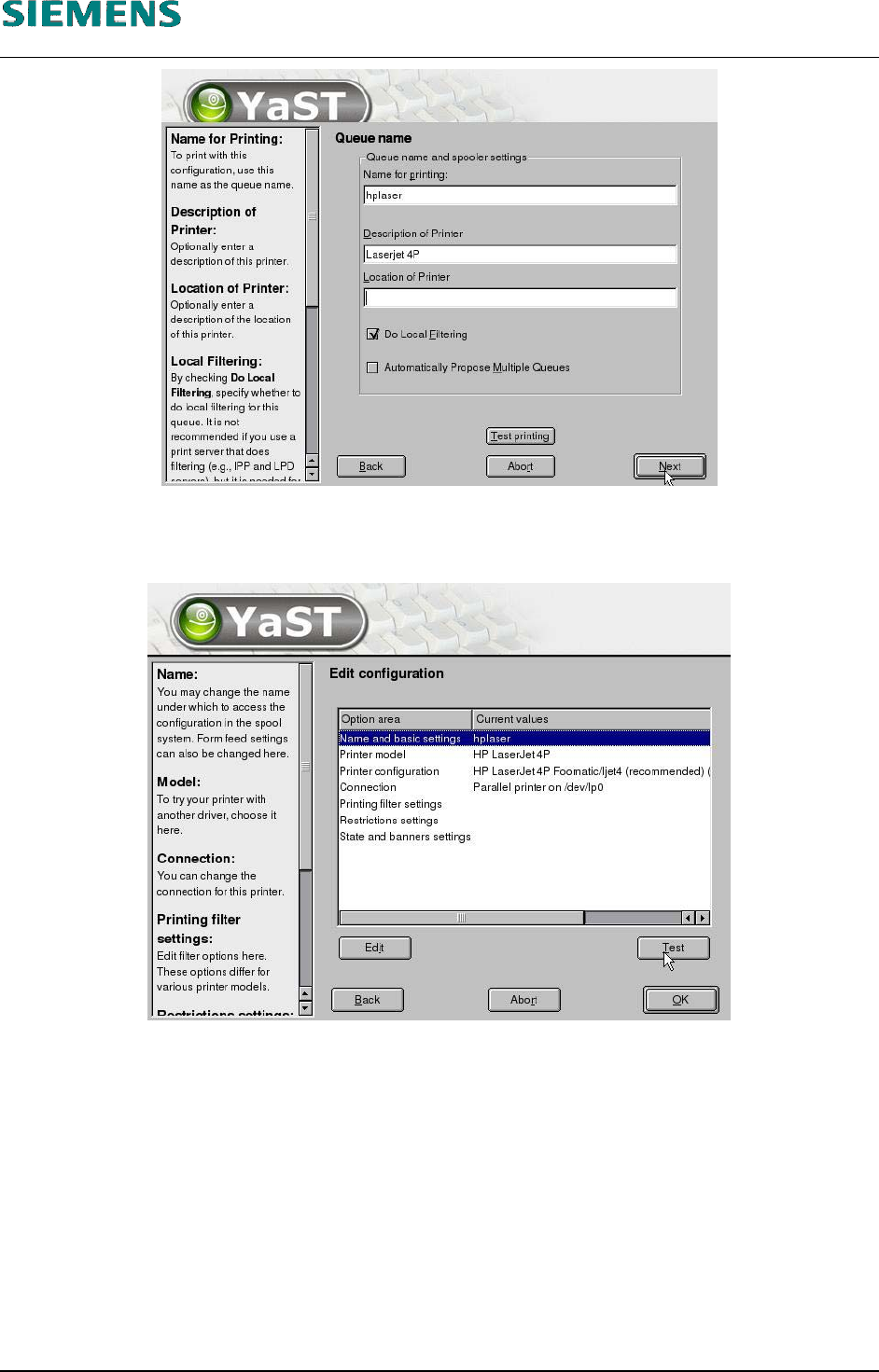
61. Click «Next» after you have entered the printer name and a description of the printer.
62. Select the printer manufacturer and model and click «Next».
63. You can print a test page by clicking «Test».
64. Close the dialog box by clicking «OK».
L&A EA SUBJECT TO CHANGE WITHOUT PRIOR NOTICE 03.03.2005
RUPERT-MAYER-STR. 44
D-81359 M
UNICH SWIA_503.04_EN.DOC PAGE 28 / 75
L&A INSTALLATION MANUAL LINE COMPUTER LCL 503.04
NSTALLING THE LINE COMPUTER SOFTWARE INUX U
I
LRL L (S SE 9.0)
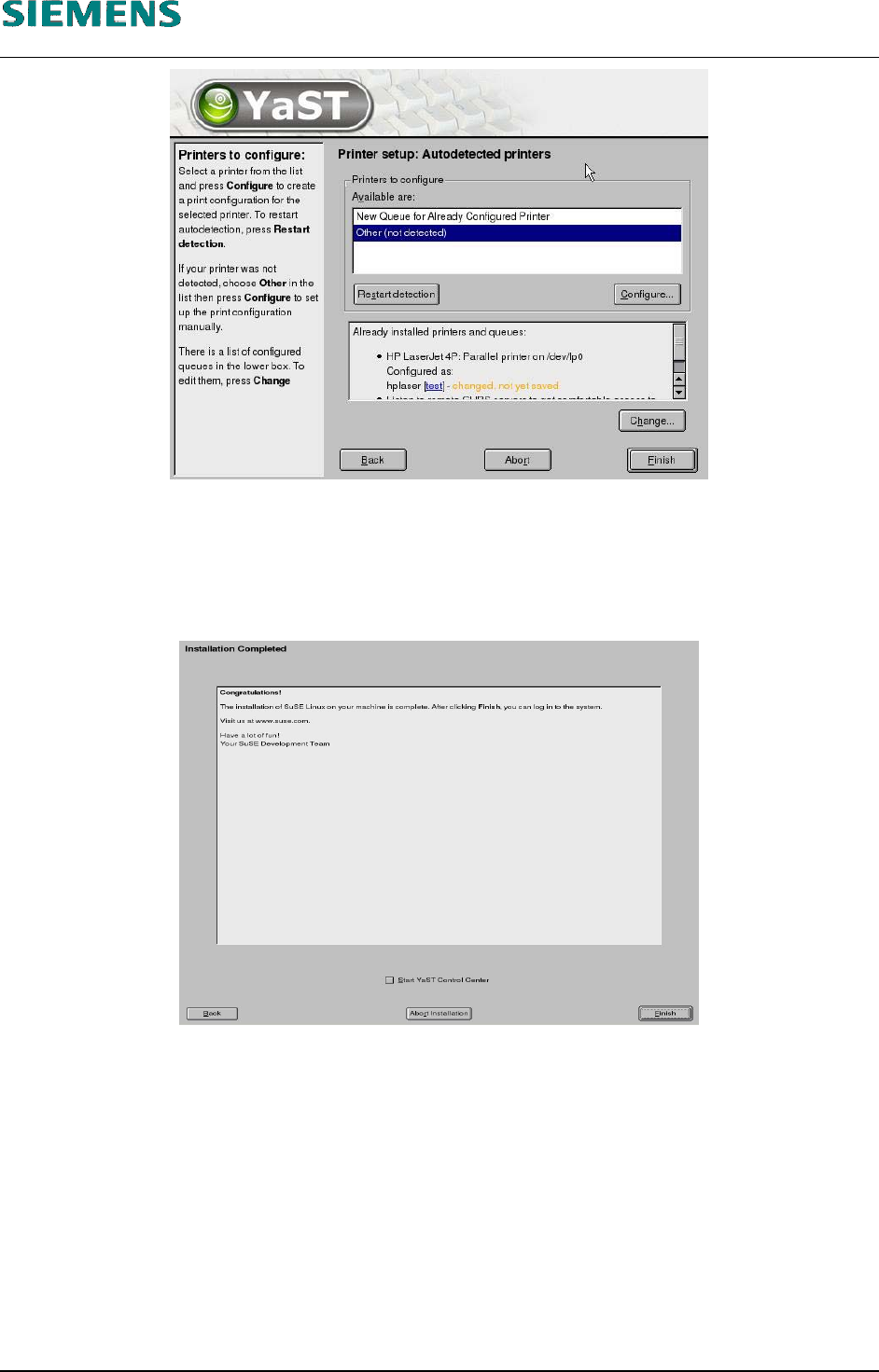
65. Close the «Printer setup: Autodetected printers» dialog box by clicking «Finish». This completes
the installation of the printer.
66. Configuration terminates with the «Installation Completed» message. This message can then be
confirmed with the «Finish» button.
67. The system is restarted automatically and is now ready for you to carry out the installation of the
line computer software.
L&A EA SUBJECT TO CHANGE WITHOUT PRIOR NOTICE 03.03.2005
RUPERT-MAYER-STR. 44
D-81359 M
UNICH SWIA_503.04_EN.DOC PAGE 29 / 75
L&A INSTALLATION MANUAL LINE COMPUTER LCL 503.04
NSTALLING THE LINE COMPUTER SOFTWARE INUX U
I
LRL L (S SE 9.0)
4.2.3.8 Installation of LC software
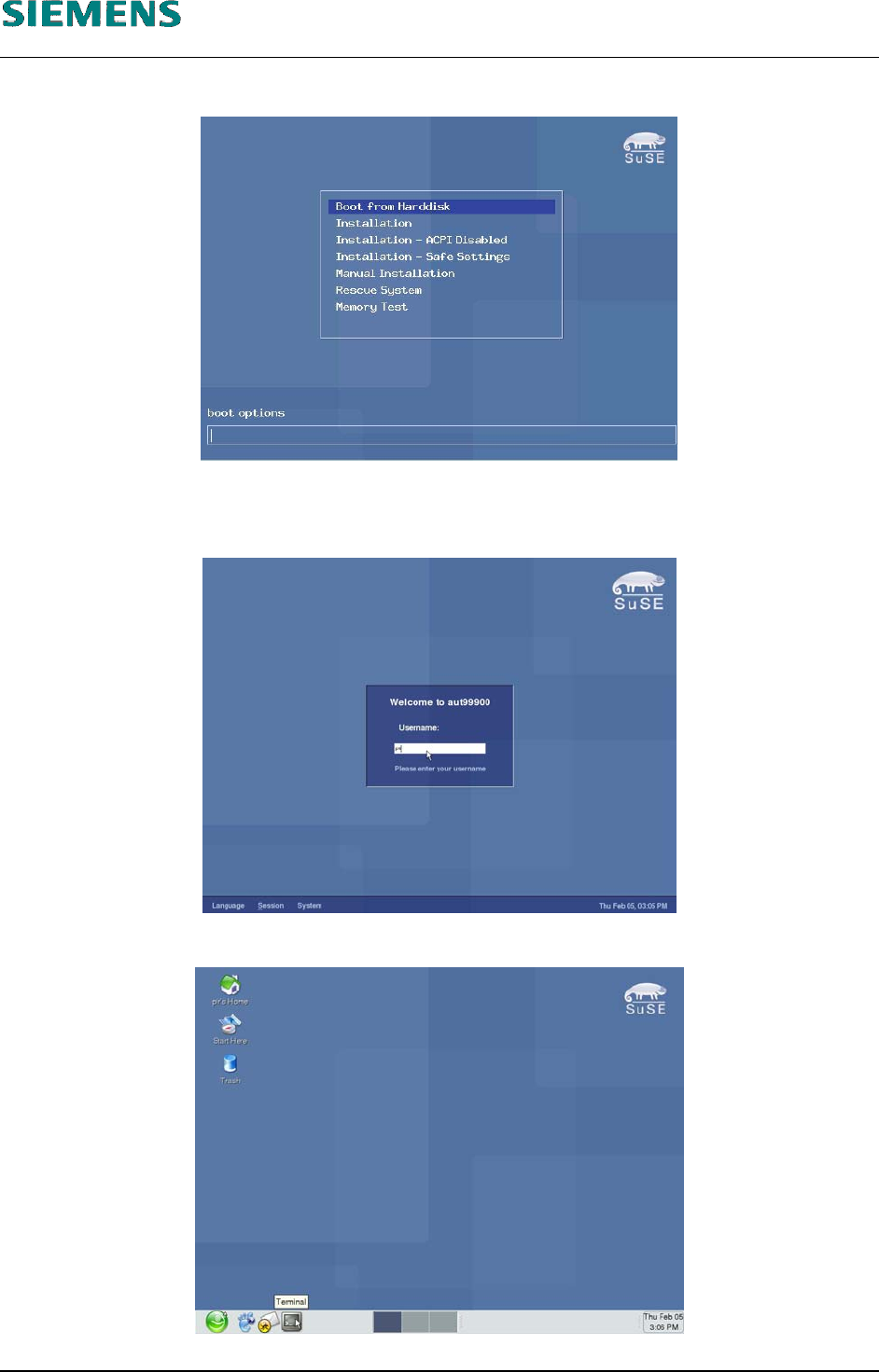
68. At the prompt, select «Boot from Harddisk».
69. Log in as user «plr».
70. Insert CD.
71. Click on the «gnome terminal» with the left mouse button. A «xterm» window will open.
L&A EA SUBJECT TO CHANGE WITHOUT PRIOR NOTICE 03.03.2005
RUPERT-MAYER-STR. 44
D-81359 M
UNICH SWIA_503.04_EN.DOC PAGE 30 / 75