SWIA_503.04_EN.pdf - 第39页
L&A I NSTA LLATION M ANUAL L INE C OMPUTER LCL 50 3.04 NSTALLING THE LINE COMPUTER SOF TWARE INUX U I LRL L (S SE 9.0) 14. The « select printmode Configuration of paperf ormat. Please choose .» window appears 15. Sel…
L&A INSTALLATION MANUAL LINE COMPUTER LCL 503.04
NSTALLING THE LINE COMPUTER SOFTWARE INUX U
I
LRL L (S SE 9.0)
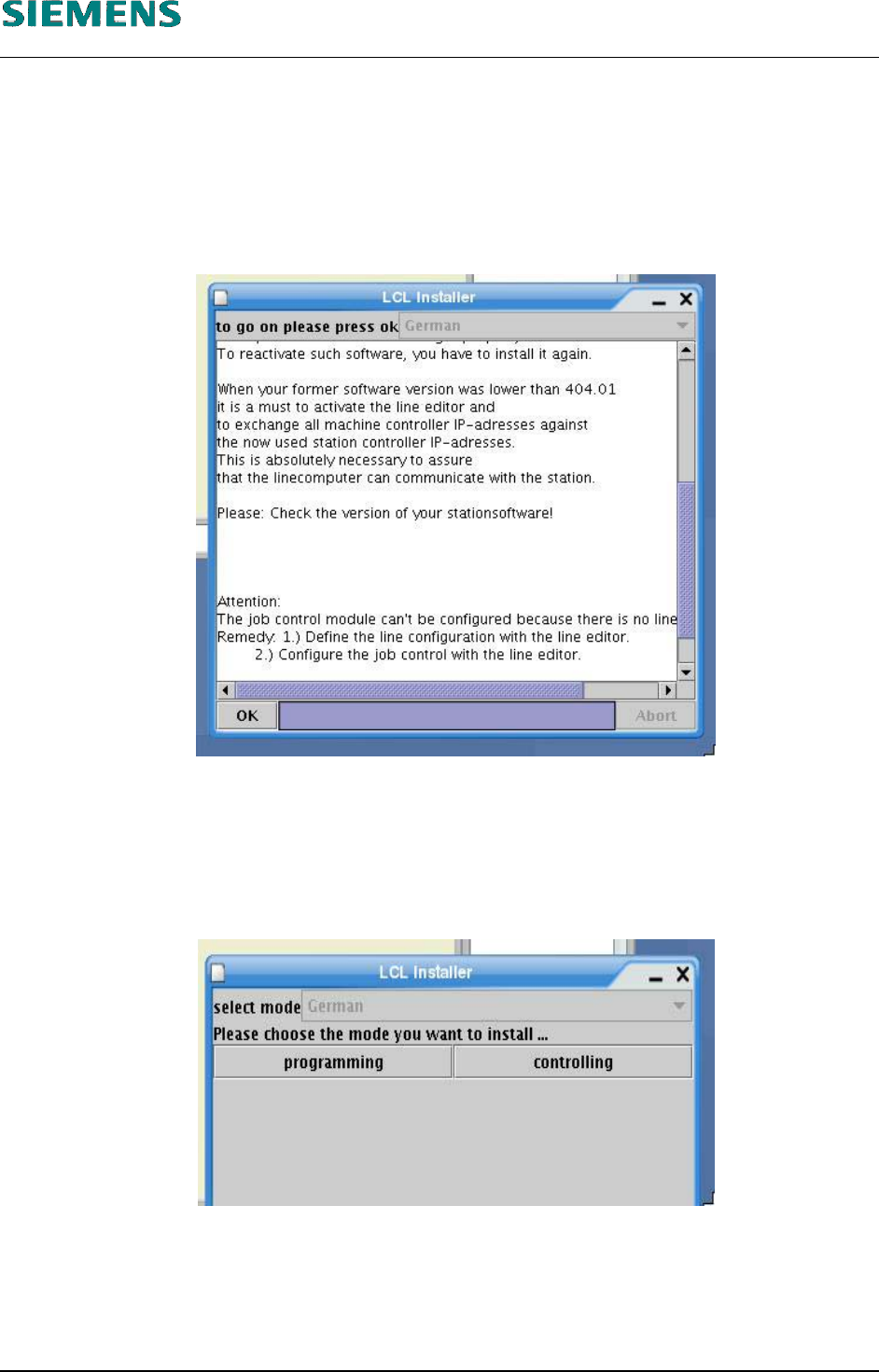
7. Click the «OK» button.
The «select line» window appears
8. Select the desired production line, and confirm with «OK».
9. (All !) the stations will now be converted.
10. Once the installation is completed, the request «to go on please press ok» appears.
11. Confirm the hint with the «OK» button.
12. The «select mode – Please chose the mode you want to install...» window appears
13. Select «programming» if the software is to be set up as a programming station or
«controlling» if the software is to be set up as a control station (line computer)..
L&A EA SUBJECT TO CHANGE WITHOUT PRIOR NOTICE 03.03.2005
RUPERT-MAYER-STR. 44
D-81359 M
UNICH SWIA_503.04_EN.DOC PAGE 38 / 75
L&A INSTALLATION MANUAL LINE COMPUTER LCL 503.04
NSTALLING THE LINE COMPUTER SOFTWARE INUX U
I
LRL L (S SE 9.0)
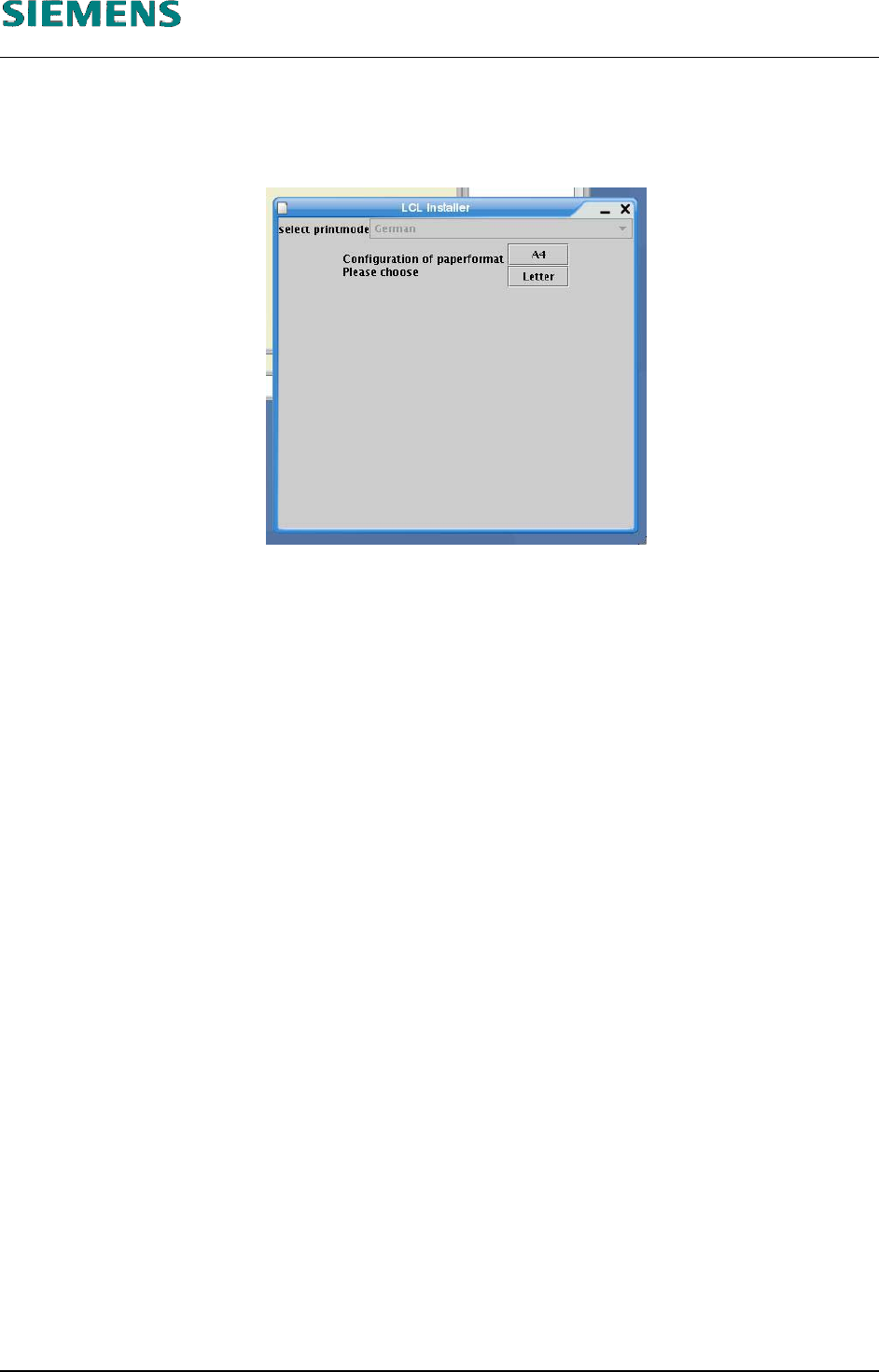
14. The «select printmode Configuration of paperformat. Please choose.» window appears
15. Select «A4» or
«Letter».
16. Confirm your selection
17. Now the message
»Please take out the CD. Installation complete. Now we restart the system«
appears. Conform with »OK«.
18. The installation is now completed.
19. Press any key to reboot.
You may now remove the CD.
20. After the automatically restart, log in as user «plr».
The line computer software will be started.
21. Now, the service pack should be installed, using «Options» / «Install options» (see chapter 4.4.2
Installing Service Pack 1 under LCL 503.04).
L&A EA SUBJECT TO CHANGE WITHOUT PRIOR NOTICE 03.03.2005
RUPERT-MAYER-STR. 44
D-81359 M
UNICH SWIA_503.04_EN.DOC PAGE 39 / 75
L&A INSTALLATION MANUAL LINE COMPUTER LCL 503.04
NSTALLING THE LINE COMPUTER SOFTWARE INUX U
I
LRL L (S SE 9.0)
4.2.6 Configuration CD writer
Only for the update from SuSE 7.3 to SuSE 9.0 it is necessary to configure the CD writer.
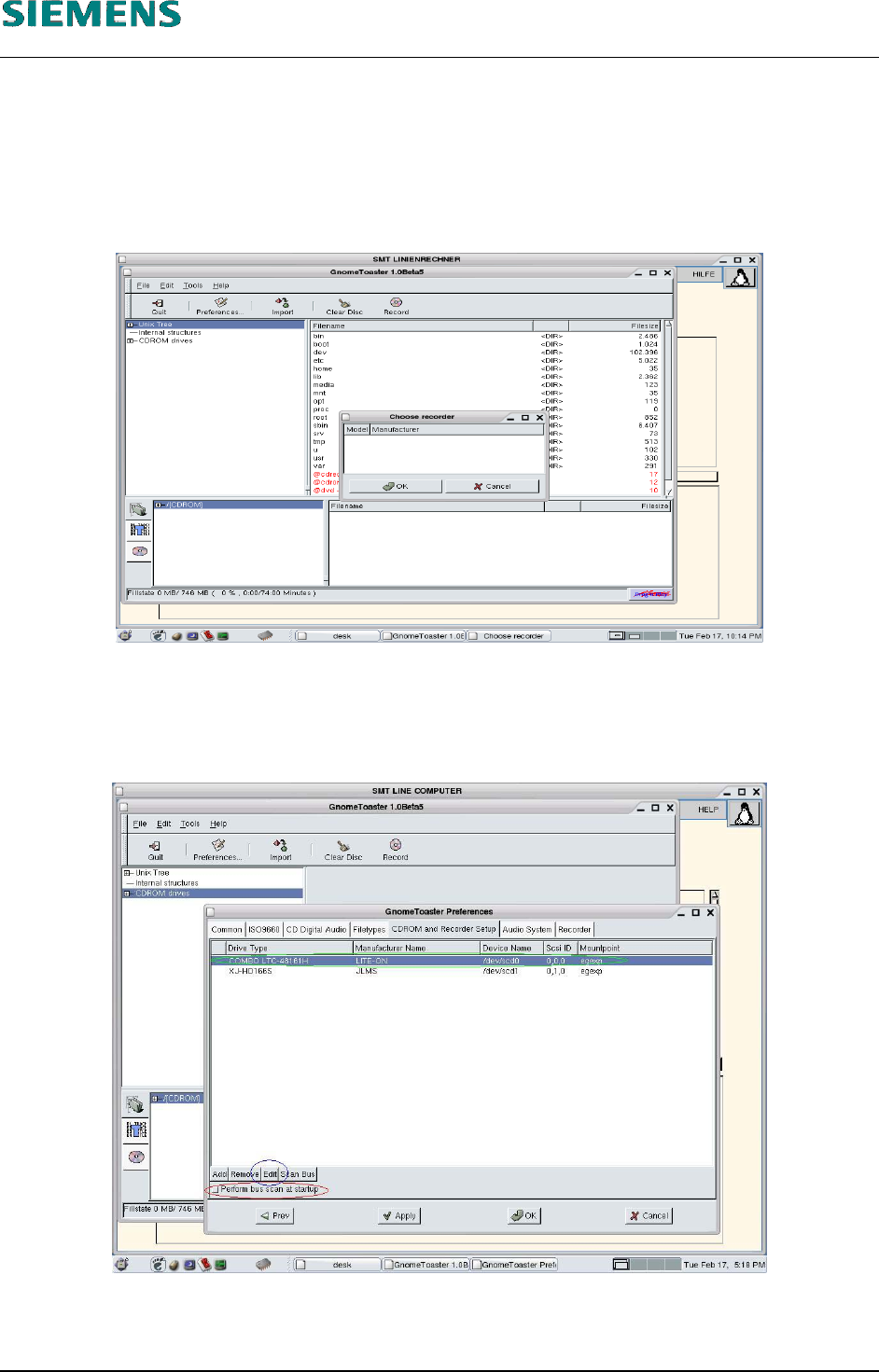
1. Select Media/CD-Burner to start the program GnomeToaster
2. Close the dialog «Choose recorder» with «OK» button.
3. Select button «Preferences...».
The dialog «GnomeToasterPerferences» opens.
4. Deactivate button «Perform bus scan at startup».
5. Select register «CDROM and Recorder setup».
L&A EA SUBJECT TO CHANGE WITHOUT PRIOR NOTICE 03.03.2005
RUPERT-MAYER-STR. 44
D-81359 M
UNICH SWIA_503.04_EN.DOC PAGE 40 / 75