SWIA_503.04_EN.pdf - 第32页
L&A I NSTA LLATION M ANUAL L INE C OMPUTER LCL 50 3.04 NSTALLING THE LINE COMPUTER SOF TWARE INUX U I LRL L (S SE 9.0) 4.2.4 Update: Installation via «I nstall Option s» 1. Insert the CD N OTE When using an «Econel 3…
L&A INSTALLATION MANUAL LINE COMPUTER LCL 503.04
NSTALLING THE LINE COMPUTER SOFTWARE INUX U
I
LRL L (S SE 9.0)
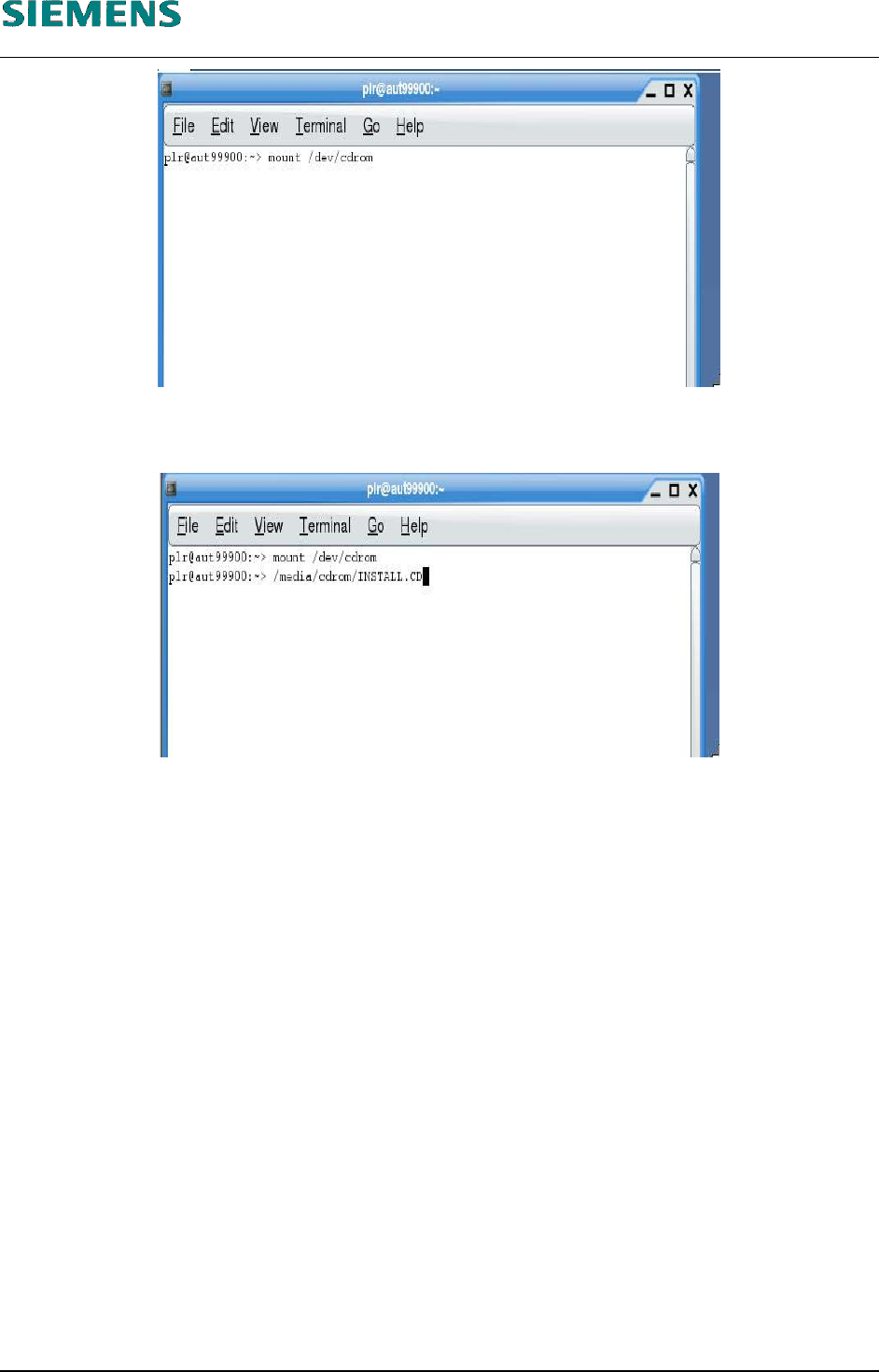
72. Mount the CD by entering
mount /dev/cdrom
73. Start the start script on the CD by entering the command
/media/cdrom/INSTALL.CD
74. This will now start the graphical installation routine for the line computer software.
(See chapter 4.2.5 Installation entries of LCL software installation on page 37)
L&A EA SUBJECT TO CHANGE WITHOUT PRIOR NOTICE 03.03.2005
RUPERT-MAYER-STR. 44
D-81359 M
UNICH SWIA_503.04_EN.DOC PAGE 31 / 75
L&A INSTALLATION MANUAL LINE COMPUTER LCL 503.04
NSTALLING THE LINE COMPUTER SOFTWARE INUX U
I
LRL L (S SE 9.0)
4.2.4 Update: Installation via «Install Options»
1. Insert the CD
NOTE
When using an «Econel 30» system (these have both a DVD and a CD
writer) the installation CD must be inserted into the CD writer drive!
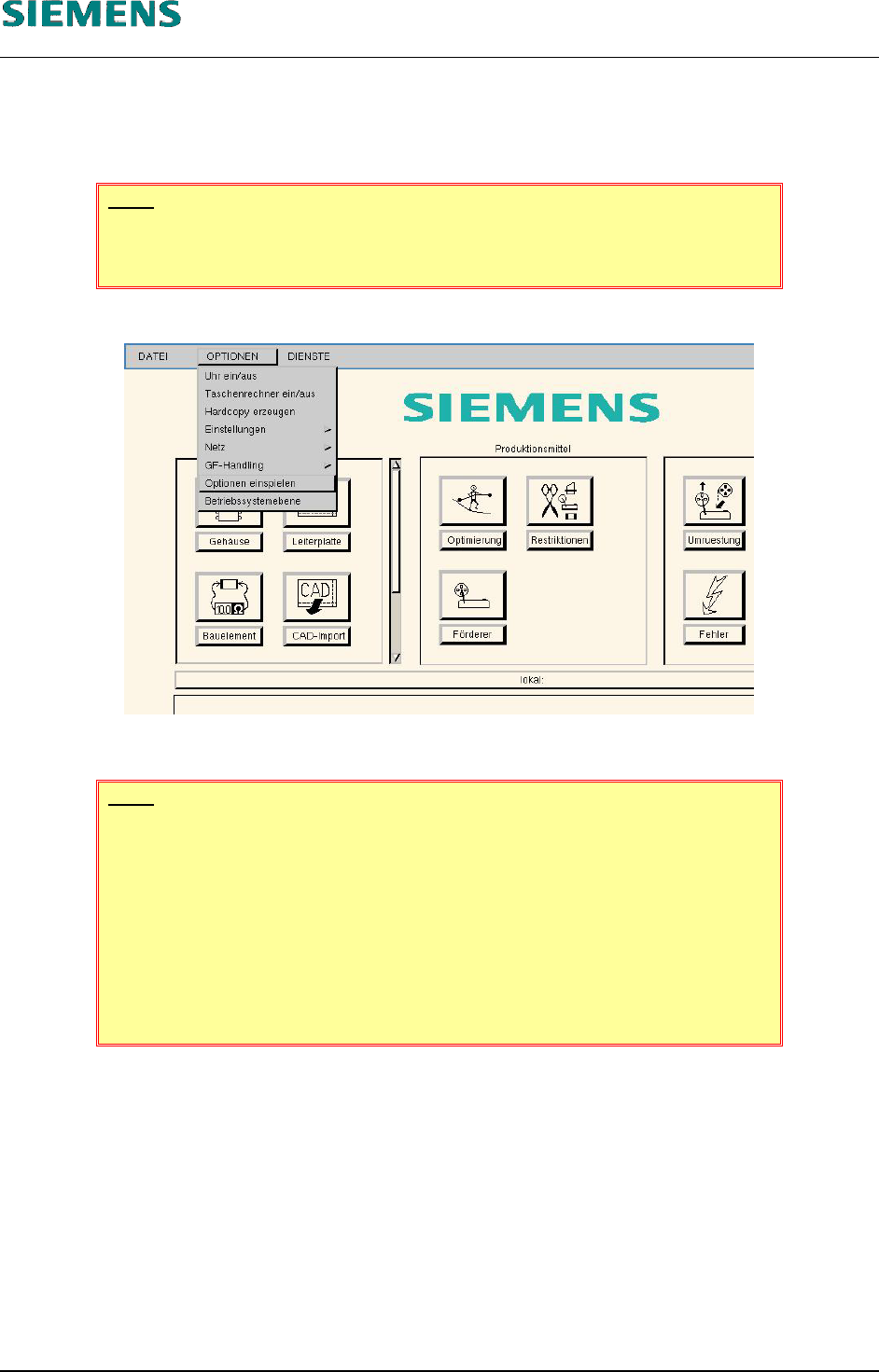
2. Select «Options» / «Install options».
3. At the prompt, «Insert the floppy or the CD and press return.», press ‹Enter›.
NOTE
Depending on the installed operating system, the installation automatically
continues with
- an update of the operating system (from SuSE 7.3 to SuSE 9.0)
- the installation of the LCL software (using SuSE 9.0)
(see chapter 4.2.5 Installation entries of LCL software installation on
page 37)
This manual descripts the update.
L&A EA SUBJECT TO CHANGE WITHOUT PRIOR NOTICE 03.03.2005
RUPERT-MAYER-STR. 44
D-81359 M
UNICH SWIA_503.04_EN.DOC PAGE 32 / 75
L&A INSTALLATION MANUAL LINE COMPUTER LCL 503.04
NSTALLING THE LINE COMPUTER SOFTWARE INUX U
I
LRL L (S SE 9.0)
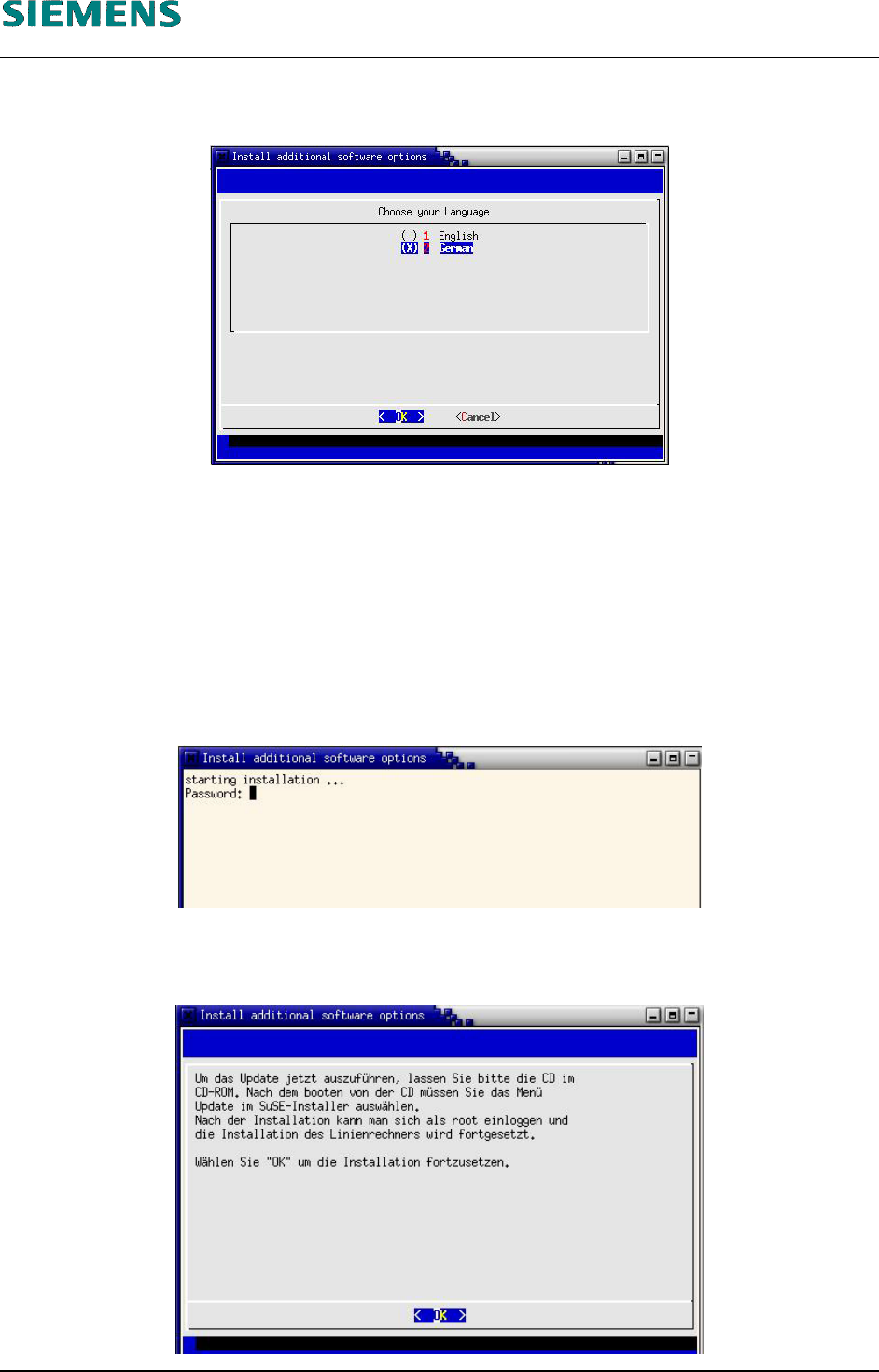
4. At first, the dialog box «Choose your Language» appears where you should select the
appropriate language.
5. Select the language by entering the appropriate number (1 for English or 2 for German) and then
use the spacebar to activate it (a cross is displayed next to the selected language).
The language selection only refers to the text for the subsequent messages!
6. The query in the next dialog box must be confirmed with «Yes» in order to continue with the
installation (regardless of the language you have selected).
7. Now the password for user «root» is queried in order to obtain authorization for the update
process (or to prevent unauthorized new installations!).
8. Then a dialog box appears which describes what needs to be done next. Confirm this dialog box
with ‹Enter›.
L&A EA SUBJECT TO CHANGE WITHOUT PRIOR NOTICE 03.03.2005
RUPERT-MAYER-STR. 44
D-81359 M
UNICH SWIA_503.04_EN.DOC PAGE 33 / 75