SWIA_503.04_EN.pdf - 第27页
L&A I NSTA LLATION M ANUAL L INE C OMPUTER LCL 50 3.04 NSTALLING THE LINE COMPUTER SOF TWARE INUX U I LRL L (S SE 9.0) 58. If a printer is connected to the parallel port, the setting « Parallel printer » is retained.…
L&A INSTALLATION MANUAL LINE COMPUTER LCL 503.04
NSTALLING THE LINE COMPUTER SOFTWARE INUX U
I
LRL L (S SE 9.0)
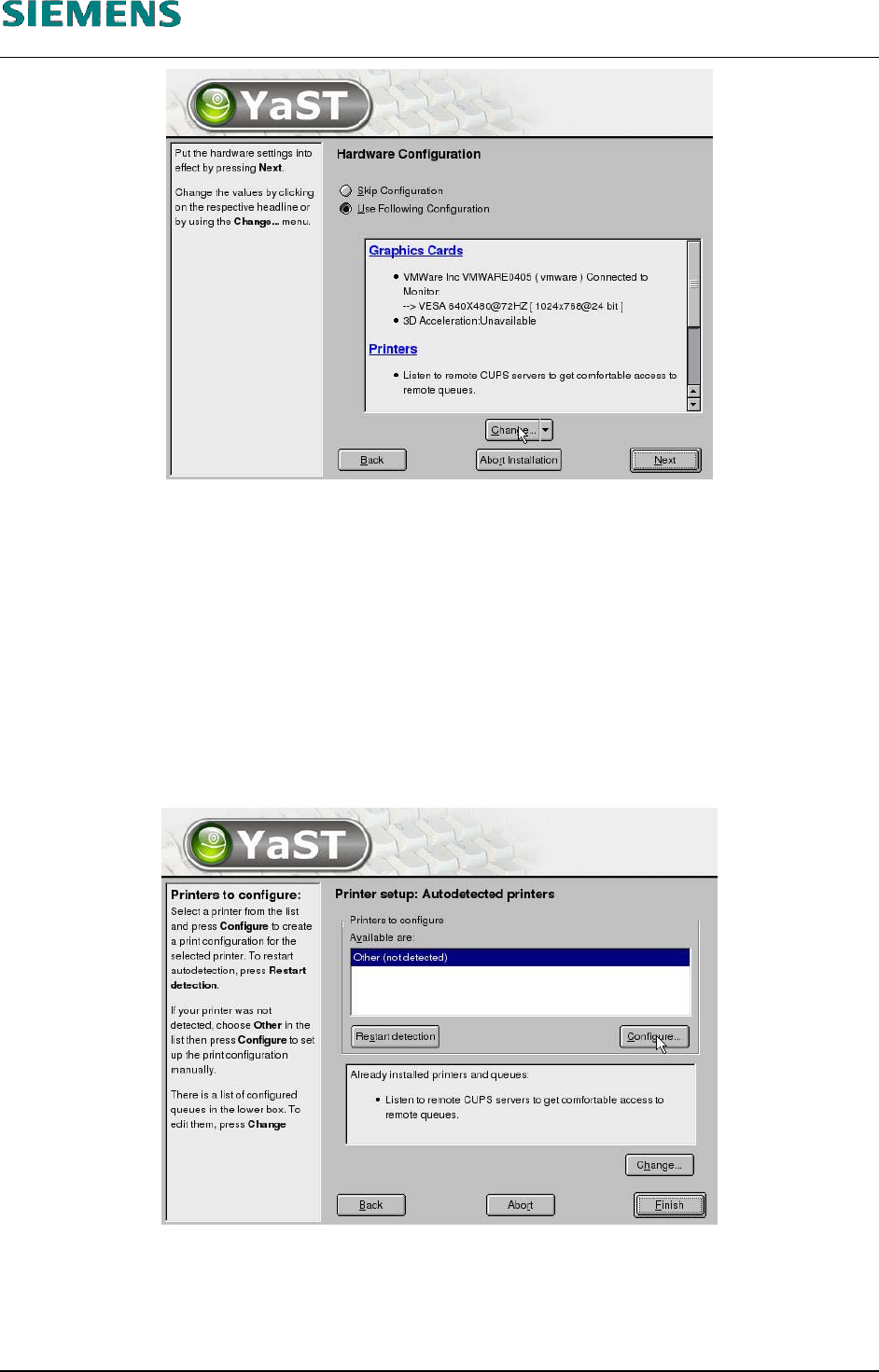
54. It is not necessary to reconfigure the graphics adapter. The recommended resolution (1024x768,
16 Bit) can be retained.
4.2.3.7 Configure Printer
55. If you want to configure a printer at the parallel port of the computer, continue at step 56 below.
For the configuration of an USB- or network printer, consider 4.3 Configuration of HP 5850
printer (USB and Network). The configuration will be executed later on, using the linecomputer
application. Select «Next» and continue at step 66 below on page 29.
56. Printers are installed by selecting the item «Printers».
57. Click the «Configure» button to open the «Printer Type» dialog box.
L&A EA SUBJECT TO CHANGE WITHOUT PRIOR NOTICE 03.03.2005
RUPERT-MAYER-STR. 44
D-81359 M
UNICH SWIA_503.04_EN.DOC PAGE 26 / 75
L&A INSTALLATION MANUAL LINE COMPUTER LCL 503.04
NSTALLING THE LINE COMPUTER SOFTWARE INUX U
I
LRL L (S SE 9.0)
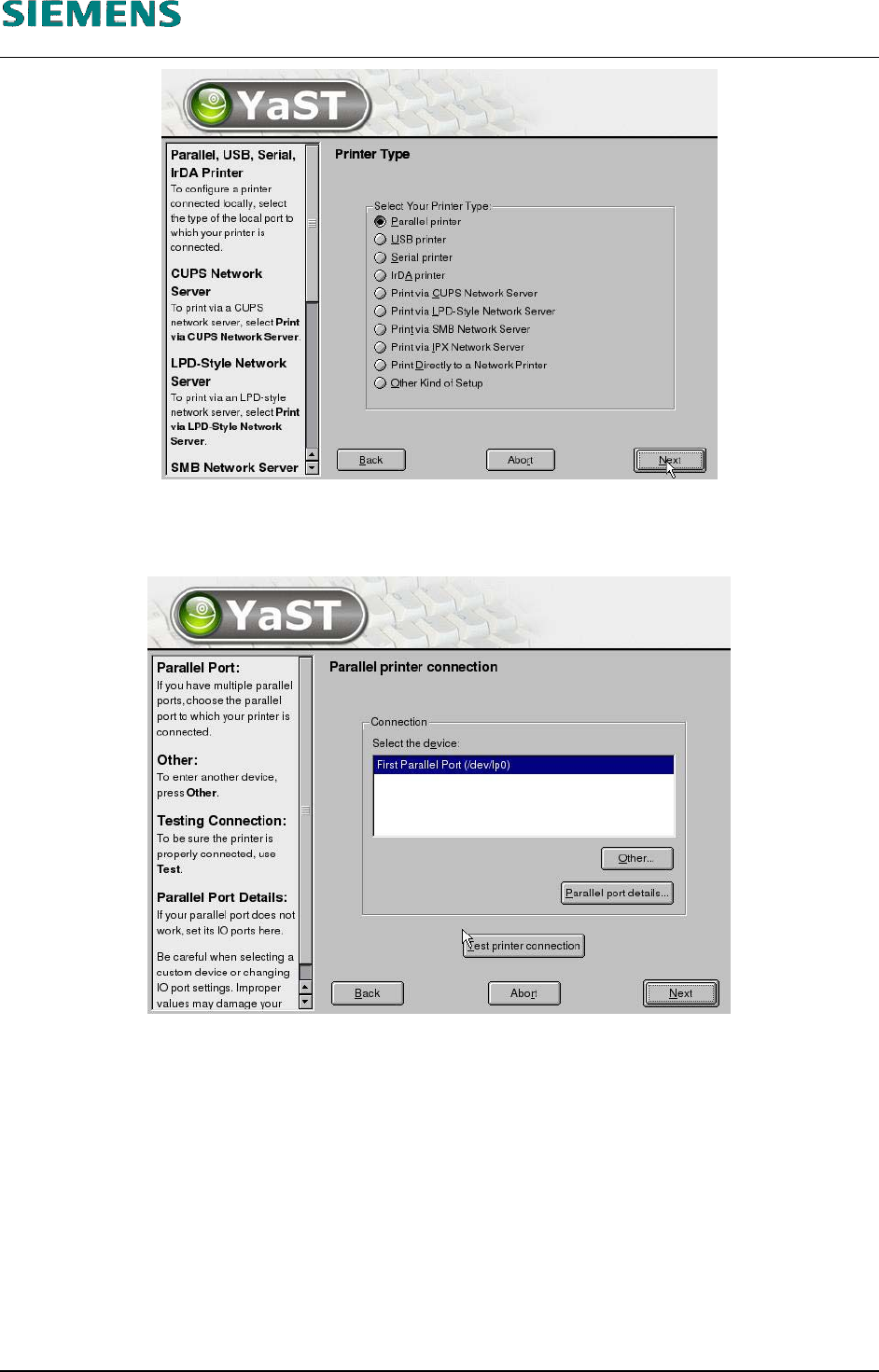
58. If a printer is connected to the parallel port, the setting «Parallel printer» is retained.
59. Click the «Next» button.
60. Click the «Next» button.
L&A EA SUBJECT TO CHANGE WITHOUT PRIOR NOTICE 03.03.2005
RUPERT-MAYER-STR. 44
D-81359 M
UNICH SWIA_503.04_EN.DOC PAGE 27 / 75
L&A INSTALLATION MANUAL LINE COMPUTER LCL 503.04
NSTALLING THE LINE COMPUTER SOFTWARE INUX U
I
LRL L (S SE 9.0)
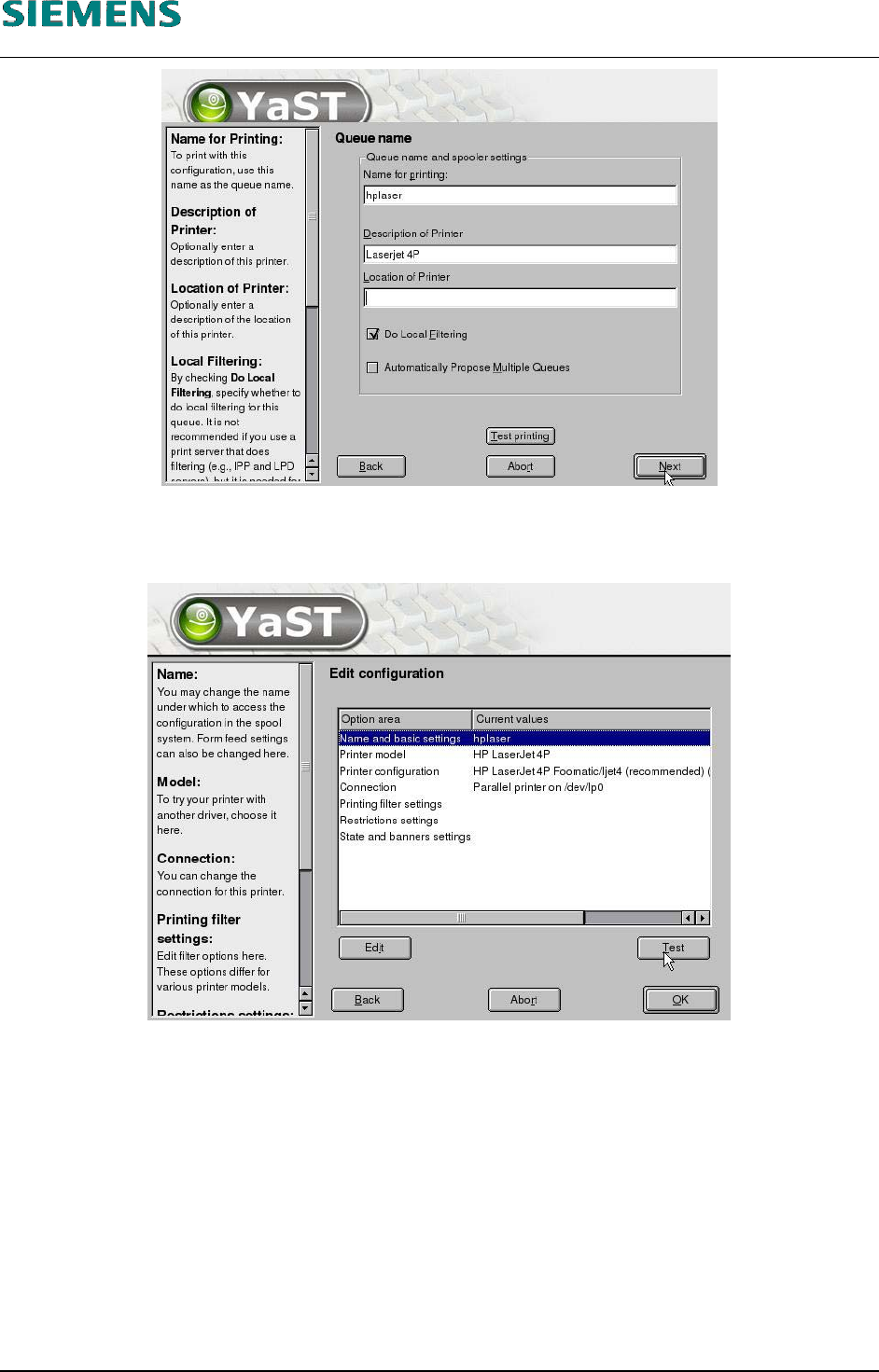
61. Click «Next» after you have entered the printer name and a description of the printer.
62. Select the printer manufacturer and model and click «Next».
63. You can print a test page by clicking «Test».
64. Close the dialog box by clicking «OK».
L&A EA SUBJECT TO CHANGE WITHOUT PRIOR NOTICE 03.03.2005
RUPERT-MAYER-STR. 44
D-81359 M
UNICH SWIA_503.04_EN.DOC PAGE 28 / 75