TSR2000-Series-Teaching-Pendant-User-Guide-V1.pdf - 第15页
15 9. PROGRAMMIN G 9.1 Programm ing by Jog key s or Input ting Co-ordinat es Inputting Co-ordina tes – Advanced Use r (example of Line) Inputting Co-ordina tes – Entry Leve l User (exampl e of Line) After selecting the t…
14
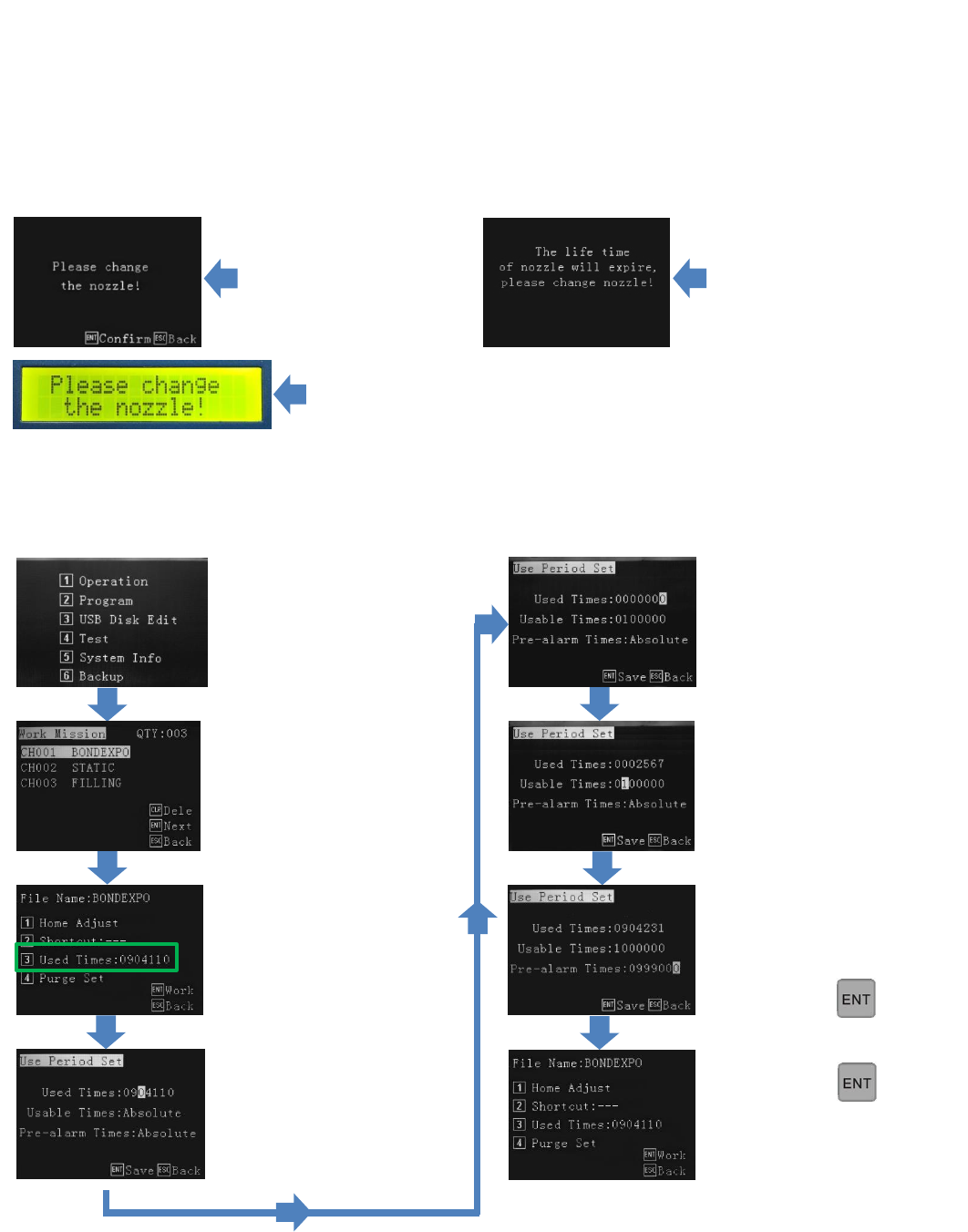
8.5 Used Times - Monitoring and Setting Usage and Visual Alarms
“Used Times” shows on the teaching pendant and robot screen (when teaching pendant is disconnected) the status of how
many dispensing cycles have been dispensed. This is different to the “Tally” as shown on page 48. The tally dispays how
many times the entire program has been completed whereas the Used Times records the the accumulatively dispensed
cycles/positions giving an indication of how much work the dispensing valve has achieved. If another saved program is
selected then the cycle count will not start at zero but continue counting from where it left off. However, the live counter
can be reset to zero on the Teach Pendant and robot screen. This feature is particluary useful if the operator needs to change
the tip or wetted path, of a dispense valve, to maintain dispensing accuracy, after it has been used a certain number of cycles.
The operator is able to set the top limit of dispense activations. When the the robot has reached the target dispense cycles
the it will display the following warning on the screen:
This display warns the operator to change the nozzle although the user of the robot can translate this to any internal
maintenance procedure if required. Once the procedure is completed the ENT or ESC key can be pressed to calibrate the tip
(8.1 to 8.3). Possible uses of “Please change the nozzle”: Replace tip, replace disposable path, replace syringe, remove valve
for maintenance, flush valve with cleaning agent, re-calibrate valve position, etc.
On robot
(no teach pendant attached, will alarm everytime until Used Times counter is reset).
On pendant
(will alarm everytime
until Used Times counter
is reset)
Press 1 – Operation.
Select desired program.
Current usuage data is
displayed
Press 3 – Used Times.
Usuage data displayed with
alarm conditions. This screen
shows no alarms are set and
the counter will keep a
running total of shots
completed.
Alarm target (Usable Times)
can be set.
Pre-Alarm
(only if pendant attached,
will pre-alarm once only).
Cycles (Used Times) can be
reset.
Pre-Alarm can be set. This
example has an additional
screen warning 1000 cycles
prior to the actual alarm.
Press
Press
Program is ready to dispanse.
15
9. PROGRAMMING
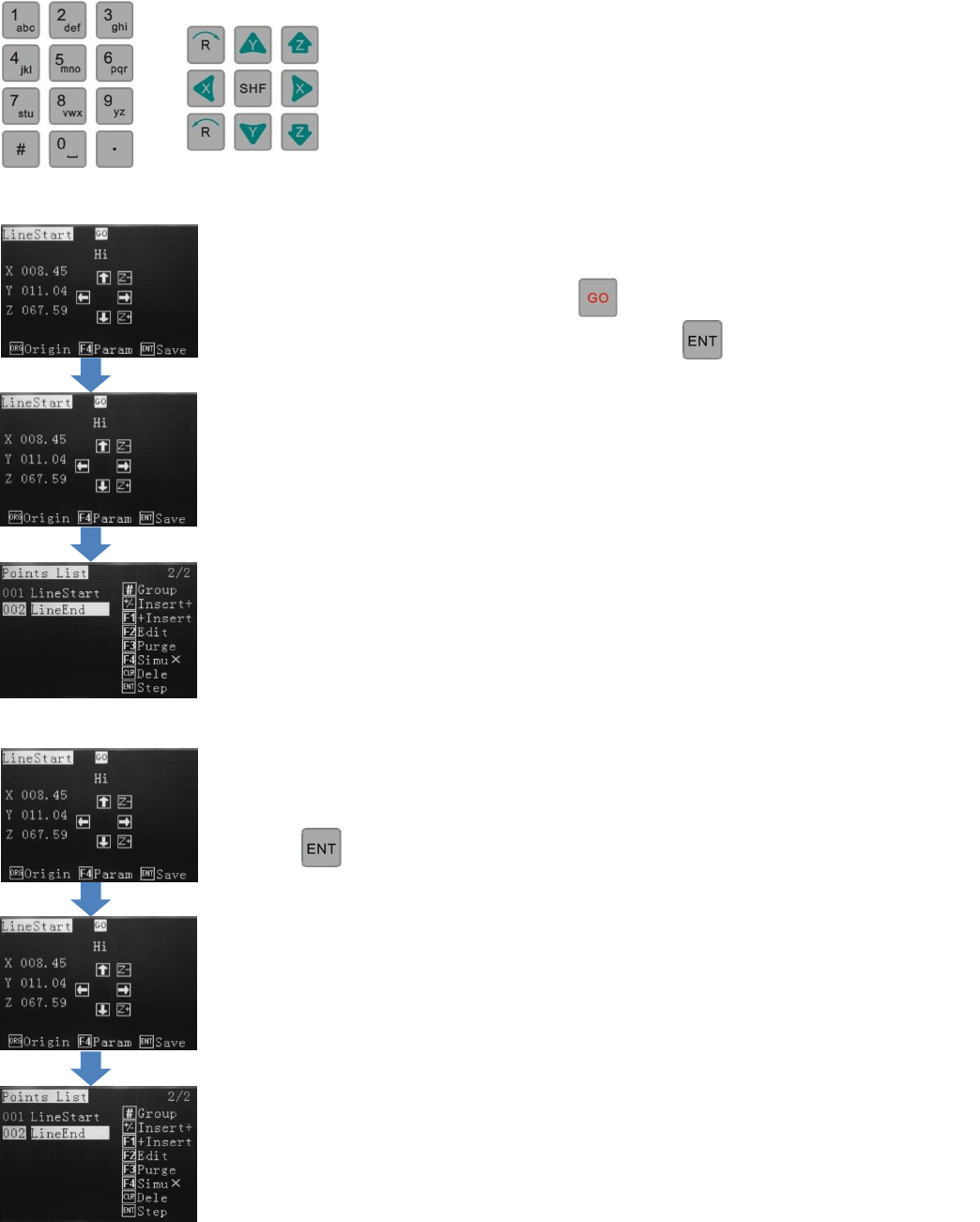
9.1 Programming by Jog keys or Inputting Co-ordinates
Inputting Co-ordinates – Advanced User (example of Line)
Inputting Co-ordinates – Entry Level User (example of Line)
After selecting the type of dispensing (dot, line, arc…) input the X co-ordinate, using the
number keys. Use the arrow keys to move down and input the Y and Z co-ordinates. When all
3 co-ordinates have been entered, press
The dispensing valve will move to this location. Press to save the position.
Repeat above process for the Line End.
Once repeated, the Points List will show where more patterns can be inserted.
After selecting the type of dispensing (dot, line, arc…) use the jog keys to move to the Line
Start position.
Press to save the position.
Repeat above process for the Line End.
Once repeated, the Points List will show, where more patterns can be inserted.
The TSR2000 Series robot is designed to be programmed by either
imputing co-ordinates (advanced user) or by using the jog keys (entry
level user).
Note: All pattern creation, over the following pages, are illustrated by
the entry level method
16
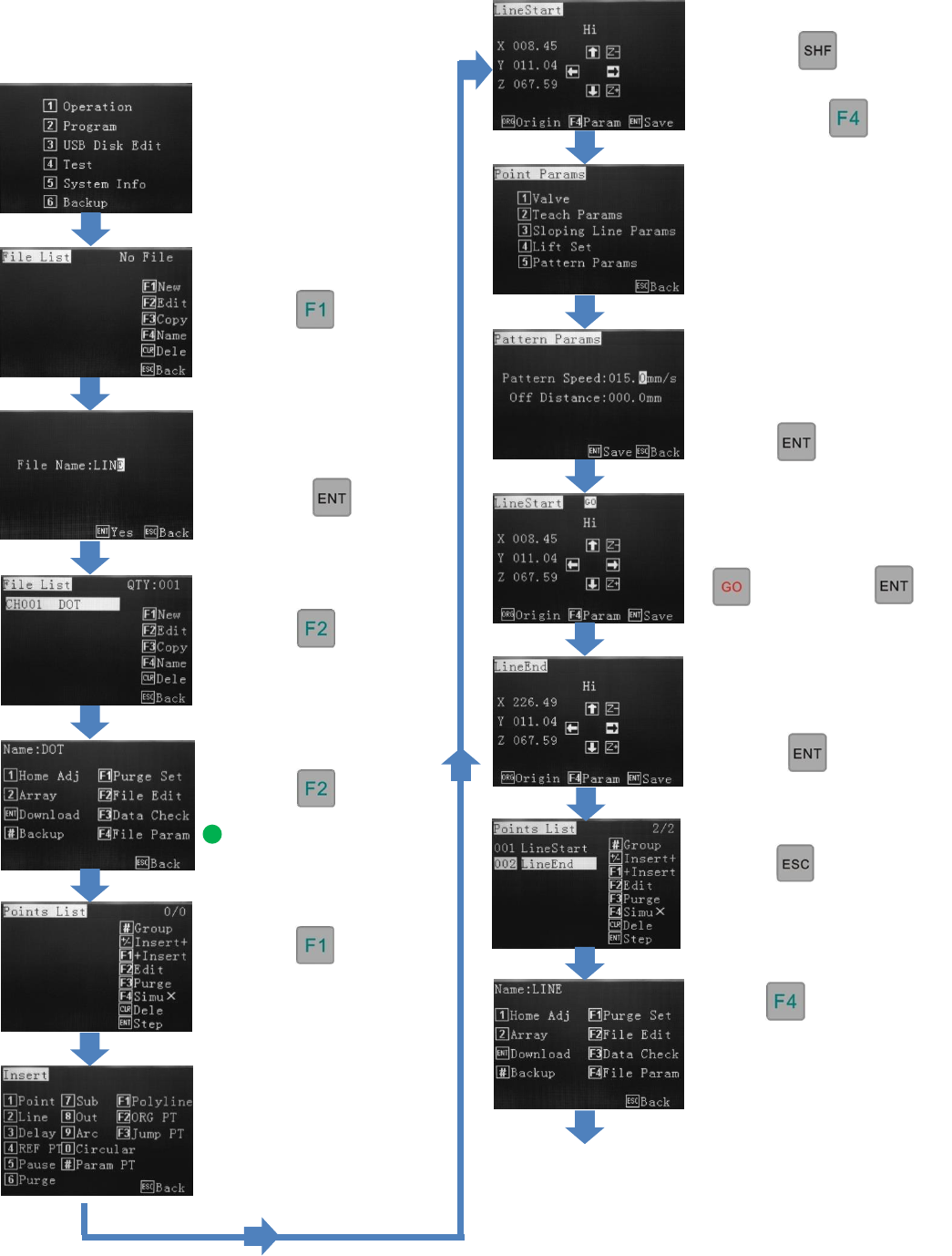
9.2 Creating a New Program
Press 2
Press
Enter a program name. Use
the alphanumeric keypad
and press
Press
Press
See Section 10 for
Explanation of File
Parameters.
Press
From the Insert screen,
select one of the options.
(for this Line example,
select option 2)
Change the move speed
with the key.
When line start location is
reached press
Use alphanumeric keys to
move the line end location.
Press
Press
This enables changes to the
file parameters.
Press 5
Use alphanumeric keys to
change dispense speed.
(Pattern Speed).
Press twice
If “GO” is flashing at
the top of screen, press
then press
Press twice.
This will go to the file
processing menu
Go to page 17