TSR2000-Series-Teaching-Pendant-User-Guide-V1.pdf - 第7页
7 6. FIRMW ARE SCREENS EX PLAINED After connecting th e teaching pendant to the robot, turn on the power s witch. T he system will initi alize and move to the origin (0, 0, 0) l ocation. For a brief m oment the LC D scre…
6
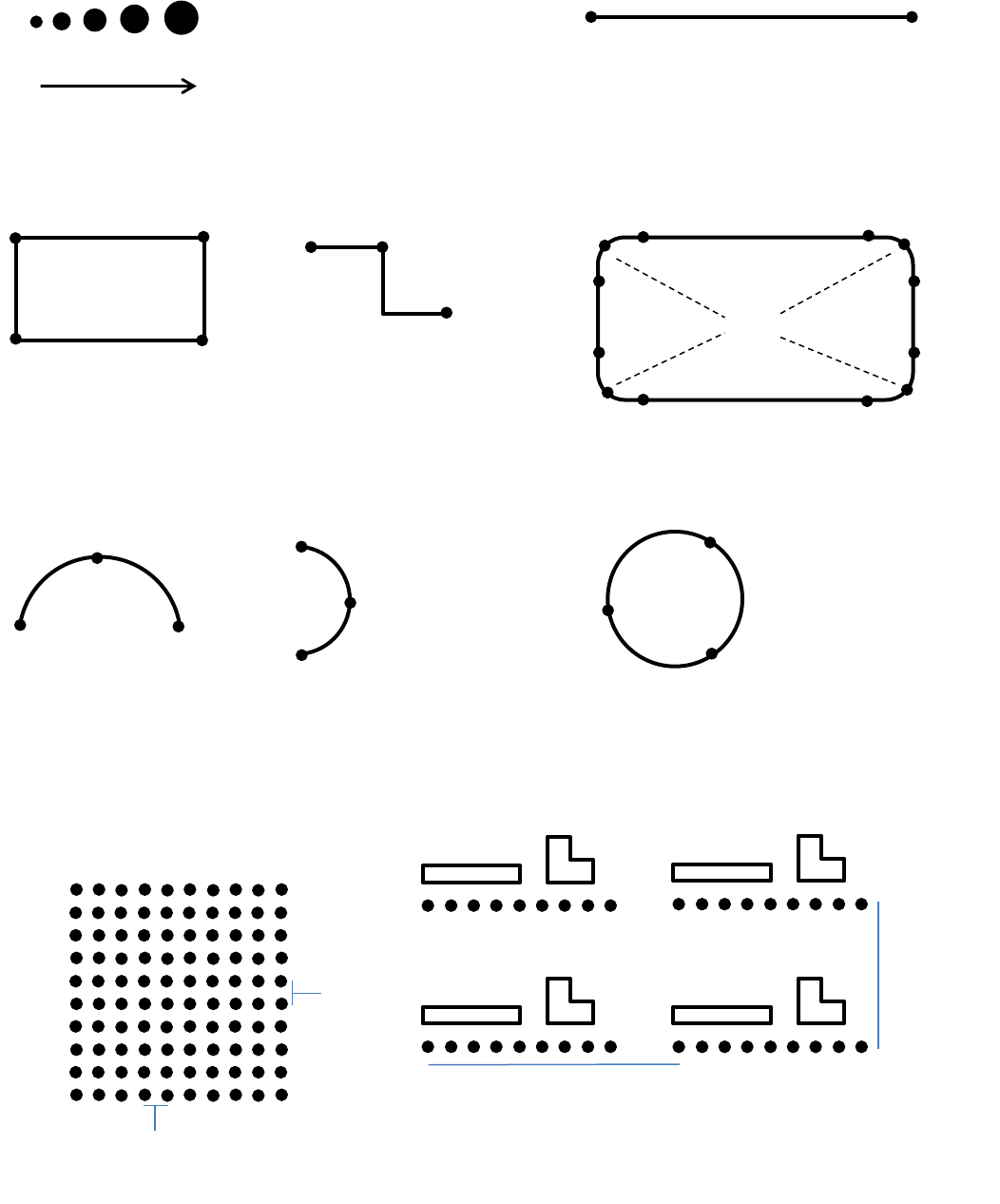
5. EXAMPLES OF TYPICAL DISPENSING PATTERNS
Dot Line
Polyline Polyline with round edges
Arc Circle
Dot (Point) Array 10 x 10 Pattern Array 2 x 2
Polyline Mid
Polyline Start/End
Column distance
Row
distance
Column
distance
Row
distance
Array Y Axis
Polyline Mid
Polyline
End
Polyline Start
Arc Start
Arc Mid
Arc End
Arc Mid
Arc Start
Arc End
Point 1
Point 3
Point 2
Line Start
Line End
Polyline Mid
Polyline Mid
Or set in degrees:
360°, 370°, etc.
P-Mid
P-Mid
P-Mid
P-Mid
P-Mid
P-Mid
P-Mid
Polyline Start/End
Arc
Mid
Increasing feed on time
Array X Axis
7
6. FIRMWARE SCREENS EXPLAINED
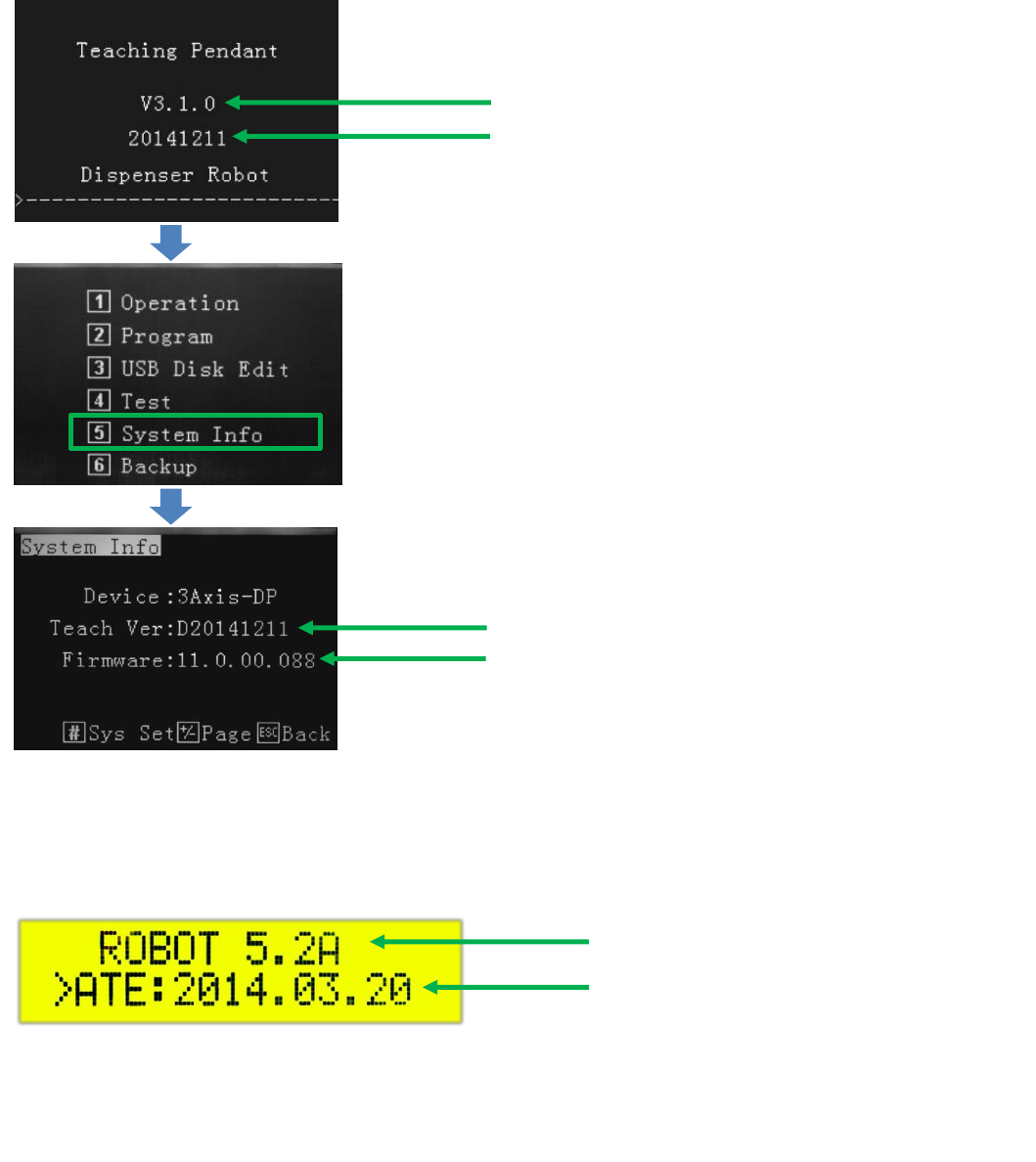
After connecting the teaching pendant to the robot, turn on the power switch. The system will initialize and move to the
origin (0, 0, 0) location. For a brief moment the LCD screen will display:
Firmware date of teaching pendant
Teaching pendant version
Firmware date of teaching pendant
Mainboard version
Press 5
Display board verison
Firmware date of display board
On the main robot front screen, whilst the teaching pendant in attached, the following information is displayed:
Periodic updates will be made availiable should new features be added to the robot. These updates can be performed through
the teaching pendant’s USB port.
8
7. TEACH PENDANT MAIN SCREEN
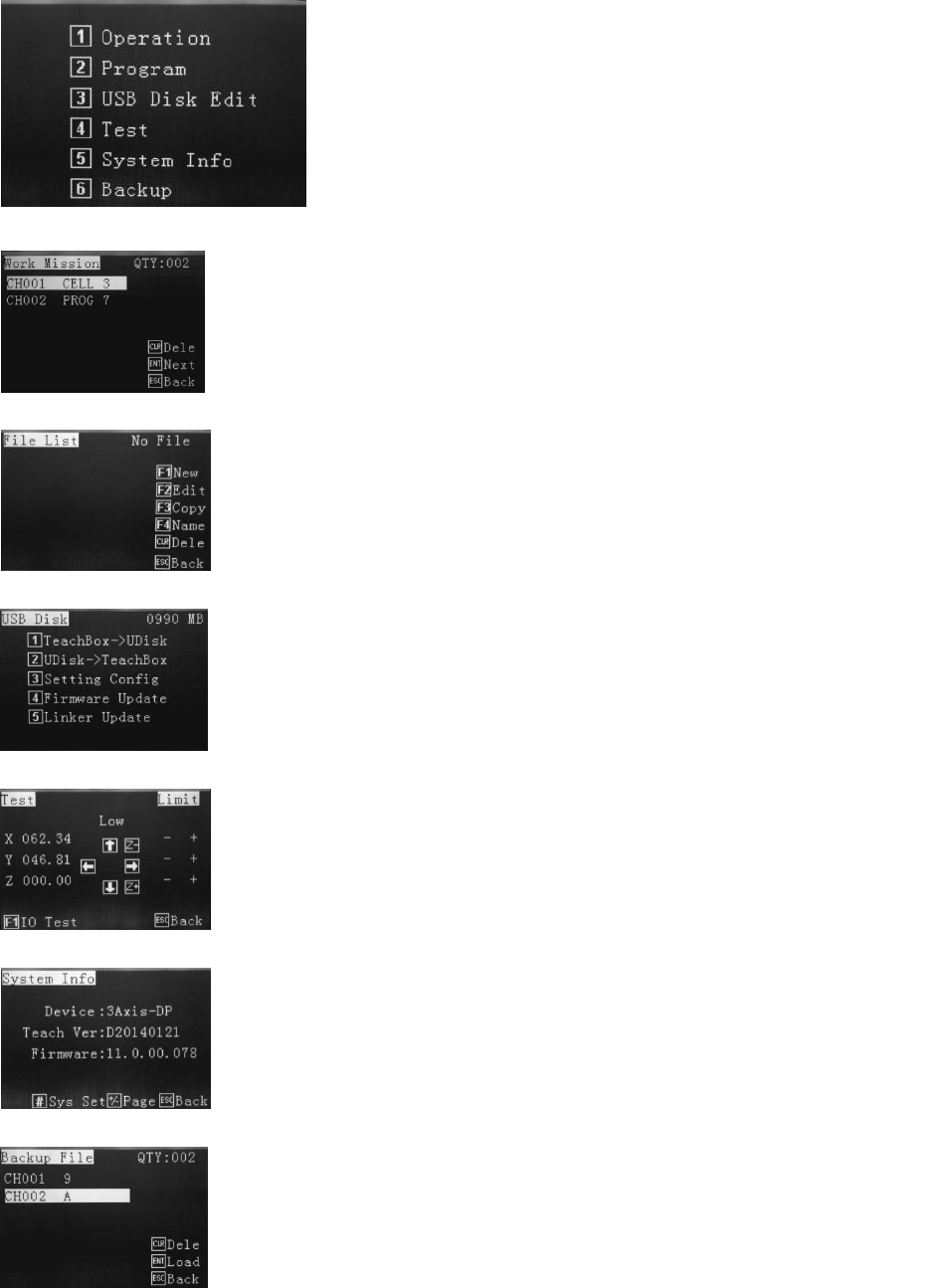
1 – Operation – Select the saved program, apply home adjust, process file and delete
file, activate robot by external source (shortcut), setting purge and usage times.
This mode is to run the robot with teach pendant connected once the program has
been written and saved.
2 – Program – Create dispensing program, edit parameters, copy, delete, download.
3 – USB Disk Edit – Download/Upload program to USB, system update.
4 – Test – For testing areas of the robot such as axis jogging and I/O ports.
5 – System Info – Device type, teach version, firmware version and connecting
safety cover.
6 – Backup – Load teaching file from robot’s memory to teaching pendant’s
memory, or delete the teaching file in the robot.
After the robot has initialized the mian screen will be displayed.
Every function of the robot is controlled through one of the 6 choices
of the main screen. An overview of each section is provided below.