TSR2000-Series-Teaching-Pendant-User-Guide-V1.pdf - 第16页
16 9.2 Cr eating a New Pr ogr am Press 2 Press Enter a pro gram name. Use the alphanumeri c keypad and press Press Press See Section 10 for Explanation of File Parameters . Press From the Insert scre en, select one of th…
15
9. PROGRAMMING
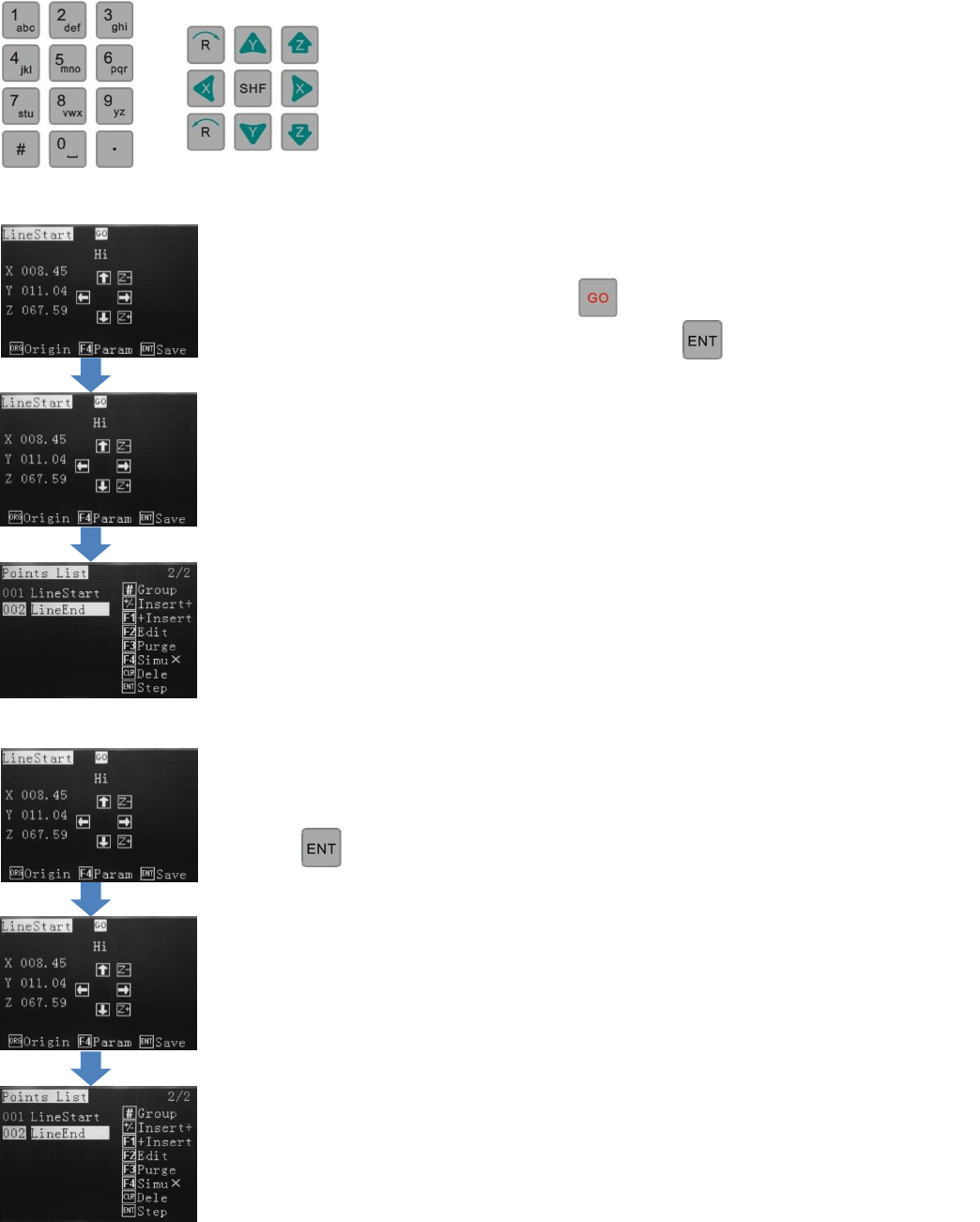
9.1 Programming by Jog keys or Inputting Co-ordinates
Inputting Co-ordinates – Advanced User (example of Line)
Inputting Co-ordinates – Entry Level User (example of Line)
After selecting the type of dispensing (dot, line, arc…) input the X co-ordinate, using the
number keys. Use the arrow keys to move down and input the Y and Z co-ordinates. When all
3 co-ordinates have been entered, press
The dispensing valve will move to this location. Press to save the position.
Repeat above process for the Line End.
Once repeated, the Points List will show where more patterns can be inserted.
After selecting the type of dispensing (dot, line, arc…) use the jog keys to move to the Line
Start position.
Press to save the position.
Repeat above process for the Line End.
Once repeated, the Points List will show, where more patterns can be inserted.
The TSR2000 Series robot is designed to be programmed by either
imputing co-ordinates (advanced user) or by using the jog keys (entry
level user).
Note: All pattern creation, over the following pages, are illustrated by
the entry level method
16
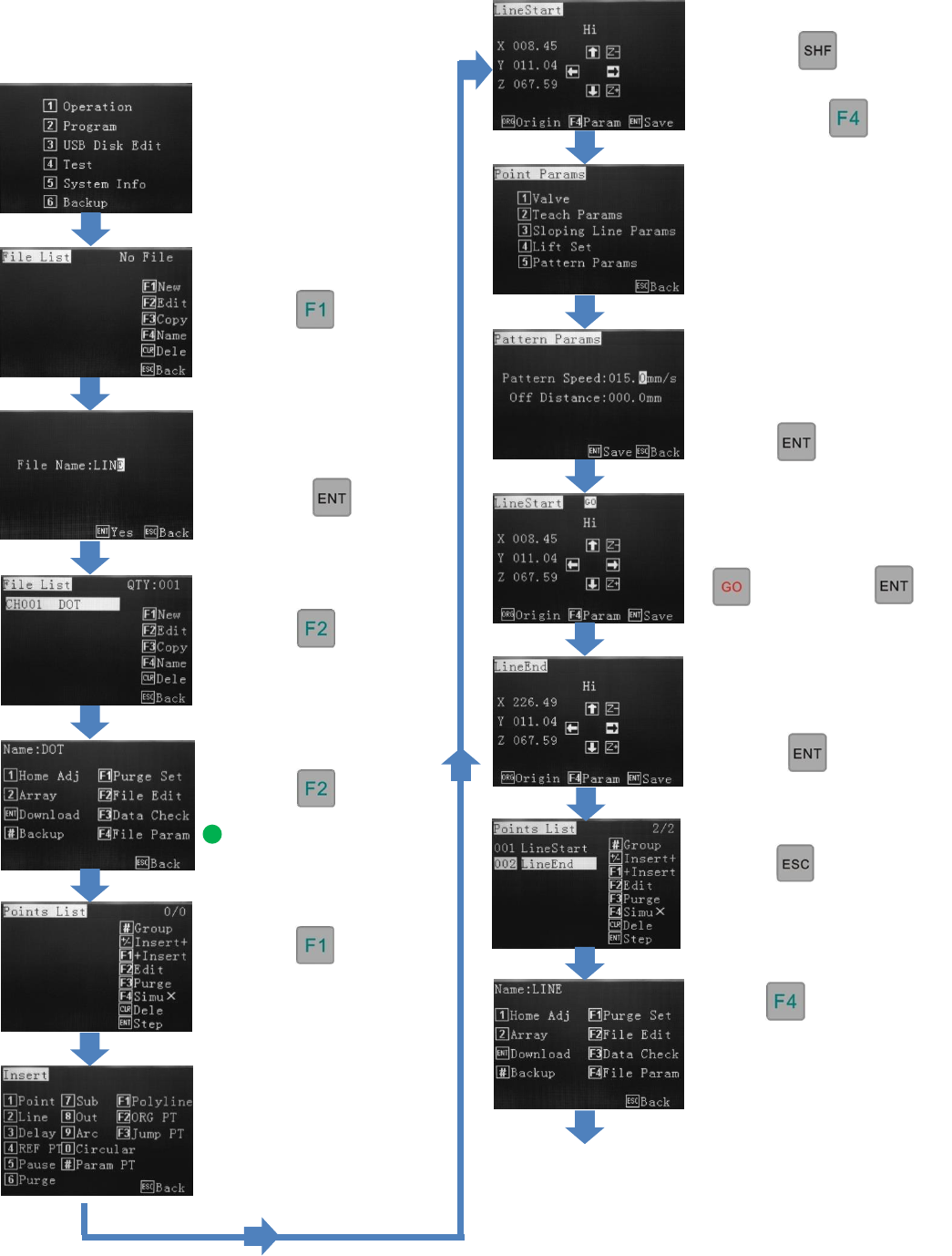
9.2 Creating a New Program
Press 2
Press
Enter a program name. Use
the alphanumeric keypad
and press
Press
Press
See Section 10 for
Explanation of File
Parameters.
Press
From the Insert screen,
select one of the options.
(for this Line example,
select option 2)
Change the move speed
with the key.
When line start location is
reached press
Use alphanumeric keys to
move the line end location.
Press
Press
This enables changes to the
file parameters.
Press 5
Use alphanumeric keys to
change dispense speed.
(Pattern Speed).
Press twice
If “GO” is flashing at
the top of screen, press
then press
Press twice.
This will go to the file
processing menu
Go to page 17
17
Cont. from page 16
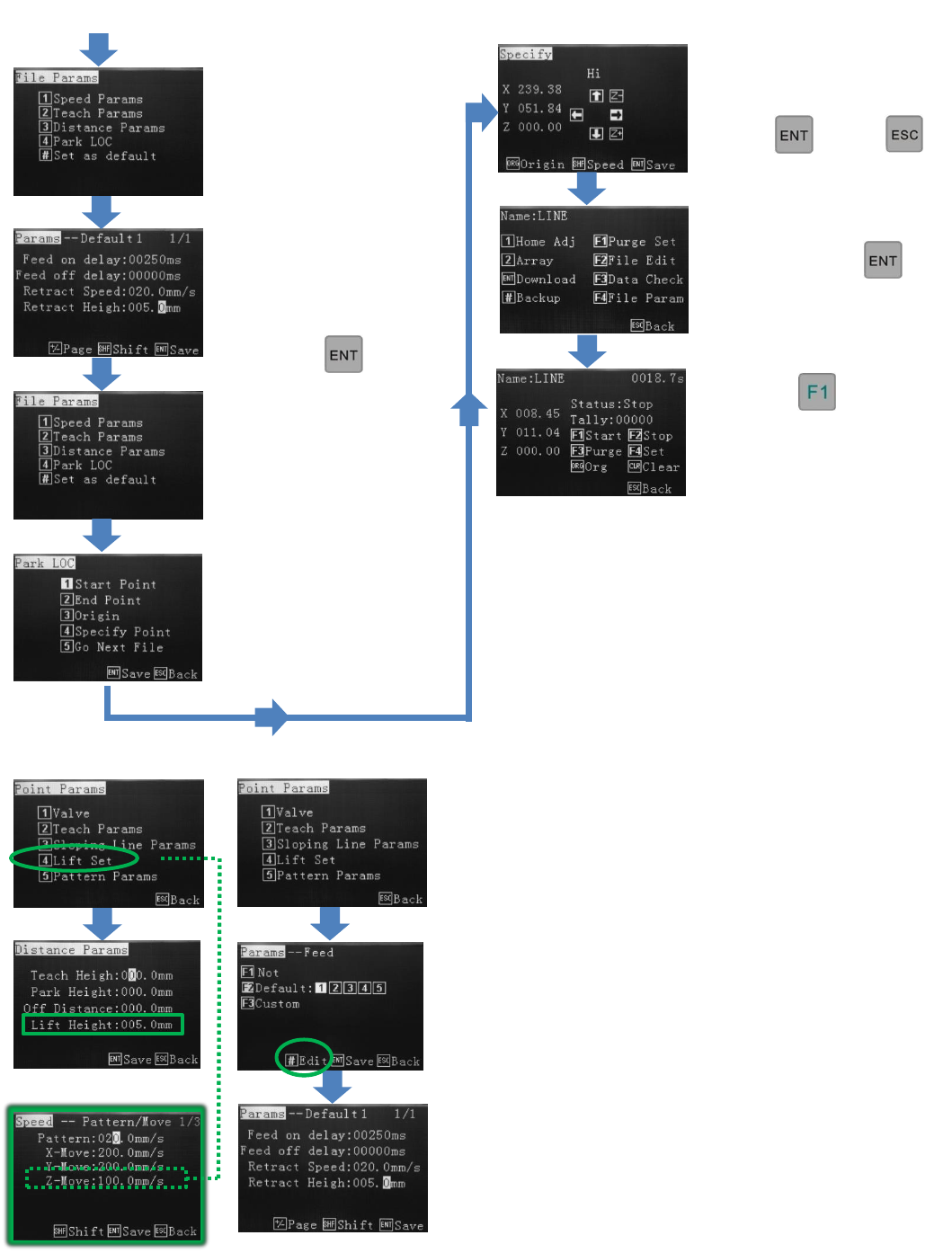
Understanding Lift Height and Retract Height
Lift Height - is found in the Point Parameters Menu under the
the Lift Set option. After the dispensing cycle, the Z-axis will
move up to the Lift Height at the normal moving (non-
dispensing) speed of the machine. If required, a different Lift
Height can be applied to any or all of the dispensing patterns,
however, if the speed is set to slow this would also mean that
when the robot is required to go to Origin (0, 0 ,0), the z-axis will
take a long to time to home.
Retract Height - can be found within the Teach Parameters
Menu. Retract Heights are applied to the Feed Slots used to
created patterns. If a dot is created using Feed Slot 1 and a 2
nd
dot
is created using the same feed slot, the same parameters will be
applied to dot 2 including Retract Height. A Retract Speed can
be applied to Retract Heights.
If Retract Height is greater than Lift Height, Retract Height
Overides. If Lift Height is greater than Retract Height, Retract
parameters will operate first (height and speed) then the Lift
parameters will complete the up movement. If Retract and Lift
Height are the same the Retract Height and Speed override the
Lift Height and Speed.
Use the alphanumeric
keys to change the retract
speed, retract height and
feed on/feed off delay.
Press
Press
This starts the dispensing
cycle.
Use the alphanumeric keys to
select a park location.
Press then
To save, press
Press 4
Select where the valve
should go to after
dispensing.
Press 3