TSR2000-Series-Teaching-Pendant-User-Guide-V1.pdf - 第18页
18 9.3 How to D elete a Pr ogram 9.5 How to D elete Multip le Points in a Pr ogra m In the File Lis t menu, select the program to del ete. Press Press This confirms del etion. 9.4 How to Delete a Poin t in a Pr ogram In …
17
Cont. from page 16
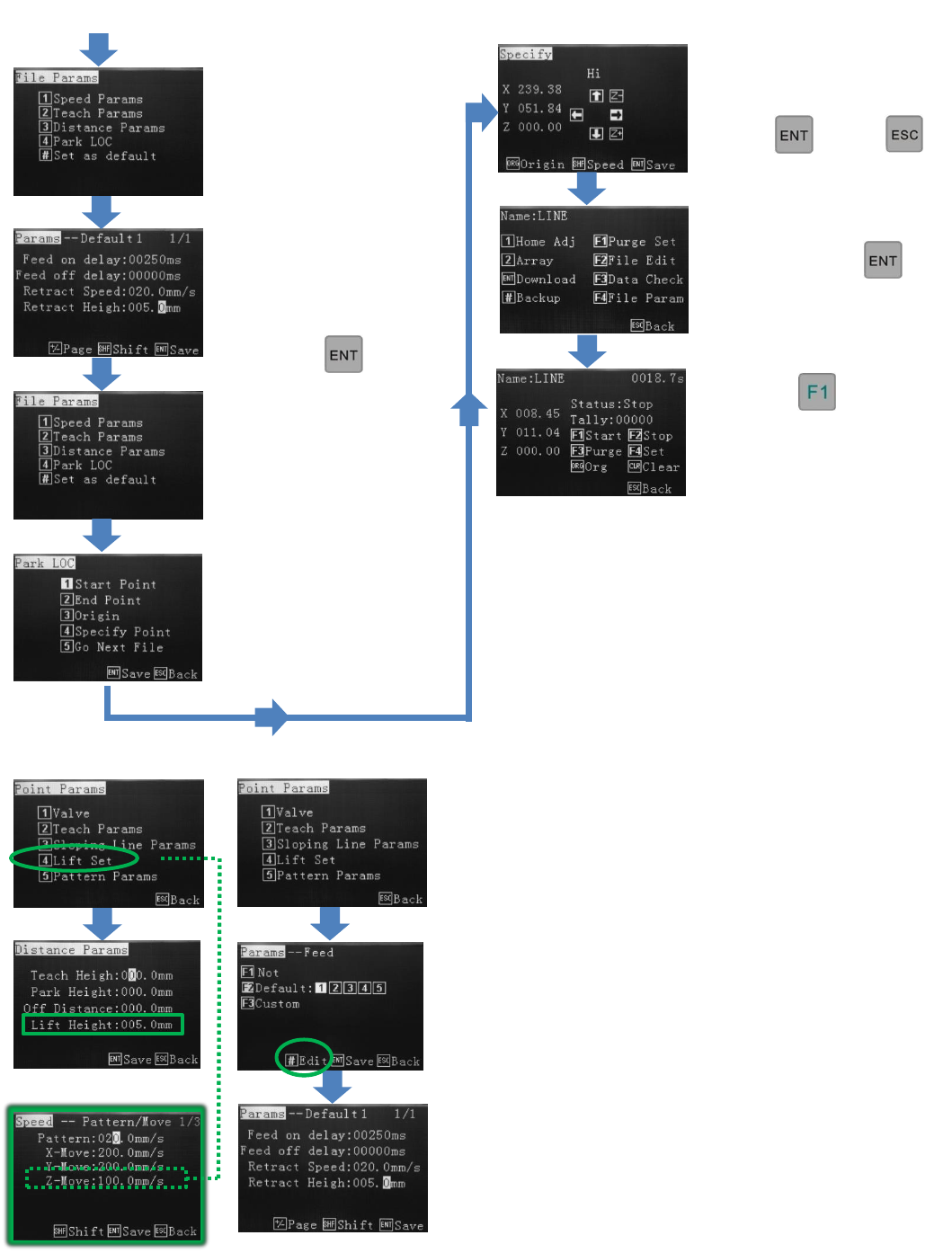
Understanding Lift Height and Retract Height
Lift Height - is found in the Point Parameters Menu under the
the Lift Set option. After the dispensing cycle, the Z-axis will
move up to the Lift Height at the normal moving (non-
dispensing) speed of the machine. If required, a different Lift
Height can be applied to any or all of the dispensing patterns,
however, if the speed is set to slow this would also mean that
when the robot is required to go to Origin (0, 0 ,0), the z-axis will
take a long to time to home.
Retract Height - can be found within the Teach Parameters
Menu. Retract Heights are applied to the Feed Slots used to
created patterns. If a dot is created using Feed Slot 1 and a 2
nd
dot
is created using the same feed slot, the same parameters will be
applied to dot 2 including Retract Height. A Retract Speed can
be applied to Retract Heights.
If Retract Height is greater than Lift Height, Retract Height
Overides. If Lift Height is greater than Retract Height, Retract
parameters will operate first (height and speed) then the Lift
parameters will complete the up movement. If Retract and Lift
Height are the same the Retract Height and Speed override the
Lift Height and Speed.
Use the alphanumeric
keys to change the retract
speed, retract height and
feed on/feed off delay.
Press
Press
This starts the dispensing
cycle.
Use the alphanumeric keys to
select a park location.
Press then
To save, press
Press 4
Select where the valve
should go to after
dispensing.
Press 3
18
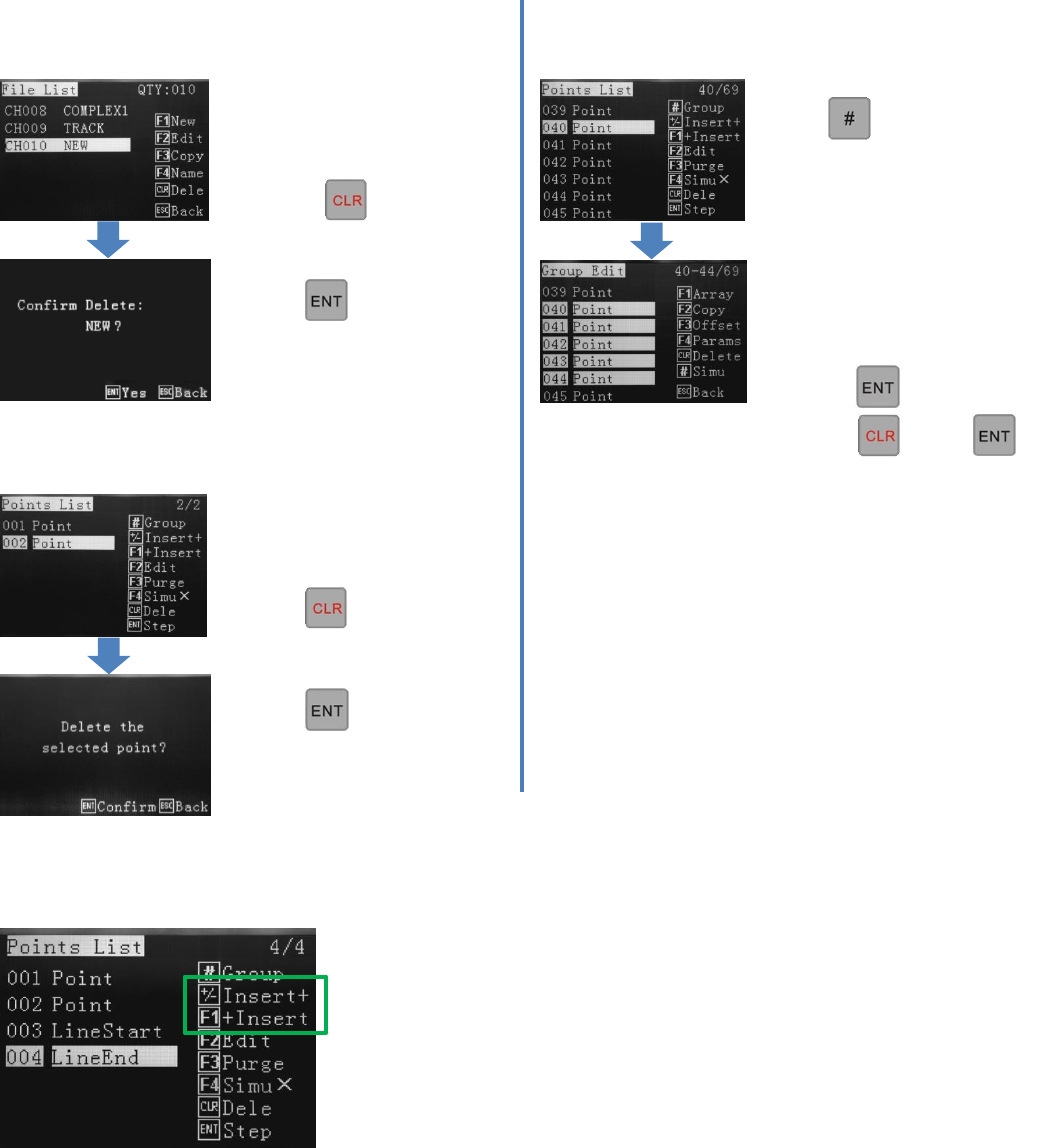
9.3 How to Delete a Program 9.5 How to Delete Multiple Points in a Program
In the File List menu, select
the program to delete.
Press
Press
This confirms deletion.
9.4 How to Delete a Point in a Program
In the “Points List”, within a
Program, select a point in the
Program to delete.
Press
Press
This confirms deletion.
9.6 Insert + / + Insert Definition
Press in the Points List.
This goes to Group Edit.
Use up/down arrow keys to
select points to delete.
To confirm…
press twice.
Press then
This confirms deletion.
Insert + and + Insert a both methods on inserting a dispense location into the
Points List.
Insert + inserts the co-ordinate above the highlighted line.
+ Insert Inserts the co-ordinate below the highlighted line.
19
9.7 How to Edit a Program
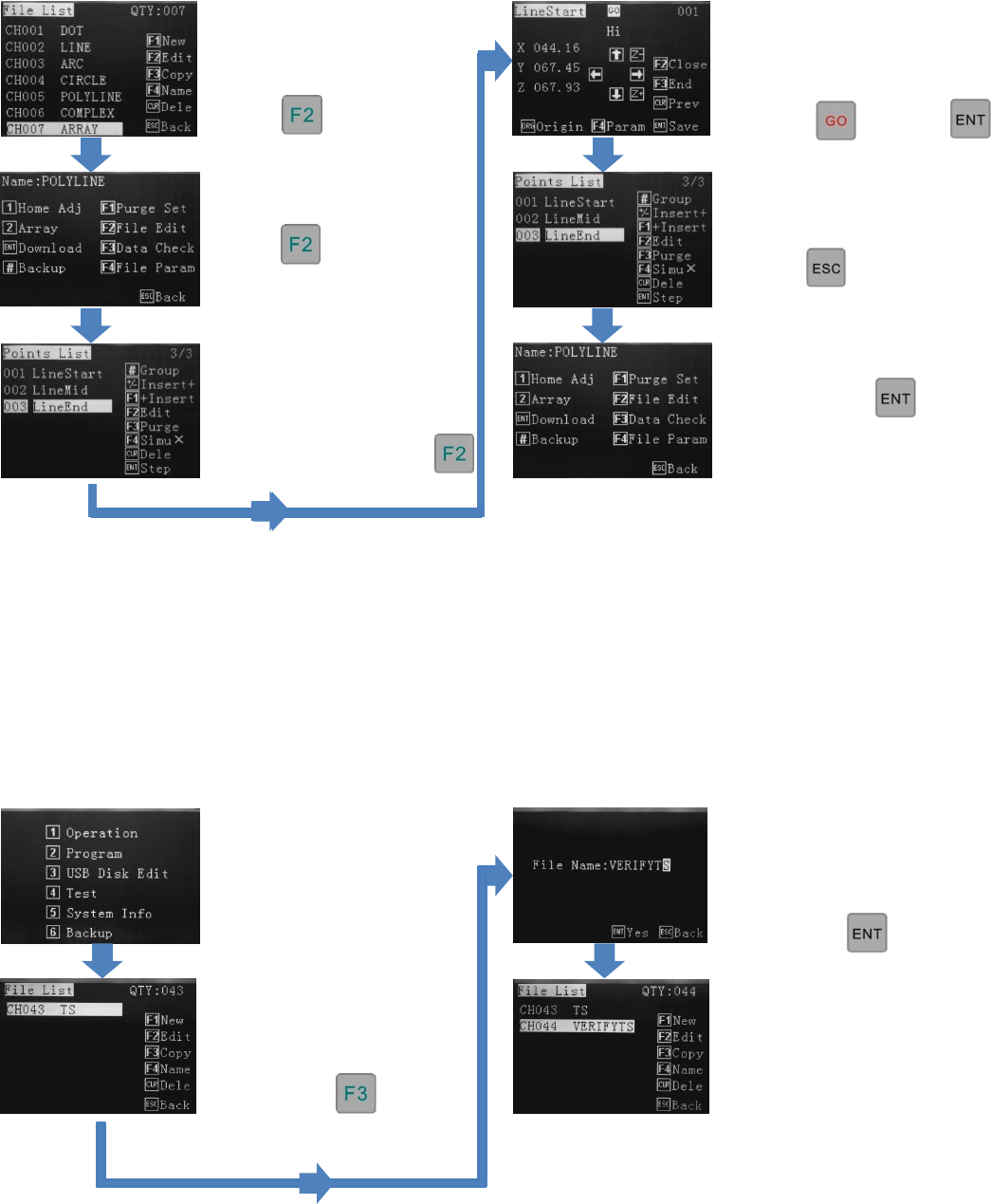
9.8 How to Copy a Program
Copying programs is generally used when a 2
nd
application is very similar to the first and that it is more efficient to modify
an existing program instead of creating from the start.
It is also quite common to use the copied program to make a qualification/verification program, of the dispensing output
at the start of a shift, before making a productions run. This ensures the valve can be “dialed-in” before the use.
Press “GO”. The robot will
move to the original start
position. Use either jog keys or
input the new dimensions.
Press then
From the File List, use the
arrow keys to select the
program requiring the edit.
Press
Press
Continue editing, when
complete …
press twice.
To save, press
Use the arrow keys to select
the part of the program
requiring editing. In this case
the start of the line will be
increased in length. Press
Reference Section 9.2
(creating a new program) or
if the program is already
saved/downloaded press 2.
Using the jog keys. select the
program that needs to be
copied.
Press
Give the copied program a
name. If using the same name
the robot will prompt for an
alternative name.
Press
The copied program will be
added to the File List where it
can be edited.
The program must be
downloaded