TSR2000-Series-Teaching-Pendant-User-Guide-V1.pdf - 第31页
31 9.19.1 Array Pattern Dir ectional S etting 4 1 2 1 4 2 3 4 3 2 3 3 4 1 2 1 3 4 5 6 8 7 2 1 1 2 3 4 6 5 8 7 1 2 8 7 5 6 4 3 5 6 7 8 2 4 3 1 Please note t hese instruct ions, they wil l be r eferr ed to in the following…
30
9.19 How to Create an Array Pattern
`
Fixed Start Point
Optional Start Point
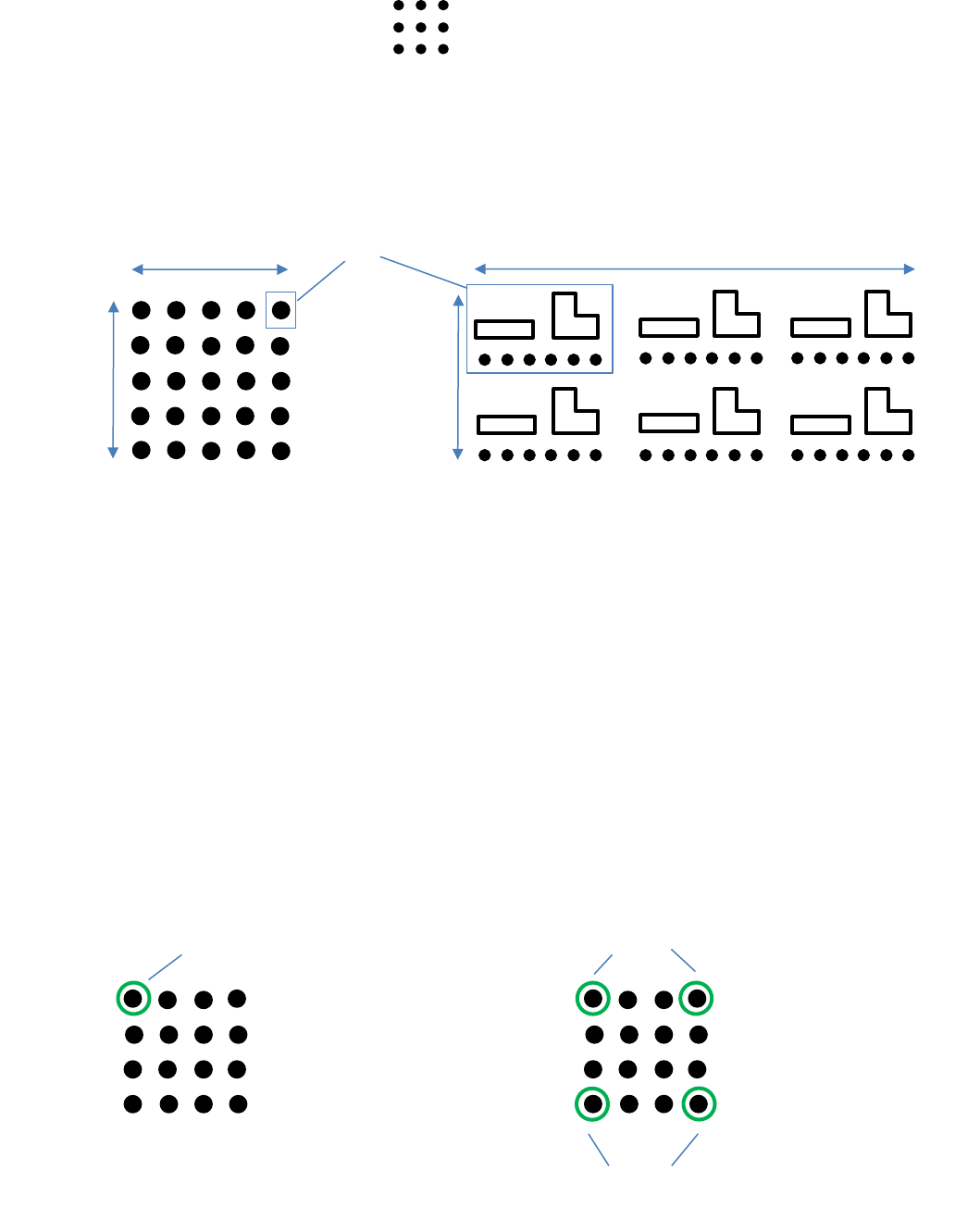
An Array Pattern is a series of dispensing parameters in a programmed number of rows and columns. The array can either
be made up of rows and columns of dots, or rows and columns of multi-point patterns. Only 1 dot, or 1 pattern, is needed
to be created and by using the Array function capability, the teaching pendant will plot the co-ordinates of each “array
element”.
Example of 25 (5 rows x 5
columns) bottles for filling
with ink.
Example of 6 (2 rows x 3 columns)
automotive switches for dispensing
conductive grease onto.
Rows
Rows
Columns
Columns
There are 2 options to create an Array Pattern:
1. Array function outside of the main program: This is a quick and simple way to create an array. All patterns in the
main program will be set in the same Array function. The co-ordinates of each point in the array are not recorded in the
main program so editing is limited. Follow Section 9.19.3
2. Array function within the program “Points List”- The co-ordinates of each point in the array is recorded in the
program “Points List”. This function also allows multiple arrays to be created within the program with the ability to edit
any point, if required. Follow Section 9.19.4
All array patterns will start at the top left co-ordinate first, unless set in teach mode and then any corner co-ordinate can
be selected.
Array Element
Optional Start Point
In Mode: Teach
Section 9.19.2
In Mode: Not Teach
31
9.19.1 Array Pattern Directional Setting
4
1
2
1
4
2
3
4
3
2
3
3
4
1
2
1
3
4
5
6
8
7
2
1
1
2
3
4
6
5
8
7
1
2
8
7
5
6
4
3
5
6
7
8
2
4
3
1
Please note these instructions, they will be referred to in the following pages:
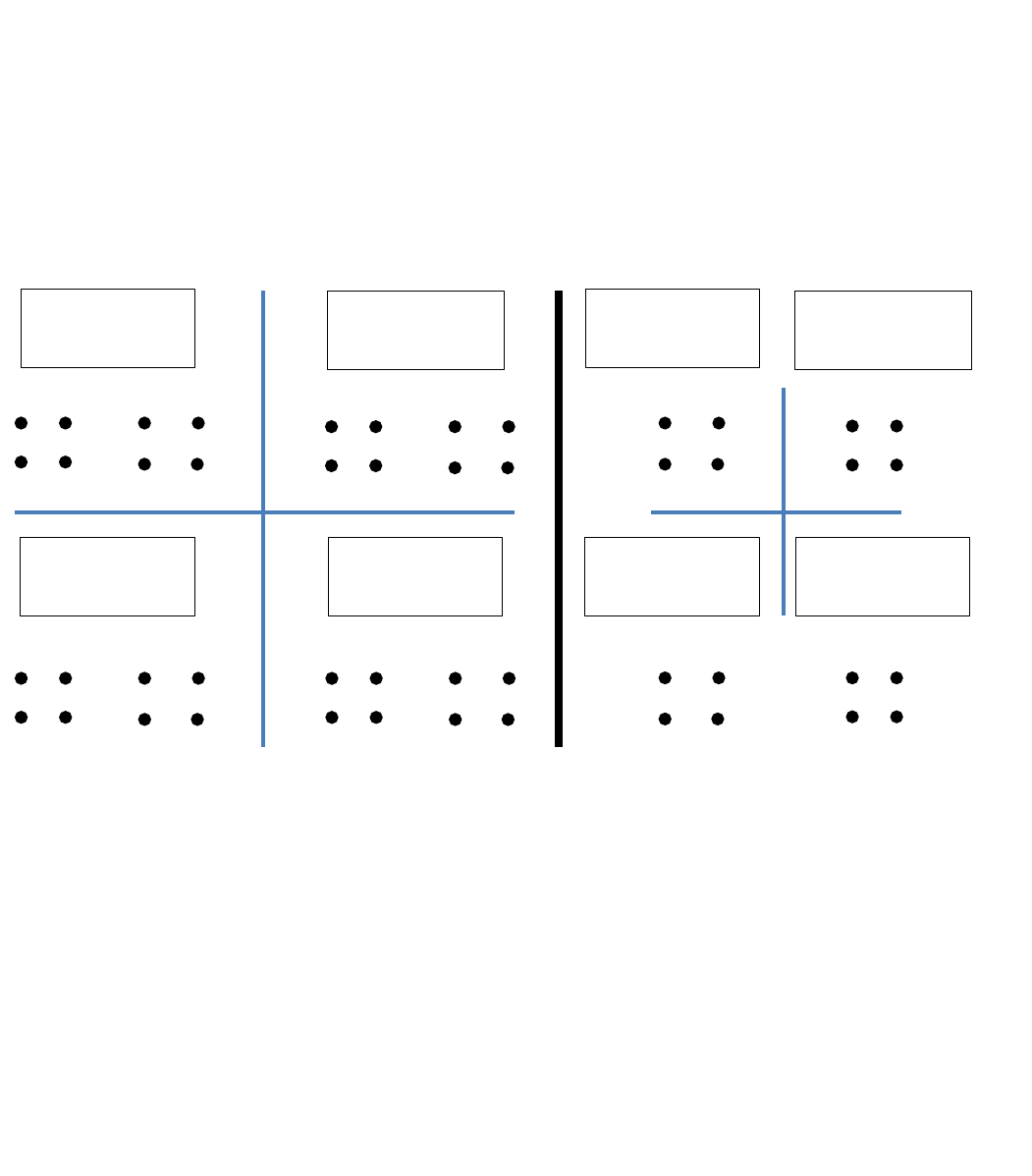
There are 4 pre-set options to set the array pattern move direction in the Points List array:
1. Order = Reverse; Mode = X First
2. Order = Forward; Mode = X First – works in 2 point method only
3. Order = Reverse; Mode = Y First
4. Order = Forward; Mode = Y First – works in 2 point method only
The examples below show the pattern move direction for each option. The Points List program was created with 2 points
(1 and 2). The array pattern was created with 2 rows and 2 columns.
Order = Reverse
Mode = X First
Order = Forward
Mode = X First
Order = Forward
Mode = Y First
Order = Reverse
Mode = Y First
Order = N/A
Mode = X First
Order = N/A
Mode = X First
Order = N/A
Mode = Y First
Order = N/A
Mode = Y First
2 Point Method
1 Point Method
Advantages of 1 Point and 2 Point Method
The 1 point method does not allow changes to the “Order”, so the pattern on the right is followed whereby only Mode can
be changed – Mode allows the pattern to follow a X or Y movement. This method is also used when the array pattern in
an odd number of pattern elements (5 x 5, 9 x 9). Even patterrn elements work also but without the Order feature.
The 2 point method allows full use of directional Order in combination with the Mode, so the pattern on the left is followed.
This methods will work with an even nukber of pattern elements only (4 x 4, 10 x 10).
If Order (Forward/Reverse) and/or Mode (X-first/Y-first) are not important to the dispensing application continue
with the the 1 point method for ease of programming.
32
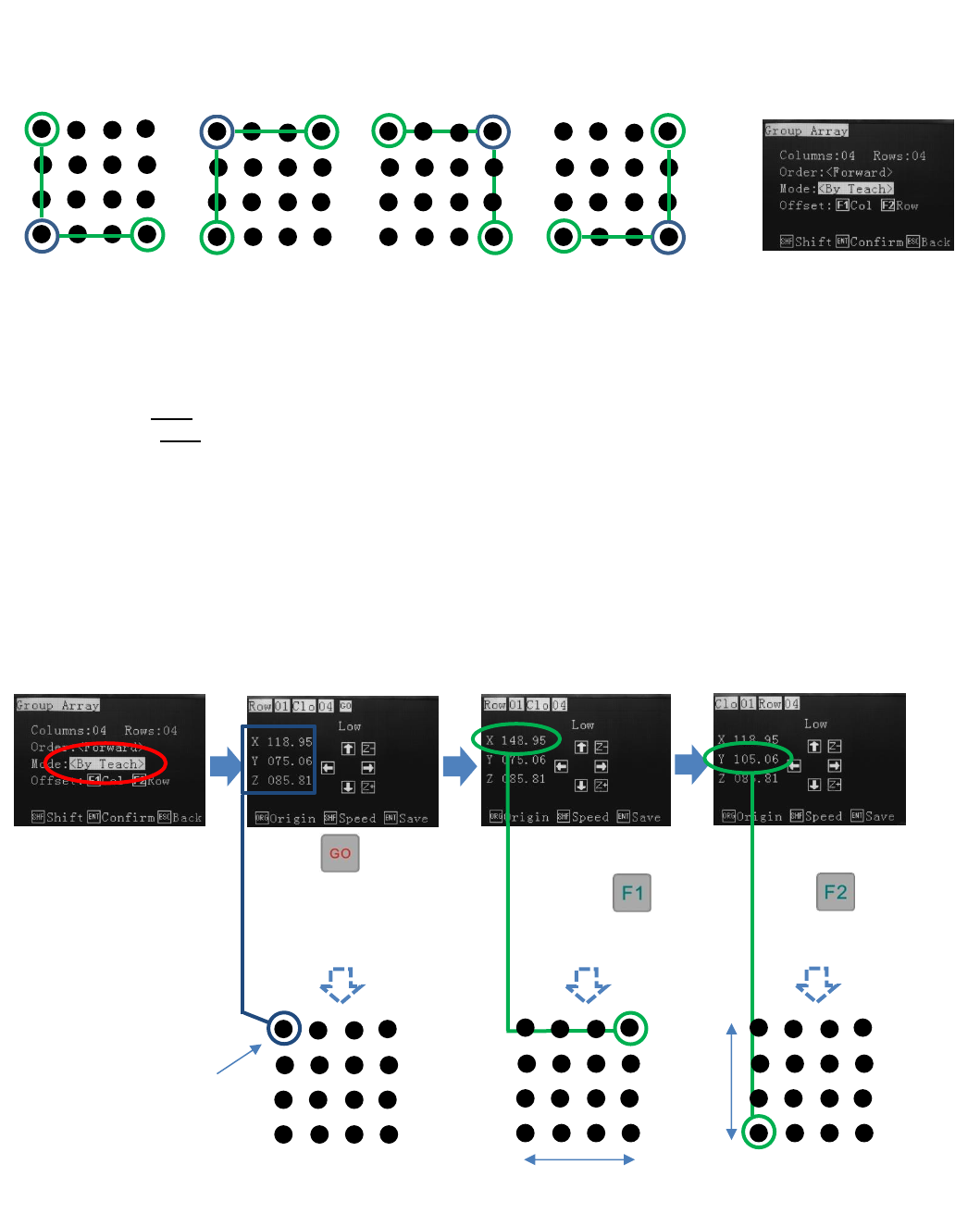
9.19.2 Array Pattern Starting Positon (can only be set in “Mode: Teach”)
Insert number of rows
and columns.
Press to
move to the set start
point co-ordinate
Set the furthestmost X
column with
Set the furthestmost Y
row with
Start Point
30mm
The array pattern can be started in any corner co-ordinate. The robot should be moved to the starting positon and the co-
ordinate saved. The furthestmost corner should then be set in the X and Y positions. The robot will automatically plot the
other array co-ordinates based on the number of rows and columns set.
Start Point
Start Point
Start Point
Start Point
Note:
Columns: Set how many rows and columns – above example would be set to Column: 4 Row: 4
Order: Cannot be changed
Offset: F1 Col – Only set the furthestmost X column. Do not set the Y co-ordinate here.
Offset: F2 Row – Only set the Y furthestmost Y column. Do not set the X co-ordinate here.
30mm