TSR2000-Series-Teaching-Pendant-User-Guide-V1.pdf - 第36页
36 9.19.6 Cr eating Array Pa ttern Inside the Po ints List – 2 Point or 2 Patter n Element Method Ad vantage: Full Mode/Order directional movement as per section 9.19.1 – not suitable for an array wi th an odd number of …
35
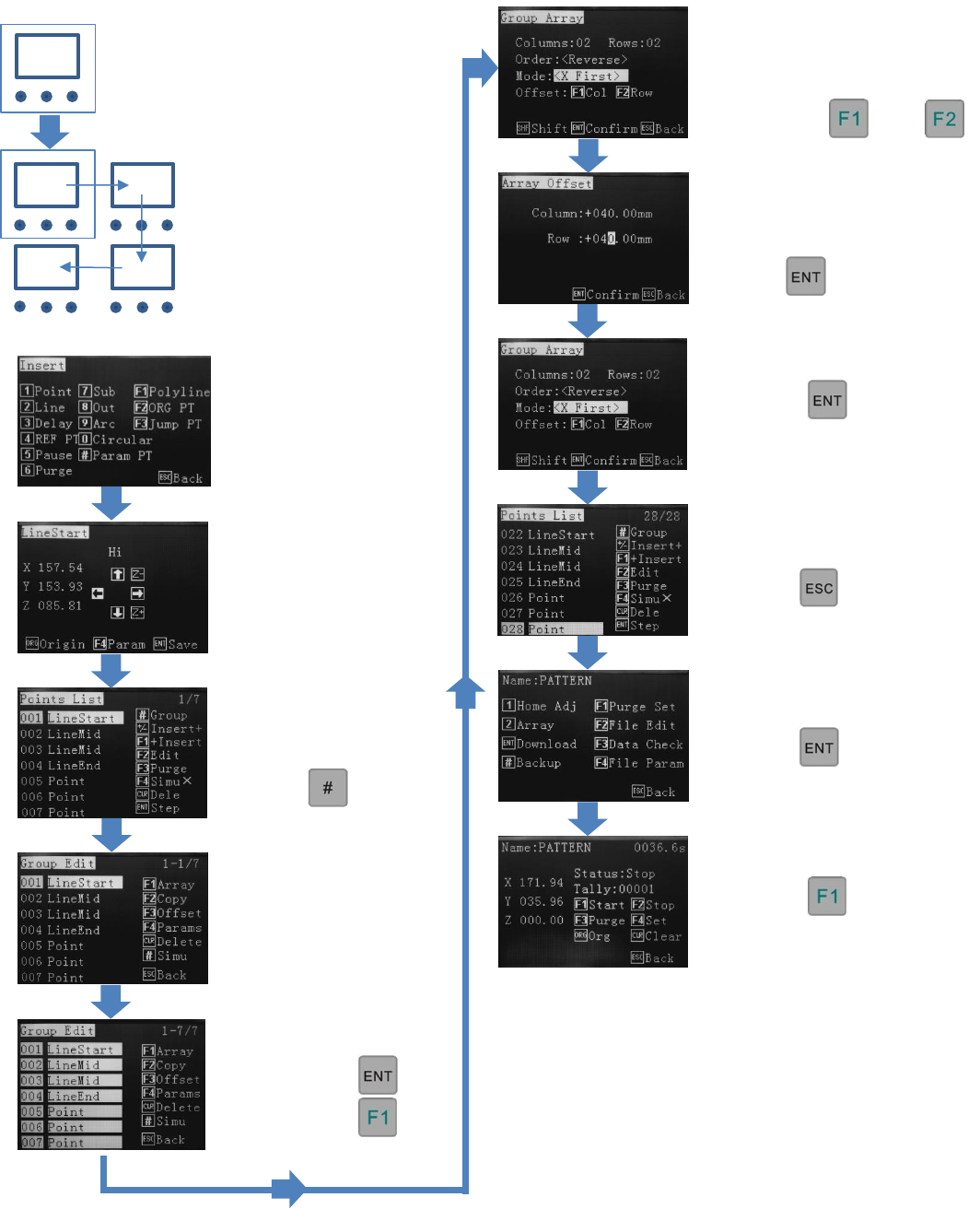
9.19.5 Creating Array Pattern Inside the Points List – Pattern Element
This is the 2 x 2 array
to be created from the
pattern element
showing start position
and “X” travel
direction.
This is the pattern
element to be created.
START
Reference Section 9.2
From the Insert screen,
select option 1.
Create the pattern
element.
All co-ordinates are listed
in the Points List.
Press
Use up/down arrow keys
to select all co-ordinates.
When all co-ordinates are
selected press
Press
Input number of rows and
columns. Order cannot be
changed. Set “Mode” –
dispensing direction.
Press either or
Input row and column
distances.
Press twice.
Press
Continue editing or…
Press twice.
Press to start.
Continue editing or…
Press to download.
36
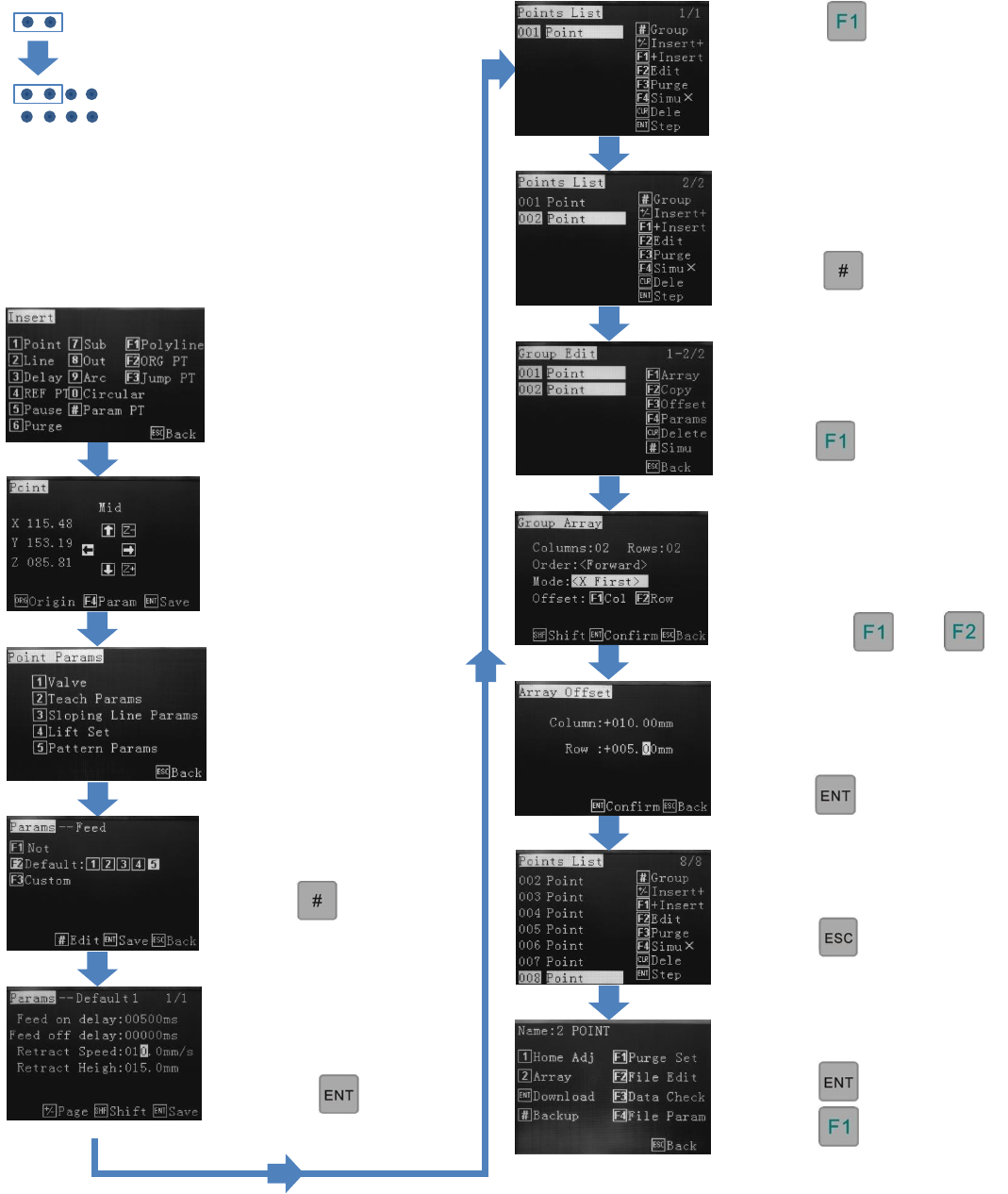
9.19.6 Creating Array Pattern Inside the Points List – 2 Point or 2 Pattern Element Method
Advantage: Full Mode/Order directional
movement as per section 9.19.1 – not suitable for
an array with an odd number of elements,
example 5 x 5 (25 positions), 7 x 7 (49 positions).
The Points List is made up of
2 dots. When applying row
and column values the 2 dots
will be arraying 2 dots by a 2
x 2 array the result will be a
total of 8 dots.
Reference Section 9.2
From the Insert screen,
select option 1.
Insert the first dot co-
ordinates
Press 2 – Teach Params
Ensure F2 is highlighted.
Press
Set Feed on delay
(dispensing time)
Set retract height and
speed.
Press
Press
Insert the second dot co-
ordinates (as in the
illustration.
All co-ordinates are listed
in the Points List.
Press
Use up/down arrow keys to
select all co-ordinates.
Press
Input row and column
distances, based on the
pattern elelment.
Press twice.
Input number of rows and
columns. Order cannot be
changed. Set “Mode” –
dispensing direction.
Press either or
Continue editing or…
Press twice.
Continue editing or…
Press to download.
Press to start.
37
9.20 How to Move Around or Over a Tall Object
Option 1 – Move Around
Program “Points” around device.
Option 2 – Move Over
Using “Lift” height to clear device height.
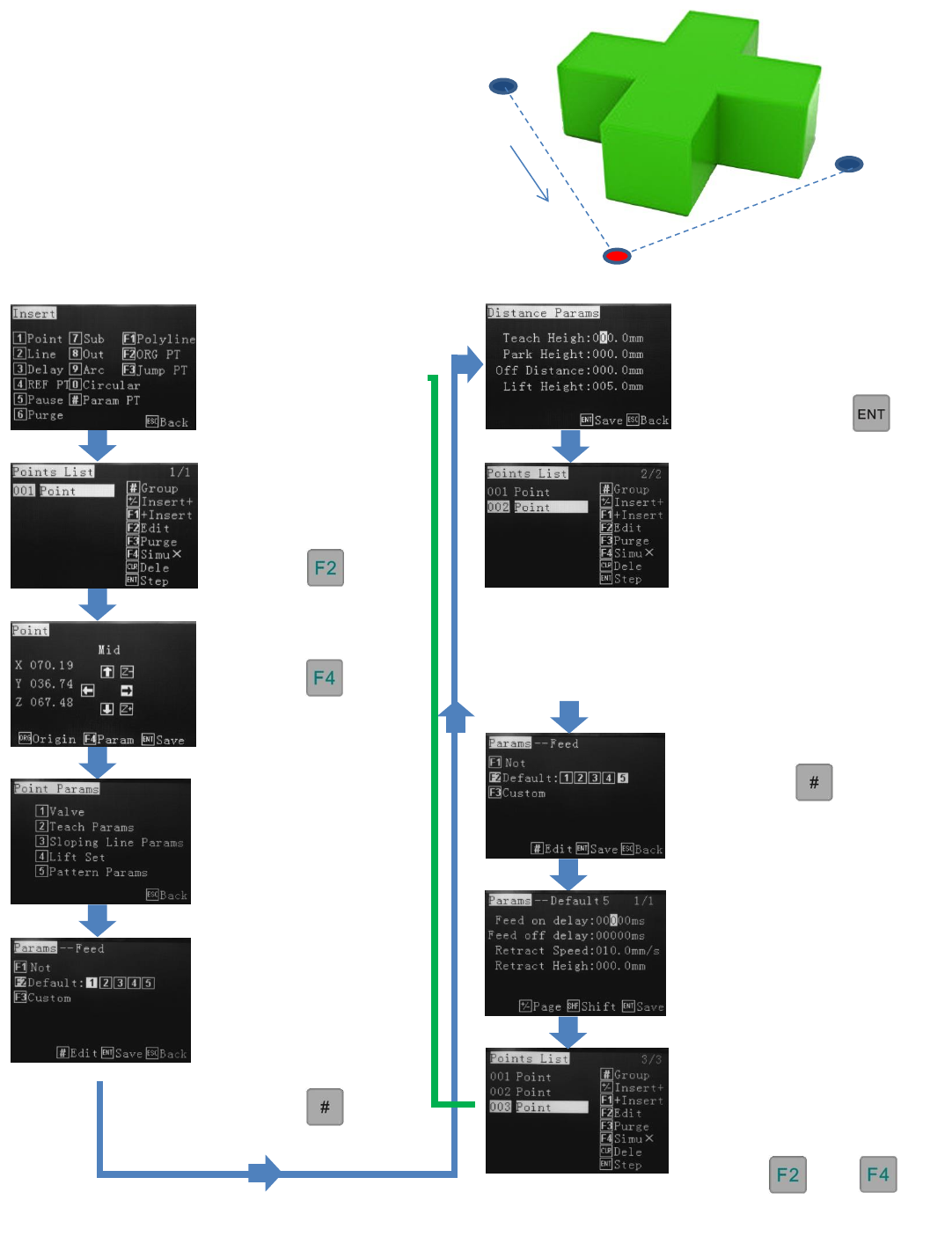
Option 1 – Move Around Device
Dot 1
Timed Dispense
Dot 2
No Time
Dot 3
Timed Dispense
Reference Section 9.2
From the insert screen
select option 1. Points
will be used to create a
movement, as well as
dispensing co-ordinates.
Up to 5 dispense times
can be programmed and
recalled. In this example
Dot 1 and 3 will use slot
1. The movement Point
will use the spare slot 5.
Press
Press
Press
Press 2 – Teach Params
Repeat sequence for 003 Point
(Dot 3). Use the same Feed
slot as used for Dot 1 or
antoher slot if dispense time is
different.
Press then
Input 0.0 time and 0.0 Retract
Height - prevents valve from
stopping at the Dot 2 thus
creating the Move command.
Cycle through to Points List
by pressing ENTER.
Insert move dot (Dot 2).
Whilst in co-ordinate screen
press “F4”. Option 2 (Teach
Params) allows the use of a
spare Feed slot.
Insert Dot 1 (dispense),
as per 9.10.
Press
Input Feed on delay
(dispense time), Retract
Speed and Height for Dot 1.
Cycle through to the Points
List by pressing
Press
Note: dispense height of Dot 2 must be offset against the
Dot 1 and 2 React Height so that Dot 2 passes through,
without stopping and lowering at co-ordinate.
Contine to edit or download if complete