TSR2000-Series-Teaching-Pendant-User-Guide-V1.pdf - 第49页
49 1 1.1 How to Set a Pr ogram to Run in a Loop From the Program Pr ocessing Menu, which i s displayed after the program has be en saved,downl oaded or selected, from the t he Operation M enu, the following s creen will …
48
11. SET MENU
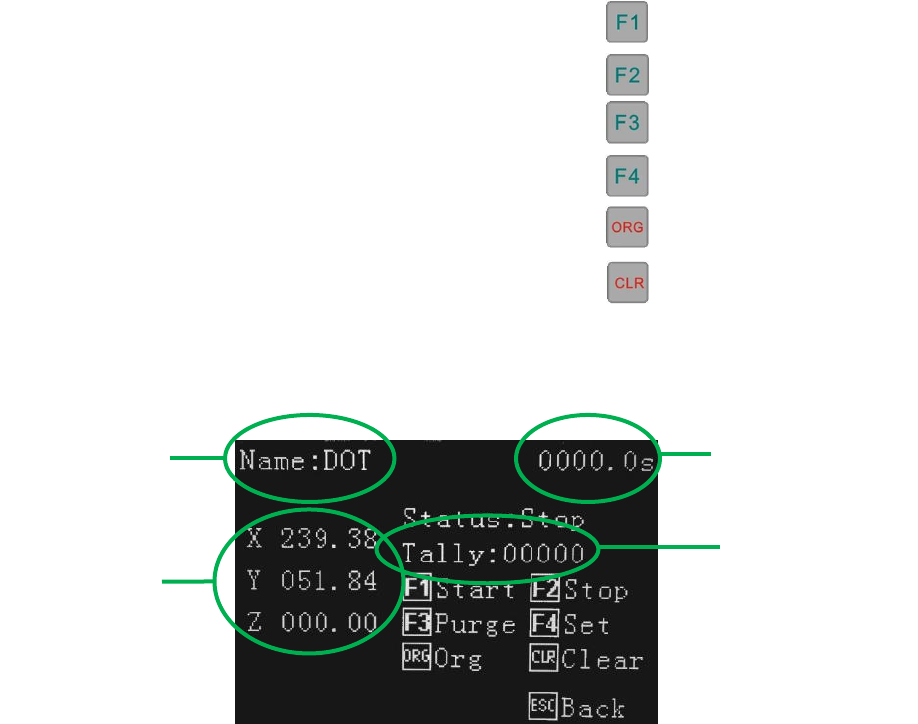
This display is shown once a program has been download. In the Set Menu the following can be achieved:
• Run the program by pressing
• Stop the program by pressing
• Perform a Purge function by pressing (separate function)
• Set up a Looping sequence by pressing
• Go to Origin location by pressing
• Reset the program counter (Tally) by pressing
Axis location
Program Name
Program
Completion Time
Counter
49
11.1 How to Set a Program to Run in a Loop
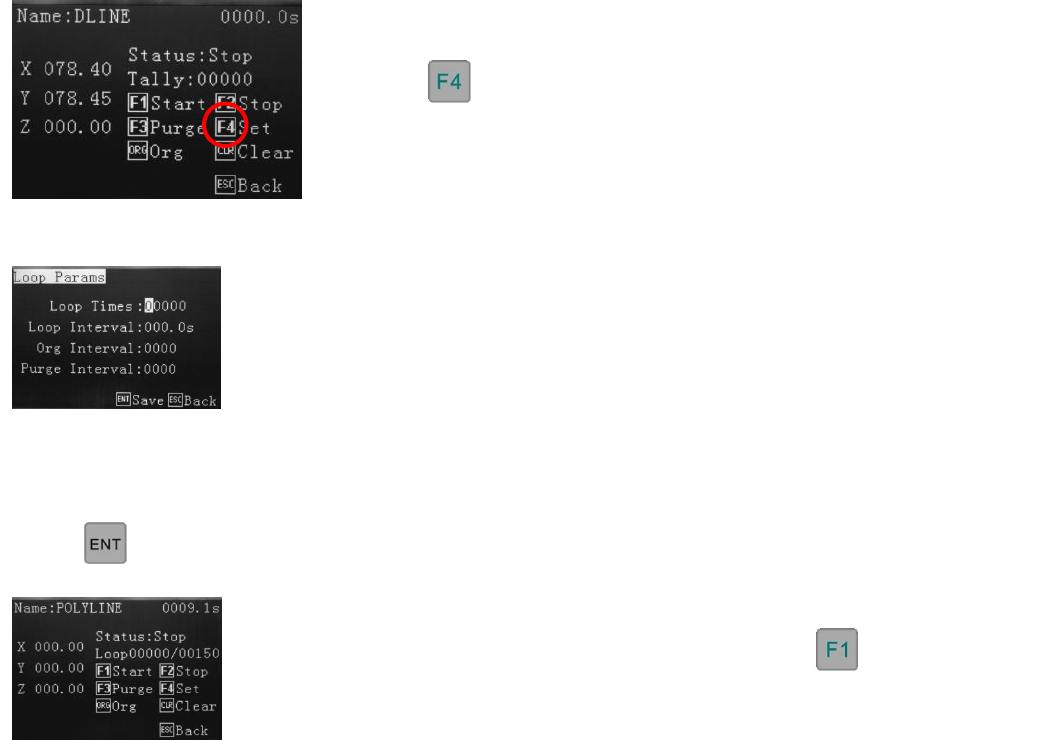
From the Program Processing Menu, which is displayed after the program has been saved,downloaded or
selected, from the the Operation Menu, the following screen will be displayed.
Set how many times the program is to loop. Set the time delay, which is the wait time
between each repeated cycle.
Set the Origin Interval - the number of times the program will return to Origin.
Set the Purge Interval – the number of times the program performs a Purge function.
sefsef
The display now shows the loop counter, ready to start. Press to start the looped
program.
Note: The Loop, Origin and Purge functions cannot be saved as part of the program and must be set each time the
robot is turned off or another program is selected.
Press
Press
50
12. FILE TRANSFER
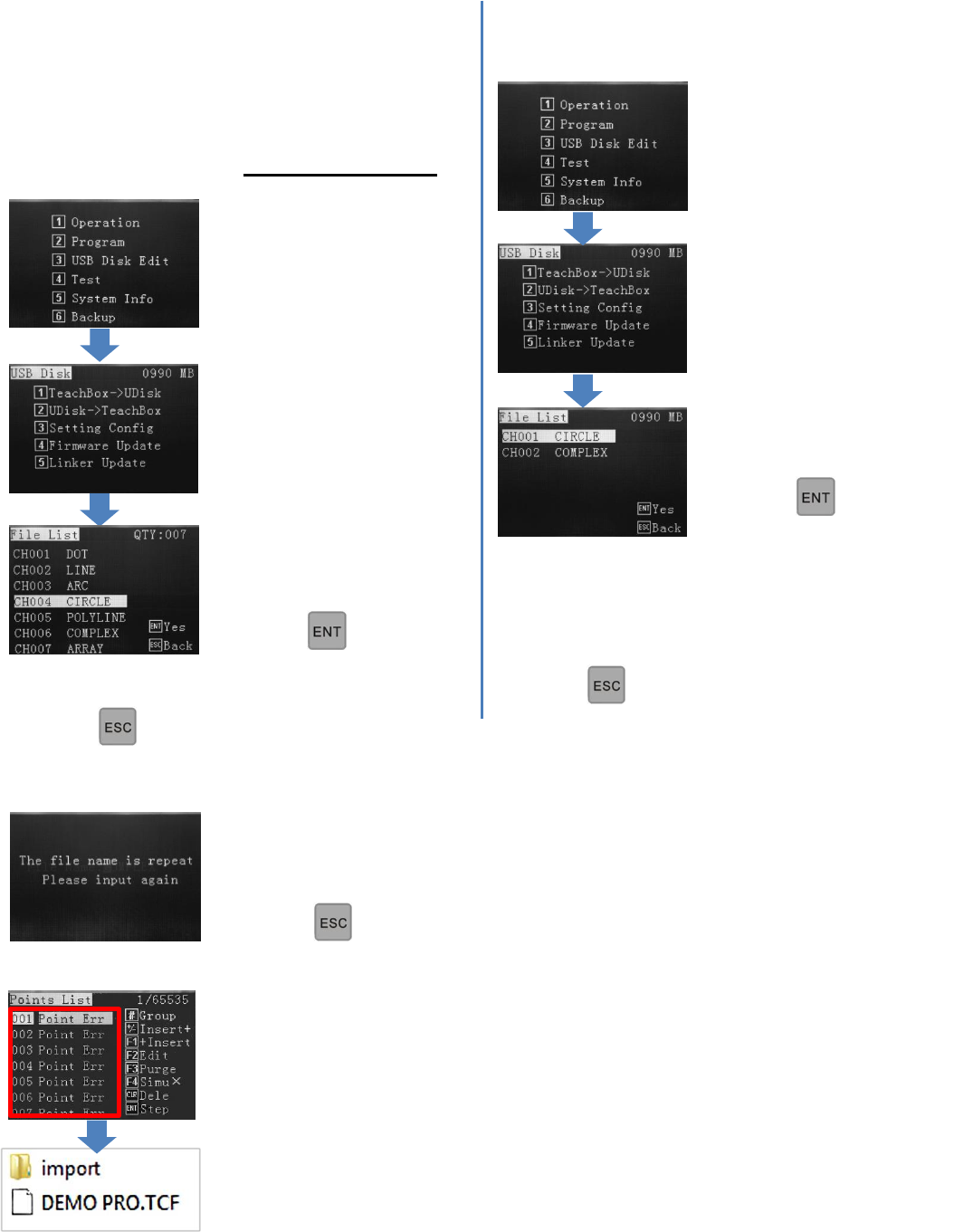
12.1 How to Transfer Program to USB Stick 12.2 How to Transfer Program from USB Stick
D
Insert USB stick into teach
pendant. Press 3 to go to USB
menu.
This feature is particularly useful if more than 1 robot
exists at a facility and are both running the same
program. By copying the program, from 1 robot to
another, will save the operator time by not having to
duplicate the programming. Use 2GB or lower USB.
Press 3
Press 2
Select the program, stored on
the USB stick.
Press
Continue transferring files, as above, if required.
Press twice to go back to main menu.
An error message will be displayed if the program selected has the same name as on the
robot it is transferred to. Rename the program being transferred, using the alphanumeric
keypad.
Press twice to return to the main menu.
For a variety of reasons, a conflict could occur, showing errors on the receiving teach
pendant. In these cases the USB stick is required to have an empty “import” folder created,
for successful importation. Transfer the program to the USB stick, then add the import folder
from a standard computer. The receiving teach pendant will now be able to read the program.
Continue transferring files, as above, if required.
Press twice to return to main menu.
Press 1.
Select program to transfer
from Teach Box to USB
Stick.
Press