TSR2000-Series-Teaching-Pendant-User-Guide-V1.pdf - 第27页
27 9.16 How to Create a Pol yline (Multiple Joined Lines) Reference Section 9.2 and 9.24 . From the Ins ert screen, Select option Change the move speed with the key When line start location is reached, p ress Press 5 (Re…
26
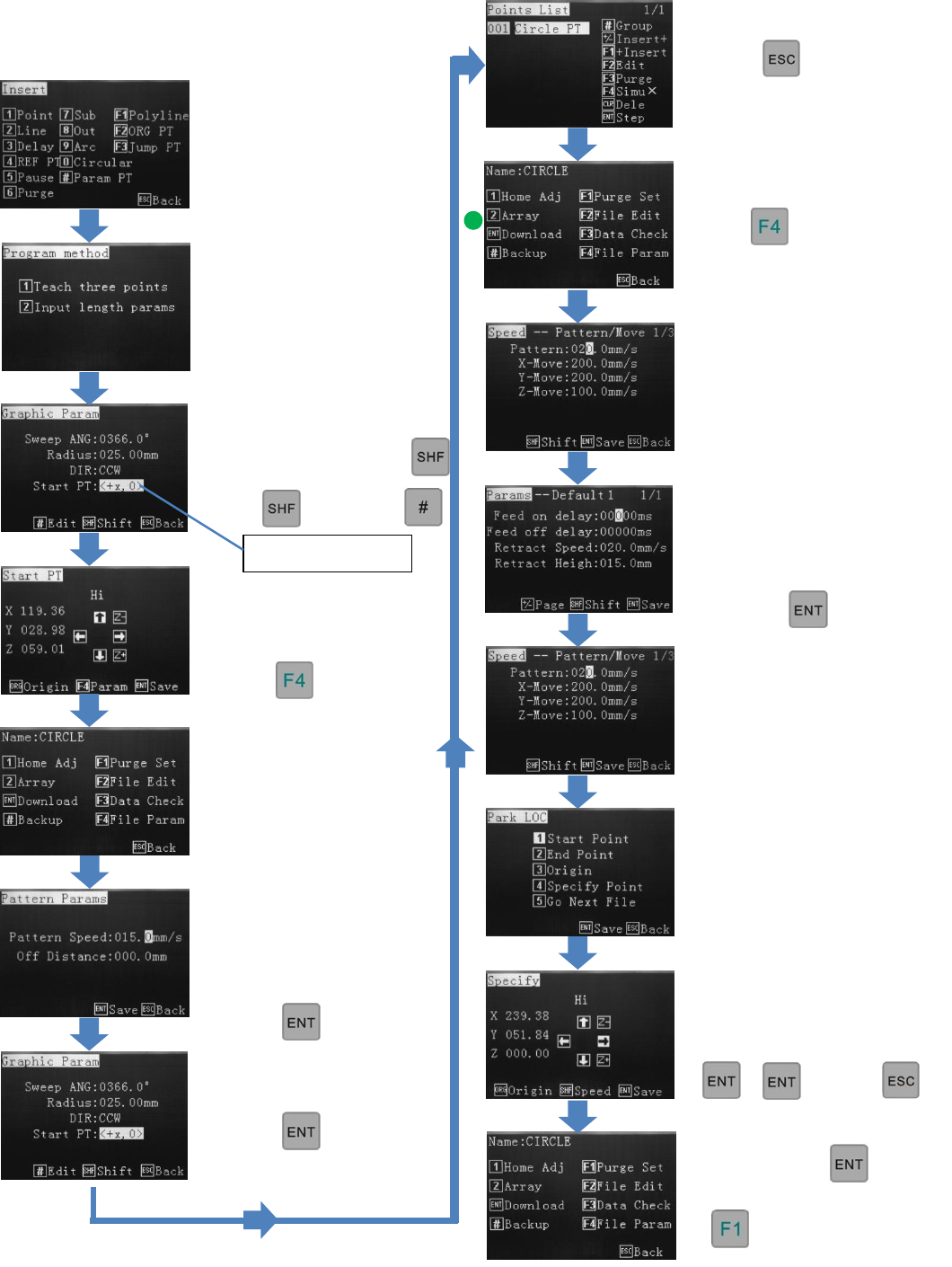
9.15 How to Create a Circle (Inputting Dimensions)
Reference Section 9.2
From the Insert screen,
Select option 0.
Select option 2.
Use arrows to input data
Choose direction with
Choose start Point with
With then press
Use jog keys to move to
circle start point location.
Press
Press 5.
Use alphanumeric keys to
change dispense speed.
(Pattern Speed).
Press
Press
To save, press
Starts the
dispensing
cycle
Press 4
Select where the valve should
go to after dispensing.
Press 2
Press twice
Press
(Optional) Use the
alphanumeric keys to select
a park location.
then
Refer to 9.23
Use the alphanumeric keys to
change the retract speed,
retract height and feed
on/feed off delay.
Press
27
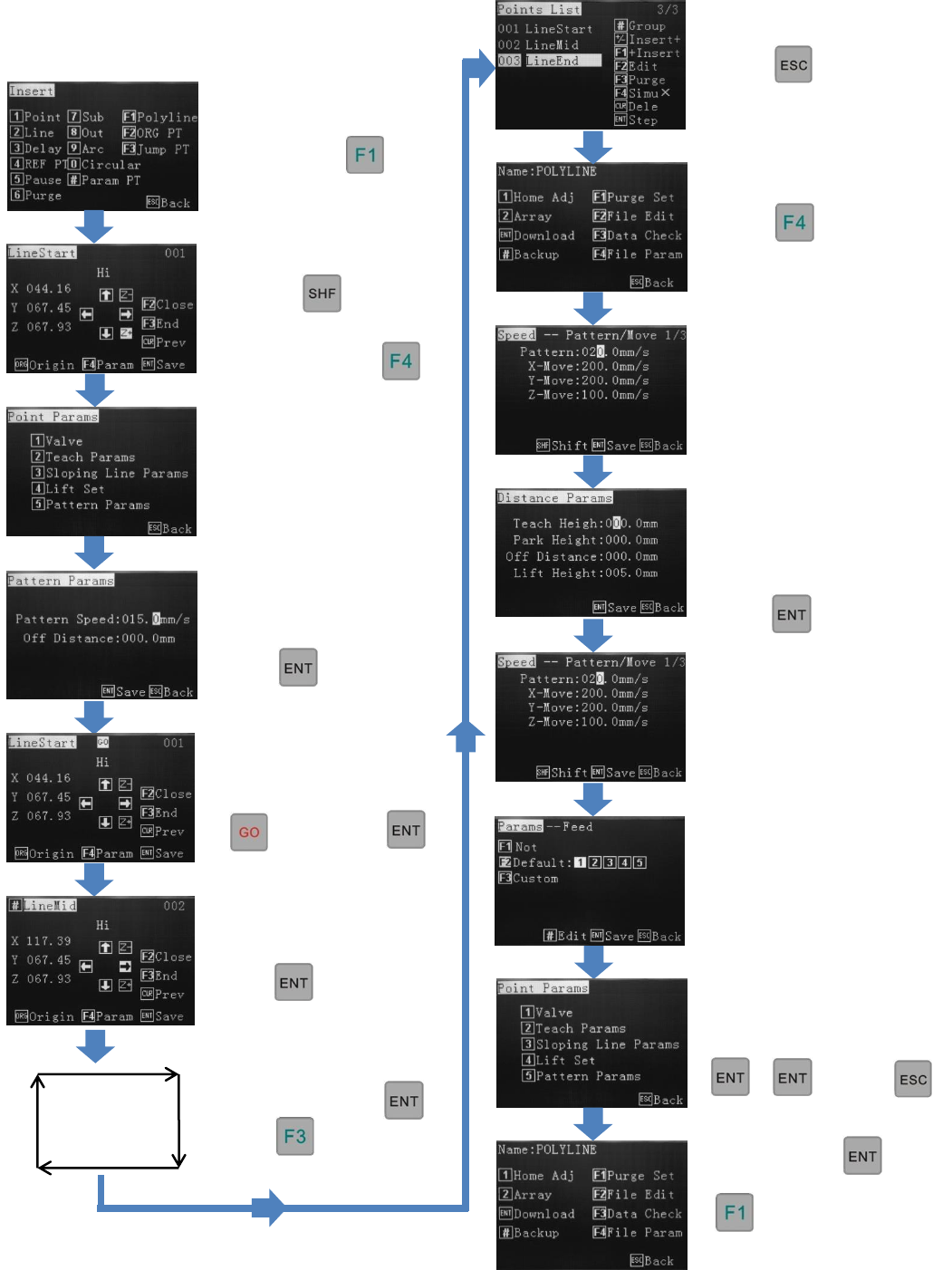
9.16 How to Create a Polyline (Multiple Joined Lines)
Reference Section 9.2 and
9.24. From the Insert screen,
Select option
Change the move speed
with the key
When line start location
is reached, press
Press 5 (Repeat this speed
change for every LineMid
in the Points List).
Use alphanumeric keys to
change the dispense speed
(Pattern Speed).
Press twice.
If “GO” is flashing, at
the top of the screen
then press
Use jog keys to move to
next position.
Press
Continue moving to each
location and press
Press at the final
location to end the pattern.
1
2
3
4
5
Press twice.
Press 2
Press 4
Select where the valve
should go to after
dispensing.
Press
(Optional) Use the
alphanumeric keys to select a
park location.
then
To save, press
Starts the
dispensing
cycle
Use the alphanumeric keys
to change the retract speed,
retract height and feed
on/feed off delay.
Press
28
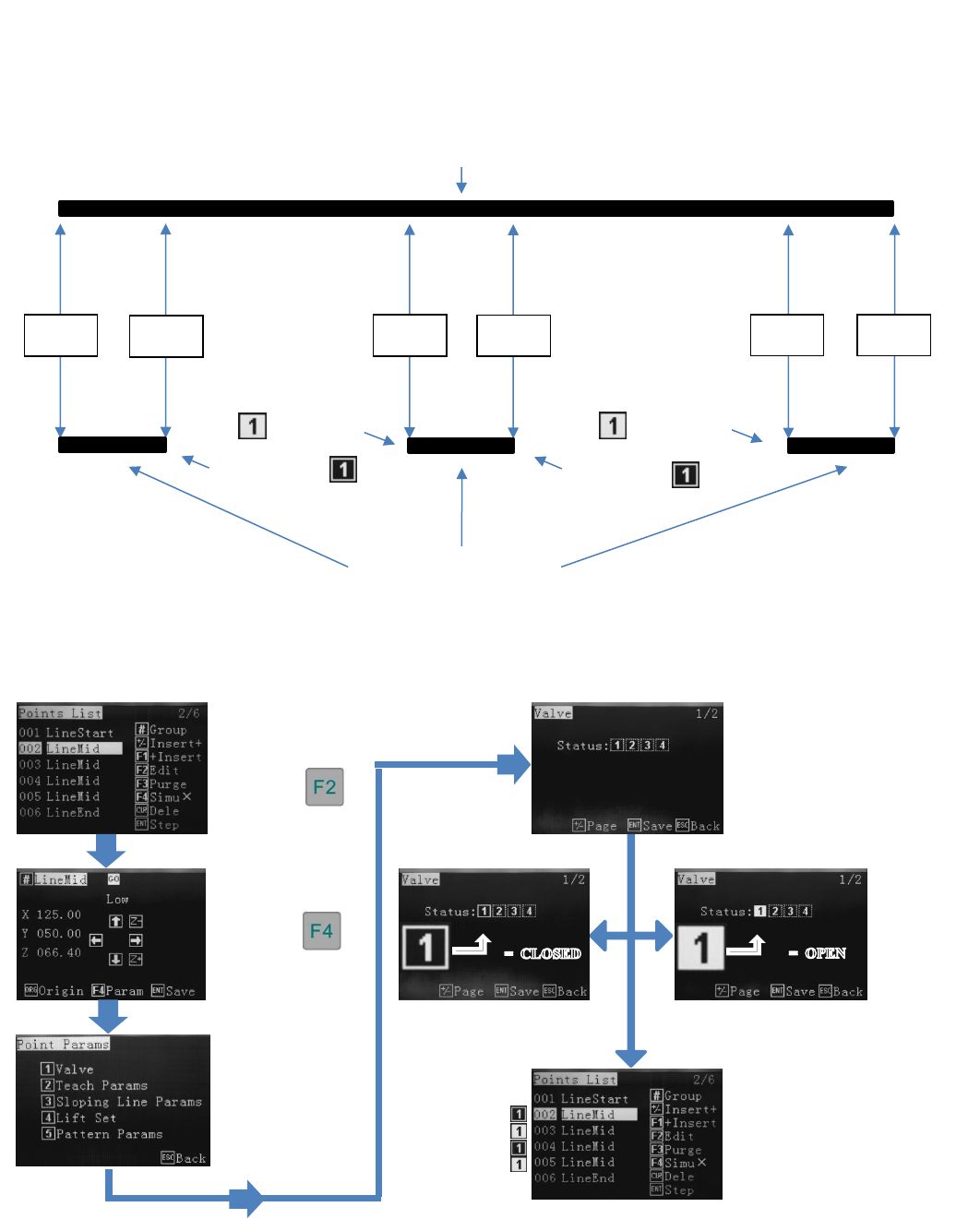
9.17 How to Create an Interrupted Polyline Whilst Moving
Point 1
Point 2
Point 3
Point 4
Point 5
Point 6
Actual dispensed lines
Turn on valve
Turn off valve
Turn on valve
Turn off valve
This program makes one continuous line whilst the dispensing valve is opened and closed as instructed by the robot. The
dispensing valve remains at one height during the entire line. It is easier to write Polyline and “mid” positions first and
change the valve open/closed status second in Edit mode. This methods helps to prevent “dog bones”, at the end of the lines.
Programmed Polyline
Select LineMid.
Press
Press
Press 1
Using button “1”, select
valve status open or closed,
per below.
Repeat sequence selecting
open or closed at each
LineMid. The status for
above example is marked by
the side.
After
selection,
press ENT
3 times to
return to
Points
List.
Reference section 9.16