TSR2000-Series-Teaching-Pendant-User-Guide-V1.pdf - 第44页
44 9.24.3 Line On/ Off Distance On Dis tance - the r obot will m ove for a set distance before t he valve starts dispensing. This prevents the first dispense be ing t oo lar ge, for exampl e in a jet valve line. By dispe…
43
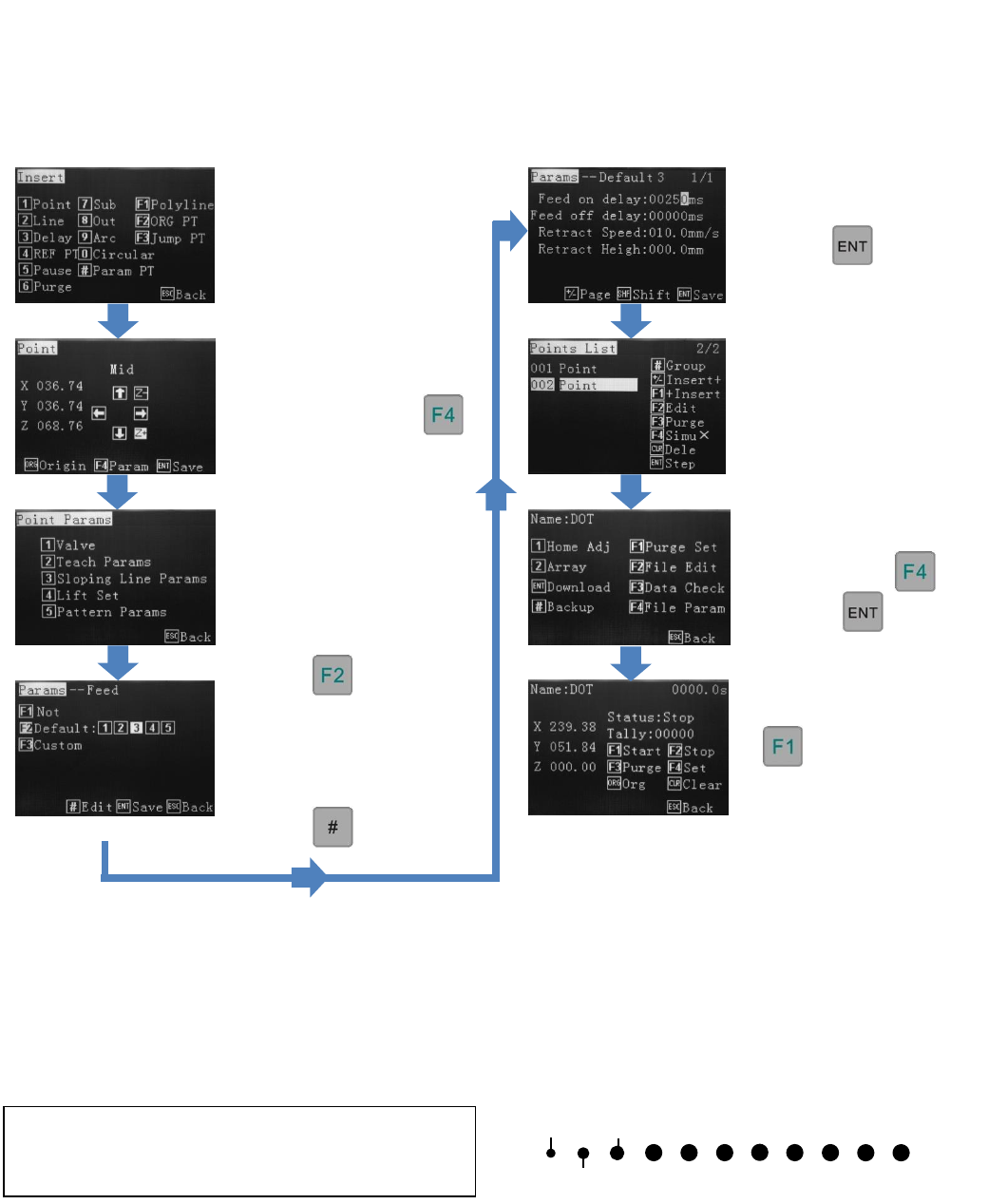
9.24.2 Valve Feed On Delay – Dots
Dot 2
Dot 3
Dot 1
Input the dot dispensing
time.
Press 4 times
to save location and return to
the Points List.
File Parameters can be
changed using
Or press to save.
starts the cycle.
Feed on delay, for a dot, sets the dot dispensing time. Up to 5 dots sizes (set by time) can be inputted per program.
Feed Off delay times can be set also. Valve Feed Off Delay is the time the robot will stay at the end of the dispensing
location before moving to the next dispensing position. No fluid will be dispensed during the Feed Off time period.
Ref: 9.2 and 9.10
From the Insert screen,
select option 1, for a point
Move to the dots first
location and press
Press 2
(Teach Parameters)
Press to select
an available “Feed On”
function: 1-5. For a new
program all 5 functions are
available.
Press
Repeat the process for
additional dots, either
selecting the same Feed On
function or selecting a new
one and inputting a different
time.
It is common, when dispensing dots, to see that the first few dots, of a new program, are smaller than the rest, if all
dots are programmed with the same dispensing time. This is due to the fluid being stationary, within the syringe or
pressure tank, whilst the valve is idle. The above process can be used to program the few dots slightly longer in time
to compensate but it is also common practice to dispense 2-3 test dots somewhere outside of the working area, to get
the fluid moving at a normal pace.
Dots 1 -3 require more dispensing time (Feed ON
Delay) to achieve the same volume as the other dots,
in the program.
44
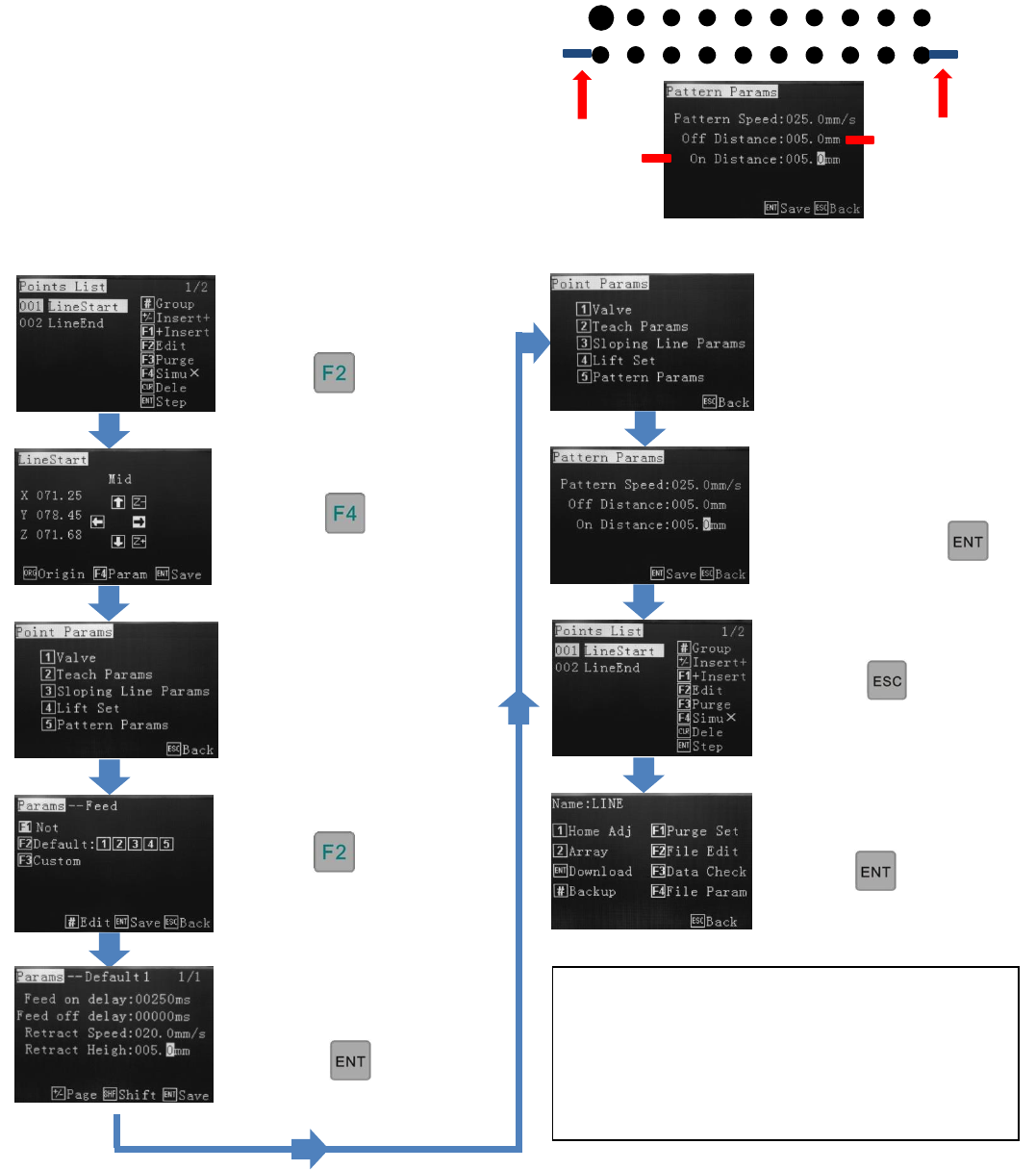
9.24.3 Line On/Off Distance
On Distance - the robot will move for a set distance before the valve starts dispensing. This prevents the first
dispense being too large, for example in a jet valve line. By dispensing, whilst moving, the first dot is the same size
as all other dots, within the jetted line.
Move and dispense and at the same time.
Move for preset distance and dispense whilst moving.
Off Distance – the robot will continue to move past
the finished dispensing pattern, preventing a build up
of fluid.
Create a Line as per
Section 9.11
Press
Press
Press
Press 2 – Teach Params
Continue to modify or
press to download
Ensure Feed slot 1 is
highlighted.
Press
Off Distance
0
On Distance
Press 5 – Pattern Params
Change Speed
Set Off Distance.
Set On Distance.
Keep pressing
to get to Points List
Press twice.
Note: If the pattern is 50mm in length and a 5mm
On and Off Distance is set, the actual pattern will be
40mm (50mm – 5mm On – 5mm Off = 40mm).
On/Off Distances should be added to the pattern
length during programming or during editing.
45
10. PROGRAM PROCESSING MENU
The Program Processing Menu screen is displayed before the program is written and
again after the program co-ordinates are written and prior to Download.
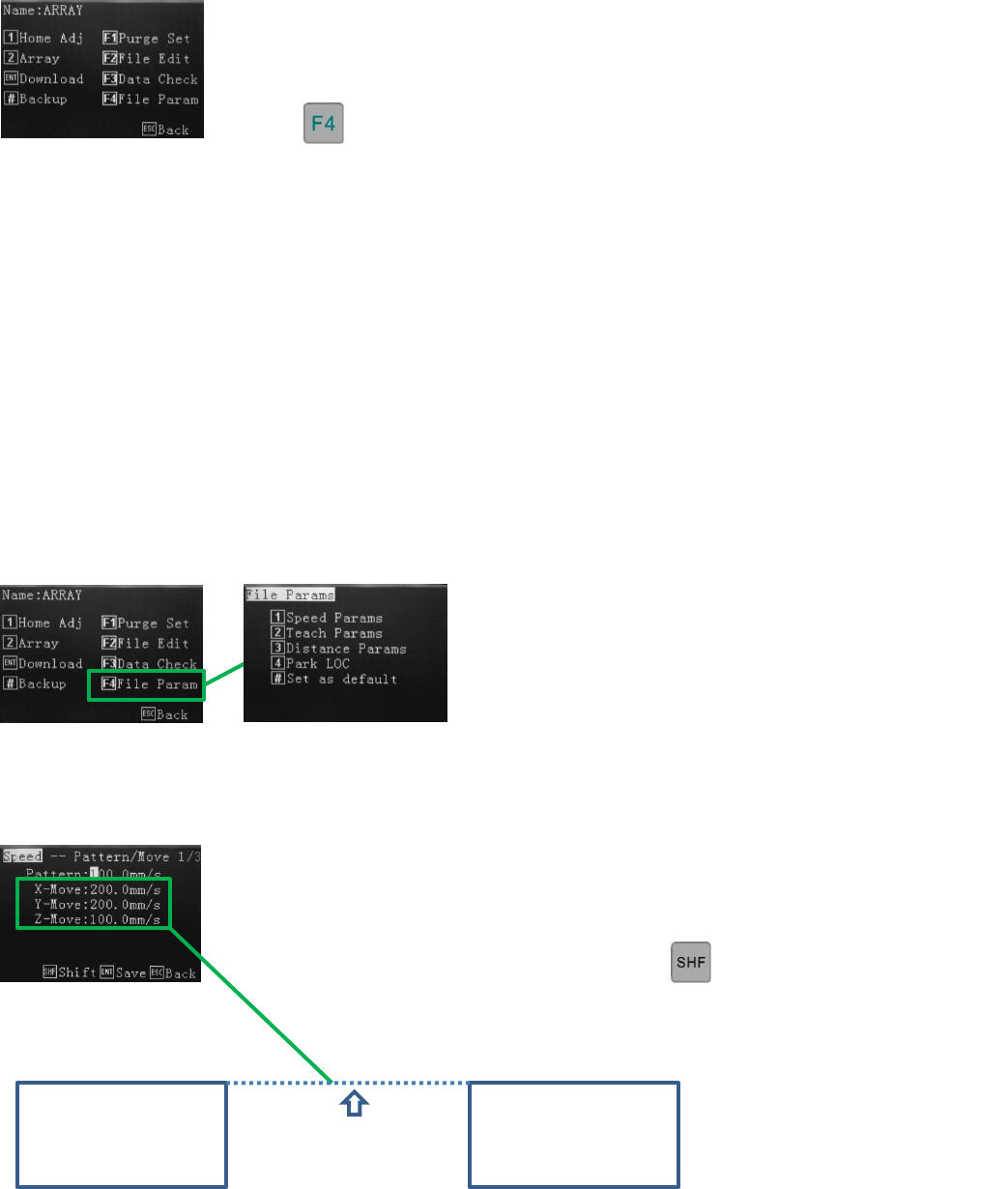
press
1 -Home Adjust - described through Section 8.
2 -Array – described through Section 9.19.
ENT - Download - pressed once the program is written and will save a copy to the robot’s and pendant’s memory.
# - Backup – described in Section 7.
F1 - Purge Set – future development.
F2 - File Edit – creating or editing a file. Described in Sections 9.2 and 9.7.
F3 – Data Check – checks or co-ordinates are within the working area of the robot.
F4 - File Parameters – specific speed/movement program defaults, park position, distance parameters.
10.1 Speed Parameters:
A change to the “Pattern” will apply this speed to all lines, polylines, circle and arcs,
contained within the program. Individual speed changes can be changed by editing the
program and selecting the co-ordinate (Line 1, Line 2), to edit.
Acceleration speeds can be changed by pressing
Dispense
Pattern 1
Dispense
Pattern 2
XYZ Movement
Between Patterns