TSR2000-Series-Teaching-Pendant-User-Guide-V1.pdf - 第9页
9 8. OPEARA TION – RUNNING A SA VED PRO GRAM Press 1 Select program to be used a nd press or Select program to be delet ed and press then If selecti ng dispense cycle to load, press twice. This will go to the final ste p…
8
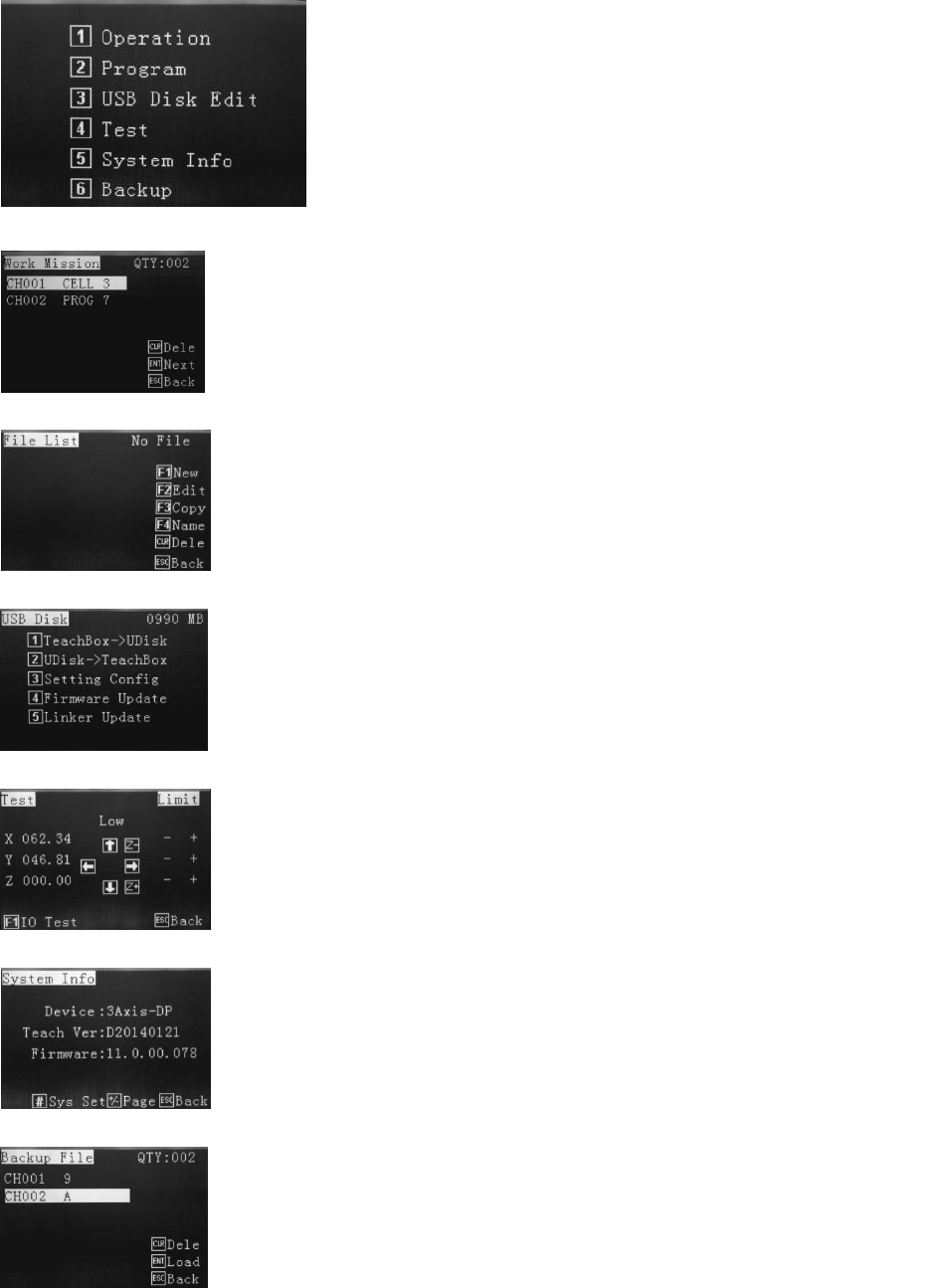
7. TEACH PENDANT MAIN SCREEN
1 – Operation – Select the saved program, apply home adjust, process file and delete
file, activate robot by external source (shortcut), setting purge and usage times.
This mode is to run the robot with teach pendant connected once the program has
been written and saved.
2 – Program – Create dispensing program, edit parameters, copy, delete, download.
3 – USB Disk Edit – Download/Upload program to USB, system update.
4 – Test – For testing areas of the robot such as axis jogging and I/O ports.
5 – System Info – Device type, teach version, firmware version and connecting
safety cover.
6 – Backup – Load teaching file from robot’s memory to teaching pendant’s
memory, or delete the teaching file in the robot.
After the robot has initialized the mian screen will be displayed.
Every function of the robot is controlled through one of the 6 choices
of the main screen. An overview of each section is provided below.
9
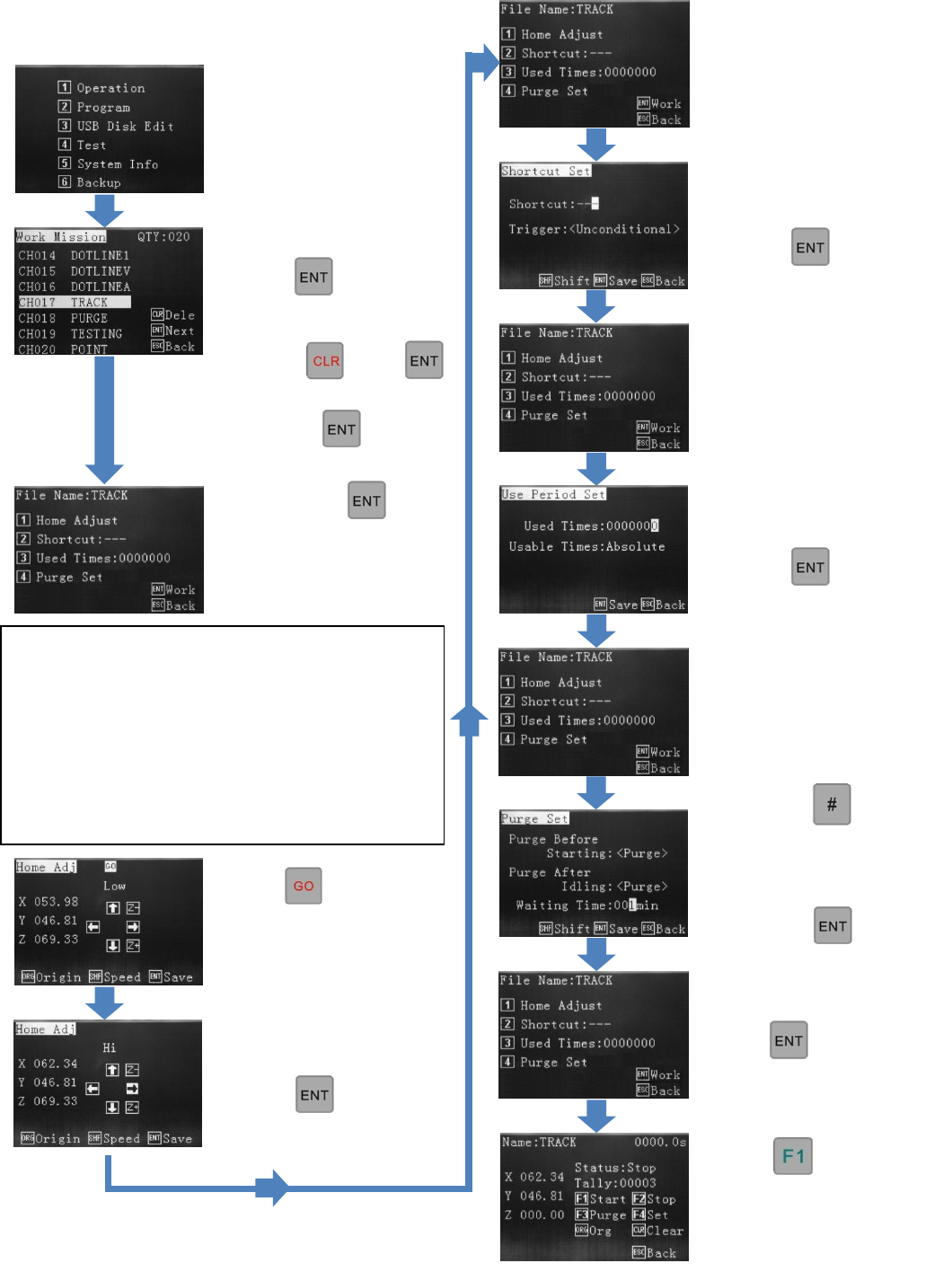
8. OPEARATION – RUNNING A SAVED PROGRAM
Press 1
Select program to be used and
press
or
Select program to be deleted
and press then
If selecting dispense cycle to
load, press twice.
This will go to the final step.
By pressing once:
1 – Calibrate tip position
2 – Create shortcut
3 – Reset counter
4 – Set Purge Position
(Optional) Press 2
Change current state and press
(Optional) Press 3
Change counter,
press
Using the button,
select if Purge is required at
start or end of program, or not
at all.
Press
Press and then use
alphanumeric keys to
move to the correct
location.
Note: Home Adjust is the process in which to
adjust/offset the co-ordinates completely in cases such
that: the dispensing tip has been changed or the
dispensing valve has been removed and refitted. Due
to very small differences from product to product or if
the valve has been removed and put on at a slightly
different position, the operator can calibrate the
program to the new position. The entire program will
offset to where the operator has set it to.
Press
(Optional) Press 4
Press
Press
This starts the dispensing
cycle.
10
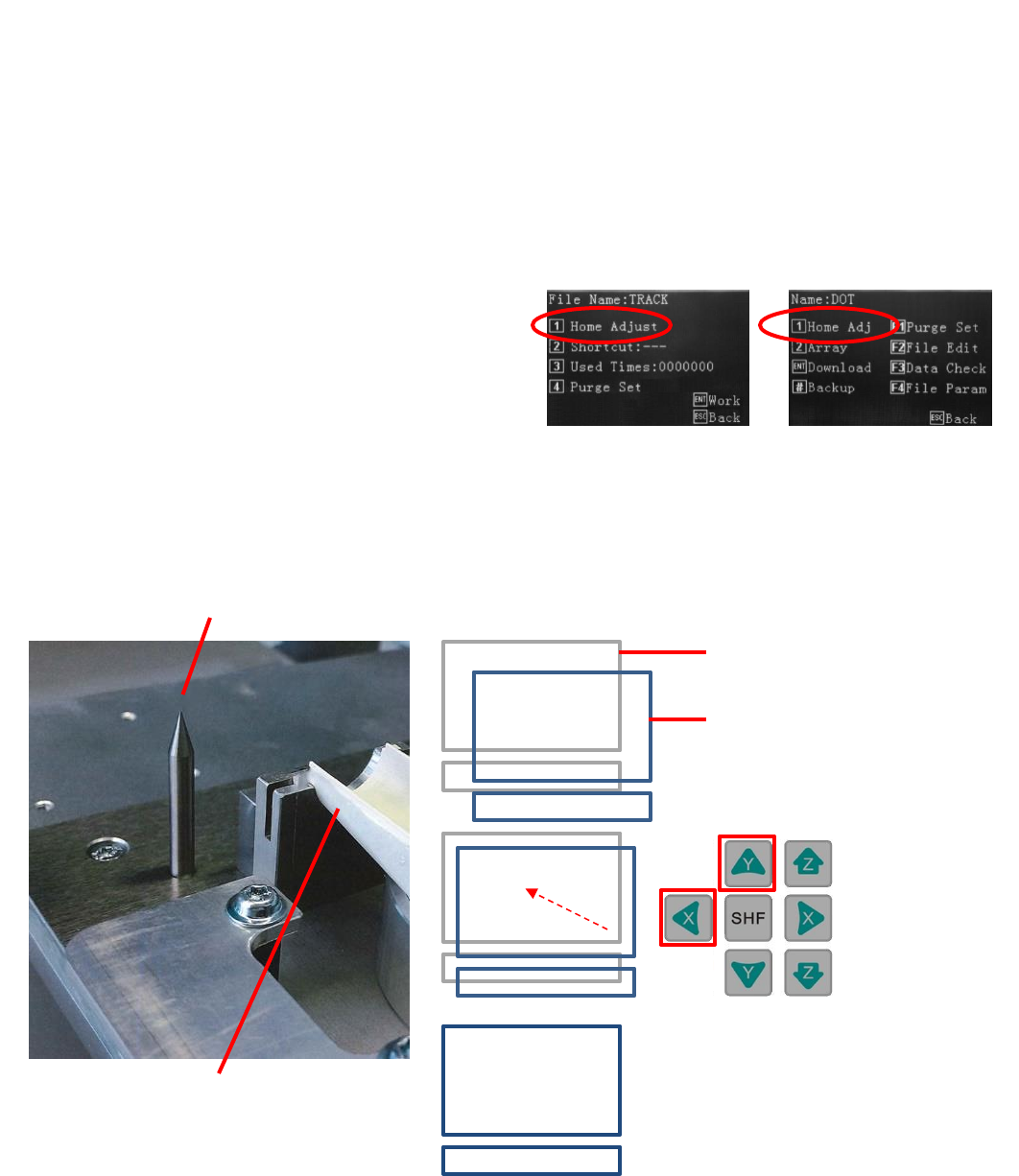
8.1 Calibrating the Dispense Tip
When a dispense tip is changed, or the valve is removed from the robot, it is normal for the tip/valve to be slightly out of
the original position when reattached. By creating a physical calibration point, on the device or fixture, the program can be
adjusted to suit the new tip position. This change will only effect the current program and not other programs stored in the
memeory. All programs can have their own unique calibration position.
There are 2 ways to achieve this calibration in the x, y and z axis:
Reference Point – by inserting a “REF PT”, into the Points List, during programming, calibration of the tip is performed
at a specified place by the user, such as a pointed stick or cross-hair markings on the holding fixture.
Home Adjust – if the “REF PT” is not inserted into the program the robot will use the first dispensing location as the
calibration co-ordinate.
By pressing Home, Home Adjust or Home Adj
Home Adjust can be found in the following screens:
If this function is performed in the Editing screen the program
will need to be Downloaded after the Home Adjust.
In Operation Menu
In Editing Screen
Typical calibration pin
Device to be dispensed onto
Original dispense location
New dispense location due to
dispense tip variance or valve
refitted to robot slightly out of
position.
Use jog keys to
align.
Dispense tip now calibrated.